


Ways to Open Apple .Pages Documents in Microsoft Word and Windows
If you have ever received a file with the .pages extension on a Windows computer, you may have noticed that it does not open normally in Microsoft Word or other standard Windows applications. This can be confusing, especially if the document was created on a Mac using Apple Pages.
The .pages format is Apple’s proprietary document type designed for the Pages word-processing application included with macOS and iCloud. Since Windows does not natively support this format, users often struggle to open, edit, or convert Pages files.
Fortunately, there are several reliable ways to open .pages files on Windows and even convert them into Microsoft Word-compatible formats such as DOCX or PDF.
In this guide, you’ll learn what a .pages file is and the best methods to open it on Windows 10 and Windows 11.
What Is a .Pages File?
A .pages file is a document created using Apple Pages, which is part of Apple’s iWork productivity suite.
Pages files may contain:
- Text documents
- Reports
- Essays
- Resumes
- Flyers
- Tables
- Images
- Formatting elements
The format is designed primarily for macOS, iPhone, and iPad devices.
Why Windows Cannot Open .Pages Files Directly
Microsoft Word and Windows applications do not include built-in support for Apple Pages documents.
As a result:
- Double-clicking the file may do nothing
- Windows may ask you to choose an app
- Word may display compatibility errors
However, the file can still be opened using alternative methods.
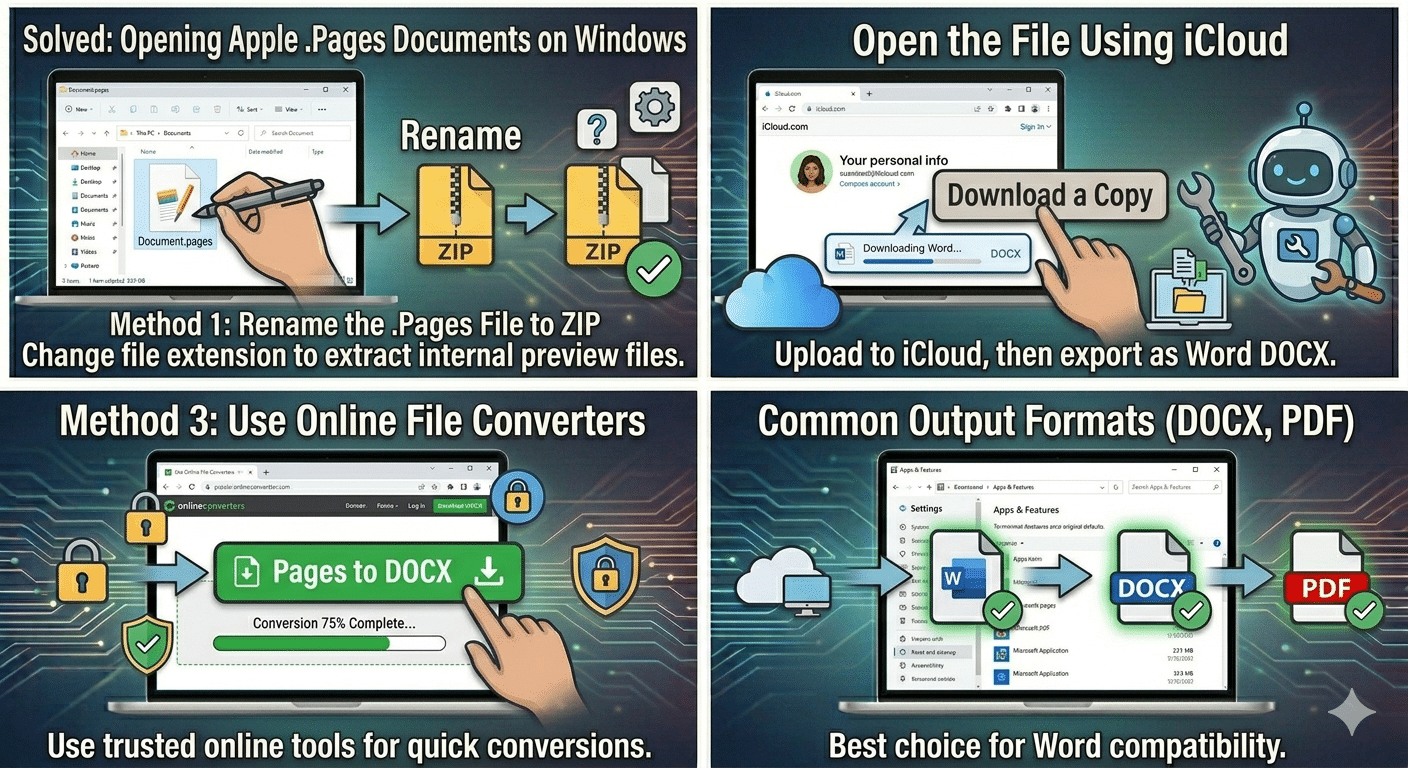
Method 1: Rename the .Pages File to ZIP
One of the simplest methods involves accessing the preview files stored inside the Pages document.
Steps
- Locate the
.pagesfile - Right-click it
- Select:
- Rename
- Change the extension from:
.pagesto:
.zip- Press Enter
- Open the ZIP archive
Inside, you may find:
- PDF preview files
- JPG preview images
- Document resources
Important
This method may not allow full editing, but it can help you view the document contents.
Method 2: Open the File Using iCloud
Apple provides online access to Pages through iCloud.
Steps
- Open a web browser
- Go to:
- iCloud.com
- Sign in with an Apple ID
- Open:
- Pages
- Upload the
.pagesfile - Open the document online
Export to Word
Once opened:
- Select:
- Download a Copy
- Choose:
- Word (.docx)
This creates a Microsoft Word-compatible version.
Method 3: Ask the Sender To Convert the File
If possible, ask the person who created the document to save it in another format.
Supported Formats
- DOCX
- RTF
How Mac Users Can Convert Pages Files
In Apple Pages:
- Open the document
- Select:
- File → Export To
- Choose:
- Word
or:
- Word
This is often the easiest solution.
Method 4: Open .Pages File in Microsoft Word
Some modern Word versions may partially open converted Pages files after extraction.
Try This
- Rename
.pagesto.zip - Extract the archive
- Look for:
- Preview.pdf
or:
- Preview.docx
- Open the extracted file in Word
Method 5: Use Online File Converters
Several websites can convert Pages files into Word documents.
Common Output Formats
- DOCX
- TXT
Important Security Tip
Avoid uploading sensitive or confidential files to unknown websites.
Method 6: Use Google Drive
Google Docs may help open converted documents.
Steps
- Upload the Pages file or converted PDF to Google Drive
- Open it using Google Docs
- Download as:
- Microsoft Word (.docx)
Method 7: Use Third-Party Applications
Some file viewers and office suites may support Pages documents.
Possible Applications
- LibreOffice
- WPS Office
- File viewers with Pages support
Compatibility may vary depending on the document structure.
How To Convert .Pages Files to Word Format
Converting to DOCX is usually the best option for Windows users.
Using iCloud
This is the most reliable conversion method.
Advantages
- Maintains formatting
- Supports images and tables
- Official Apple compatibility
Using Online Converters
These are convenient for quick access.
Potential Limitations
- Formatting issues
- Privacy concerns
- File size restrictions
Can Microsoft Word Open .Pages Files Directly?
In most cases, no.
Microsoft Word does not officially support native Pages documents directly. Conversion is usually required first.
What Happens If You Rename the File?
Pages documents are technically compressed archives.
Renaming the extension to ZIP allows Windows to access internal preview files.
You May Find
- PDF previews
- Image previews
- Metadata files
However, editing functionality is limited.
Why Formatting Sometimes Changes After Conversion
Document conversions between Apple Pages and Word may not always preserve:
- Fonts
- Margins
- Tables
- Animations
- Special layouts
Complex documents may require manual adjustments afterward.
How To Open .Pages Files on Older Windows Versions
The same methods generally work for:
- Windows 7
- Windows 8
- Windows 10
- Windows 11
Browser-based solutions like iCloud are especially useful.
Common Problems When Opening .Pages Files
File Won’t Convert Properly
Possible causes include:
- Corrupted file
- Unsupported formatting
- Incomplete upload
Blank Preview Files
The document may not contain generated previews.
Missing Images or Formatting
Some advanced Pages features may not translate correctly to Word.
Tips for Sharing Documents Between Mac and Windows
To avoid compatibility problems:
- Save files as DOCX before sharing
- Use PDF for read-only documents
- Avoid Pages-exclusive formatting features
When PDF Is the Better Option
PDF works well when:
- Editing is unnecessary
- Layout preservation is important
- Cross-platform compatibility is required
Advantages of Converting to DOCX
DOCX files offer:
- Easy editing
- Better Windows compatibility
- Support in Microsoft Office
- Improved sharing flexibility
How To Avoid .Pages Compatibility Problems in the Future
If you frequently work across platforms:
- Use DOCX as the default format
- Store files in cloud services
- Use cross-platform office tools
Final Thoughts
The .pages file format is designed for Apple Pages and is not natively supported by Windows or Microsoft Word. However, this does not mean the file is inaccessible. By using iCloud, ZIP extraction, online converters, or conversion tools, Windows users can successfully open and work with Pages documents.
For the best compatibility, converting Pages files to DOCX or PDF is usually the most effective solution. Whether you need to view, edit, or share the document, the methods above can help you access .pages files easily on Windows 10 and Windows 11.