


Can’t Download Attachments From Outlook Web App? Here’s the Fix
Outlook Web App (OWA), also known as Outlook on the Web, is widely used for accessing emails through a browser without installing desktop software. While the platform is convenient and reliable, some users encounter a frustrating issue where they cannot download email attachments properly.
The problem may appear in different ways. Attachments may fail to download, the download button may not respond, files may open as blank pages, or browsers may display security errors. In some situations, Outlook Web App may block downloads entirely.
This issue can be caused by browser problems, security settings, network restrictions, corrupted cache files, attachment policies, or account-related issues. Fortunately, there are several effective methods to fix the problem and restore normal attachment downloads.
In this guide, you’ll learn why Outlook Web App cannot download attachments and how to solve the issue on Windows 10 and Windows 11.
Why Can’t Outlook Web App Download Attachments?
Outlook Web App depends heavily on browser functionality and Microsoft cloud services. If the browser, network, or account configuration becomes corrupted or restricted, attachment downloads may stop working properly.
Common Symptoms
You may notice:
- Download button not working
- Attachments refusing to open
- Blank download pages
- Browser freezing during downloads
- Security warnings
- Attachments missing entirely
- “Something went wrong” errors
Common Causes of Attachment Download Problems
Browser Cache Corruption
Damaged cache files may interfere with Outlook functionality.
Browser Extensions Conflicts
Ad blockers or security extensions may block downloads.
Pop-up Blocking
Some browsers prevent attachment windows from opening.
Incorrect Browser Permissions
Downloads may be blocked by browser security settings.
Outlook Web App Policies
Organizations may restrict attachment downloads.
Antivirus or Firewall Restrictions
Security software can block downloaded files.
How To Fix Unable to Download Attachments From Outlook Web App
Try the following troubleshooting methods carefully.
Refresh the Browser Page
Temporary Outlook glitches may disappear after refreshing.
Shortcut
Press:
F5or:
Ctrl + RThen try downloading the attachment again.
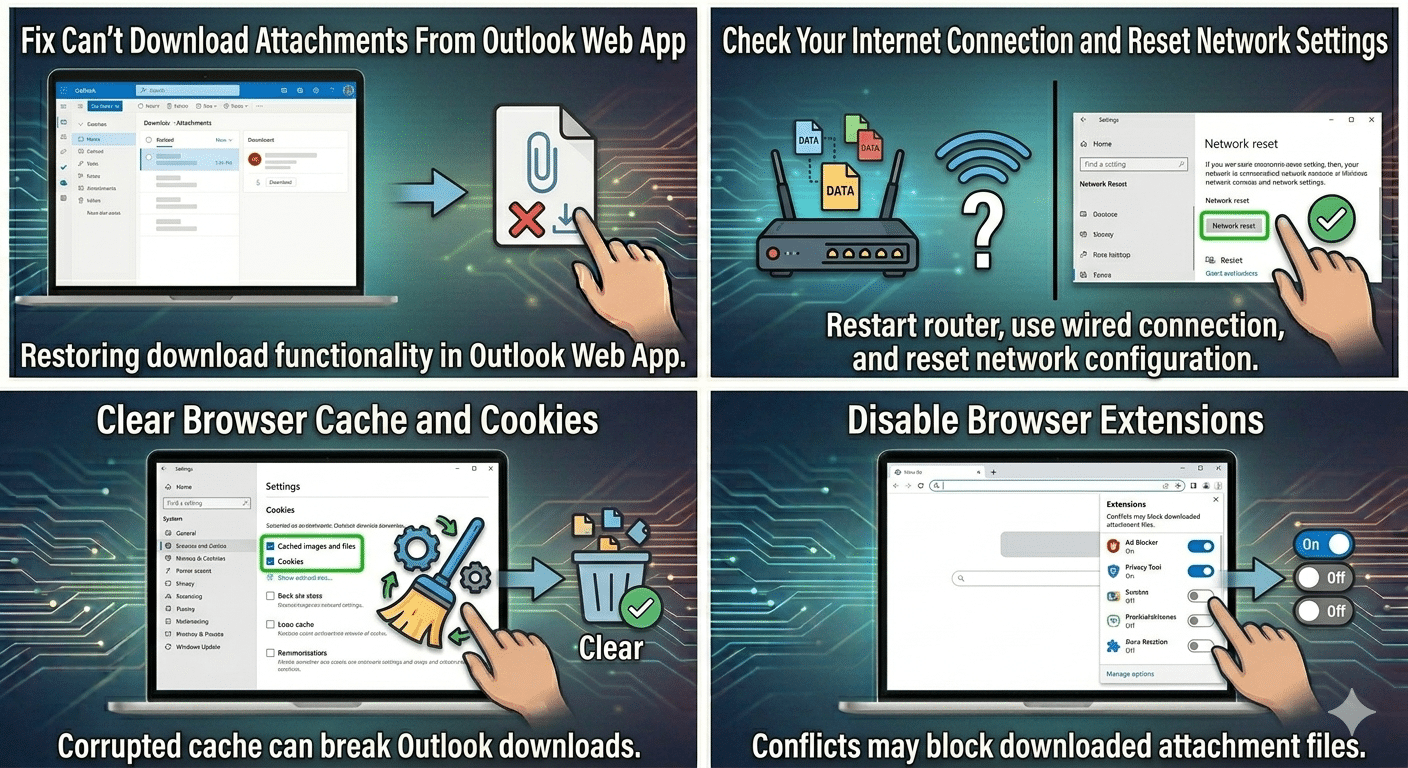
Check Your Internet Connection
Unstable internet may interrupt attachment downloads.
Try
- Restarting the router
- Switching networks
- Using a wired connection if possible
Use Another Browser
Browser-specific issues are very common.
Try Testing With
- Microsoft Edge
- Google Chrome
- Mozilla Firefox
If downloads work in another browser, the original browser likely has configuration problems.
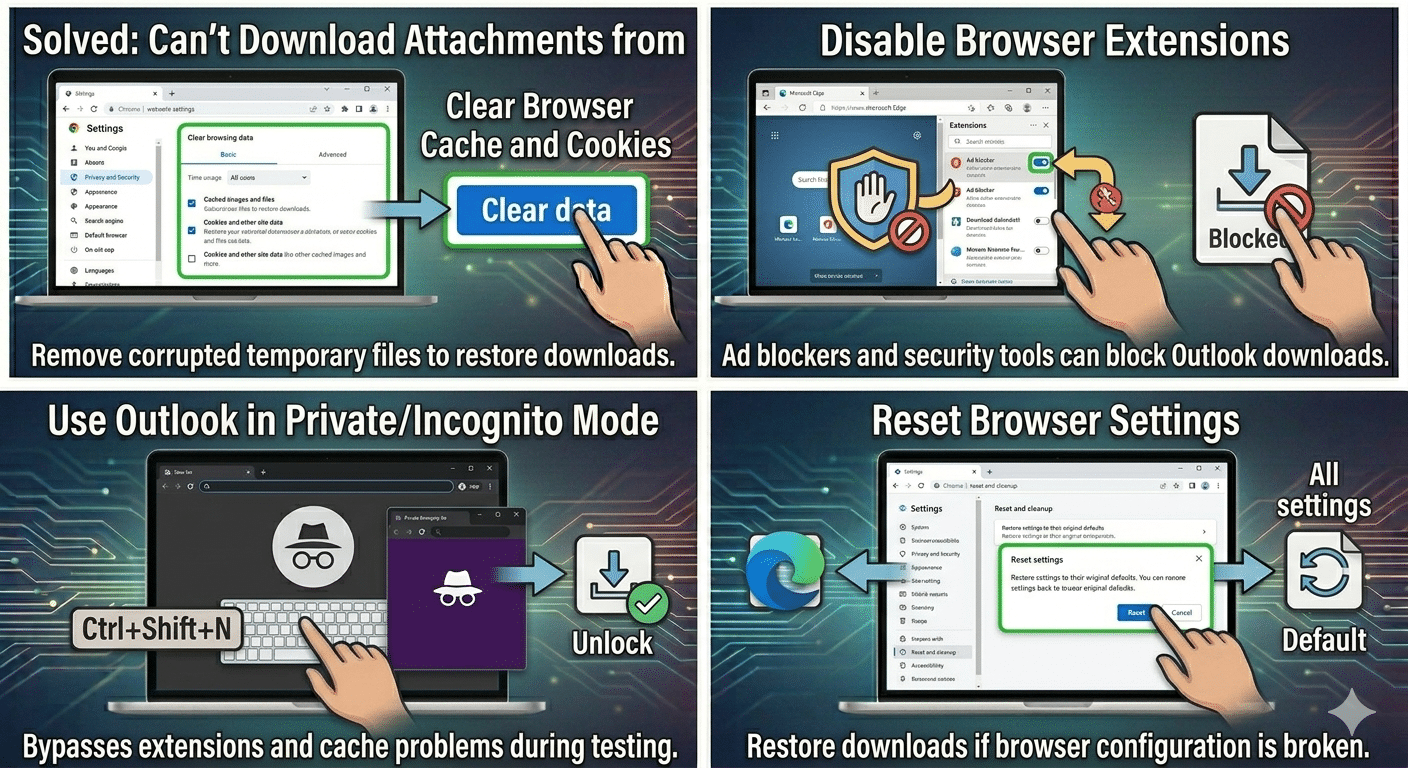
Clear Browser Cache and Cookies
Corrupted cache files may break Outlook features.
Steps
- Open browser settings
- Go to:
- Privacy and Security
- Clear:
- Cached images and files
- Cookies
Restart the browser afterward.
Disable Browser Extensions
Extensions sometimes interfere with Outlook downloads.
Temporarily Disable
- Ad blockers
- Privacy tools
- Download managers
- Security extensions
Then test the attachment again.
Enable Pop-ups for Outlook
Outlook may open attachments in new browser windows.
Steps
- Open browser settings
- Go to:
- Site Permissions → Pop-ups and redirects
- Allow pop-ups for Outlook Web App
Try Download Instead of Preview
Preview mode sometimes fails while direct download works.
Try
- Right-clicking the attachment
- Selecting:
- Download
instead of: - Preview
- Download
Check File Type Restrictions
Some attachment types may be blocked for security reasons.
Commonly Blocked Files
.exe.bat.cmd.js
Compressed ZIP files may also be restricted in corporate environments.
Disable Antivirus Temporarily
Security software may block attachment downloads.
Important
Only disable antivirus temporarily for testing.
Check Browser Download Permissions
Browsers may block downloads automatically.
Steps in Chrome/Edge
- Open:
- Settings → Downloads
- Ensure downloads are allowed
- Check blocked download notifications
Sign Out and Sign Back Into Outlook
Authentication problems may interrupt downloads.
Steps
- Sign out of Outlook Web App
- Close the browser
- Reopen and sign back in
Open Outlook in Private/Incognito Mode
This bypasses many extension and cache problems.
Shortcuts
- Chrome:
Ctrl + Shift + N- Firefox:
Ctrl + Shift + PThen test attachment downloads.
Disable Protected Mode in Browser (Temporarily)
Browser security settings may block downloads.
Important
Only test this temporarily and restore security afterward.
Check Organization Security Policies
Work or school accounts may restrict attachment access.
Possible Restrictions
- Download blocking
- Preview-only mode
- Device management rules
- Data protection policies
If using a company account, contact your IT administrator.
Update Your Browser
Outdated browsers may not work properly with Outlook.
Steps
- Open browser settings
- Check for updates
- Restart the browser
Reset Browser Settings
Corrupted browser configurations may prevent downloads.
Try
- Resetting browser settings to default
- Re-enabling downloads afterward
Disable VPN or Proxy
VPNs and proxies may interfere with Microsoft services.
Try
- Disconnecting VPN temporarily
- Disabling proxy settings
Check Storage Space
Downloads may fail if the drive is full.
Verify
- Available disk space
- Download folder accessibility
Try Another Device
This helps determine whether the problem is device-specific.
Test On
- Another computer
- Smartphone
- Tablet
If downloads work elsewhere, the original device likely has browser or configuration issues.
Run Windows Security Scan
Malware may interfere with browser downloads.
Steps
- Open:
- Windows Security
- Run:
- Full Scan
Remove any detected threats.
Reset Network Settings
Network corruption can occasionally affect downloads.
Steps
- Open:
- Settings → Network & Internet
- Select:
- Network reset
- Restart the PC
Use Outlook Desktop App
If Outlook Web App continues failing:
Alternative
Use:
- Microsoft Outlook desktop application
- Outlook mobile app
These may bypass browser-related problems.
When Attachments Download but Won’t Open
This may indicate:
- File corruption
- Missing software
- Security blocking
- Incomplete downloads
Try downloading the file again or opening it with another application.
When Outlook Web App Is Slow or Freezing
Performance issues may also affect downloads.
Possible Causes
- Browser overload
- Too many tabs open
- Memory limitations
- Large mailbox synchronization
Closing unnecessary tabs may help.
Tips to Prevent Outlook Attachment Problems
To reduce future issues:
- Keep browsers updated
- Avoid suspicious extensions
- Clear cache regularly
- Maintain stable internet access
- Use trusted antivirus software
When to Contact Microsoft or IT Support
Seek additional help if:
- Attachments fail across all devices
- Only work/school accounts are affected
- Organization security policies block downloads
- Outlook services appear unavailable
Final Thoughts
The inability to download attachments from Outlook Web App is usually caused by browser cache problems, extensions, security settings, network restrictions, or organizational policies. Although the issue can interrupt productivity, most cases can be fixed with simple browser and network troubleshooting.
By clearing cache, disabling extensions, updating browsers, checking download permissions, and testing different browsers or devices, most users can restore attachment downloads successfully.
Related articles
Fixing the “Kernel Security Check Failure” Error on Windows 10