


How to Fix Mobile Hotspot Not Working in Windows 10
The Mobile Hotspot feature in Windows 10 is a convenient way to share your internet connection with other devices. Whether you’re using a laptop or desktop, it allows you to turn your PC into a Wi-Fi hotspot for smartphones, tablets, and other computers. However, many users experience issues where the Mobile Hotspot stops working, refuses to turn on, or connects without internet access.
If you’re facing this problem, don’t worry. This guide will walk you through the causes and provide effective solutions to fix Mobile Hotspot issues on Windows 10.
Common Signs of Mobile Hotspot Problems
Before troubleshooting, here are the most common symptoms:
- Mobile Hotspot won’t turn on
- Devices cannot detect the hotspot
- Devices connect but have no internet
- Frequent disconnections
- Error messages when enabling hotspot
These issues can be caused by network configuration problems, driver issues, or system settings.
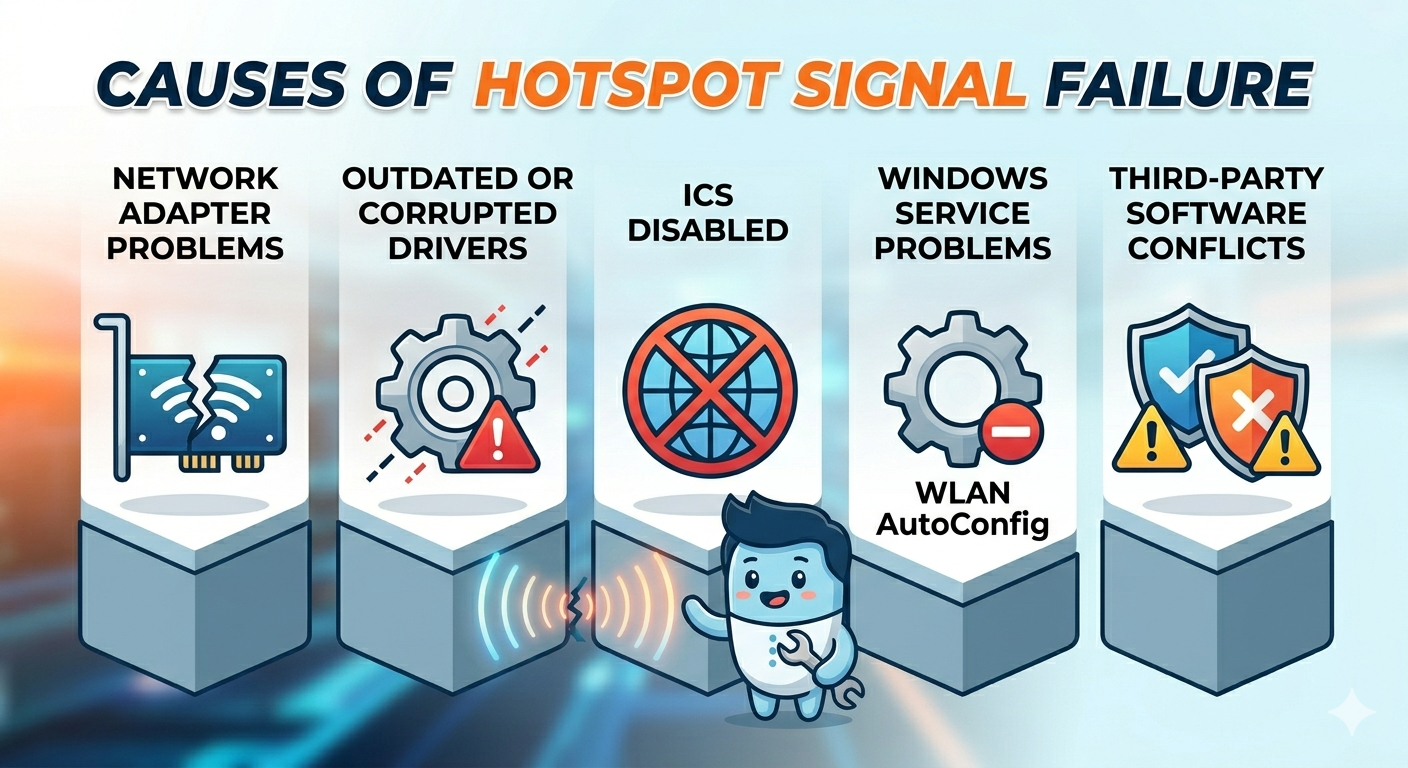
Why Mobile Hotspot Is Not Working
Understanding the cause helps you apply the right fix.
Network Adapter Issues
The wireless adapter is essential for broadcasting the hotspot. If it’s disabled or malfunctioning, the hotspot won’t work.
Outdated or Corrupted Drivers
Drivers control how your system communicates with hardware. Faulty drivers can break hotspot functionality.
Internet Connection Sharing (ICS) Disabled
ICS allows your PC to share its internet connection. If disabled, connected devices won’t have internet access.
Windows Service Problems
Certain services must be running for the hotspot to function properly.
Third-Party Software Conflicts
VPNs, firewalls, or antivirus programs can interfere with the hotspot.
How to Fix Mobile Hotspot Not Working in Windows 10
Try the following solutions to restore hotspot functionality.
Turn Mobile Hotspot Off and On
Start with the simplest fix.
Steps
- Open Settings
- Go to Network & Internet
- Select Mobile Hotspot
- Turn it Off, wait a few seconds, then turn it On
Check if devices can connect.
Check Your Internet Connection
Your PC must have an active internet connection.
What to Do
- Open a browser and test connectivity
- Restart your router or modem
- Switch between Wi-Fi and Ethernet
Ensure your connection is stable before enabling the hotspot.
Enable Internet Connection Sharing (ICS)
ICS is required for sharing internet.
Steps
- Press
Windows + R, type ncpa.cpl, and press Enter - Right-click your active internet connection
- Select Properties
- Go to the Sharing tab
- Check Allow other network users to connect through this computer’s Internet connection
- Click OK
Try enabling the hotspot again.
Update Network Drivers
Outdated drivers can cause connectivity issues.
Steps
- Right-click Start
- Open Device Manager
- Expand Network adapters
- Right-click your adapter
- Select Update driver
- Choose Search automatically for drivers
Restart your computer.
Reinstall Network Adapter
If updating doesn’t help, reinstall the driver.
Steps
- Open Device Manager
- Right-click your network adapter
- Select Uninstall device
- Restart your PC
Windows will reinstall the driver automatically.
Check Required Services
Ensure essential services are running.
Steps
- Press
Windows + R, type services.msc, and press Enter - Locate:
- Internet Connection Sharing (ICS)
- WLAN AutoConfig
- Windows Update
- Set them to Automatic and ensure they are running
Restart your system.
Disable Power Saving for Network Adapter
Power-saving settings may disable your adapter.
Steps
- Open Device Manager
- Right-click your network adapter
- Select Properties
- Go to Power Management
- Uncheck Allow the computer to turn off this device to save power
- Click OK
Test the hotspot again.
Change Hotspot Band or Settings
Compatibility issues may prevent connections.
Steps
- Go to Settings → Network & Internet → Mobile Hotspot
- Click Edit
- Change the network name or password
- Switch between 2.4 GHz and 5 GHz (if available)
Reconnect your devices.
Turn Off Bluetooth
Bluetooth can sometimes interfere with Wi-Fi.
Steps
- Open Settings → Devices → Bluetooth
- Turn off Bluetooth
Check if the hotspot works.
Disable VPN or Firewall Temporarily
Some software may block connections.
What to Do
- Turn off VPN
- Disable third-party firewall temporarily
- Test hotspot functionality
Re-enable security software after testing.
Run Network Troubleshooter
Windows includes a built-in troubleshooter.
Steps
- Open Settings
- Go to Update & Security → Troubleshoot
- Select Network Adapter
- Run the troubleshooter
Follow the instructions.
Reset Network Settings
If nothing works, reset network configurations.
Steps
- Open Settings
- Go to Network & Internet
- Scroll down and click Network reset
- Confirm the reset
Your PC will restart.
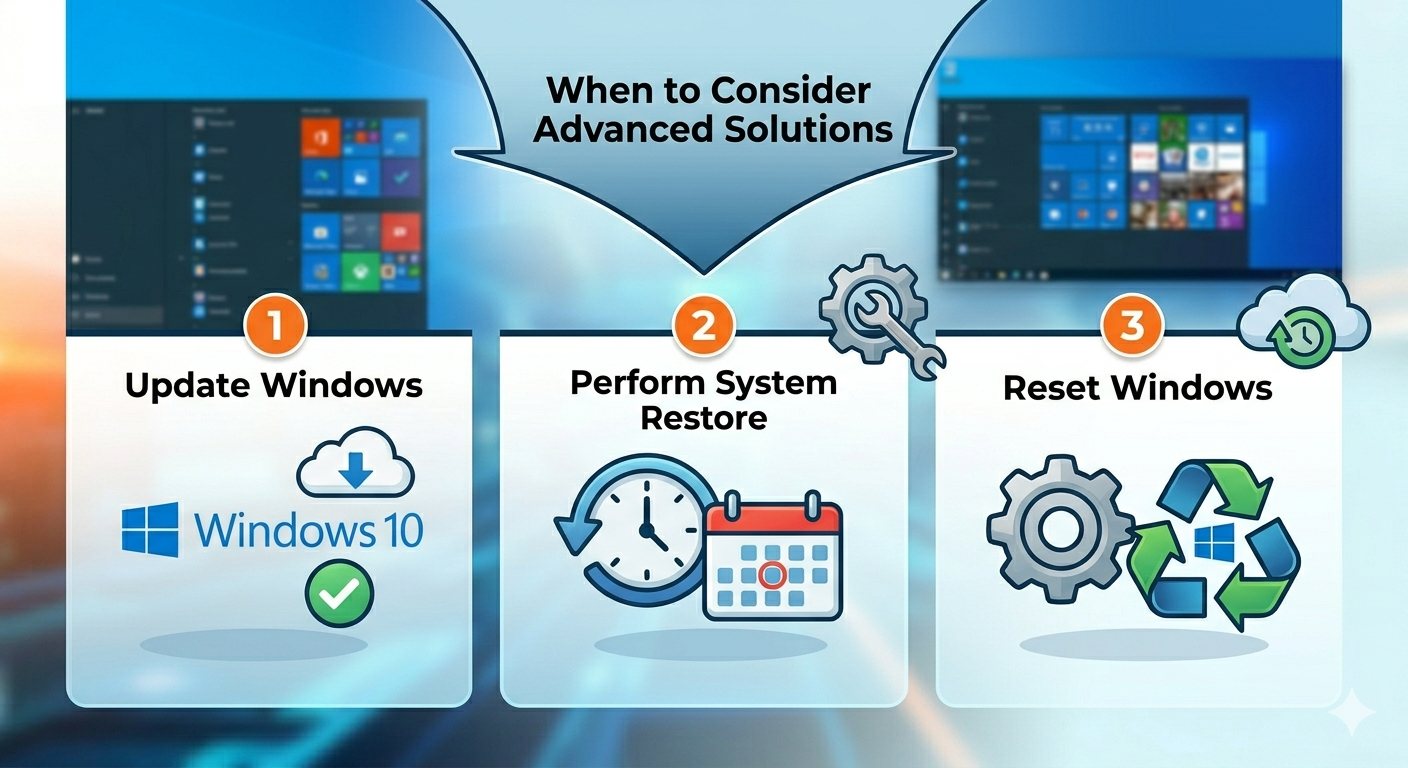
When to Consider Advanced Solutions
If the issue persists, you may need to:
- Update Windows to the latest version
- Perform a System Restore
- Reset Windows while keeping files
These methods can resolve deeper system issues.
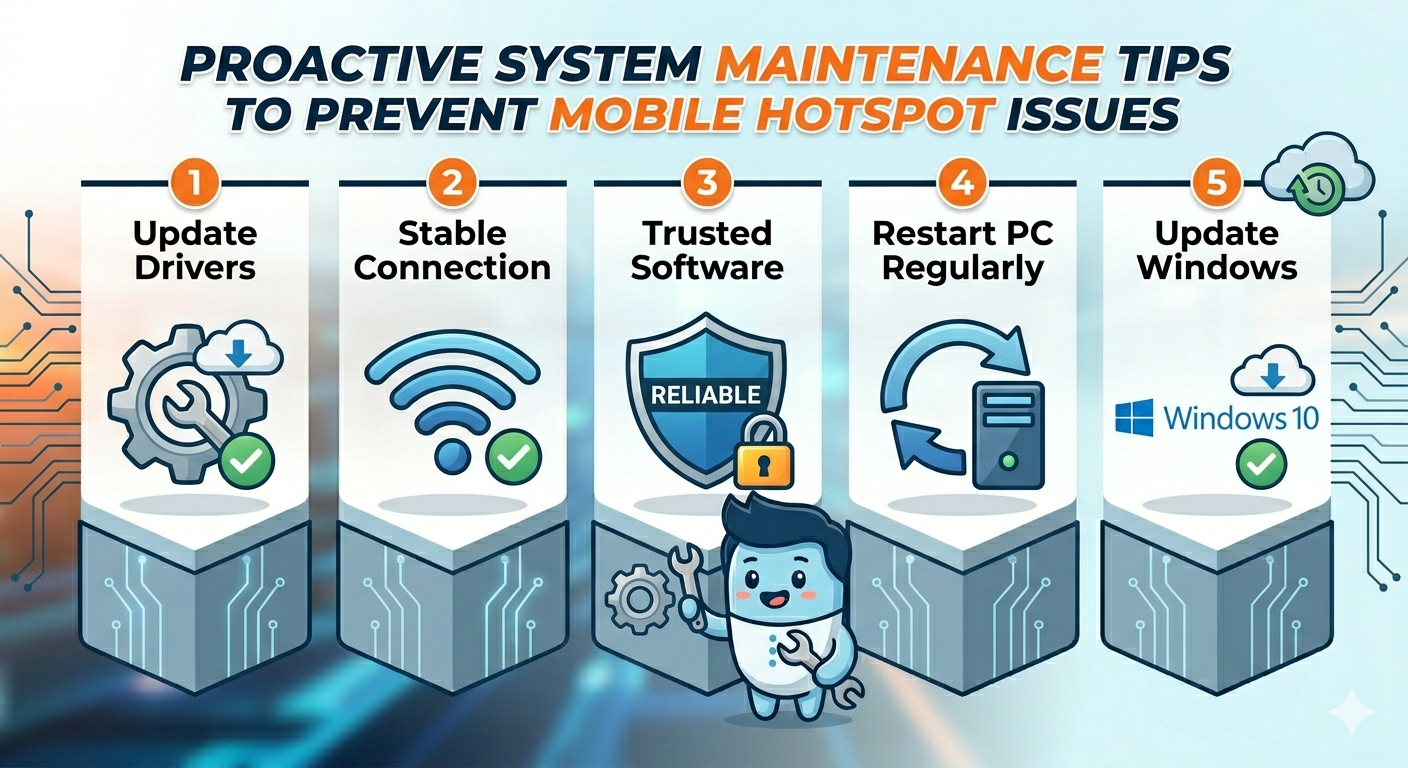
Tips to Prevent Hotspot Issues
To avoid future problems:
- Keep drivers updated
- Maintain a stable internet connection
- Avoid using untrusted network tools
- Restart your PC regularly
- Keep Windows updated
These practices help ensure smooth performance.
Final Thoughts
The Mobile Hotspot feature in Windows 10 is extremely useful, but it can sometimes stop working due to driver issues, misconfigured settings, or software conflicts. Fortunately, most problems can be fixed with simple troubleshooting steps.
Start with basic solutions like toggling the hotspot and checking your connection, then move on to updating drivers, enabling services, and resetting network settings if necessary. With the methods in this guide, you should be able to restore your Mobile Hotspot and share your internet connection without any hassle.
Related articles
Fixing the “Kernel Security Check Failure” Error on Windows 10