


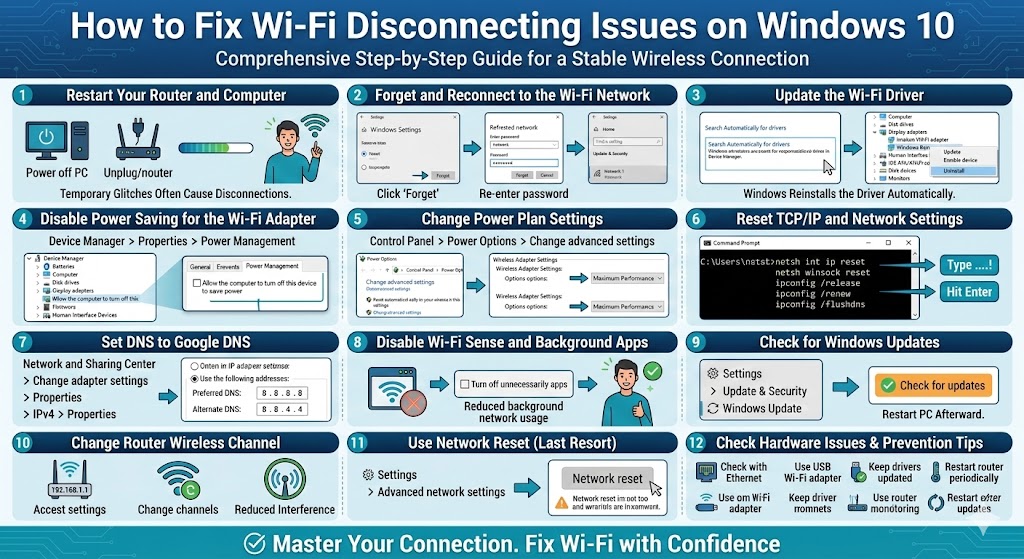
How to Fix Wi-Fi Disconnecting Issues on Windows 10
A stable internet connection is essential for work, gaming, streaming, and online communication. So when your WiFi keeps disconnecting on Windows 10, it can quickly become frustrating. You might notice your connection dropping randomly, reconnecting automatically, or showing “No Internet” even though the network is available.
This issue can be caused by outdated drivers, power management settings, router problems, incorrect network configurations, or even Windows updates. Fortunately, most WiFi disconnection problems can be resolved with the right troubleshooting steps.
In this complete guide, you’ll learn why WiFi keeps disconnecting on Windows 10 and how to fix it effectively.
Why Does WiFi Keep Disconnecting on Windows 10?
Before applying fixes, it’s important to understand the possible causes. The most common reasons include:
-
Outdated or corrupted WiFi drivers
-
Power-saving settings disabling the adapter
-
Router or modem instability
-
Incorrect network configuration
-
Interference from other devices
-
Windows update bugs
-
Faulty network adapter
-
Antivirus or firewall conflicts
The issue may happen frequently or only occasionally, depending on the underlying cause.
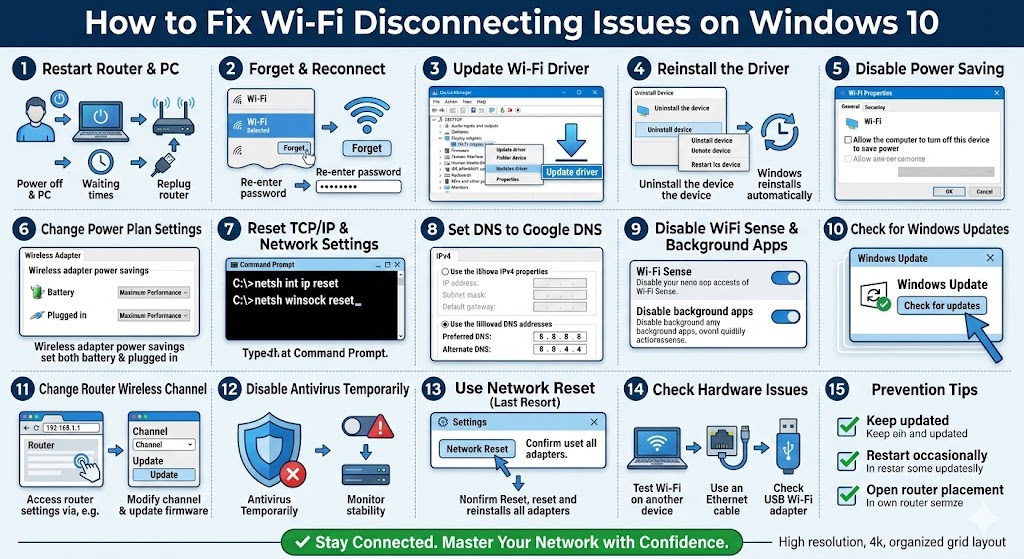
Restart Your Router and Computer
Before making advanced changes, try the simplest solution.
Steps
-
Turn off your computer
-
Unplug your router and modem
-
Wait 30–60 seconds
-
Plug the router and modem back in
-
Turn your computer back on
Temporary router glitches often cause random disconnections.
Forget and Reconnect to the WiFi Network
Corrupted network profiles can lead to unstable connections.
How to Forget a WiFi Network
-
Open Settings
-
Go to Network & Internet
-
Select Wi-Fi
-
Click Manage known networks
-
Select your network
-
Click Forget
Reconnect by entering your WiFi password again.
Update the WiFi Driver
Outdated drivers are one of the most common causes of WiFi disconnections.
Update Driver Automatically
-
Press Windows + X
-
Select Device Manager
-
Expand Network adapters
-
Right-click your WiFi adapter
-
Select Update driver
-
Choose Search automatically for drivers
Restart your PC after updating.
Reinstall the Driver
If updating does not help:
-
Right-click the WiFi adapter
-
Select Uninstall device
-
Restart your computer
Windows will reinstall the driver automatically.
Disable Power Saving for the WiFi Adapter
Windows may turn off the WiFi adapter to save power, especially on laptops.
Disable Power Management
-
Open Device Manager
-
Expand Network adapters
-
Right-click your WiFi adapter
-
Select Properties
-
Go to the Power Management tab
-
Uncheck Allow the computer to turn off this device to save power
-
Click OK
Restart your computer and test your connection.
Change Power Plan Settings
Your current power plan may restrict network performance.
Adjust Power Plan
-
Open Control Panel
-
Select Power Options
-
Click Change plan settings
-
Select Change advanced power settings
-
Expand Wireless Adapter Settings
-
Set both options to Maximum Performance
Apply changes and restart your PC.
Reset TCP/IP and Network Settings
Corrupted network configurations can cause frequent disconnections.
Reset via Command Prompt
-
Open Command Prompt as administrator
-
Enter the following commands one by one:
netsh winsock reset
ipconfig /release
ipconfig /renew
ipconfig /flushdns
-
Restart your computer
This resets your network stack to default settings.
Set DNS to Google DNS
Incorrect DNS settings may lead to unstable internet access.
Change DNS Server
-
Open Control Panel
-
Go to Network and Sharing Center
-
Click Change adapter settings
-
Right-click your WiFi connection
-
Select Properties
-
Double-click Internet Protocol Version 4 (IPv4)
-
Select Use the following DNS server addresses
-
Enter:
-
Preferred DNS: 8.8.8.8
-
Alternate DNS: 8.8.4.4
-
-
Click OK
Reconnect and test the connection.
Disable WiFi Sense and Background Apps
Some background services may interfere with network stability.
Disable Background Apps
-
Open Settings
-
Click Privacy
-
Select Background apps
-
Turn off unnecessary apps
Reducing background network usage can improve stability.
Check for Windows Updates
Sometimes WiFi issues are caused by bugs in Windows 10.
Update Windows
-
Open Settings
-
Go to Update & Security
-
Click Check for updates
-
Install available updates
Restart your PC afterward.
Change Router Wireless Channel
WiFi interference from nearby networks can cause disconnects.
What You Can Do
-
Access your router settings (usually via 192.168.1.1 or 192.168.0.1)
-
Change the wireless channel
-
Switch between 2.4 GHz and 5 GHz bands
-
Update router firmware
This reduces signal interference.
Disable Antivirus Temporarily
Some security programs block network communication.
Test Without Antivirus
-
Temporarily disable third-party antivirus
-
Monitor connection stability
-
Add network exceptions if necessary
Re-enable protection after testing.
Use Network Reset (Last Resort)
If nothing else works, perform a full network reset.
How to Reset Network
-
Open Settings
-
Go to Network & Internet
-
Click Advanced network settings
-
Select Network reset
-
Confirm
This removes all network adapters and reinstalls them.
You will need to reconnect to WiFi afterward.
Check Hardware Issues
If the problem continues:
-
Test your WiFi on another device
-
Use an Ethernet cable to check stability
-
Try a USB WiFi adapter
-
Consider replacing the internal network card
Hardware failure, though less common, can cause repeated disconnections.
Preventing WiFi Disconnections in the Future
To maintain a stable WiFi connection:
-
Keep drivers and Windows updated
-
Restart your router occasionally
-
Avoid installing unknown network tools
-
Place the router in an open area
-
Use strong WiFi passwords
-
Reduce interference from other wireless devices
Routine maintenance improves long-term stability.
Final Thoughts
When WiFi keeps disconnecting on Windows 10, it can interrupt your workflow and reduce productivity. Fortunately, the issue is usually caused by driver problems, power settings, network misconfiguration, or router instability.
Related articles
How to Fix the Page Fault in Nonpaged Area Error on Windows
Fixing the “Kernel Security Check Failure” Error on Windows 10