


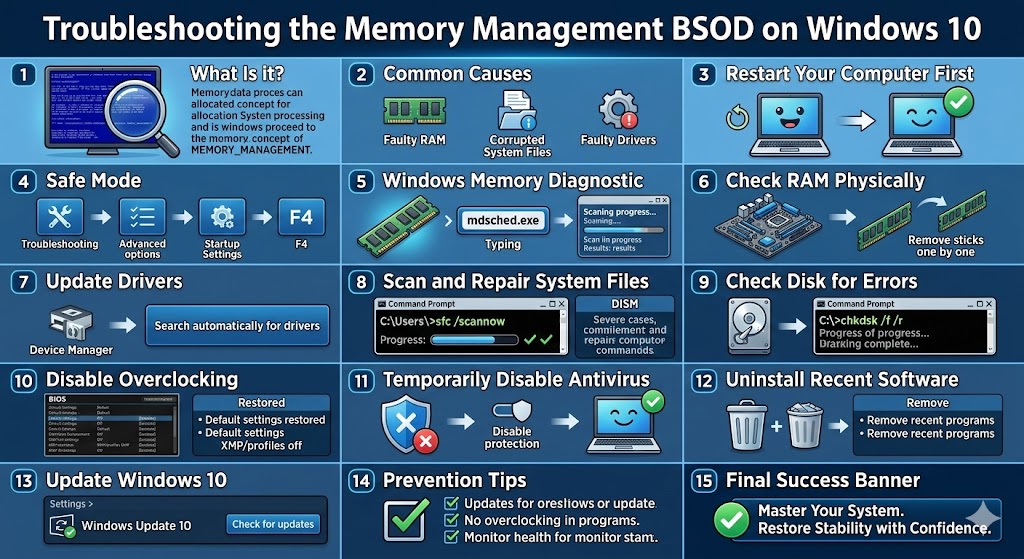
Troubleshooting the Memory Management BSOD on Windows 10
The Stop Code: Memory Management error is a common Blue Screen of Death (BSOD) issue on Windows 10. When this error appears, your system suddenly crashes, displays a blue screen, and restarts to prevent further damage. It can occur during startup, while running applications, gaming, or even when the system is idle.
Although this error looks serious, it is usually caused by memory-related issues, corrupted system files, faulty drivers, or hardware conflicts. With proper troubleshooting, you can identify the cause and fix the problem without replacing your computer.
This detailed guide explains what the Stop Code Memory Management error means, why it occurs, and how to solve it step by step.
What Is the Stop Code Memory Management Error?
Windows uses a complex memory management system to allocate RAM efficiently between programs and system processes. When Windows detects an inconsistency or corruption in how memory is being used, it triggers the Memory Management stop code to protect the system from further damage.
This error often appears as:
-
MEMORY_MANAGEMENT
-
Stop code: MEMORY_MANAGEMENT
The issue may happen once or repeatedly, depending on the underlying cause.
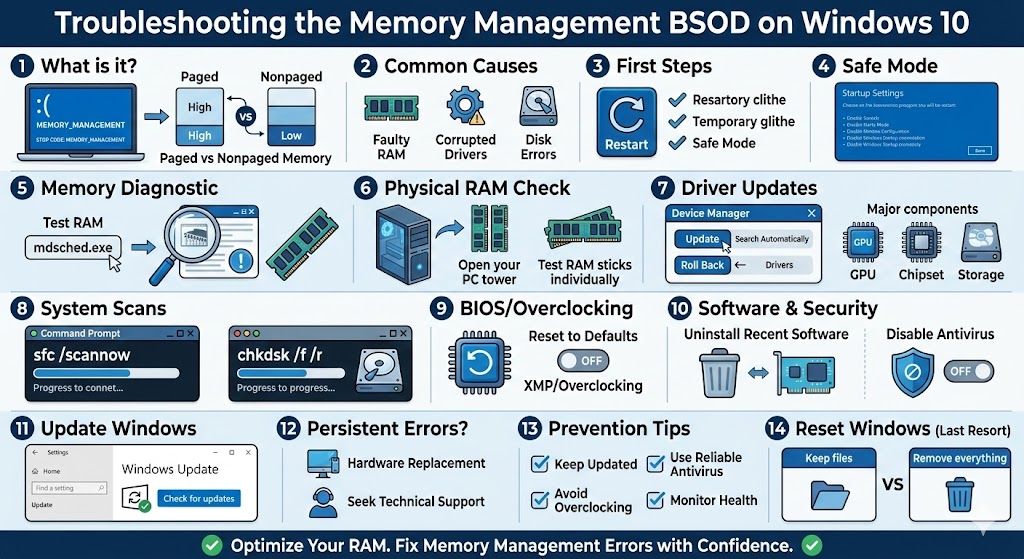
Common Causes of Memory Management Errors
Understanding the root cause helps narrow down the solution. The most common causes include:
-
Faulty or incompatible RAM
-
Corrupted system files
-
Outdated or incompatible device drivers
-
Disk errors or bad sectors
-
Software conflicts
-
Overclocking settings
-
Antivirus interference
-
Windows update issues
The error often appears after hardware upgrades or system changes.
Restart Your Computer First
If the error appears only once, it may be due to a temporary glitch.
Restarting your computer:
-
Clears memory
-
Reloads drivers
-
Resets background processes
If the error does not return, no further action may be required.
Boot Windows 10 into Safe Mode
Safe Mode runs Windows with minimal drivers and services. If the error does not occur in Safe Mode, a third-party application or driver is likely causing the issue.
How to Enter Safe Mode
-
Restart your PC
-
Interrupt the boot process two or three times to open Automatic Repair
-
Select Advanced options
-
Go to Troubleshoot > Advanced options > Startup Settings
-
Click Restart
-
Press 4 or F4 for Safe Mode
Once in Safe Mode, proceed with further troubleshooting.
Run Windows Memory Diagnostic
Faulty RAM is one of the most common causes of memory management errors.
Test Your RAM
-
Press Windows + R
-
Type
mdsched.exe -
Press Enter
-
Choose Restart now and check for problems
Windows will scan your memory during startup. If errors are found, you may need to replace the faulty RAM module.
Check RAM Modules Physically
If you have multiple RAM sticks:
-
Power off your PC
-
Remove one RAM stick at a time
-
Boot the system and test stability
This helps identify defective memory modules.
Update Device Drivers
Outdated or incompatible drivers can mismanage memory and cause BSOD errors.
Update Drivers
-
Press Windows + X
-
Select Device Manager
-
Expand device categories
-
Right-click a device
-
Select Update driver
-
Choose Search automatically for drivers
Focus on display, chipset, and storage drivers.
Roll Back Recent Driver Updates
If the error began after a driver update:
-
Open Device Manager
-
Right-click the affected device
-
Select Properties
-
Go to the Driver tab
-
Click Roll Back Driver
Restart your computer afterward.
Scan and Repair System Files
Corrupted system files often lead to memory-related BSODs.
Use System File Checker
-
Open Command Prompt as administrator
-
Type:
sfc /scannow -
Press Enter
Wait for the scan to complete and restart your PC.
Use DISM Tool if Needed
If SFC cannot repair files:
Restart your computer after the process finishes.
Check Disk for Errors
Disk errors can corrupt system data and affect memory management.
Run Disk Check
-
Open Command Prompt as administrator
-
Type:
chkdsk /f /r -
Press Enter
-
Confirm the scan and restart your PC
This process checks for bad sectors and file system errors.
Disable Overclocking Settings
Overclocking can cause memory instability.
What to Do
-
Enter BIOS or UEFI settings
-
Reset CPU, GPU, and RAM to default values
-
Disable XMP profiles
Running hardware at default speeds improves stability.
Temporarily Disable Antivirus Software
Some third-party antivirus programs interfere with memory management.
What to Do
-
Temporarily disable antivirus protection
-
Restart your PC
-
Monitor system behavior
If disabling antivirus fixes the issue, update or replace the software.
Uninstall Recently Installed Software
Incompatible programs can trigger memory-related crashes.
Steps
-
Uninstall recently added applications
-
Restart the computer
-
Observe whether the error returns
System utilities and optimization tools are common culprits.
Update Windows 10
Windows updates often include fixes for memory-related bugs.
Update Windows
-
Open Settings
-
Go to Update & Security
-
Click Check for updates
-
Install all available updates
Restart your PC afterward.
Reset Windows 10 (Last Resort)
If none of the solutions work, resetting Windows may be necessary.
Reset Options
-
Keep personal files
-
Remove everything (clean install)
This reinstalls Windows and removes deep system corruption.
Preventing Memory Management Errors
To reduce the risk of future memory management errors:
-
Keep Windows and drivers updated
-
Avoid overclocking
-
Use reliable antivirus software
-
Monitor RAM and disk health
-
Avoid installing untrusted software
Regular maintenance ensures long-term stability.
Final Thoughts
The Stop Code Memory Management error in Windows 10 can be alarming, but it is often fixable with proper troubleshooting. In most cases, faulty RAM, corrupted system files, outdated drivers, or software conflicts are the root cause.
Related articles
How to Fix the Page Fault in Nonpaged Area Error on Windows
Fixing the “Kernel Security Check Failure” Error on Windows 10