


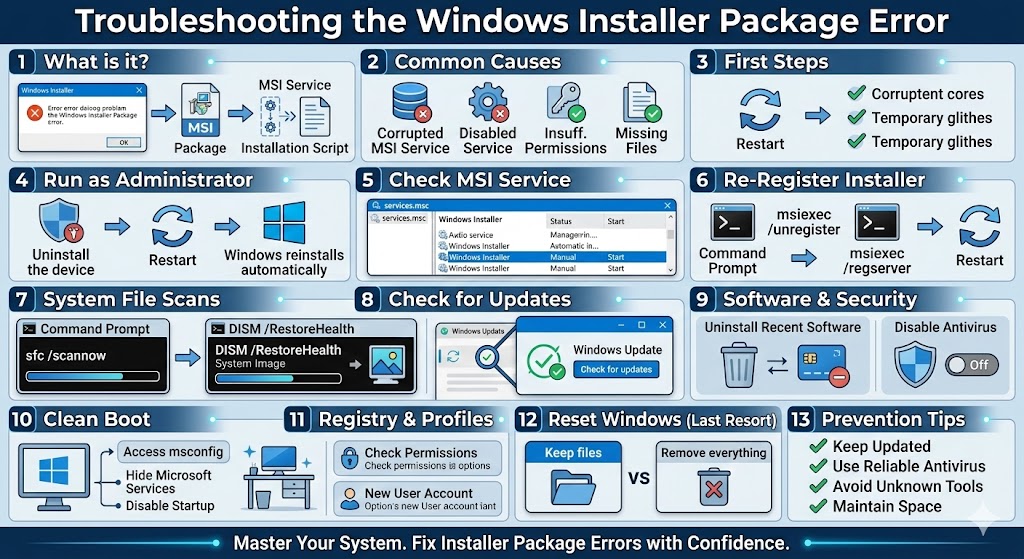
Troubleshooting the Windows Installer Package Error
The error message “There is a problem with this Windows Installer package” can appear when you try to install, update, or uninstall a program on your Windows computer. This issue is commonly seen in Windows 10 and Windows 11 and may prevent applications from installing properly.
The error usually indicates that the Windows Installer service is not functioning correctly, a required file is missing, or system components are corrupted. Although it can be frustrating, the good news is that this problem is fixable with the right troubleshooting steps.
In this comprehensive guide, you will learn what causes this Windows Installer package error and how to fix it effectively.
What Does “There Is a Problem With This Windows Installer Package” Mean?
Windows Installer (also known as MSI) is a built-in Windows service responsible for installing and removing software packages. When something goes wrong during installation, Windows displays this error message.
You may see variations such as:
-
A program run as part of the setup did not finish as expected
-
Contact your support personnel or package vendor
-
Error during installation or uninstallation
This means Windows cannot properly execute the installation script required to complete the setup.
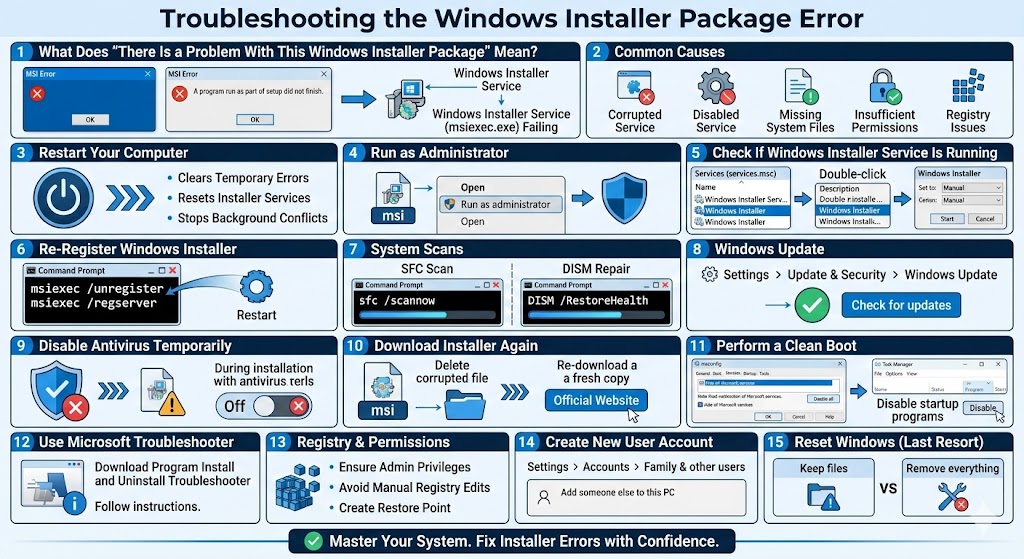
Common Causes of the Windows Installer Package Error
Understanding the root cause can help you apply the correct fix. The most common causes include:
-
Corrupted Windows Installer service
-
Disabled Windows Installer
-
Missing or damaged system files
-
Insufficient administrator permissions
-
Corrupted installation package
-
Outdated Windows version
-
Third-party antivirus interference
-
Registry issues
The error often occurs after system updates or incomplete installations.
Restart Your Computer
Before making advanced changes, try restarting your PC.
Restarting:
-
Clears temporary system errors
-
Resets installer services
-
Stops conflicting background processes
If the issue was temporary, a restart may resolve it immediately.
Run the Installer as Administrator
Sometimes the error occurs because the installer lacks proper permissions.
How to Run as Administrator
-
Right-click the installation file (.msi or .exe)
-
Select Run as administrator
-
Follow the installation instructions
This ensures the installer has full system access.
Check If Windows Installer Service Is Running
If the Windows Installer service is disabled, installations will fail.
Enable Windows Installer Service
-
Press Windows + R
-
Type
services.msc -
Press Enter
-
Locate Windows Installer
-
Double-click it
-
Set Startup type to Manual
-
Click Start if the service is stopped
-
Click OK
Restart your computer and try installing again.
Re-Register Windows Installer
Re-registering the Windows Installer service can fix corruption issues.
Steps
-
Open Command Prompt as administrator
-
Type the following commands one by one:
msiexec /regserver
-
Restart your computer
This resets the Windows Installer configuration.
Run System File Checker (SFC)
Corrupted system files may prevent the installer from functioning correctly.
Use SFC Scan
-
Open Command Prompt as administrator
-
Type:
-
Press Enter
-
Wait for the scan to complete
Restart your PC after the process finishes.
Use DISM to Repair Windows Image
If SFC cannot repair the issue, use the DISM tool.
Run DISM Command
After completion, restart your computer.
DISM repairs the Windows system image and resolves deeper corruption problems.
Check for Windows Updates
Outdated Windows versions may contain installer bugs.
Update Windows
-
Open Settings
-
Go to Update & Security
-
Click Check for updates
-
Install available updates
Restart your PC and try installing the program again.
Disable Antivirus Temporarily
Some antivirus programs interfere with installation scripts.
What to Do
-
Temporarily disable third-party antivirus
-
Attempt installation again
-
Re-enable antivirus afterward
If the installation works, consider adding an exception for the installer.
Download the Installer Again
If the installation file is corrupted, it may trigger this error.
Fix Corrupted Installer
-
Delete the existing setup file
-
Download a fresh copy from the official website
-
Avoid third-party download sources
Corrupted downloads are a frequent cause of installer errors.
Perform a Clean Boot
Background applications may conflict with the installer.
How to Perform a Clean Boot
-
Press Windows + R
-
Type
msconfig -
Press Enter
-
Go to the Services tab
-
Check Hide all Microsoft services
-
Click Disable all
-
Go to the Startup tab
-
Click Open Task Manager
-
Disable startup programs
-
Restart your PC
Try installing the program again.
Use Microsoft Program Install and Uninstall Troubleshooter
Microsoft provides a tool to fix installation issues.
What It Does
-
Repairs corrupted registry keys
-
Fixes installation problems
-
Removes blocked uninstall entries
Download it from the official Microsoft website and follow the instructions.
Check Registry Permissions
Incorrect registry permissions can block installations.
What to Check
-
Ensure your user account has administrator privileges
-
Avoid manually editing registry keys unless necessary
-
Create a system restore point before making changes
Improper registry edits can cause serious system problems.
Create a New User Account
If your user profile is corrupted, installations may fail.
Create a New Account
-
Open Settings
-
Go to Accounts
-
Select Family & other users
-
Click Add someone else to this PC
-
Follow the prompts
Log into the new account and try installing the program again.
Reset Windows (Last Resort)
If none of the solutions work, resetting Windows may be necessary.
Reset Options
-
Keep personal files
-
Remove everything
Resetting reinstalls Windows system components and resolves deep system corruption.
Preventing Windows Installer Errors in the Future
To avoid this issue again:
-
Keep Windows updated
-
Download software from official sources only
-
Avoid registry cleaning tools
-
Use reliable antivirus software
-
Maintain sufficient disk space
-
Regularly scan for system errors
Proper system maintenance reduces installation problems.
Final Thoughts
The “There is a problem with this Windows Installer package” error can prevent you from installing or uninstalling software, but it is usually caused by service issues, corrupted files, permission problems, or outdated system components.
Related articles
How to Fix the Page Fault in Nonpaged Area Error on Windows
Fixing the “Kernel Security Check Failure” Error on Windows 10
How to Fix Wi-Fi Disconnecting Issues on Windows 10
Troubleshooting the System Service Exception BSOD in Windows 10