


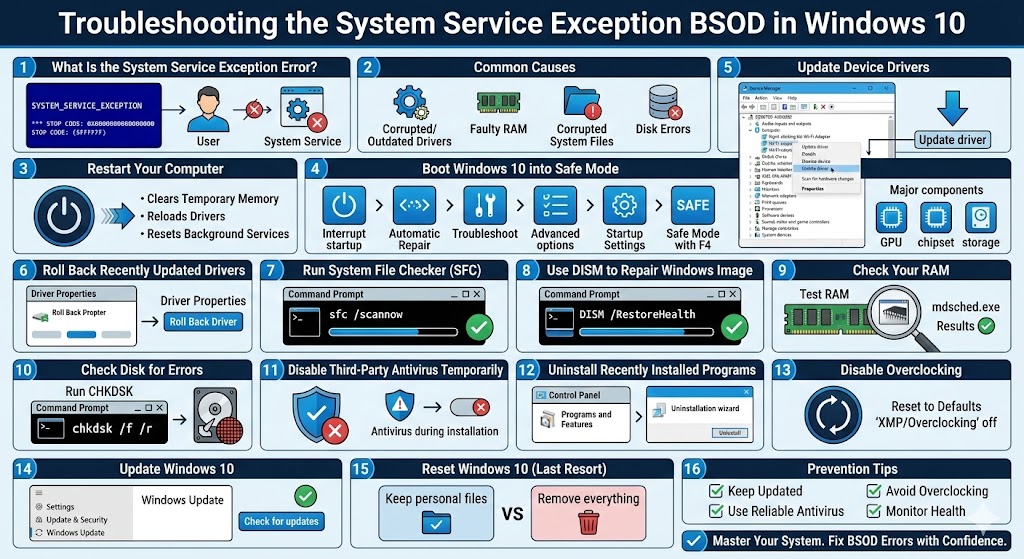
Troubleshooting the System Service Exception BSOD in Windows 10
The System Service Exception error is a common Blue Screen of Death (BSOD) problem in Windows 10. When this error occurs, your computer suddenly crashes, displays a blue screen with a stop code, and then restarts automatically. It can happen while booting, gaming, browsing the internet, or using heavy applications.
Although the error may look serious, it is usually caused by driver conflicts, corrupted system files, faulty hardware, or incompatible software. In most cases, you can fix the System Service Exception error by following structured troubleshooting steps.
This complete guide explains what the error means, why it happens, and how to fix it safely and effectively.
What Is the System Service Exception Error?
The System Service Exception error occurs when Windows encounters a problem while executing a system-level service. These services are essential for communication between hardware, drivers, and the operating system.
When Windows detects a critical issue, it stops the system immediately to prevent data corruption or hardware damage. The screen typically displays:
-
SYSTEM_SERVICE_EXCEPTION
-
Stop code: SYSTEM_SERVICE_EXCEPTION
Sometimes, the blue screen also shows a file name (such as a driver file) that may be causing the problem.
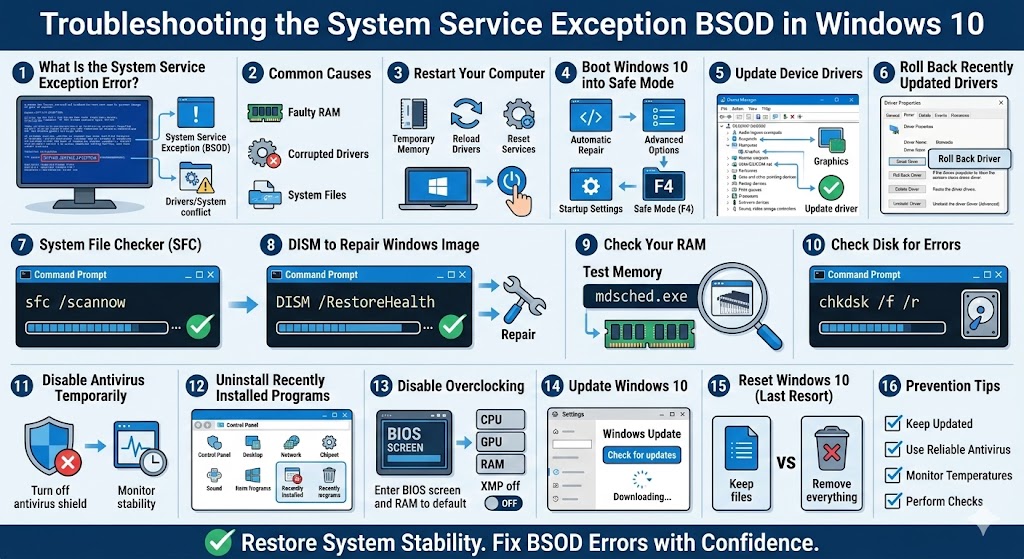
Common Causes of the System Service Exception Error
Understanding the root cause helps you choose the correct solution. The most common causes include:
-
Corrupted or outdated drivers
-
Graphics driver conflicts
-
Faulty RAM
-
Corrupted Windows system files
-
Disk errors
-
Antivirus interference
-
Incompatible Windows updates
-
Overclocked hardware
The error may start after installing new software, updating drivers, or upgrading Windows.
Restart Your Computer
If the error occurs only once, it may be caused by a temporary glitch.
Restarting your PC:
-
Clears temporary memory
-
Reloads drivers
-
Resets background services
If the problem does not reappear, no further action may be needed.
Boot Windows 10 into Safe Mode
Safe Mode loads Windows with minimal drivers and services. If the error does not occur in Safe Mode, a third-party driver or application is likely responsible.
How to Enter Safe Mode
-
Restart your computer
-
Interrupt startup two or three times to trigger Automatic Repair
-
Select Advanced options
-
Go to Troubleshoot > Advanced options > Startup Settings
-
Click Restart
-
Press 4 or F4 to enter Safe Mode
From there, you can troubleshoot drivers and software safely.
Update Device Drivers
Outdated or incompatible drivers are one of the main causes of this error.
How to Update Drivers
-
Press Windows + X
-
Select Device Manager
-
Expand device categories
-
Right-click a device
-
Select Update driver
-
Choose Search automatically for drivers
Pay special attention to:
-
Graphics drivers
-
Network drivers
-
Storage controllers
-
Chipset drivers
Restart your computer after updating.
Roll Back Recently Updated Drivers
If the error started after a driver update, rolling it back may fix the issue.
Steps to Roll Back a Driver
-
Open Device Manager
-
Right-click the suspected device
-
Select Properties
-
Go to the Driver tab
-
Click Roll Back Driver
Restart your system and monitor stability.
Run System File Checker (SFC)
Corrupted system files can trigger the System Service Exception error.
Use SFC Scan
-
Open Command Prompt as administrator
-
Type:
-
Press Enter
Wait for the scan to complete and restart your PC.
Use DISM to Repair Windows Image
If SFC cannot fix the issue, use the DISM tool.
Run DISM Command
After completion, restart your computer.
DISM repairs deeper corruption within the Windows system image.
Check Your RAM
Faulty RAM can cause system-level crashes.
Run Windows Memory Diagnostic
-
Press Windows + R
-
Type
mdsched.exe -
Press Enter
-
Choose Restart now and check for problems
Windows will test your memory during startup. If errors are found, consider replacing the faulty RAM module.
Check Disk for Errors
Disk corruption can also lead to system service failures.
Run CHKDSK
-
Open Command Prompt as administrator
-
Type:
-
Press Enter
-
Restart your PC to begin scanning
This checks for bad sectors and file system errors.
Disable Third-Party Antivirus Temporarily
Some antivirus programs interfere with system services and drivers.
What to Do
-
Temporarily disable your antivirus software
-
Restart your computer
-
Observe whether the error returns
If disabling antivirus resolves the issue, update or replace the software.
Uninstall Recently Installed Programs
If the error started after installing new software, it may be incompatible.
Steps
-
Open Control Panel
-
Select Programs and Features
-
Uninstall recently installed applications
-
Restart your PC
System utilities and driver tools are common sources of conflict.
Disable Overclocking
Overclocked CPU, GPU, or RAM can cause system instability.
What to Do
-
Enter BIOS or UEFI settings
-
Restore hardware settings to default
-
Disable XMP profiles
Running hardware at factory settings improves stability.
Update Windows 10
Windows updates often include fixes for driver compatibility and system bugs.
Update Windows
-
Open Settings
-
Go to Update & Security
-
Click Check for updates
-
Install all available updates
Restart your computer after updating.
Reset Windows 10 (Last Resort)
If the error persists despite all troubleshooting steps, resetting Windows may be necessary.
Reset Options
-
Keep personal files
-
Remove everything (clean install)
This reinstalls Windows system files and eliminates deep corruption issues.
Preventing System Service Exception Errors
To reduce the chances of encountering this error again:
-
Keep drivers updated
-
Install Windows updates regularly
-
Avoid installing unnecessary system tools
-
Monitor hardware health
-
Avoid aggressive overclocking
-
Use reliable antivirus software
Routine maintenance improves long-term system stability.
Final Thoughts
The System Service Exception error in Windows 10 can be alarming, but it is usually fixable. Most cases are caused by outdated drivers, corrupted system files, faulty memory, or incompatible software.
Related articles
How to Fix the Page Fault in Nonpaged Area Error on Windows
Fixing the “Kernel Security Check Failure” Error on Windows 10