


How to Fix a Hard Drive Not Detected in Windows 10
A hard drive not showing up in Windows 10 can be alarming, especially if it contains important data. Whether it is a new internal drive, an external USB drive, or a secondary storage disk, the issue can prevent you from accessing files and using the drive properly.
The good news is that in most cases, this problem is caused by simple configuration issues, missing drive letters, outdated drivers, or disk initialization problems. With the right troubleshooting steps, you can usually fix the issue without replacing the hardware.
This complete guide explains why your hard drive is not showing up in Windows 10 and how to fix it step by step.
Why Is My Hard Drive Not Showing Up?
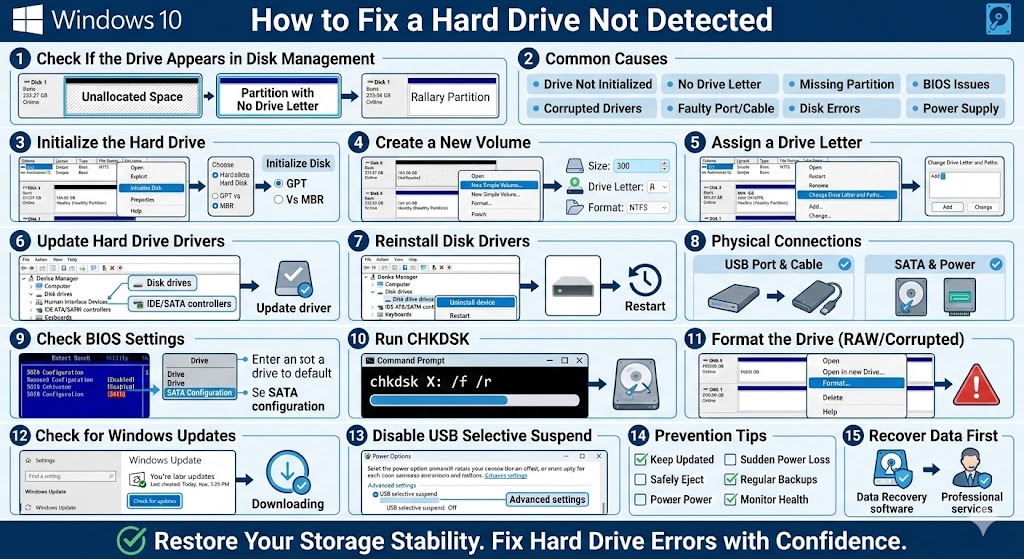
When a hard drive does not appear in File Explorer, it does not necessarily mean the drive is damaged. Several common reasons may cause the issue:
-
The drive is not initialized
-
The drive has no assigned letter
-
The disk is not partitioned
-
Corrupted or outdated drivers
-
Faulty USB port or cable
-
Disk errors or bad sectors
-
BIOS not detecting the drive
-
Power supply issues
Identifying where the drive appears—or does not appear—helps narrow down the solution.
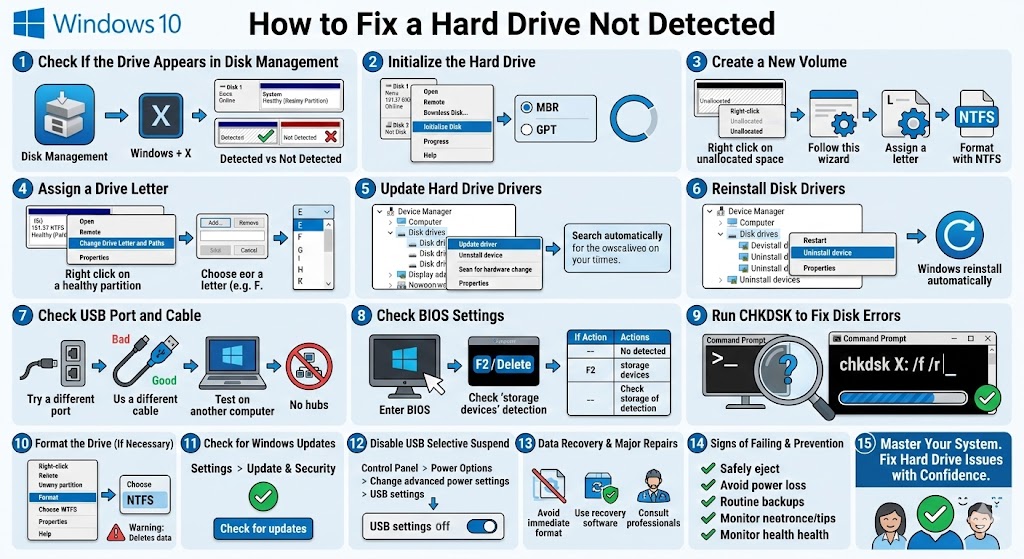
Check If the Drive Appears in Disk Management
The first step is to see whether Windows detects the drive at all.
How to Open Disk Management
-
Press Windows + X
-
Select Disk Management
If your hard drive appears there but not in File Explorer, the problem is likely related to formatting or drive letter assignment.
If it does not appear at all, the issue may be driver-related or hardware-related.
Initialize the Hard Drive
If the disk is new, it may need to be initialized before use.
How to Initialize a Disk
-
Open Disk Management
-
Locate the disk marked as Not Initialized
-
Right-click the disk
-
Select Initialize Disk
-
Choose either:
-
MBR (Master Boot Record)
-
GPT (GUID Partition Table)
-
-
Click OK
After initialization, you must create a new volume.
Create a New Volume
If the disk shows as Unallocated, it needs a partition.
Create a New Simple Volume
-
Right-click the unallocated space
-
Select New Simple Volume
-
Follow the wizard
-
Assign a drive letter
-
Format the disk (usually NTFS)
Once complete, the drive should appear in File Explorer.
Assign a Drive Letter
Sometimes the drive is healthy but missing a letter.
Assign a Drive Letter
-
Open Disk Management
-
Right-click the partition
-
Select Change Drive Letter and Paths
-
Click Add
-
Choose a letter
-
Click OK
The drive should now be visible.
Update Hard Drive Drivers
Outdated or corrupted drivers can prevent Windows from recognizing the drive.
Update Drivers
-
Press Windows + X
-
Select Device Manager
-
Expand Disk drives
-
Right-click the hard drive
-
Select Update driver
-
Choose Search automatically for drivers
Restart your computer afterward.
Reinstall Disk Drivers
If updating does not work, reinstall the driver.
Reinstall Steps
-
Open Device Manager
-
Right-click the disk
-
Select Uninstall device
-
Restart your PC
Windows will automatically reinstall the driver.
Check USB Port and Cable (For External Drives)
If an external hard drive is not showing up:
-
Try a different USB port
-
Use a different USB cable
-
Test the drive on another computer
-
Avoid using USB hubs
Sometimes the issue is simply a faulty cable or port.
Check BIOS Settings
If the drive does not appear in Disk Management, check if it is detected in BIOS.
How to Access BIOS
-
Restart your computer
-
Press F2, Delete, or the appropriate key during startup
Check whether the hard drive appears under storage devices.
If the drive is not detected in BIOS:
-
Check internal connections
-
Reseat SATA and power cables
-
Test the drive in another system
Run CHKDSK to Fix Disk Errors
If the drive appears but cannot be accessed, it may contain file system errors.
Run CHKDSK
-
Open Command Prompt as administrator
-
Type:
Replace X with the drive letter.
This command scans and repairs disk errors.
Format the Drive (If Necessary)
If the drive shows as RAW or corrupted, formatting may be required.
⚠ Warning: Formatting deletes all data.
Format in Disk Management
-
Right-click the drive
-
Select Format
-
Choose NTFS or exFAT
-
Click OK
After formatting, the drive should function normally.
Check for Windows Updates
Outdated Windows versions may contain storage bugs.
Update Windows
-
Open Settings
-
Go to Update & Security
-
Click Check for updates
-
Install available updates
Restart your PC after updating.
Disable USB Selective Suspend
Power-saving settings may disable external drives.
Disable USB Power Saving
-
Open Control Panel
-
Select Power Options
-
Click Change plan settings
-
Select Change advanced power settings
-
Expand USB settings
-
Disable USB selective suspend setting
Apply changes and restart your PC.
Recover Data Before Major Repairs
If the drive contains important files:
-
Avoid formatting immediately
-
Use data recovery software
-
Connect the drive to another computer
-
Consult professional recovery services
Protecting data should always be a priority.
When the Hard Drive May Be Failing
Signs of hardware failure include:
-
Clicking or unusual noises
-
Slow performance
-
Frequent disconnections
-
Drive not detected in BIOS
In these cases, replacing the hard drive may be necessary.
Preventing Hard Drive Detection Issues
To avoid future problems:
-
Keep Windows updated
-
Safely eject external drives
-
Avoid sudden power loss
-
Regularly back up important data
-
Monitor disk health using built-in tools
Proper maintenance ensures long-term reliability.
Final Thoughts
When a hard drive is not showing up in Windows 10, it can be concerning, but it does not always mean the drive is damaged. In many cases, the issue is caused by missing drive letters, uninitialized disks, outdated drivers, or simple connection problems.
Related articles
How to Fix the Page Fault in Nonpaged Area Error on Windows
Fixing the “Kernel Security Check Failure” Error on Windows 10