


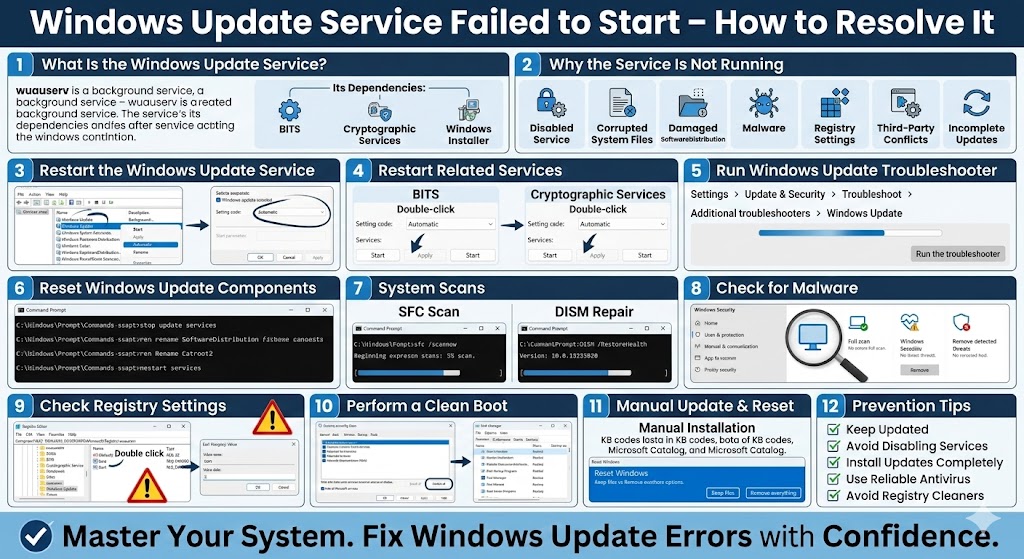
Windows Update Service Failed to Start – How to Resolve It
The Windows Update Service Not Running error is a common issue that prevents Windows 10 from downloading and installing updates. When this service stops working, you may see messages such as “Windows could not start the Windows Update service” or “Windows Update service is not running.” As a result, your system cannot receive security patches, bug fixes, or feature updates.
Since Windows updates are essential for system stability and security, resolving this problem should be a priority. Fortunately, in most cases, the issue is caused by misconfigured services, corrupted system files, or software conflicts — all of which can be fixed using the right troubleshooting steps.
This comprehensive guide explains why the Windows Update service stops running and how to fix it safely and effectively.
What Is the Windows Update Service?
The Windows Update service (wuauserv) is a background service that manages the detection, download, and installation of updates. It works together with other services such as:
-
Background Intelligent Transfer Service (BITS)
-
Cryptographic Services
-
Windows Installer
If any of these services are disabled or corrupted, Windows Update may fail to start.
Why the Windows Update Service Is Not Running
Several common causes can trigger this issue:
-
The Windows Update service is disabled
-
Corrupted system files
-
Damaged SoftwareDistribution folder
-
Malware interference
-
Incorrect registry settings
-
Third-party antivirus conflicts
-
Incomplete Windows updates
Understanding the root cause helps you apply the correct fix.
Restart the Windows Update Service
The first step is to verify whether the service is running.
Check and Start the Service
-
Press Windows + R
-
Type
services.mscand press Enter -
Locate Windows Update
-
Double-click it
-
Set Startup type to Automatic
-
Click Start
-
Click Apply, then OK
Restart your computer and check if Windows Update works.
Restart Related Services
Windows Update depends on other system services.
Restart BITS and Cryptographic Services
-
Open Services (services.msc)
-
Locate Background Intelligent Transfer Service (BITS)
-
Set it to Automatic and click Start
-
Repeat the same for Cryptographic Services
After restarting these services, try running Windows Update again.
Run Windows Update Troubleshooter
Windows 10 includes a built-in troubleshooter that can automatically detect and fix update issues.
Run the Troubleshooter
-
Open Settings
-
Go to Update & Security
-
Select Troubleshoot
-
Click Additional troubleshooters
-
Choose Windows Update
-
Click Run the troubleshooter
Follow on-screen instructions and restart your PC.
Reset Windows Update Components
Corrupted update components often prevent the service from running properly.
Reset Using Command Prompt
-
Open Command Prompt as administrator
-
Stop update services:
net stop bits
net stop cryptsvc
net stop msiserver
-
Rename SoftwareDistribution folder:
-
Rename Catroot2 folder:
-
Restart services:
net start bits
net start cryptsvc
net start msiserver
Restart your computer and check for updates again.
Run System File Checker (SFC)
Corrupted system files can prevent the Windows Update service from starting.
Run SFC Scan
-
Open Command Prompt as administrator
-
Type:
-
Press Enter
-
Wait for the scan to complete
If corrupted files are found, Windows will attempt to repair them automatically.
Use DISM to Repair Windows Image
If SFC does not resolve the issue, use the Deployment Image Servicing and Management (DISM) tool.
Run DISM Command
Allow the process to finish, then restart your PC.
DISM repairs deeper system corruption affecting update services.
Check for Malware
Malware can disable essential Windows services, including Windows Update.
What to Do
-
Run a full scan using Windows Security
-
Use trusted antivirus software
-
Remove detected threats
After removing malware, restart your system and verify service status.
Check Registry Settings
Incorrect registry configurations may prevent the service from starting.
⚠ Editing the registry incorrectly can cause system instability. Create a restore point first.
Verify Registry Entry
-
Press Windows + R
-
Type
regeditand press Enter -
Navigate to:
-
Double-click Start
-
Ensure the value is set to:
-
2 (Automatic)
-
Close the registry and restart your PC.
Perform a Clean Boot
Third-party applications may interfere with Windows Update.
Perform Clean Boot
-
Press Windows + R
-
Type
msconfig -
Go to the Services tab
-
Check Hide all Microsoft services
-
Click Disable all
-
Restart your PC
If Windows Update works in clean boot mode, re-enable services gradually to identify the conflict.
Install Updates Manually
If the service still fails, you can install updates manually.
Manual Update Steps
-
Open Settings > Update & Security
-
Note the update code (e.g., KB500xxxx)
-
Visit the Microsoft Update Catalog
-
Download the update for your system version
-
Install it manually
This can bypass temporary service issues.
Reset Windows (Last Resort)
If none of the solutions work, resetting Windows may resolve deep system corruption.
Reset Options
-
Keep personal files
-
Remove everything
This reinstalls Windows system components, including update services.
Prevent Windows Update Service Issues
To avoid similar problems in the future:
-
Keep Windows updated regularly
-
Avoid disabling essential services
-
Install updates completely before shutting down
-
Use reliable antivirus software
-
Avoid registry cleaners or system optimization tools
Proper system maintenance ensures stable update performance.
Final Thoughts
The Windows Update Service Not Running error can prevent your system from receiving critical updates, leaving it vulnerable and outdated. Fortunately, the issue is often caused by disabled services, corrupted system files, or damaged update components.
Related articles
How to Fix the Page Fault in Nonpaged Area Error on Windows
Fixing the “Kernel Security Check Failure” Error on Windows 10
How to Fix Wi-Fi Disconnecting Issues on Windows 10
How to Fix Antimalware Service Executable High CPU Usage in Windows