


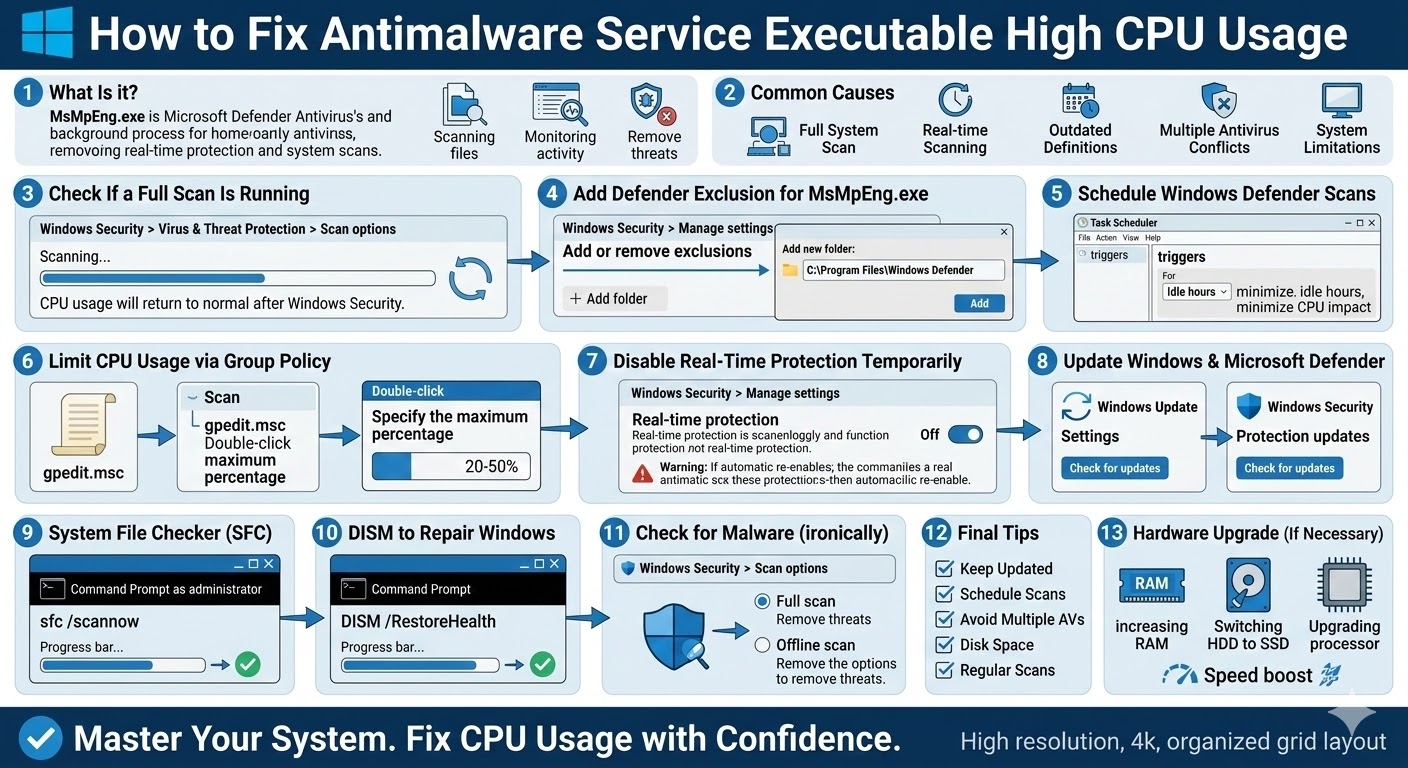
How to Fix Antimalware Service Executable High CPU Usage in Windows
Many Windows users notice that their computer suddenly becomes slow, and when they check Task Manager, they see a process called Antimalware Service Executable (MsMpEng.exe) using a large amount of CPU or memory. This issue is especially common on Windows 10 and Windows 11 systems.
The Antimalware Service Executable is part of Microsoft Defender Antivirus, the built-in security solution that protects your computer from malware, viruses, and other threats. While it is an important system process, it can sometimes consume too many system resources, causing high CPU usage and slowing down your computer.
In this guide, you will learn what Antimalware Service Executable is, why it causes high CPU usage, and how to fix the problem safely without compromising your system security.
What Is Antimalware Service Executable?
Antimalware Service Executable (MsMpEng.exe) is a background process used by Microsoft Defender Antivirus to perform real-time protection and system scans.
Its main tasks include:
-
Scanning files and applications for malware
-
Monitoring system activity in real time
-
Detecting suspicious behavior
-
Removing or quarantining harmful files
Since these processes require system resources, high CPU usage may occur during scans or updates.
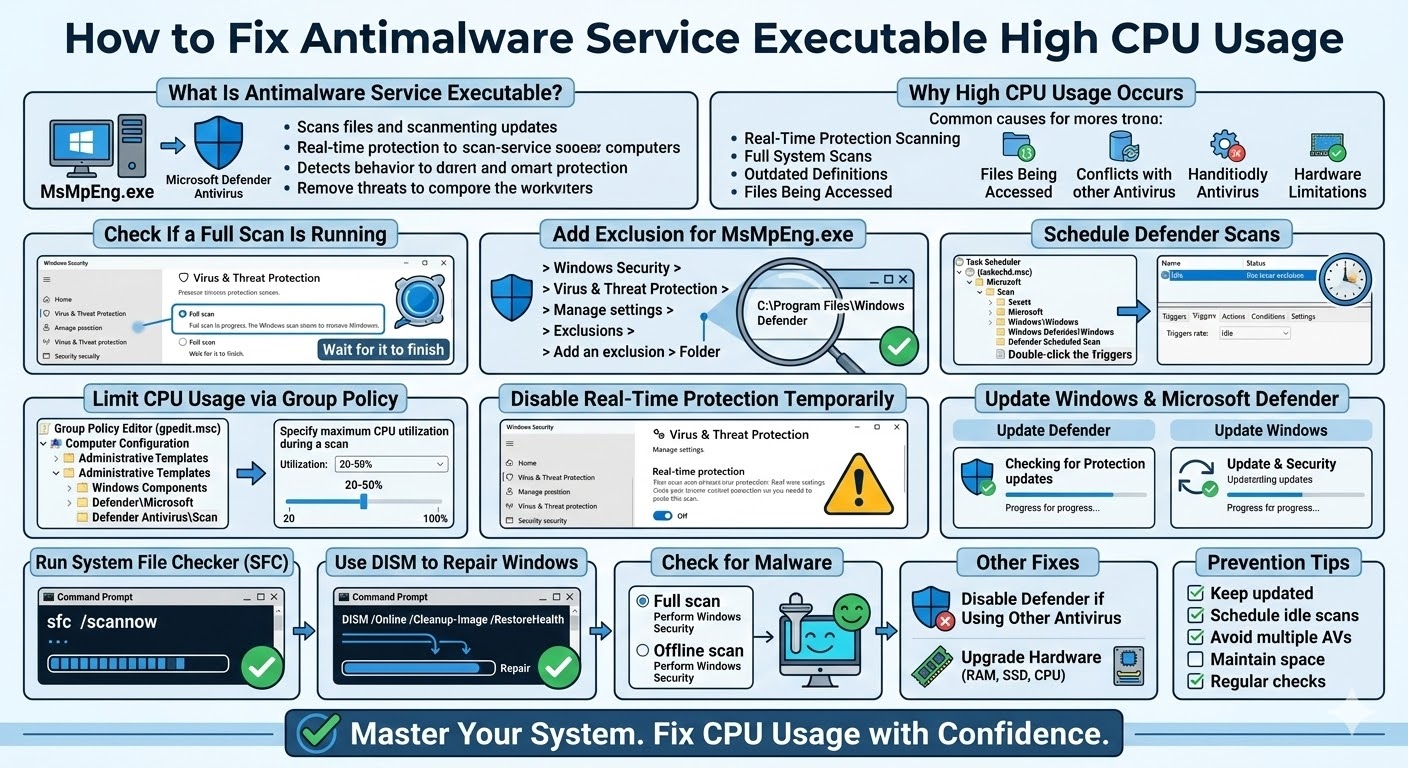
Why Antimalware Service Executable Causes High CPU Usage
There are several reasons why this process might use excessive CPU resources:
-
Real-time protection scanning too many files
-
Full system scans running in the background
-
Scanning its own folder repeatedly
-
Large numbers of files being accessed
-
Outdated Windows Defender definitions
-
Conflicts with other antivirus software
-
System performance limitations
Understanding the cause helps you choose the most effective solution.
Check If a Full Scan Is Running
The most common reason for high CPU usage is that Microsoft Defender is performing a full system scan.
How to Check
-
Open Windows Security
-
Click Virus & Threat Protection
-
Select Scan options
-
Check whether a scan is currently running
If a full scan is in progress, wait for it to finish. CPU usage will typically return to normal afterward.
Add Defender Exclusion for MsMpEng.exe
Sometimes Windows Defender scans its own files, which can create a loop that increases CPU usage.
Add an Exclusion
-
Open Windows Security
-
Go to Virus & Threat Protection
-
Click Manage settings
-
Scroll to Exclusions
-
Click Add or remove exclusions
-
Select Add an exclusion > Folder
-
Add this path:
This prevents Defender from repeatedly scanning its own components.
Schedule Windows Defender Scans
Defender scans often run during active computer use, which can cause noticeable slowdowns.
Schedule Scans with Task Scheduler
-
Press Windows + R
-
Type
taskschd.msc -
Navigate to:
-
Double-click Windows Defender Scheduled Scan
-
Go to the Triggers tab
-
Set the scan to run during idle hours
Scheduling scans during inactive periods reduces CPU impact.
Limit CPU Usage via Group Policy
Windows allows you to control how much CPU Microsoft Defender can use during scans.
Limit Defender CPU Usage
-
Press Windows + R
-
Type
gpedit.msc -
Navigate to:
-
Double-click Specify the maximum percentage of CPU utilization during a scan
-
Enable the setting
-
Set CPU usage to 20–50%
This prevents Defender from consuming too many resources.
Disable Real-Time Protection Temporarily
If your system becomes extremely slow, temporarily disabling real-time protection may help diagnose the issue.
Steps
-
Open Windows Security
-
Click Virus & Threat Protection
-
Select Manage settings
-
Turn off Real-time protection
Note: Windows may automatically re-enable it later for security reasons.
Update Windows and Microsoft Defender
Outdated antivirus definitions or Windows versions can cause performance problems.
Update Defender
-
Open Windows Security
-
Click Virus & Threat Protection
-
Select Protection updates
-
Click Check for updates
Update Windows
-
Open Settings
-
Go to Update & Security
-
Click Check for updates
Keeping the system updated improves performance and stability.
Run System File Checker
Corrupted system files may cause abnormal behavior in Windows Defender.
Run SFC Scan
-
Open Command Prompt as administrator
-
Enter the command:
-
Press Enter and wait for the scan to complete
Restart your computer afterward.
Use DISM to Repair Windows
If SFC does not resolve the issue, use the DISM tool.
Run DISM Command
This command repairs deeper system corruption that may affect Defender performance.
Check for Malware
Ironically, malware itself can cause Windows Defender to use excessive CPU resources.
Perform a Full Scan
-
Open Windows Security
-
Select Virus & Threat Protection
-
Click Scan options
-
Choose Full scan or Offline scan
Removing hidden threats may reduce resource usage.
Disable Defender if Using Another Antivirus
Running multiple antivirus programs at the same time can create conflicts and high CPU usage.
If you install third-party antivirus software, Windows Defender usually disables itself automatically. If it does not, you may need to turn it off manually through Group Policy.
Upgrade Hardware (If Necessary)
On older systems, Microsoft Defender may consume a noticeable amount of CPU due to limited hardware resources.
Upgrading the following components can help:
-
Increasing system RAM
-
Switching from HDD to SSD
-
Upgrading the processor
These improvements can significantly boost overall performance.
Prevent Antimalware Service Executable High CPU Usage
To minimize future issues:
-
Keep Windows updated
-
Schedule antivirus scans during idle hours
-
Avoid installing multiple antivirus programs
-
Maintain enough free disk space
-
Perform regular malware scans
Proper system maintenance helps ensure smooth performance.
Final Thoughts
The Antimalware Service Executable (MsMpEng.exe) is an essential part of Microsoft Defender Antivirus, responsible for protecting your computer from malware and security threats. However, it can sometimes cause high CPU usage, especially during scans or when system resources are limited.
Related articles
How to Fix the Page Fault in Nonpaged Area Error on Windows
Fixing the “Kernel Security Check Failure” Error on Windows 10