


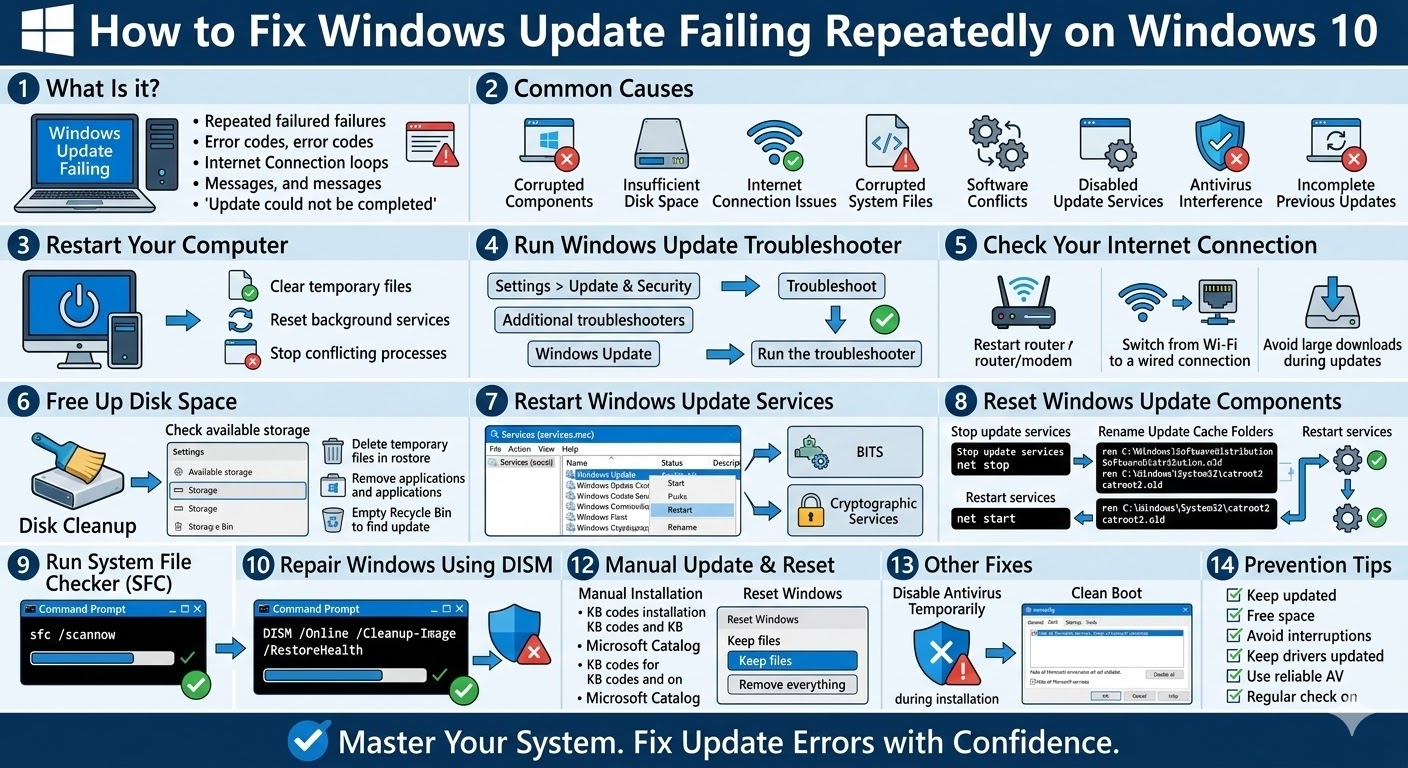
How to Fix Windows Update Failing Repeatedly on Windows 10
Windows Update is an essential feature that keeps your operating system secure, stable, and up to date with the latest improvements. However, many users encounter situations where Windows Update keeps failing on Windows 10, preventing important updates from installing successfully.
When updates fail repeatedly, you might see error codes, installation loops, or messages indicating that the update could not be completed. This problem can leave your system vulnerable to security risks and prevent new features from being installed.
Fortunately, most Windows Update failures can be resolved with the right troubleshooting methods. This guide explains the common causes of update failures and provides step-by-step solutions to fix them.
Why Windows Update Keeps Failing
Windows Update can fail for a variety of reasons. Identifying the underlying cause is the first step toward solving the problem.
Common causes include:
-
Corrupted Windows Update components
-
Insufficient disk space
-
Internet connection issues
-
Corrupted system files
-
Software conflicts
-
Disabled update services
-
Antivirus interference
-
Incomplete previous updates
Once you understand the possible causes, you can begin applying the appropriate fixes.
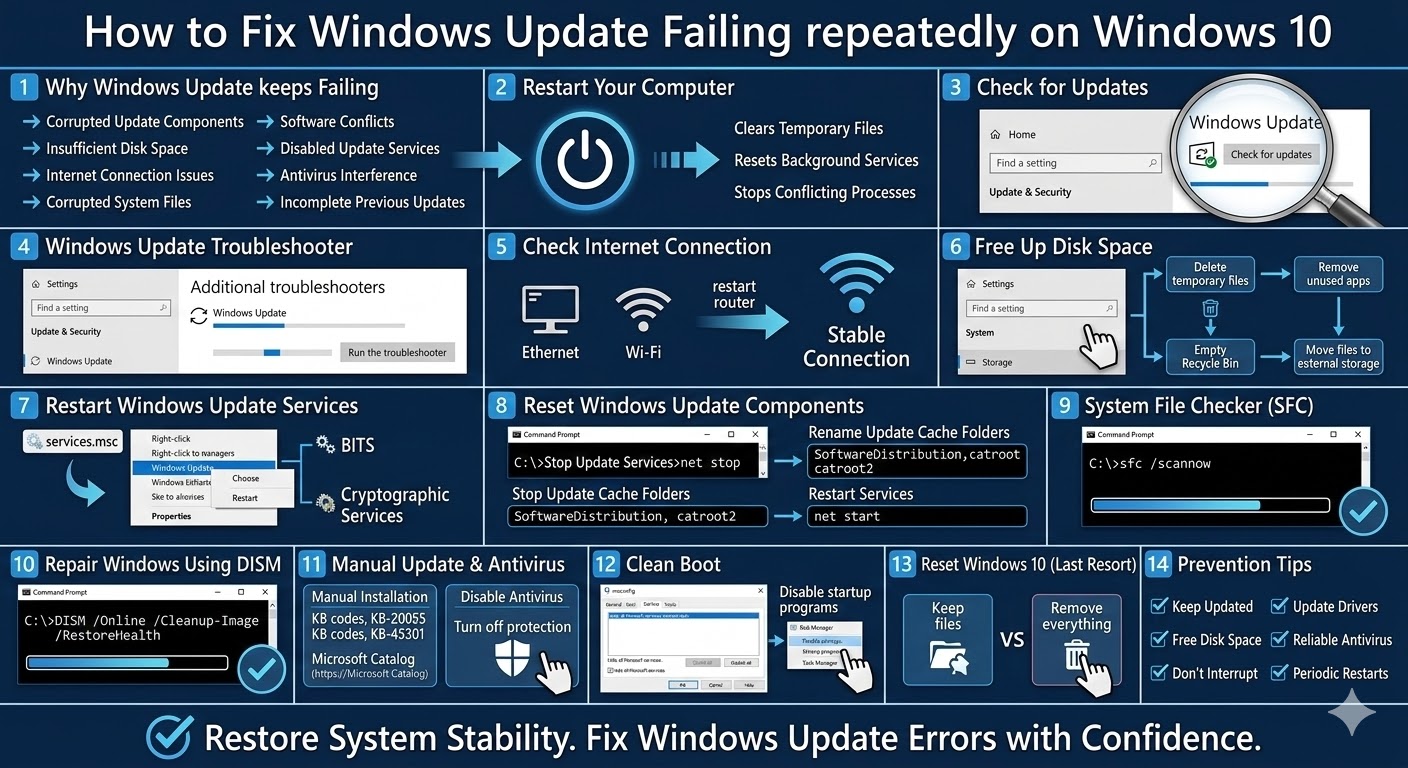
Restart Your Computer
A simple restart may resolve temporary system glitches that interrupt the update process.
Restarting your computer:
-
Clears temporary files
-
Resets background services
-
Stops conflicting processes
After restarting, try checking for updates again.
How to Check for Updates
-
Open Settings
-
Click Update & Security
-
Select Windows Update
-
Click Check for updates
If the update installs successfully, the issue was likely temporary.
Run the Windows Update Troubleshooter
Windows 10 includes a built-in tool designed to detect and fix update-related problems automatically.
Steps to Run the Troubleshooter
-
Open Settings
-
Go to Update & Security
-
Click Troubleshoot
-
Select Additional troubleshooters
-
Click Windows Update
-
Choose Run the troubleshooter
Follow the on-screen instructions and restart your computer once the process finishes.
Check Your Internet Connection
A weak or unstable internet connection can interrupt downloads and cause updates to fail.
To ensure a stable connection:
-
Restart your router or modem
-
Switch from Wi-Fi to a wired connection if possible
-
Avoid downloading large files during updates
Once the connection is stable, try installing updates again.
Free Up Disk Space
Windows updates require sufficient storage space to download and install properly.
Check Available Storage
-
Open Settings
-
Select System
-
Click Storage
If your drive is nearly full, free up space by:
-
Deleting temporary files
-
Removing unused applications
-
Emptying the Recycle Bin
-
Moving files to external storage
Restart Windows Update Services
If the Windows Update service stops running properly, updates may fail repeatedly.
Restart Update Services
-
Press Windows + R
-
Type
services.mscand press Enter -
Locate Windows Update
-
Right-click it and select Restart
You should also restart related services such as:
-
Background Intelligent Transfer Service (BITS)
-
Cryptographic Services
Restart your computer afterward.
Reset Windows Update Components
Corrupted update files can prevent new updates from installing correctly. Resetting Windows Update components often fixes this issue.
Stop Update Services
Open Command Prompt as Administrator and run:
net stop bits
net stop cryptsvc
net stop msiserver
Rename Update Cache Folders
ren C:\Windows\System32\catroot2 catroot2.old
Restart Services
net start bits
net start cryptsvc
net start msiserver
Restart your computer and attempt the update again.
Run System File Checker (SFC)
Corrupted system files can interfere with Windows Update.
Run SFC Scan
-
Open Command Prompt as Administrator
-
Enter the following command:
-
Press Enter and wait for the scan to complete.
The tool will automatically repair damaged system files.
Repair Windows Using DISM
If SFC cannot fix the problem, use the DISM tool to repair the Windows system image.
Run the DISM Command
Once the process finishes, restart your computer and try updating again.
Temporarily Disable Antivirus Software
Third-party antivirus programs may block update files or interfere with the installation process.
To test this:
-
Temporarily disable your antivirus software
-
Run Windows Update again
-
Re-enable antivirus protection afterward
If updates install successfully, consider adding Windows Update as an exception.
Install Updates Manually
If automatic updates continue to fail, you can install updates manually.
Steps to Install Updates Manually
-
Open Settings > Update & Security > Windows Update
-
Note the update code (for example, KB500xxxx)
-
Visit the Microsoft Update Catalog website
-
Search for the update code
-
Download the version compatible with your system
-
Install the update manually
This method bypasses the automatic update process.
Perform a Clean Boot
Background programs may interfere with Windows Update.
How to Perform a Clean Boot
-
Press Windows + R
-
Type
msconfig -
Go to the Services tab
-
Check Hide all Microsoft services
-
Click Disable all
-
Restart your computer
After restarting, attempt the update again.
Reset Windows 10 (Last Resort)
If Windows Update continues to fail despite all troubleshooting steps, resetting Windows may be necessary.
Reset Options
-
Keep my files – Reinstalls Windows without removing personal files
-
Remove everything – Performs a clean installation
Resetting Windows replaces corrupted system files and restores default settings.
Prevent Windows Update Failures in the Future
To reduce the risk of update issues:
-
Install updates regularly
-
Maintain enough free disk space
-
Avoid interrupting updates during installation
-
Keep drivers updated
-
Use reliable antivirus software
-
Restart your system periodically
Proper system maintenance helps ensure that updates install smoothly.
Final Thoughts
When Windows Update keeps failing on Windows 10, it can prevent important security patches and performance improvements from reaching your computer. Fortunately, most update failures are caused by temporary system issues, corrupted files, or misconfigured services.
Related articles
How to Fix the Page Fault in Nonpaged Area Error on Windows
Fixing the “Kernel Security Check Failure” Error on Windows 10
How to Fix Wi-Fi Disconnecting Issues on Windows 10
Steps to Fix the No Internet, Secured Wi-Fi Error in Windows 10