


Steps to Fix the No Internet, Secured Wi-Fi Error in Windows 10
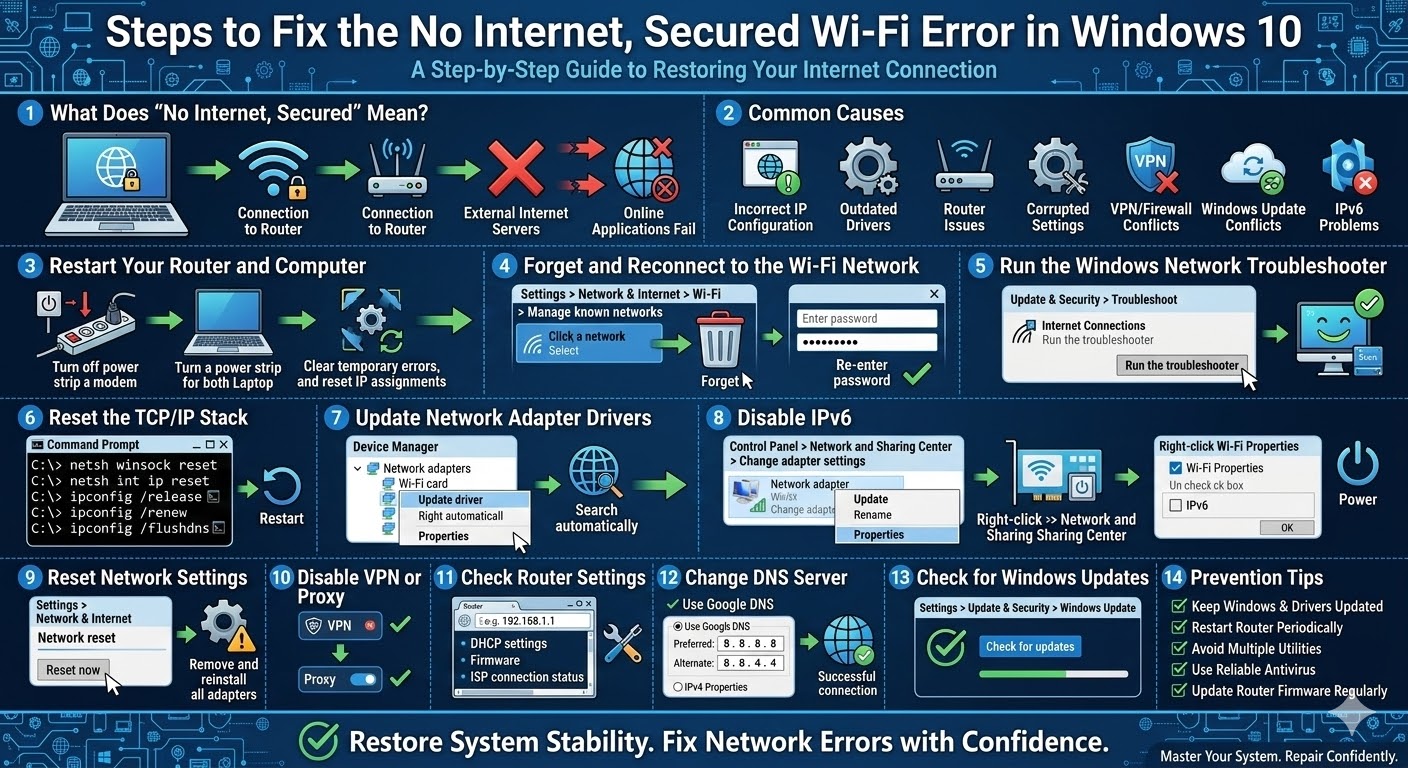
The “No Internet, Secured” error is a common network issue in Windows 10. When this problem occurs, your computer successfully connects to a Wi-Fi network but cannot access the internet. The Wi-Fi icon may appear normal, yet websites and online services fail to load.
This issue can be frustrating, especially if you rely on a stable internet connection for work, school, or entertainment. Fortunately, the problem is usually related to network configuration, driver issues, or router settings, and it can often be fixed with a few troubleshooting steps.
This guide explains what causes the No Internet, Secured error and how to resolve it effectively on Windows 10.
What Does “No Internet, Secured” Mean?
The message “No Internet, Secured” indicates that your computer is connected to the Wi-Fi network, but the system cannot establish a connection to the internet.
This means:
-
Your device successfully connects to the router
-
The network connection is secured with a password
-
Windows cannot reach external internet servers
As a result, your computer remains connected to Wi-Fi but cannot browse the web or use online applications.
Common Causes of the “No Internet, Secured” Error
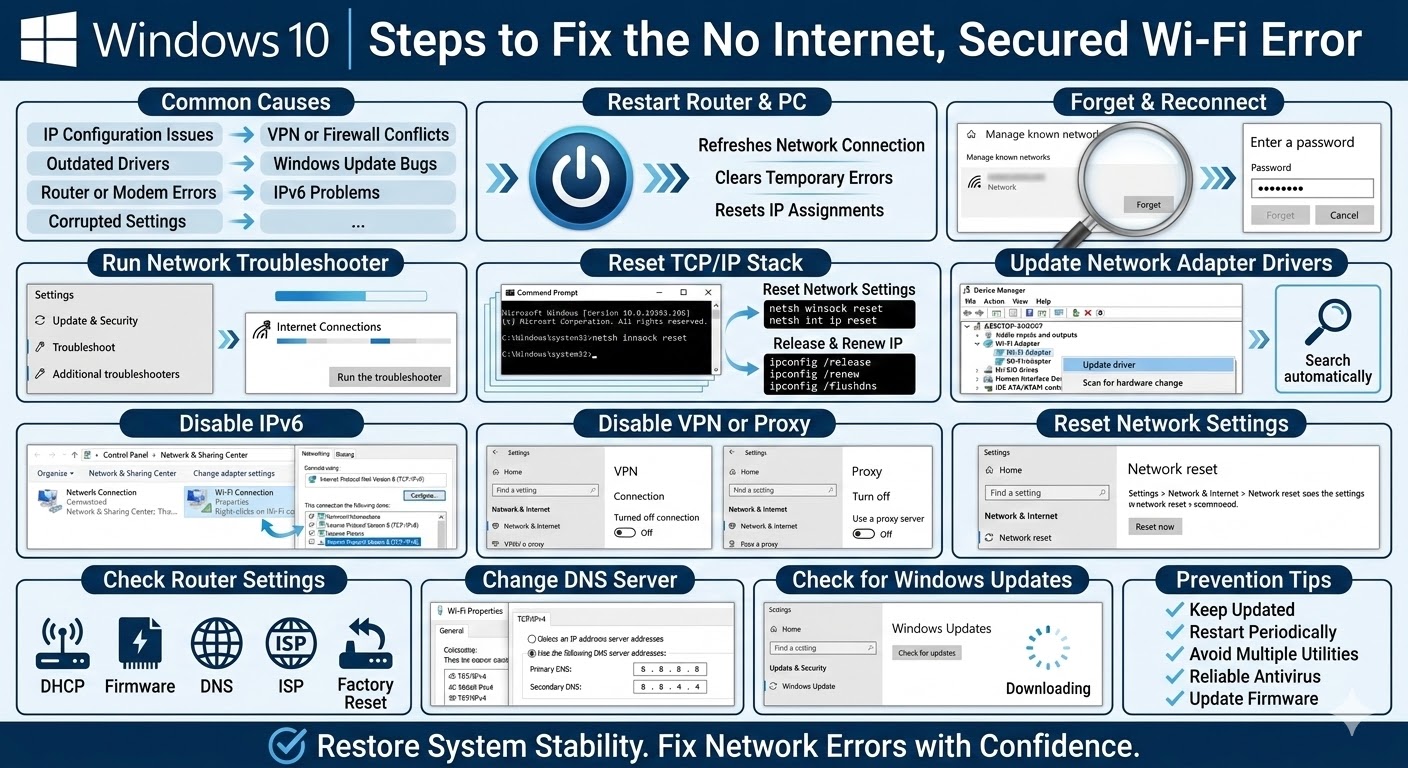
Several factors can trigger this network problem. The most common causes include:
-
Incorrect IP configuration
-
Outdated network drivers
-
Router or modem issues
-
Corrupted network settings
-
VPN or firewall conflicts
-
Windows updates causing network conflicts
-
IPv6 configuration problems
Understanding the cause helps you apply the correct solution.
Restart Your Router and Computer
Before trying advanced troubleshooting, restart both your computer and router.
Restarting devices can:
-
Refresh the network connection
-
Clear temporary router errors
-
Reset IP assignments
Steps
-
Turn off your router or modem
-
Wait about 30 seconds
-
Turn the router back on
-
Restart your computer
Once both devices restart, reconnect to Wi-Fi and check if the problem is resolved.
Forget and Reconnect to the Wi-Fi Network
Sometimes saved network configurations become corrupted.
How to Forget a Network
-
Open Settings
-
Go to Network & Internet
-
Select Wi-Fi
-
Click Manage known networks
-
Select your network
-
Click Forget
Afterward, reconnect to the Wi-Fi network and enter the password again.
Run the Windows Network Troubleshooter
Windows includes a built-in troubleshooter that can automatically detect and fix network issues.
Steps to Run the Troubleshooter
-
Open Settings
-
Go to Update & Security
-
Select Troubleshoot
-
Click Additional troubleshooters
-
Choose Internet Connections
-
Click Run the troubleshooter
Follow the on-screen instructions to apply recommended fixes.
Reset the TCP/IP Stack
The TCP/IP stack controls how your computer communicates with networks. Resetting it can fix configuration issues.
Reset Network Settings Using Command Prompt
Open Command Prompt as Administrator and run the following commands:
netsh int ip reset
ipconfig /release
ipconfig /renew
ipconfig /flushdns
Restart your computer after running these commands.
Update Network Adapter Drivers
Outdated or corrupted drivers can prevent proper network communication.
Update Drivers
-
Press Windows + X
-
Select Device Manager
-
Expand Network adapters
-
Right-click your Wi-Fi adapter
-
Select Update driver
-
Choose Search automatically for drivers
Restart your computer once the update completes.
Disable IPv6
In some cases, IPv6 settings conflict with network connections.
Disable IPv6
-
Open Control Panel
-
Go to Network and Internet
-
Select Network and Sharing Center
-
Click Change adapter settings
-
Right-click your Wi-Fi connection
-
Select Properties
-
Uncheck Internet Protocol Version 6 (TCP/IPv6)
-
Click OK
Reconnect to your network and test the internet connection.
Reset Network Settings
If multiple network configurations are corrupted, resetting network settings can restore default configurations.
How to Reset Network Settings
-
Open Settings
-
Go to Network & Internet
-
Scroll down and select Network reset
-
Click Reset now
Your computer will remove and reinstall all network adapters. You will need to reconnect to Wi-Fi afterward.
Disable VPN or Proxy
VPNs and proxy servers can sometimes block internet access even when Wi-Fi is connected.
Disable VPN
-
Open Settings
-
Go to Network & Internet
-
Select VPN
-
Disconnect any active VPN connections
Disable Proxy
-
Open Settings
-
Go to Network & Internet
-
Select Proxy
-
Turn off Use a proxy server
Check if the connection works afterward.
Check Router Settings
If multiple devices cannot access the internet, the issue may be with the router.
Possible router problems include:
-
DHCP disabled
-
Firmware issues
-
Incorrect DNS configuration
-
ISP connection problems
Restarting the router or resetting it to factory settings may resolve the issue.
Change DNS Server
Sometimes the default DNS server fails to resolve internet addresses.
Use Google DNS
-
Open Network and Sharing Center
-
Click Change adapter settings
-
Right-click your Wi-Fi connection
-
Select Properties
-
Choose Internet Protocol Version 4 (TCP/IPv4)
-
Click Properties
Enter the following DNS addresses:
Primary DNS:
Secondary DNS:
Click OK and reconnect to your network.
Check for Windows Updates
Network problems may occur due to outdated Windows versions.
Update Windows
-
Open Settings
-
Go to Update & Security
-
Click Check for updates
Install any available updates and restart your system.
Prevent the “No Internet, Secured” Error
To avoid network issues in the future:
-
Keep Windows and drivers updated
-
Restart your router periodically
-
Avoid installing multiple network utilities
-
Use reliable antivirus software
-
Update router firmware regularly
Maintaining your network and system settings helps prevent connectivity problems.
Final Thoughts
The “No Internet, Secured” problem in Windows 10 can be frustrating because your computer appears connected to Wi-Fi but cannot access the internet. Fortunately, this issue is usually caused by network configuration problems, outdated drivers, or router settings.
Related articles
How to Fix the Page Fault in Nonpaged Area Error on Windows
Fixing the “Kernel Security Check Failure” Error on Windows 10
How to Fix Wi-Fi Disconnecting Issues on Windows 10
Fixing Applications That Fail to Open on Windows 10 and Windows 11