


Fix Volume Icon Missing on Windows 10
The volume icon in Windows 10 is a small but essential feature located in the system tray. It allows you to quickly adjust sound levels, mute audio, and access playback devices. When the volume icon goes missing, it can be frustrating and inconvenient, especially if you rely on quick access to audio controls.
This issue is quite common and can occur due to system glitches, incorrect settings, or software conflicts. Fortunately, there are several effective ways to restore the volume icon.
In this guide, you’ll learn why the volume icon disappears and how to fix it step by step.
Common Signs of the Issue
Before diving into solutions, here are the typical symptoms:
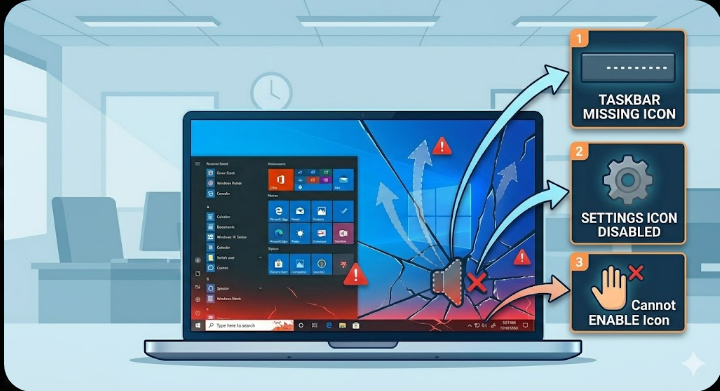
- Volume icon missing from the taskbar
- Sound settings still work, but no tray icon
- Icon appears greyed out or disabled
- Cannot enable the volume icon in settings
- Taskbar icons not displaying properly
These signs usually point to configuration issues or system errors.
Why the Volume Icon Is Missing
There are several possible reasons why the volume icon disappears.
Taskbar Settings Misconfigured
The icon may be turned off in system settings.
Windows Explorer Glitch
Since the taskbar is managed by Windows Explorer, a glitch can hide icons.
Corrupted System Files
Damaged system files can affect taskbar functionality.
Disabled System Icons
Windows allows users to toggle system icons on or off.
Outdated or Faulty Audio Drivers
Driver issues can prevent the icon from appearing.
Group Policy Restrictions
Certain policies may disable system icons.
How to Fix Volume Icon Missing on Windows 10
Try the following methods to restore the icon.
Check Taskbar Settings
Make sure the volume icon is enabled.
Steps
- Right-click the taskbar and select Taskbar settings
- Scroll down and click Turn system icons on or off
- Find Volume
- Toggle it On
If it’s already on, toggle it off and back on.
Restart Windows Explorer
Restarting Explorer can refresh the taskbar.
Steps
- Press Ctrl + Shift + Esc to open Task Manager
- Locate Windows Explorer
- Right-click and select Restart
Check if the icon reappears.
Enable Volume Icon via Settings
Sometimes the icon is disabled in notification settings.
Steps
- Open Settings
- Go to Personalization → Taskbar
- Click Select which icons appear on the taskbar
- Turn on Volume
Update Audio Drivers
Outdated drivers can cause issues.
Steps
- Right-click Start
- Select Device Manager
- Expand Sound, video and game controllers
- Right-click your audio device
- Select Update driver
Restart your computer after updating.
Reinstall Audio Drivers
If updating doesn’t help, reinstall the driver.
Steps
- Open Device Manager
- Right-click your audio device
- Select Uninstall device
- Restart your PC
Windows will reinstall the driver automatically.
Run System File Checker (SFC)
Corrupted system files can affect icons.
Steps
- Open Command Prompt as administrator
-
Run:
sfc /scannow - Wait for the scan to complete
Restart your system.
Use DISM Tool
DISM repairs deeper system issues.
Steps
- Open Command Prompt as administrator
-
Run:
DISM /Online /Cleanup-Image /RestoreHealth - Restart your computer
Check Group Policy Settings
Group Policy may disable the volume icon.
Steps
- Press
Windows + R, type gpedit.msc, and press Enter - Navigate to:
User Configuration → Administrative Templates → Start Menu and Taskbar - Find Remove the volume control icon
- Set it to Not Configured or Disabled
Restart your PC.
Modify Registry Settings
If Group Policy is not available, use Registry Editor.
Steps
- Press
Windows + R, type regedit, and press Enter -
Navigate to:
HKEY_CURRENT_USER\Software\Microsoft\Windows\CurrentVersion\Policies\Explorer - Look for HideSCAVolume
- Delete it or set its value to 0
Restart your computer.
Create a New User Account
A corrupted user profile can cause missing icons.
Steps
- Open Settings
- Go to Accounts → Family & other users
- Add a new user
- Log into the new account
Check if the volume icon appears.
Check Windows Updates
Updates can fix bugs affecting the taskbar.
Steps
- Open Settings
- Go to Windows Update
- Click Check for updates
Install updates and restart your system.
Perform a Clean Boot
A clean boot can identify conflicts.
Steps
- Press
Windows + R, type msconfig, and press Enter - Go to the Services tab
- Check Hide all Microsoft services
- Click Disable all
- Disable startup programs
- Restart your PC
When to Consider Advanced Solutions
If the issue persists, consider:
- Performing a System Restore
- Resetting Windows while keeping your files
- Reinstalling Windows
These methods can resolve deeper problems.
Tips to Prevent Missing Icons
To avoid this issue in the future:
- Keep Windows updated
- Avoid modifying system settings unnecessarily
- Use trusted software only
- Regularly scan for malware
- Restart your PC occasionally
Final Thoughts
The missing volume icon in Windows 10 can be inconvenient, but it’s usually caused by simple issues like disabled settings, system glitches, or driver problems. Fortunately, it can be fixed with a few straightforward steps.
By checking taskbar settings, restarting Windows Explorer, updating drivers, and repairing system files, you can quickly restore the volume icon. Start with the basic fixes and move to advanced solutions if necessary.
Related articles
Fix Outlook Password Prompt Issue in Office 365
How to Fix Mobile Hotspot Not Working in Windows 10
How to Fix the “Chrome Is Waiting for Cache” Error in Windows 10