


Fix Outlook Password Prompt Issue in Office 365
If Outlook in Office 365 keeps asking for your password repeatedly, it can quickly become frustrating and disrupt your workflow. Even after entering the correct credentials, Outlook may continue prompting you to sign in, making it difficult to send or receive emails.
This issue is quite common and is usually caused by authentication problems, corrupted credentials, network issues, or outdated configurations. Fortunately, there are several effective ways to fix it.
In this guide, you’ll learn why Outlook keeps asking for a password and how to resolve the issue on Windows systems.
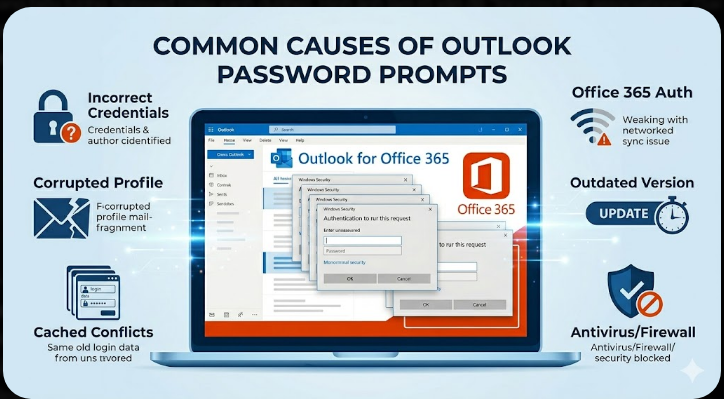
Common Causes of Outlook Password Prompts
Understanding the root causes can help you apply the right solution.
Some common reasons include:
- Incorrect or outdated saved credentials
- Corrupted Outlook profile
- Authentication issues with Office 365
- Network or connectivity problems
- Cached login data conflicts
- Outdated Outlook or Windows version
- Antivirus or firewall interference
Identifying the cause is key to solving the problem.
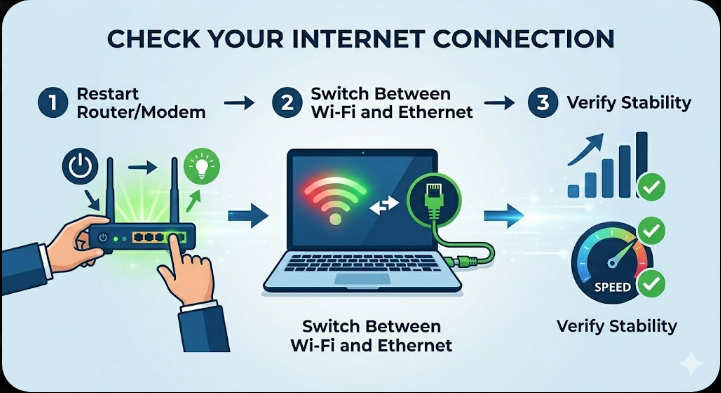
Check Your Internet Connection
A weak or unstable connection can prevent Outlook from verifying your credentials.
To fix this:
- Ensure your internet connection is stable
- Restart your router or modem
- Try switching between Wi-Fi and Ethernet
Once connected properly, restart Outlook.
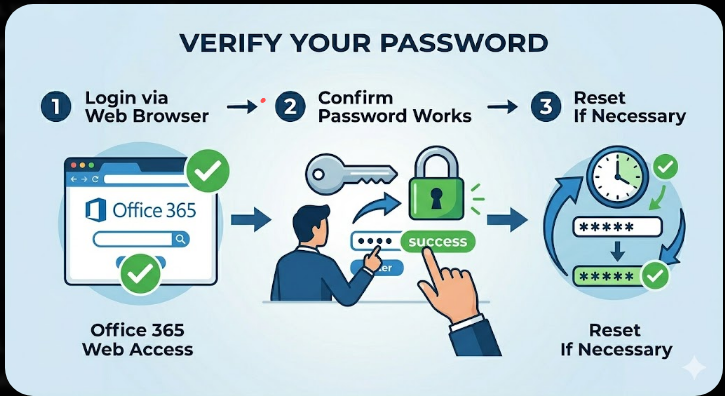
Verify Your Password
Make sure you are entering the correct password.
You should:
- Log in to your Office 365 account via a web browser
- Confirm your password works
- Reset your password if necessary
If login works in a browser but not in Outlook, the issue is likely local.
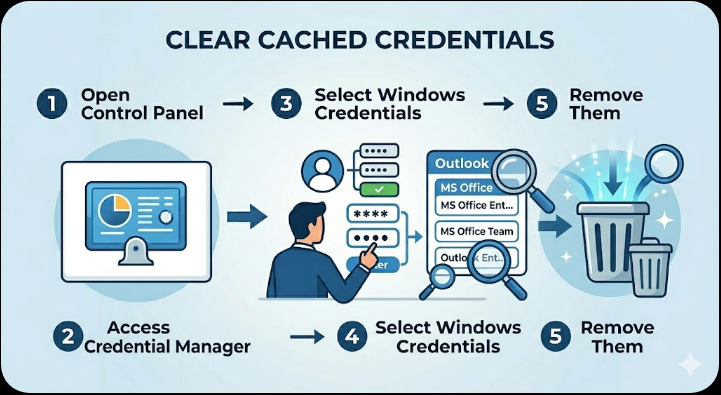
Clear Cached Credentials
Outlook stores login credentials, which can sometimes become corrupted.
To clear them:
- Open Control Panel.
- Go to Credential Manager.
- Select Windows Credentials.
- Locate entries related to Outlook or Office 365.
- Remove them.
Restart Outlook and enter your credentials again.
Enable Modern Authentication
Modern authentication improves security and fixes login issues.
To enable it:
- Open Registry Editor (type regedit).
- Navigate to:
HKEY_CURRENT_USER\Software\Microsoft\Office\16.0\Common\Identity
- Create or modify the DWORD value:
EnableADAL = 1
Restart Outlook afterward.
Repair Outlook Profile
A corrupted Outlook profile can cause repeated password prompts.
To repair it:
- Open Control Panel.
- Select Mail.
- Click Show Profiles.
- Select your profile and click Properties.
- Choose Repair if available.
Restart Outlook after the repair.
Create a New Outlook Profile
If repairing doesn’t work, create a new profile.
Steps:
- Open Control Panel > Mail.
- Click Show Profiles.
- Select Add.
- Enter a new profile name.
- Set up your email account again.
Set the new profile as default and restart Outlook.
Disable Always Prompt for Credentials
This setting can cause Outlook to ask for your password repeatedly.
To disable it:
- Open Control Panel > Mail.
- Click Email Accounts.
- Select your account and click Change.
- Go to More Settings > Security.
- Uncheck Always prompt for logon credentials.
Save changes and restart Outlook.
Update Outlook and Windows
Outdated software can cause authentication issues.
To update Outlook:
- Open Outlook.
- Go to File > Office Account.
- Click Update Options > Update Now.
Also update Windows through Settings > Windows Update.
Disable Antivirus or Firewall Temporarily
Security software may block Outlook’s connection to servers.
To test this:
- Temporarily disable antivirus
- Turn off firewall
- Open Outlook and check if the issue persists
If resolved, add Outlook as an exception.
Check Account Settings
Incorrect account configuration can cause login issues.
To verify:
- Open Outlook.
- Go to File > Account Settings.
- Check server settings and email configuration.
Correct any incorrect details.
Remove and Re-add Your Account
Re-adding your account can fix configuration issues.
Steps:
- Go to Account Settings.
- Remove your email account.
- Restart Outlook.
- Add the account again.
This refreshes all account settings.
Disable Add-ins
Some Outlook add-ins may interfere with authentication.
To disable them:
- Go to File > Options > Add-ins.
- Disable unnecessary add-ins.
- Restart Outlook.
Check if the issue is resolved.
Check for Multi-Factor Authentication (MFA)
If your account uses MFA, Outlook may require app-specific passwords.
You should:
- Generate an app password from your Office 365 account
- Use it instead of your regular password
This is common in corporate environments.
Repair Microsoft Office
If the issue persists, repairing Office may help.
Steps:
- Open Control Panel.
- Go to Programs and Features.
- Select Microsoft Office.
- Click Change.
- Choose Quick Repair or Online Repair.
Restart your system afterward.
Final Thoughts
The issue of Outlook Office 365 repeatedly asking for a password is usually caused by authentication problems, corrupted credentials, or incorrect settings. While it can be annoying, it is often easy to fix with the right approach.
Clearing cached credentials, updating Outlook, repairing profiles, and checking account settings are among the most effective solutions.
Related articles
How to Fix Wi-Fi Disconnecting Issues on Windows 10