


Resolve Excel Error: “An Array Value Could Not Be Found” Easily
Microsoft Excel is a powerful tool for handling data, formulas, and complex calculations. However, users sometimes encounter confusing errors that interrupt their workflow. One such issue is the “An Array Value Could Not Be Found” error.
This error typically appears when working with array formulas, dynamic arrays, or functions that rely on multiple values. It can prevent formulas from calculating correctly and may lead to inaccurate or missing results.
The good news is that this issue is usually caused by formula errors, incorrect references, or compatibility problems, and it can be resolved with the right approach.
In this guide, you’ll learn what causes the Excel array value error and how to fix it effectively.
What Does “An Array Value Could Not Be Found” Mean?
This error occurs when Excel is unable to retrieve or process a value within an array. Arrays in Excel are collections of values used in formulas, especially with functions like:
- INDEX
- MATCH
- FILTER
- VLOOKUP / XLOOKUP
- SUMPRODUCT
When Excel cannot find the expected value or range, it triggers this error.
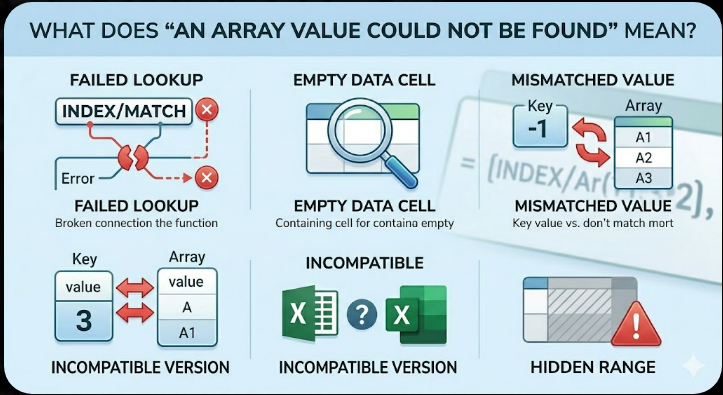
Common Causes of the Error
Understanding the causes can help you troubleshoot faster.
Some common reasons include:
- Incorrect cell references
- Missing or deleted data
- Improper use of array formulas
- Incompatible Excel versions
- Hidden or filtered data
- Formula syntax errors
Identifying the root cause is key to resolving the issue.
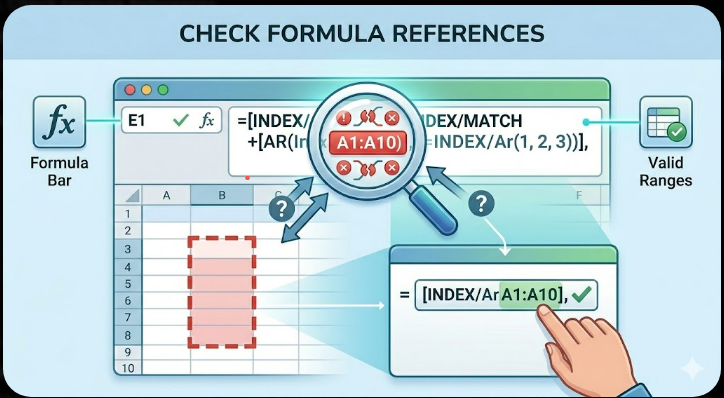
Check Formula References
One of the most common causes is incorrect or broken references.
To fix this:
- Click on the cell with the error.
- Review the formula in the formula bar.
- Ensure all referenced cells and ranges exist.
- Correct any invalid references.
Even a small mistake in a range can trigger the error.
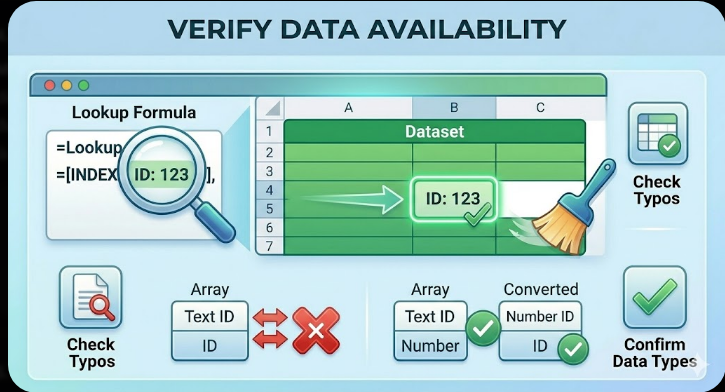
Verify Data Availability
If the formula is searching for a value that doesn’t exist, the error may appear.
You should:
- Check if the lookup value exists in the dataset
- Ensure there are no typos or mismatches
- Confirm data types (text vs numbers) match
Consistency in data is essential.
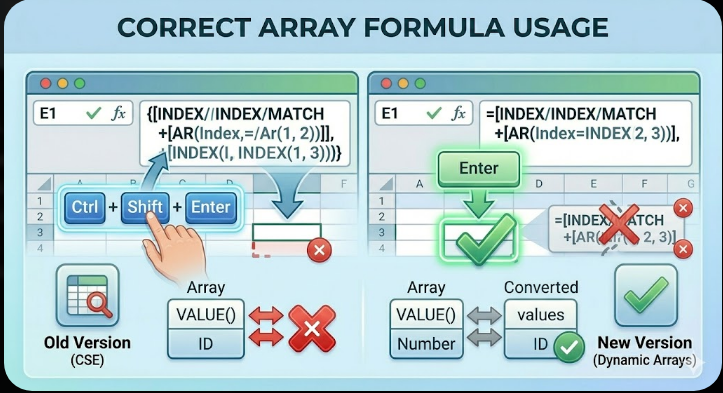
Correct Array Formula Usage
Array formulas require proper input methods.
In older Excel versions:
- Press Ctrl + Shift + Enter instead of just Enter
In newer versions (Excel 365 or Excel 2021):
- Dynamic arrays work automatically
Ensure you are using the correct method for your Excel version.
Check for Hidden or Filtered Data
Hidden rows or filters can affect array calculations.
To fix this:
- Clear all filters in your worksheet.
- Unhide rows and columns.
- Recalculate the formula.
This ensures all data is included in the calculation.
Use Correct Function Syntax
Incorrect syntax can cause array-related errors.
For example:
- Missing arguments
- Incorrect separators (comma vs semicolon)
- Improper nesting of functions
Double-check your formula structure carefully.
Convert Data Types
Mismatched data types can cause lookup failures.
To fix this:
- Convert numbers stored as text into numeric format
- Use functions like VALUE() or TEXT() if needed
Ensure both lookup values and source data use the same format.
Use IFERROR to Handle Errors
You can prevent errors from displaying by using the IFERROR function.
Example:
=IFERROR(your_formula, “Value not found”)
This replaces the error message with a custom result.
Update Excel
Older versions of Excel may not fully support dynamic arrays.
To update:
- Open Excel.
- Go to File > Account.
- Click Update Options > Update Now.
Updating ensures compatibility with modern functions.
Recalculate the Workbook
Sometimes Excel may not update formulas automatically.
To force recalculation:
- Press F9
- Or go to Formulas > Calculate Now
This refreshes all formulas in the workbook.
Check Named Ranges
If your formula uses named ranges, ensure they are valid.
To check:
- Go to Formulas > Name Manager.
- Verify all named ranges point to correct cells.
Fix or delete invalid ranges if necessary.
Avoid Empty Cells in Arrays
Empty cells within arrays can sometimes cause errors.
To fix this:
- Fill missing values
- Use functions like IF() to handle blanks
Example:
=IF(A1=””, 0, A1)
This ensures the array contains valid values.
Repair Microsoft Office
If the error persists, there may be a problem with Excel itself.
To repair Office:
- Open Control Panel.
- Go to Programs and Features.
- Select Microsoft Office.
- Click Change.
- Choose Quick Repair or Online Repair.
Restart your computer after the repair.
Check for Add-in Conflicts
Some Excel add-ins may interfere with formulas.
To disable add-ins:
- Go to File > Options > Add-ins.
- Disable unnecessary add-ins.
- Restart Excel.
Test if the issue is resolved.
Create a New Workbook
Sometimes the issue may be specific to the current file.
To test:
- Create a new workbook
- Recreate the formula
- Check if the error appears
If not, the original file may be corrupted.
Final Thoughts
The “An Array Value Could Not Be Found” error in Excel can be confusing, especially when working with complex formulas. However, it is usually caused by simple issues such as incorrect references, missing data, or formula errors.
By carefully reviewing your formulas, ensuring data consistency, and using built-in tools like IFERROR, you can resolve the issue quickly. Updating Excel and repairing Office can also help in more complex cases.
Related articles
Fixing the “Kernel Security Check Failure” Error on Windows 10