


Unable to Install Office 2016 on Mac? Try These Solutions
Installing Microsoft Office 2016 for Mac should usually be a smooth process, but many users encounter issues that prevent the installation from completing successfully. Whether the installer fails to launch, freezes midway, or displays error messages, these problems can be frustrating—especially if you need Office for work or school.
The inability to install Office 2016 on macOS is typically caused by system compatibility issues, corrupted installation files, permission problems, or conflicts with previous Office versions. Fortunately, most of these problems can be resolved with the right troubleshooting steps.
In this guide, you’ll learn what to try if you can’t install Microsoft Office 2016 for Mac, along with practical solutions to get the installation working.
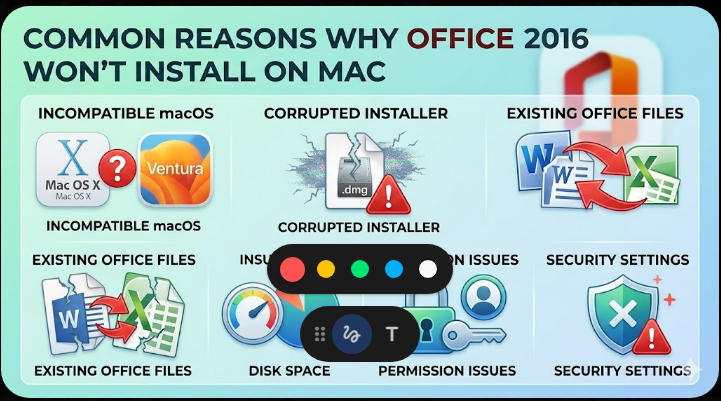
Common Reasons Why Office 2016 Won’t Install on Mac
Before jumping into solutions, it helps to understand the common causes.
Some typical reasons include:
- Incompatible macOS version
- Corrupted or incomplete installer
- Existing Office files causing conflicts
- Insufficient disk space
- Permission issues
- Security settings blocking installation
Identifying the root cause will help you apply the correct fix.
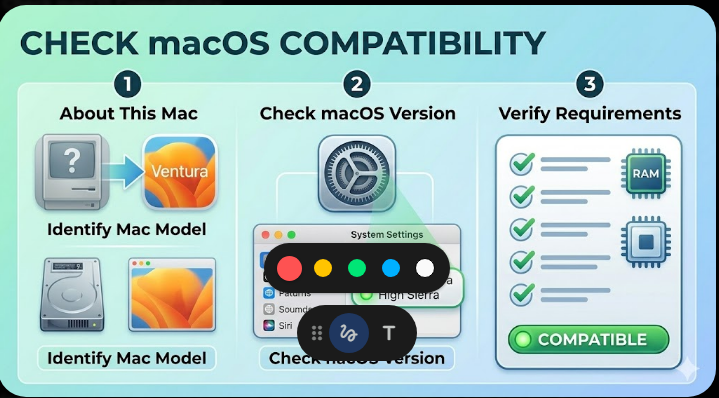
Check macOS Compatibility
Office 2016 for Mac requires a supported version of macOS.
You should:
- Ensure your Mac meets the minimum system requirements
- Update macOS to a compatible version if needed
To check your macOS version:
- Click the Apple menu.
- Select About This Mac.
If your system is too new or too old, compatibility issues may arise.
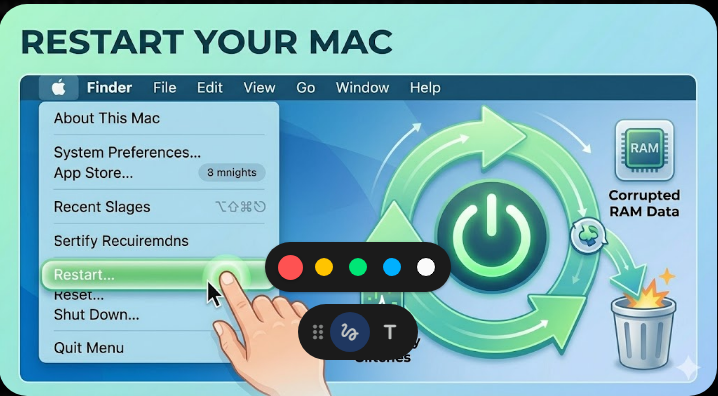
Restart Your Mac
Temporary glitches can interfere with installation.
To restart:
- Click the Apple menu.
- Select Restart.
After rebooting, try installing Office again.
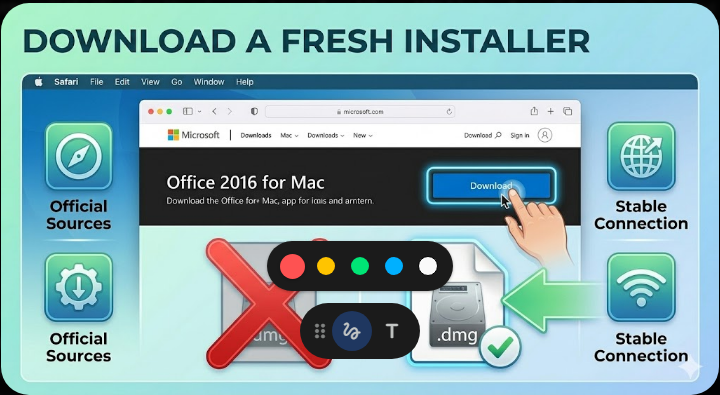
Download a Fresh Installer
A corrupted installer is a common cause of installation failure.
To fix this:
- Delete the existing installer
- Download a new copy from the official Microsoft website
- Ensure a stable internet connection during download
Avoid using third-party or unofficial sources.
Remove Previous Office Versions
Old Office files can conflict with the installation.
To remove them:
- Open Finder.
- Go to the Applications folder.
- Move all Microsoft Office apps to the Trash.
- Empty the Trash.
You may also need to remove leftover files from the Library folder for a clean installation.
Check Disk Space
Insufficient storage can prevent installation.
Make sure you have:
- Enough free disk space (at least several GB)
- Additional space for temporary files
To check storage:
- Click the Apple menu.
- Select About This Mac > Storage.
Free up space if necessary.
Adjust Security and Privacy Settings
macOS security settings can block installations from unidentified developers.
To allow installation:
- Open System Settings (or System Preferences).
- Go to Privacy & Security.
- Under Security, allow apps downloaded from identified developers.
- If blocked, click Open Anyway for the Office installer.
Run the Installer with Proper Permissions
Permission issues can prevent installation.
To fix this:
- Right-click the installer and select Open
- Ensure you are logged in with an administrator account
This ensures the installer has full access.
Disable Antivirus Software
Some antivirus programs may block installation files.
To test this:
- Temporarily disable your antivirus
- Run the Office installer
- Re-enable the antivirus after installation
Always ensure your system remains protected.
Install in Safe Mode
Booting into Safe Mode can prevent conflicts with background processes.
To enter Safe Mode:
- Shut down your Mac.
- Turn it on while holding the Shift key.
- Release the key when you see the login screen.
Then try installing Office again.
Clear Temporary Files
Temporary files may interfere with installation.
To clear them:
- Open Finder
- Navigate to temporary folders (such as /private/var/tmp)
- Delete unnecessary files
Be cautious when removing system files.
Update macOS
Outdated systems may cause compatibility issues.
To update macOS:
- Open System Settings.
- Go to General > Software Update.
- Install available updates.
Restart your Mac after updating.
Check Internet Connection
Some installation steps require a stable connection.
To ensure stability:
- Use a reliable Wi-Fi network
- Avoid interruptions during installation
Unstable connections can cause installation failures.
Use Microsoft AutoUpdate (After Partial Installation)
If Office installs partially but fails to complete:
- Open any installed Office app (if possible)
- Run Microsoft AutoUpdate
- Install available updates
This can fix incomplete installations.
Reinstall macOS (Last Resort)
If all else fails, reinstalling macOS may resolve deeper system issues.
Steps:
- Back up your data
- Restart your Mac and enter Recovery Mode
- Choose Reinstall macOS
- Follow the instructions
After reinstalling, try installing Office again.
Consider Using a Newer Office Version
Office 2016 is outdated and may not work well with newer macOS versions.
If possible:
- Upgrade to Microsoft 365 or a newer Office version
- Ensure full compatibility with your system
This can save time and avoid recurring issues.
Final Thoughts
If you can’t install Microsoft Office 2016 for Mac, the issue is usually caused by compatibility problems, corrupted files, or system restrictions. While it may seem complicated, most installation issues can be resolved with basic troubleshooting.
Downloading a fresh installer, removing old Office files, adjusting security settings, and ensuring system compatibility are the most effective solutions.
Related articles
Fixing the “Kernel Security Check Failure” Error on Windows 10
How to Fix No Internet Connection in Windows 10
Resolve Excel Error: “An Array Value Could Not Be Found” Easily