


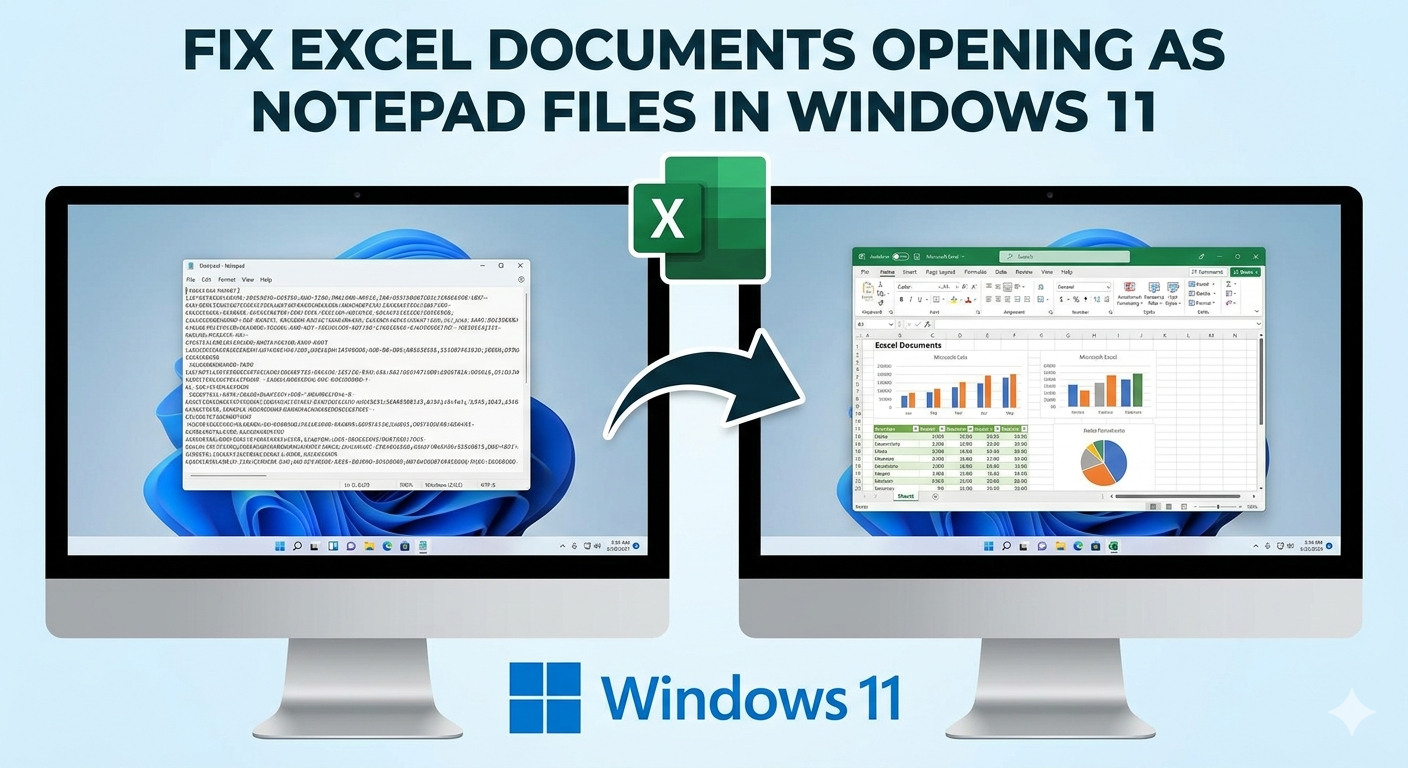
Fix Excel Documents Opening as Notepad Files in Windows 11
If your Excel files are opening in Notepad instead of Microsoft Excel on Windows 11, it can be confusing and frustrating. Instead of seeing your spreadsheet properly formatted, you may see unreadable text or code-like content in Notepad.
This issue is usually caused by incorrect file associations, corrupted settings, or problems with Microsoft Office installation. Fortunately, it is not a serious problem and can be fixed with a few simple steps.
In this guide, you’ll learn why Excel documents open in Notepad and how to fix the issue effectively on Windows 11.
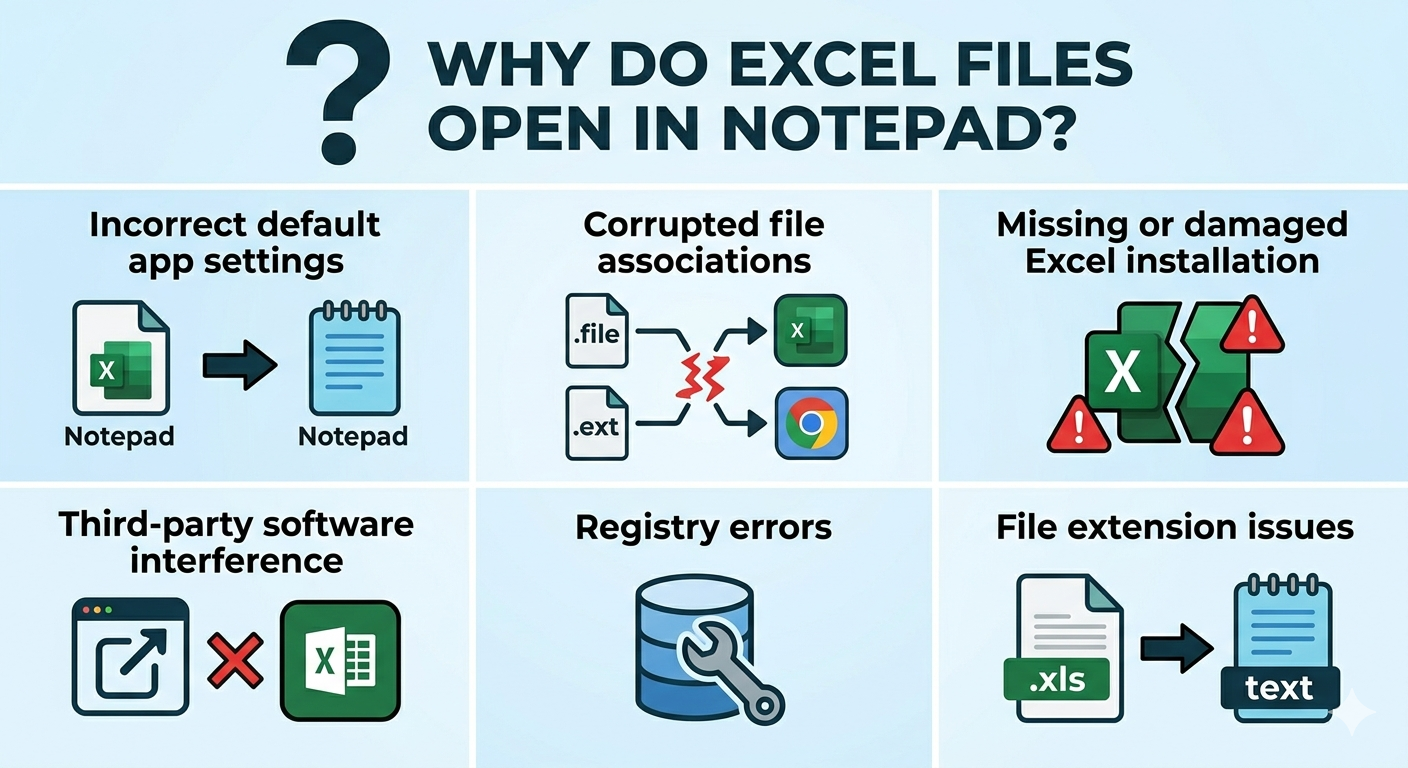
Why Do Excel Files Open in Notepad?
Before fixing the issue, it’s important to understand what causes it.
Common reasons include:
- Incorrect default app settings
- Corrupted file associations
- Missing or damaged Excel installation
- Third-party software interference
- Registry errors
- File extension issues
When Windows associates Excel file types (like .xlsx or .xls) with Notepad, it will open them incorrectly.
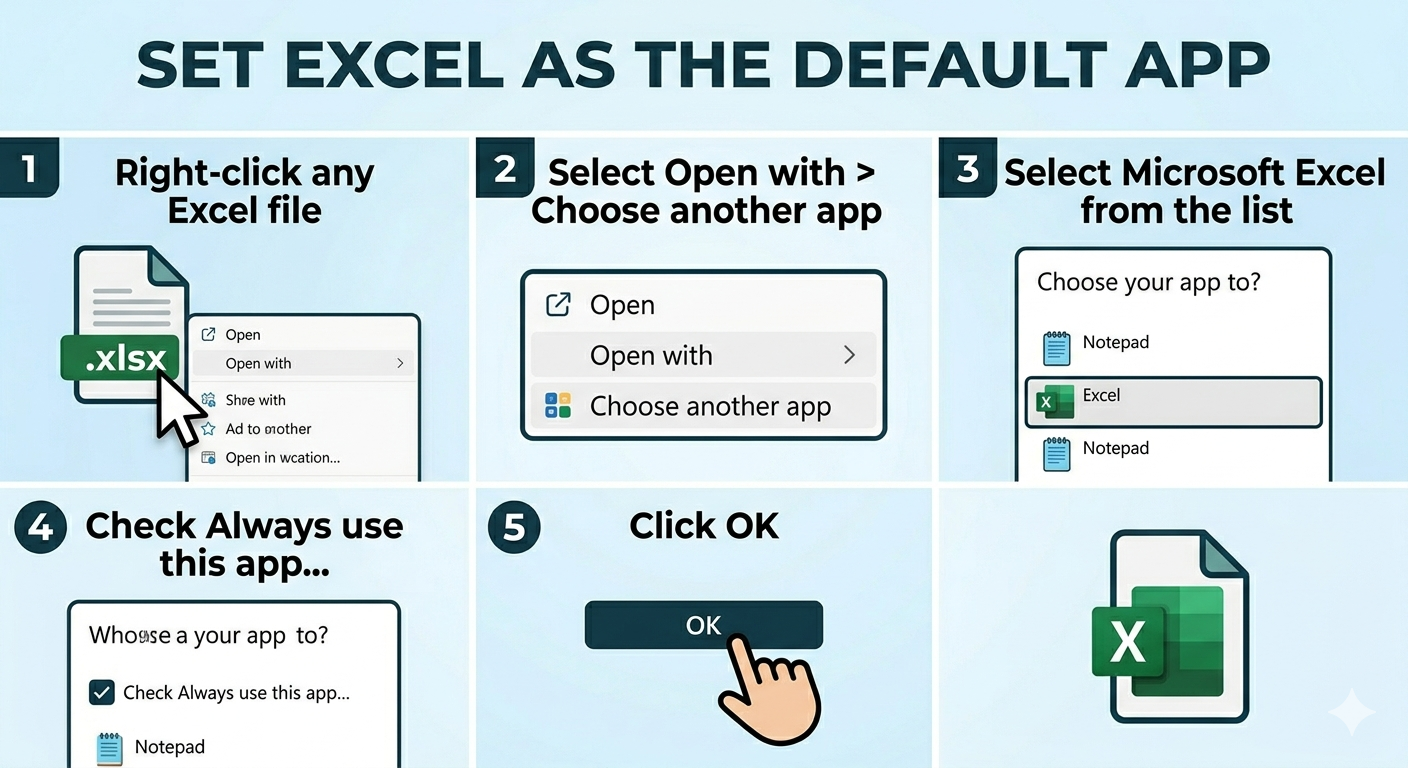
Set Excel as the Default App
The most common fix is to assign Excel as the default application for spreadsheet files.
To do this:
- Right-click any Excel file (.xlsx or .xls).
- Select Open with > Choose another app.
- Select Microsoft Excel from the list.
- Check Always use this app to open .xlsx files.
- Click OK.
Repeat for other file types if needed.
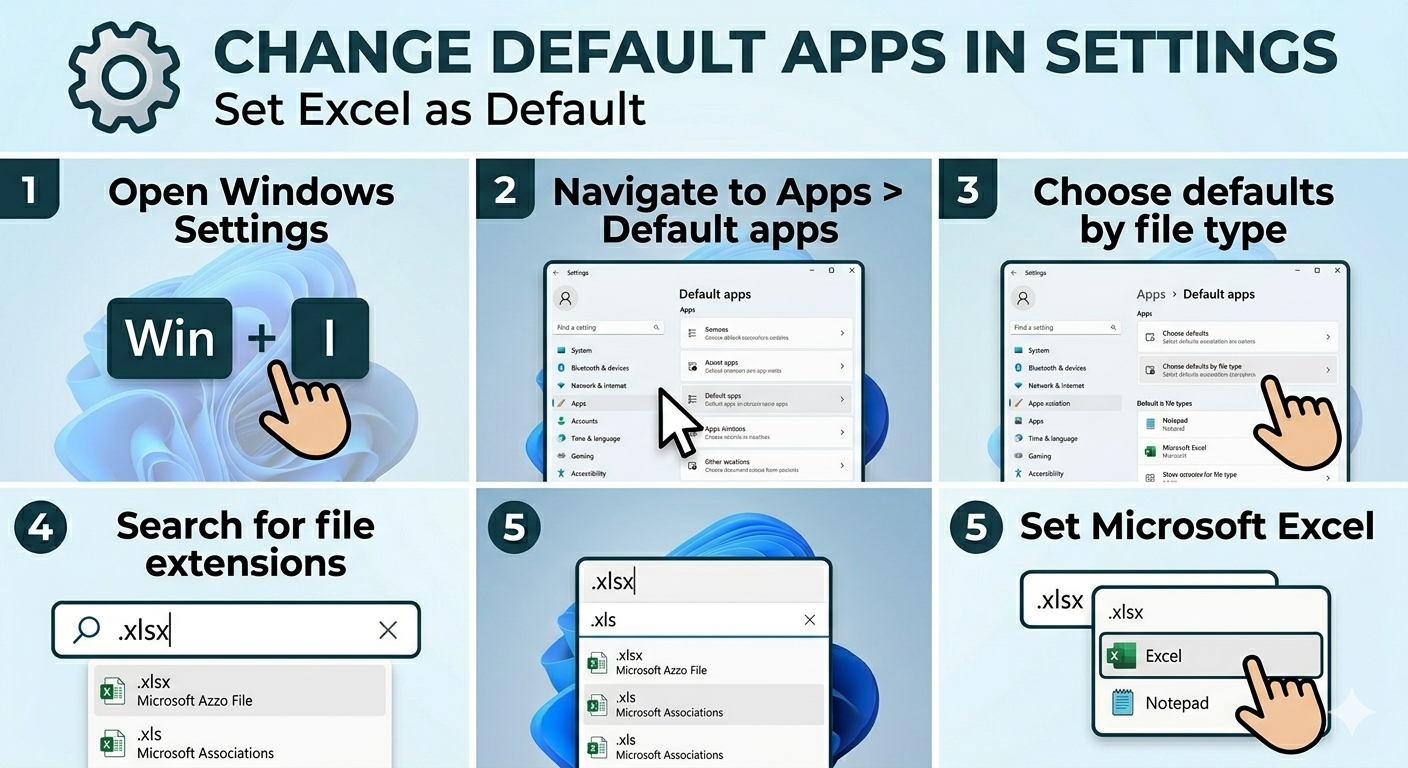
Change Default Apps in Settings
You can also set Excel as the default app through Windows Settings.
Steps:
- Press Windows + I to open Settings.
- Go to Apps > Default apps.
- Scroll down and click Choose defaults by file type.
- Locate file types like .xlsx, .xls, .csv.
- Set Microsoft Excel as the default app.
This ensures all spreadsheet files open correctly.
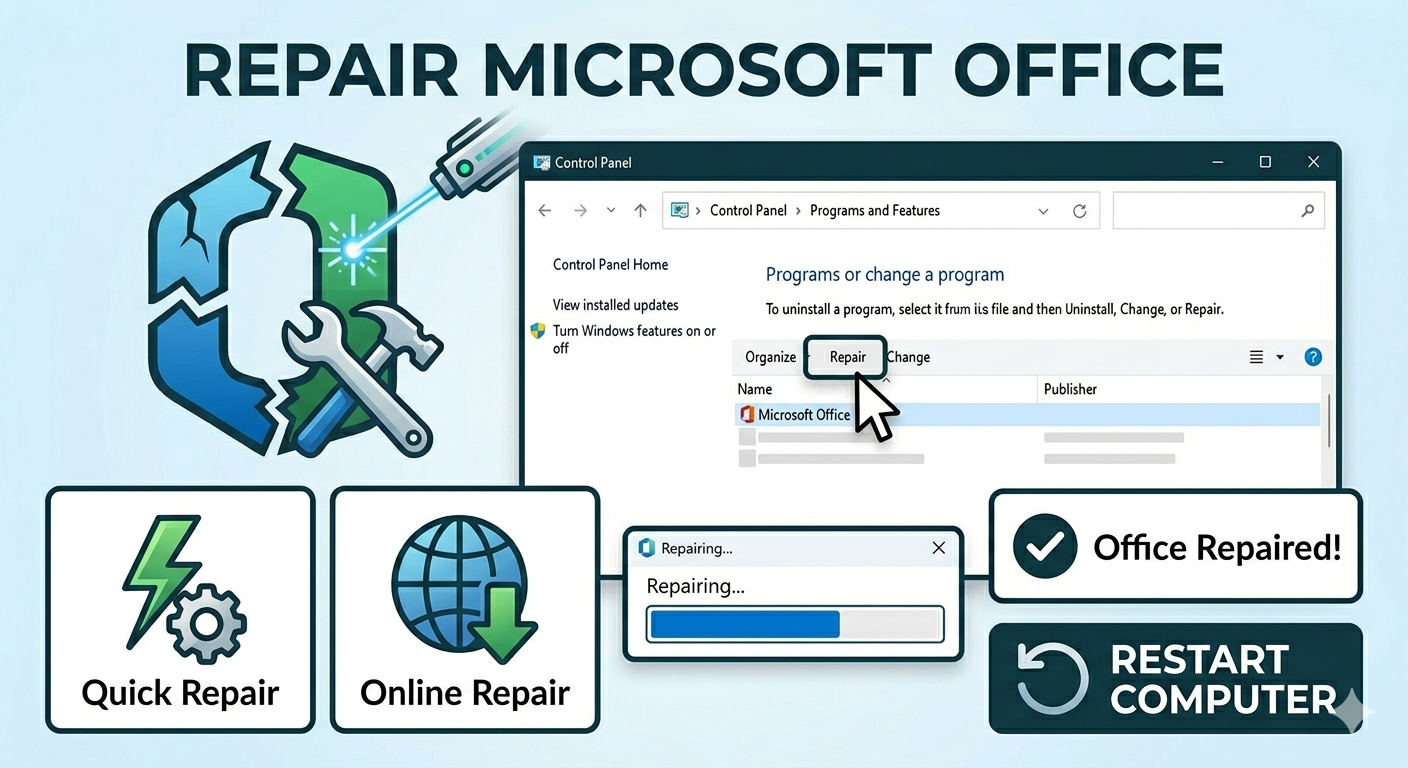
Repair Microsoft Office
If Excel is installed but not functioning properly, repairing Office can help.
To repair Office:
- Open Control Panel.
- Go to Programs and Features.
- Select Microsoft Office.
- Click Change.
- Choose Quick Repair or Online Repair.
Restart your computer after the repair.
Reinstall Microsoft Office
If repairing doesn’t fix the issue, reinstalling Office may be necessary.
Steps:
- Uninstall Microsoft Office from Programs and Features.
- Restart your computer.
- Download Office from the official Microsoft website.
- Install it again.
This will restore proper file associations.
Check File Extensions
Sometimes files may have incorrect or hidden extensions.
To verify:
- Open File Explorer.
- Click View > Show > File name extensions.
- Ensure the file ends with .xlsx or .xls.
If the extension is incorrect, rename it properly.
Reset Default Apps
Resetting all default apps can fix corrupted associations.
To reset:
- Open Settings.
- Go to Apps > Default apps.
- Scroll down and click Reset under Reset to Microsoft recommended defaults.
After resetting, set Excel as default again.
Use “Open With” Option
If the issue occurs occasionally, you can manually open files with Excel.
Steps:
- Right-click the file.
- Select Open with.
- Choose Microsoft Excel.
This is a quick temporary solution.
Check for Windows Updates
Outdated Windows versions can cause compatibility issues.
To update:
- Press Windows + I.
- Go to Windows Update.
- Click Check for updates.
- Install available updates.
Restart your system afterward.
Scan for Malware
Malware can alter file associations and system behavior.
To scan your system:
- Open Windows Security.
- Go to Virus & threat protection.
- Run a Full scan.
Remove any detected threats.
Fix Registry Issues (Advanced)
Corrupted registry entries can cause incorrect file associations.
To fix:
- Press Windows + R.
- Type regedit and press Enter.
- Navigate to file association keys for Excel.
- Correct or delete incorrect entries.
Be cautious when editing the registry and back it up first.
Use System File Checker
Corrupted system files can affect application behavior.
To run SFC:
- Open Command Prompt as administrator.
- Enter:
sfc /scannow
- Press Enter.
Restart your computer after the scan.
Use DISM Tool
If SFC doesn’t help, use DISM:
- Open Command Prompt as administrator.
- Enter:
DISM /Online /Cleanup-Image /RestoreHealth
- Press Enter.
Restart your system afterward.
Create a New User Profile
Sometimes user profile corruption can cause issues.
To create a new account:
- Open Settings > Accounts.
- Click Other users.
- Add a new user account.
- Log in with the new account and test Excel files.
Perform System Restore
If the issue started recently, restoring your system can help.
Steps:
- Search for Create a restore point.
- Click System Restore.
- Choose a restore point before the issue began.
- Follow the instructions.
Final Thoughts
The issue of Excel documents opening in Notepad on Windows 11 is usually caused by incorrect file associations or problems with Microsoft Office. While it may seem confusing at first, it is typically easy to fix.
Setting Excel as the default app, repairing Office, and checking file extensions are the most effective solutions. In more complex cases, resetting default apps or reinstalling Office may be required.
Related articles
How to Fix Wi-Fi Disconnecting Issues on Windows 10