


How to Fix No Internet Connection in Windows 10
A No Internet Connection issue on Windows 10 can be extremely frustrating, especially when you rely on your computer for work, communication, or entertainment. When this problem occurs, your system may connect to Wi-Fi or Ethernet but still cannot access websites, online applications, or cloud services.
You may see messages such as “No Internet Access,” “Connected but No Internet,” or “No Internet Connection.” These errors can occur due to network configuration problems, outdated drivers, router issues, or corrupted system files.
Fortunately, most internet connection problems in Windows 10 can be resolved with simple troubleshooting steps. This guide will walk you through the causes of the issue and the best methods to fix it.
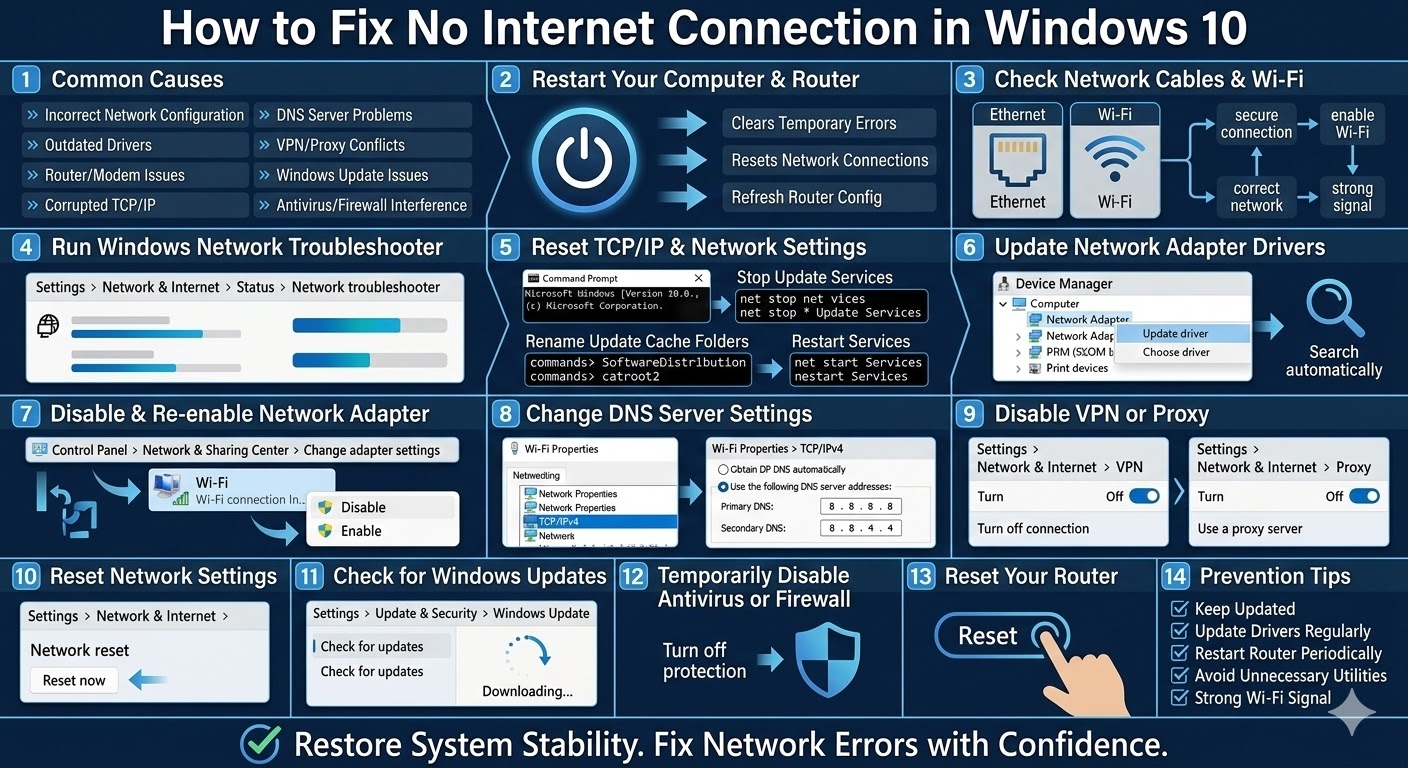
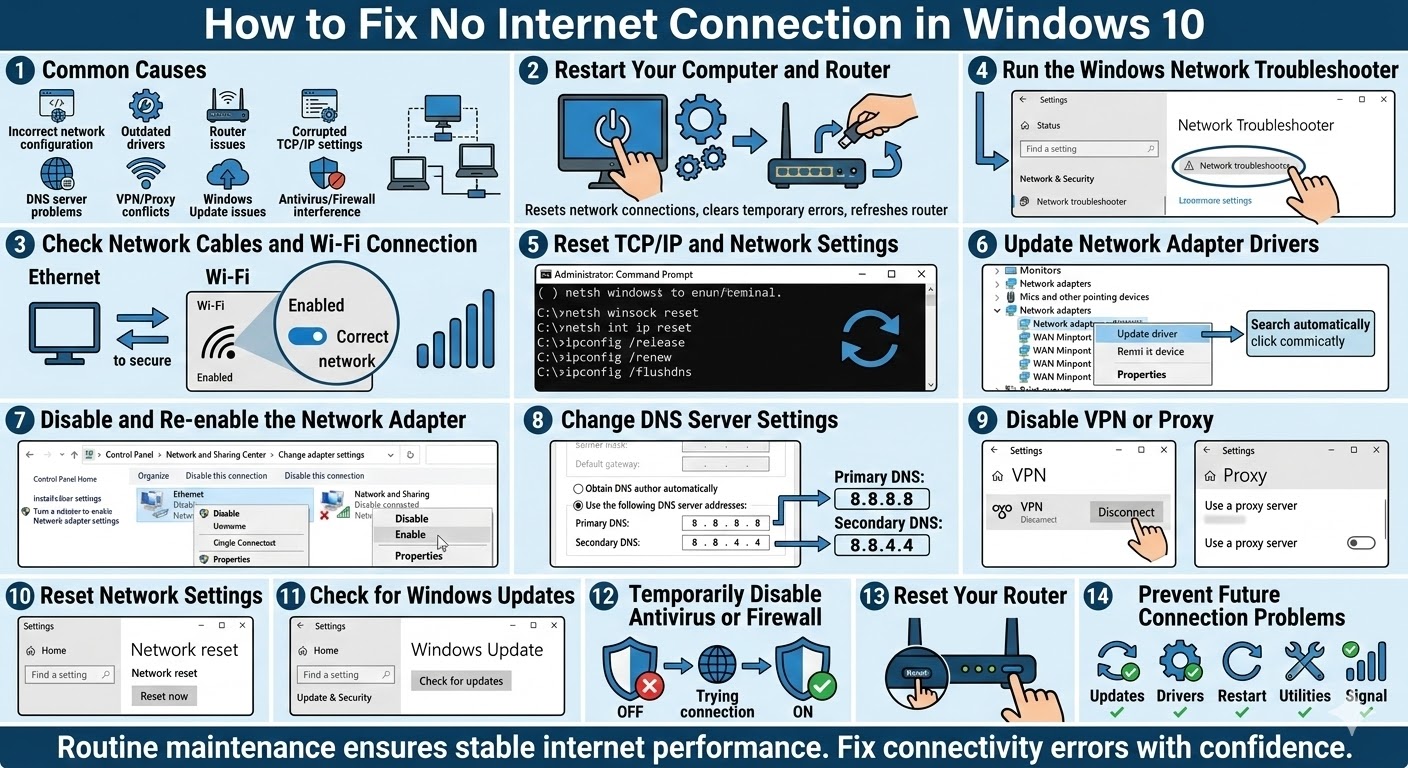
Common Causes of No Internet Connection in Windows 10
Before applying solutions, it helps to understand what might be causing the problem.
Some common causes include:
-
Incorrect network configuration
-
Faulty or outdated network drivers
-
Router or modem issues
-
Corrupted TCP/IP settings
-
DNS server problems
-
VPN or proxy conflicts
-
Windows update issues
-
Antivirus or firewall interference
Identifying the possible cause can help you choose the most effective solution.
Restart Your Computer and Router
One of the simplest solutions is restarting your devices.
Restarting can:
-
Reset network connections
-
Clear temporary errors
-
Refresh router configuration
Steps to Restart Your Router
-
Turn off your router or modem
-
Wait about 30 seconds
-
Turn the router back on
-
Restart your computer
Once both devices restart, reconnect to your network and test your internet connection.
Check Network Cables and Wi-Fi Connection
If you are using an Ethernet connection, check that the cable is securely connected to both your computer and router.
For Wi-Fi connections:
-
Ensure Wi-Fi is enabled on your computer
-
Confirm you are connected to the correct network
-
Check that the signal strength is strong enough
You can also try connecting another device to the same network to determine whether the issue is with your computer or the network itself.
Run the Windows Network Troubleshooter
Windows 10 includes a built-in tool that can automatically detect and fix network problems.
How to Run the Troubleshooter
-
Open Settings
-
Go to Network & Internet
-
Click Status
-
Select Network troubleshooter
-
Follow the on-screen instructions
The troubleshooter will scan your system and apply recommended fixes.
Reset TCP/IP and Network Settings
If network settings become corrupted, resetting the TCP/IP stack can restore proper connectivity.
Use Command Prompt to Reset Network
Open Command Prompt as Administrator and run the following commands:
netsh int ip reset
ipconfig /release
ipconfig /renew
ipconfig /flushdns
Restart your computer after executing these commands.
Update Network Adapter Drivers
Outdated or corrupted drivers can prevent your computer from connecting to the internet.
Update Drivers Using Device Manager
-
Press Windows + X
-
Select Device Manager
-
Expand Network adapters
-
Right-click your network adapter
-
Select Update driver
-
Choose Search automatically for drivers
Restart your system after updating the driver.
Disable and Re-enable the Network Adapter
Sometimes simply resetting the adapter can fix connectivity issues.
Steps
-
Open Control Panel
-
Select Network and Sharing Center
-
Click Change adapter settings
-
Right-click your network adapter
-
Select Disable
-
Wait a few seconds
-
Right-click again and select Enable
Reconnect to your network and test your internet access.
Change DNS Server Settings
DNS issues can prevent websites from loading even when the network connection is active.
Using public DNS servers may resolve the problem.
Configure Google DNS
-
Open Network and Sharing Center
-
Click Change adapter settings
-
Right-click your connection and select Properties
-
Select Internet Protocol Version 4 (TCP/IPv4)
-
Click Properties
Enter the following DNS addresses:
Primary DNS:
Secondary DNS:
Click OK and reconnect to your network.
Disable VPN or Proxy
VPNs and proxy servers may block internet access if configured incorrectly.
Disable VPN
-
Open Settings
-
Go to Network & Internet
-
Select VPN
-
Disconnect any active VPN connection
Disable Proxy
-
Open Settings
-
Go to Network & Internet
-
Click Proxy
-
Turn off Use a proxy server
Test your internet connection afterward.
Reset Network Settings
If multiple network configurations are corrupted, performing a full network reset may help.
How to Reset Network Settings
-
Open Settings
-
Go to Network & Internet
-
Scroll down and select Network reset
-
Click Reset now
This will reinstall all network adapters and restore default network settings.
Check for Windows Updates
Sometimes network problems are caused by outdated Windows components.
Update Windows
-
Open Settings
-
Go to Update & Security
-
Click Check for updates
-
Install available updates
Restart your computer after updating.
Temporarily Disable Antivirus or Firewall
Security software can occasionally block internet connections.
To test this:
-
Temporarily disable antivirus or firewall software
-
Check if the internet connection works
-
Re-enable security protection afterward
If the issue disappears, adjust your security settings or add network exceptions.
Reset Your Router
If none of the previous solutions work, resetting your router may resolve the issue.
Steps
-
Locate the Reset button on your router
-
Press and hold it for about 10–15 seconds
-
Wait for the router to restart
After resetting, reconnect your devices to the network.
Prevent Future Internet Connection Problems
To minimize connectivity issues in the future:
-
Keep Windows updated
-
Update network drivers regularly
-
Restart your router periodically
-
Avoid installing unnecessary network utilities
-
Maintain strong Wi-Fi signal coverage
Proper network maintenance helps ensure stable internet performance.
Final Thoughts
The No Internet Connection problem in Windows 10 can occur for many reasons, including network configuration errors, driver issues, router problems, or DNS conflicts. Although the issue can interrupt your online activities, it is usually easy to fix with the right troubleshooting steps.
Related articles
How to Fix Wi-Fi Disconnecting Issues on Windows 10