


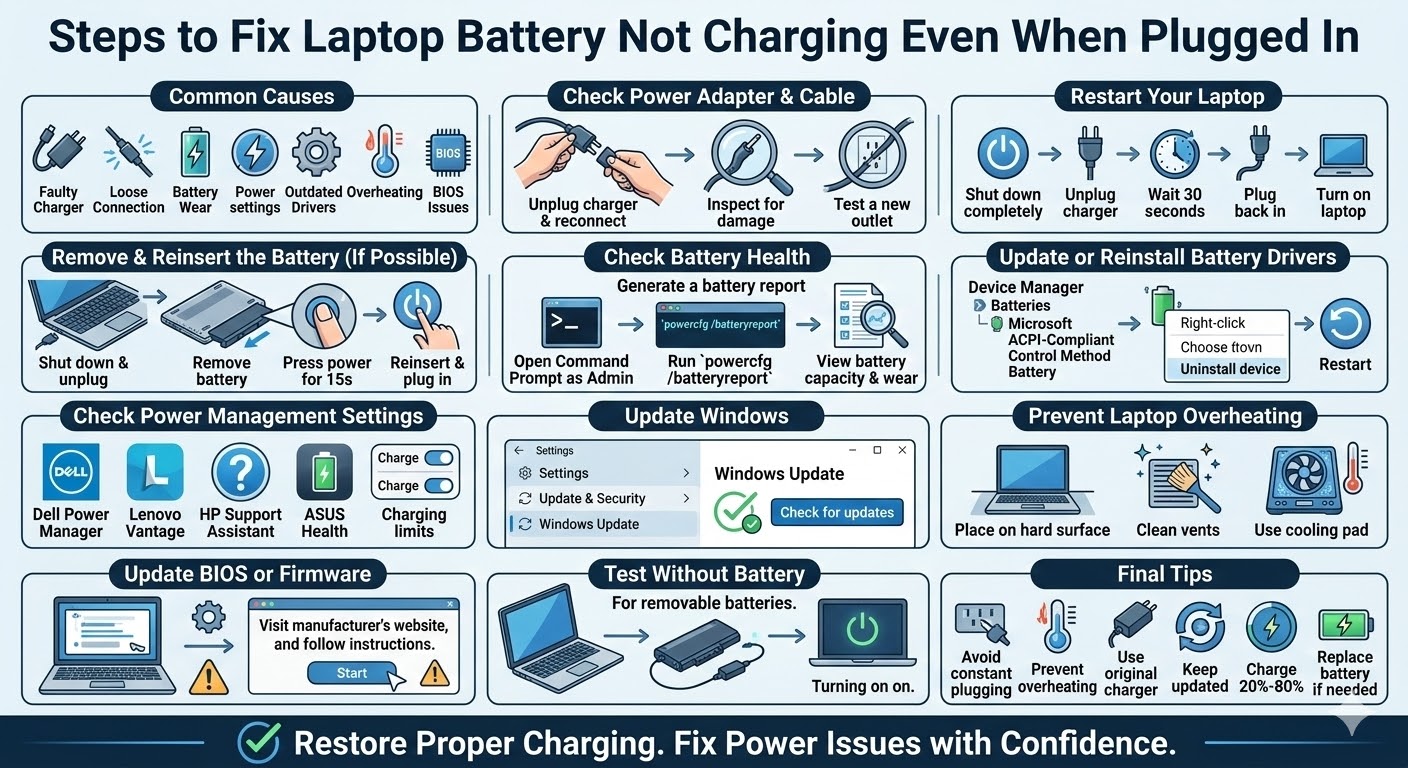
Fix Laptop Battery Not Charging Even When Plugged In
One of the most frustrating problems laptop users encounter is when the device shows “Plugged in, not charging.” Even though the charger is connected and the power icon appears, the battery percentage does not increase. This issue can occur on many Windows laptops, including those running Windows 10 or Windows 11.
The problem may be caused by hardware issues, battery wear, power management settings, or driver problems. Fortunately, in many cases, the issue can be resolved with a few troubleshooting steps.
In this guide, you will learn the most common reasons why your laptop is plugged in but not charging and how to fix the problem effectively.
Why Your Laptop Says “Plugged In, Not Charging”
When your laptop displays this message, it means the device detects the charger but cannot properly charge the battery. Several factors can cause this issue.
Common causes include:
-
Faulty charger or damaged power cable
-
Loose power connection
-
Battery health deterioration
-
Incorrect power management settings
-
Outdated or corrupted battery drivers
-
Overheating issues
-
BIOS or firmware problems
Identifying the cause will help you apply the correct solution.
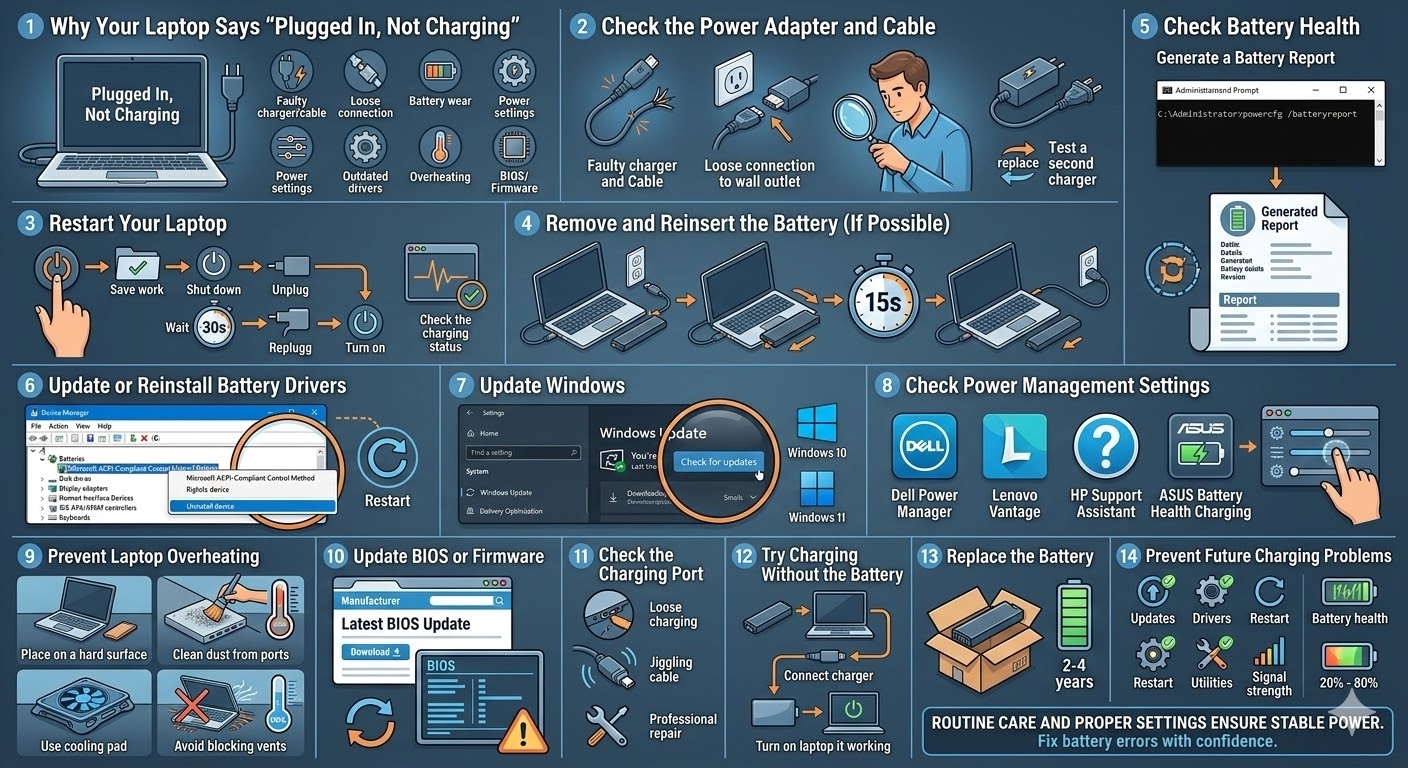
Check the Power Adapter and Cable
The first thing to inspect is your laptop charger.
Look for the following problems:
-
Frayed or damaged cables
-
Loose connections
-
Bent charging pins
-
Overheating adapter
What You Should Do
-
Unplug the charger and reconnect it firmly
-
Try a different wall outlet
-
Inspect the cable and adapter for physical damage
-
If possible, test another compatible charger
If the charger is defective, replacing it may solve the problem immediately.
Restart Your Laptop
Sometimes a temporary system glitch can prevent the battery from charging correctly.
Steps
-
Save your work
-
Shut down the laptop completely
-
Unplug the charger
-
Wait for about 30 seconds
-
Plug the charger back in
-
Turn on the laptop
After restarting, check whether the battery begins charging normally.
Remove and Reinsert the Battery (If Possible)
If your laptop has a removable battery, reseating it may fix charging issues.
How to Reinsert the Battery
-
Turn off the laptop
-
Disconnect the charger
-
Remove the battery
-
Press and hold the power button for 15 seconds
-
Reinsert the battery
-
Plug the charger back in
-
Turn on the laptop
This process resets the power system.
Check Battery Health
Laptop batteries degrade over time, which may prevent proper charging.
Signs of battery wear include:
-
Battery draining quickly
-
Laptop shutting down unexpectedly
-
Charging stopping at a certain percentage
-
Battery swelling
You can check battery health using Windows tools.
Generate a Battery Report
Open Command Prompt as Administrator and run:
Windows will create a battery report that shows battery capacity and health information.
Update or Reinstall Battery Drivers
Corrupted battery drivers can interfere with charging functionality.
Reinstall Battery Drivers
-
Press Windows + X
-
Select Device Manager
-
Expand Batteries
-
Right-click Microsoft ACPI-Compliant Control Method Battery
-
Select Uninstall device
-
Restart your laptop
Windows will automatically reinstall the correct driver after rebooting.
Update Windows
Outdated system files may cause charging or power management issues.
Check for Updates
-
Open Settings
-
Go to Update & Security
-
Click Check for updates
-
Install any available updates
Restart your laptop after installing updates.
Check Power Management Settings
Some laptops include battery protection settings that stop charging after reaching a certain level to extend battery life.
These features may appear in manufacturer utilities such as:
-
Dell Power Manager
-
Lenovo Vantage
-
HP Support Assistant
-
ASUS Battery Health Charging
Check these programs to ensure charging limits are not restricting battery charging.
Prevent Laptop Overheating
Excessive heat can cause the system to stop charging the battery as a safety measure.
Reduce Overheating
-
Place the laptop on a hard surface
-
Clean dust from ventilation ports
-
Use a cooling pad
-
Avoid blocking air vents
Once the laptop cools down, charging may resume normally.
Update BIOS or Firmware
The BIOS controls hardware communication, including battery charging.
An outdated BIOS may cause charging issues.
Update BIOS Safely
-
Visit your laptop manufacturer’s website
-
Search for your device model
-
Download the latest BIOS update
-
Follow the manufacturer’s instructions carefully
Be cautious when updating BIOS, as improper updates may cause system issues.
Check the Charging Port
The laptop charging port may become loose or damaged over time.
Signs of a damaged port include:
-
Charger not fitting securely
-
Charging only when the cable is positioned in a certain way
-
Intermittent charging
If the port is damaged, professional repair may be required.
Try Charging Without the Battery
For laptops with removable batteries, you can test the charger and power system.
Steps
-
Turn off the laptop
-
Remove the battery
-
Connect the charger
-
Turn on the laptop
If the laptop works normally without the battery, the battery may need replacement.
Replace the Battery
If your laptop battery is old or damaged, replacing it may be the best solution.
Most laptop batteries last 2–4 years depending on usage. If your battery capacity has dropped significantly, installing a new battery will restore proper charging performance.
Prevent Future Charging Problems
To extend battery life and avoid charging issues:
-
Avoid keeping the laptop plugged in constantly
-
Prevent overheating during heavy tasks
-
Use the original charger whenever possible
-
Perform regular system updates
-
Keep the battery between 20% and 80% for optimal health
Proper battery care can significantly increase its lifespan.
Final Thoughts
The “Plugged in, not charging” issue can be concerning, but it does not always mean your laptop battery is permanently damaged. In many cases, the problem is caused by driver errors, power management settings, or temporary hardware glitches.
Related articles
How to Fix Wi-Fi Disconnecting Issues on Windows 10