


What Causes iPhone Overheating and How to Solve It
If you’ve ever noticed your iPhone becoming unusually warm or even hot to the touch, you’re not alone. Many users experience this issue, especially during heavy use or while charging. While some level of heat is normal, excessive heat can affect performance, battery life, and overall device health.
The good news is that most overheating problems are caused by common and fixable issues such as background apps, environmental conditions, or software glitches. In this guide, you’ll learn why your iPhone gets hot and how to fix it effectively.
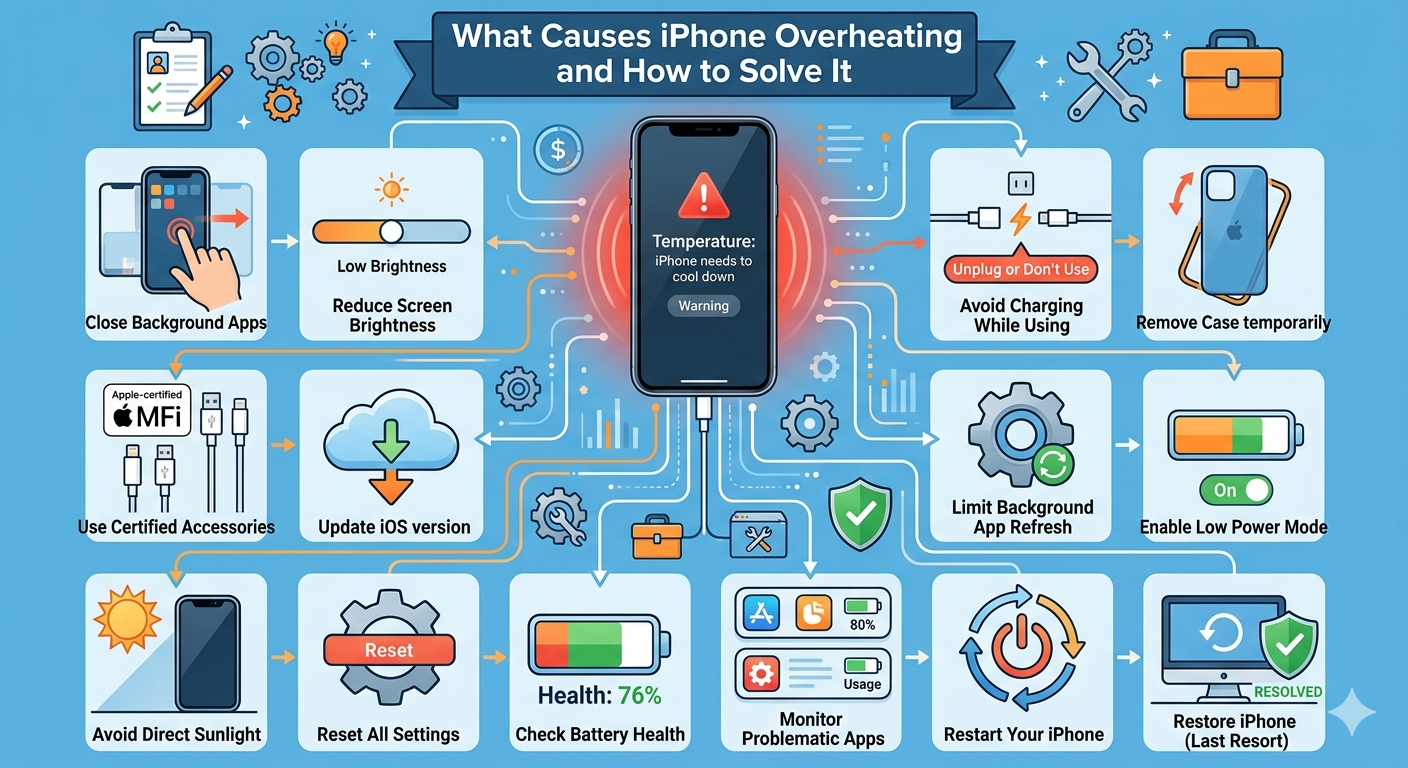
Is It Normal for an iPhone to Get Hot?
Yes, it is completely normal for your iPhone to get slightly warm during certain activities. For example:
- Charging the device
- Playing games or using heavy apps
- Streaming videos
- Using GPS or navigation
However, if your iPhone becomes too hot to hold or shows a temperature warning, then there is likely an underlying issue that needs attention.
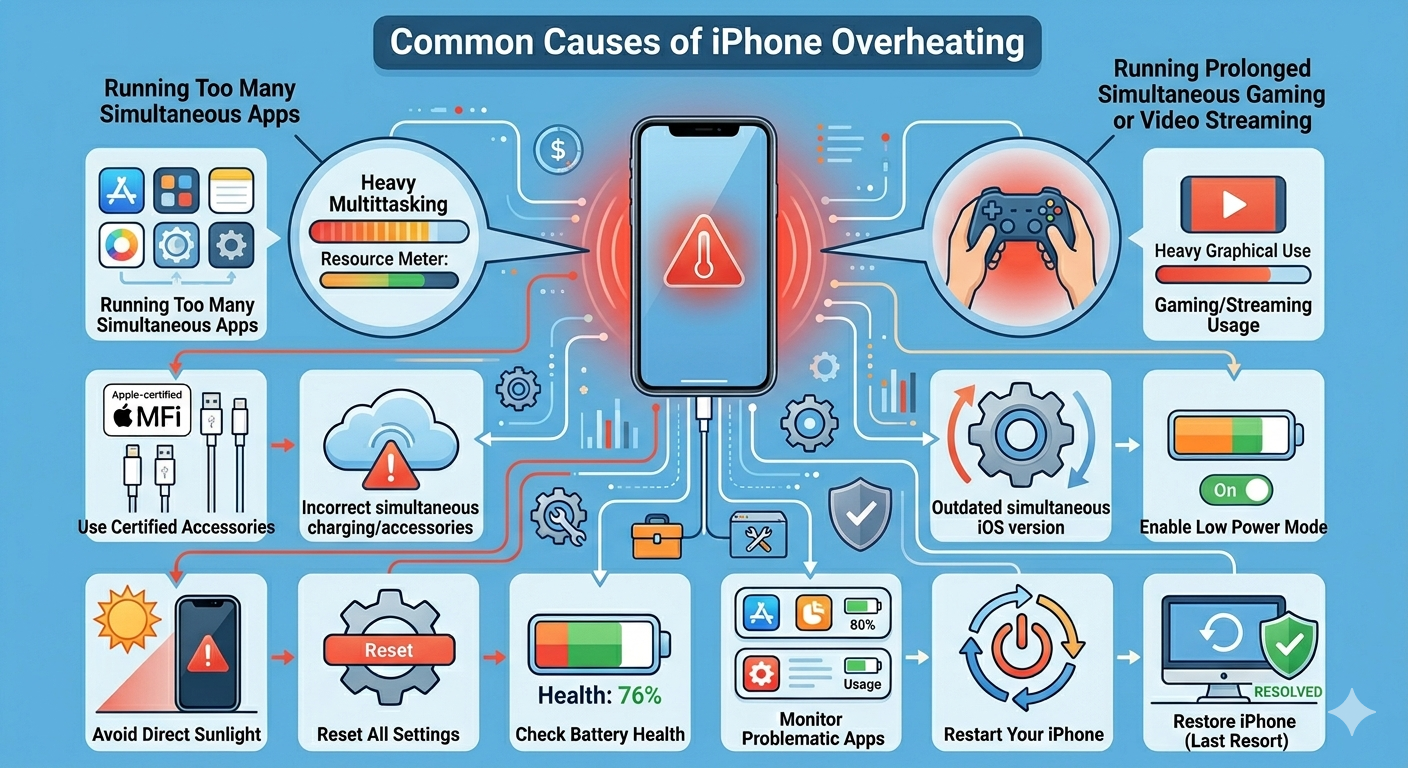
Common Causes of iPhone Overheating
Understanding the causes can help you prevent and fix the issue.
Some common reasons include:
- Running too many apps simultaneously
- High screen brightness
- Prolonged gaming or video streaming
- Poor network signal
- Charging issues or faulty accessories
- Outdated iOS version
- Exposure to high temperatures
Identifying what’s causing the heat is the first step toward solving the problem.
Close Background Apps
Apps running in the background can consume CPU resources and generate heat.
To close apps:
- Swipe up from the bottom of the screen (or double-click the Home button).
- Swipe up on apps to close them.
Closing unused apps can reduce system load and lower temperature.
Reduce Screen Brightness
High brightness levels can increase heat generation.
To adjust brightness:
- Swipe down to open Control Center
- Lower the brightness slider
You can also enable Auto-Brightness in Settings.
Avoid Using Phone While Charging
Using your iPhone during charging can cause it to heat up quickly.
To prevent overheating:
- Let your phone charge without heavy usage
- Avoid gaming or streaming while charging
This helps reduce stress on the battery and processor.
Remove the Phone Case
Phone cases can trap heat and prevent proper ventilation.
If your iPhone feels hot:
- Remove the case temporarily
- Allow the device to cool down
This simple step can make a noticeable difference.
Check Charging Accessories
Using non-certified chargers can lead to overheating.
You should:
- Use Apple-certified cables and adapters
- Avoid cheap or damaged chargers
- Replace faulty accessories
Proper charging equipment ensures safe power delivery.
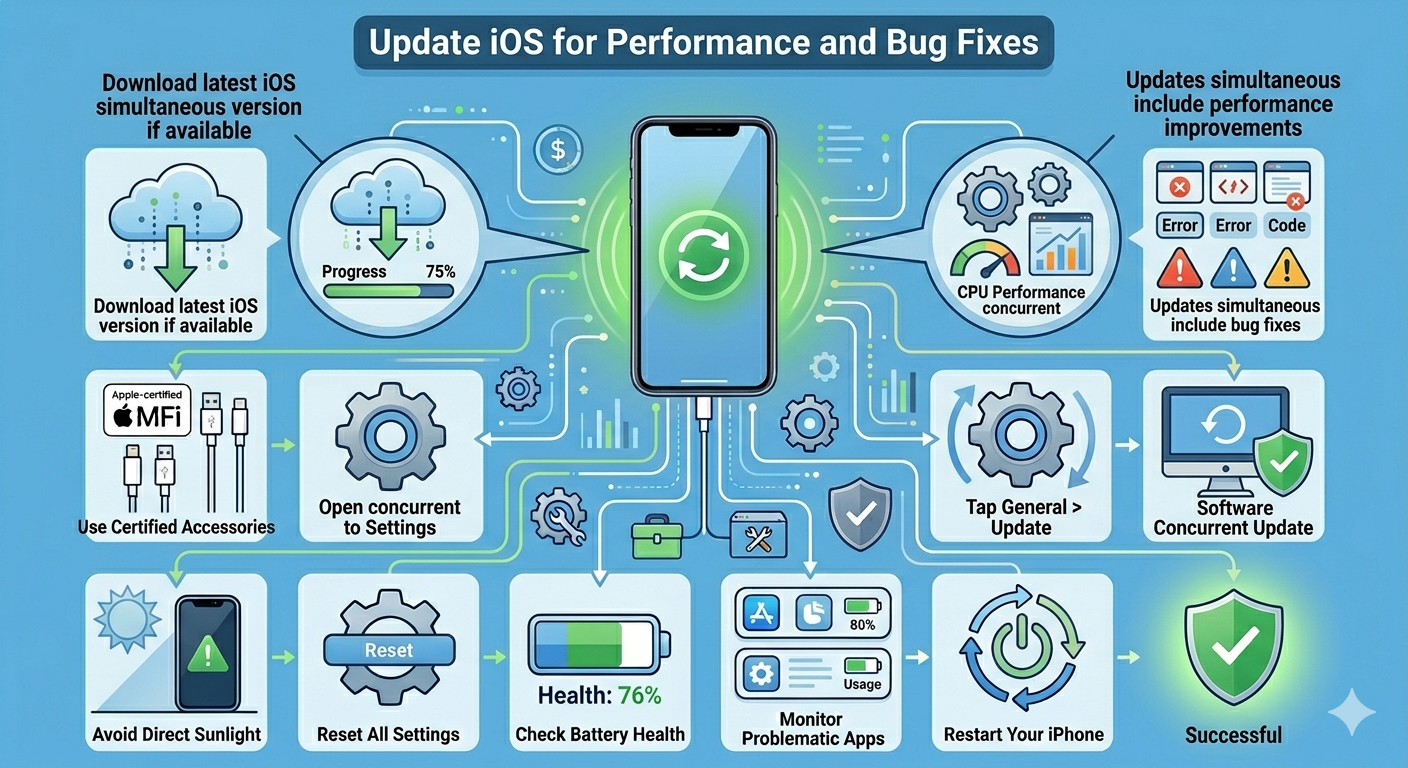
Update iOS
Software bugs can cause excessive CPU usage and overheating.
To update iOS:
- Open Settings.
- Go to General > Software Update.
- Install the latest version if available.
Updates often include performance improvements and bug fixes.
Turn Off Background App Refresh
Background activity can increase heat.
To disable it:
- Open Settings.
- Go to General > Background App Refresh.
- Turn it off or limit it to Wi-Fi only.
This reduces unnecessary processing.
Enable Low Power Mode
Low Power Mode reduces system activity and helps cool down your device.
To enable:
- Go to Settings > Battery
- Turn on Low Power Mode
This limits background processes and lowers power consumption.
Avoid Direct Sunlight
Environmental factors can significantly affect your iPhone’s temperature.
To prevent overheating:
- Keep your phone out of direct sunlight
- Avoid leaving it in hot places like cars
- Use your device in a cool environment
External heat can quickly raise internal temperature.
Reset All Settings
Misconfigured settings can sometimes cause overheating.
To reset settings:
- Go to Settings > General.
- Select Transfer or Reset iPhone.
- Tap Reset > Reset All Settings.
This will not delete your data but will reset system settings.
Check Battery Health
A degraded battery can cause overheating.
To check battery health:
- Go to Settings > Battery.
- Tap Battery Health & Charging.
If the battery health is significantly reduced, consider replacing it.
Identify Problematic Apps
Some apps may cause excessive CPU usage.
To check:
- Go to Settings > Battery
- Review which apps use the most power
If a specific app is causing overheating, update or uninstall it.
Restart Your iPhone
Restarting your device can fix temporary glitches.
To restart:
- Press and hold the power button
- Slide to power off
- Turn it back on after a few seconds
This clears background processes and refreshes the system.
Restore iPhone (Last Resort)
If overheating persists, restoring your device may help.
Steps:
- Back up your data
- Go to Settings > General > Transfer or Reset iPhone
- Tap Erase All Content and Settings
Set up your iPhone as new to eliminate software issues.
When to Seek Professional Help
If your iPhone continues to overheat despite trying all solutions, it may be a hardware issue.
Consider contacting Apple Support if:
- The device overheats frequently
- You see temperature warning messages
- The battery drains unusually fast
Professional inspection may be required.
Final Thoughts
An iPhone getting warm occasionally is normal, but excessive heat should not be ignored. The “Why does my iPhone get so hot” issue is usually caused by heavy usage, background activity, or environmental factors.
By managing apps, adjusting settings, using proper accessories, and keeping your device updated, you can prevent overheating and maintain optimal performance.
Related articles
Fixing the “Kernel Security Check Failure” Error on Windows 10