


How to Fix Excel Not Opening Issue on Windows
Microsoft Excel is one of the most widely used tools for data management, calculations, and reporting. However, many users encounter a frustrating problem where Excel won’t open, crashes on launch, or fails to respond when opening files.
This issue can occur for various reasons, including corrupted files, add-in conflicts, outdated software, or system-related problems. Whether Excel won’t start at all or opens but doesn’t load files, there are several proven methods to fix it.
In this troubleshooting guide, you’ll learn the most common causes and step-by-step solutions to resolve the Excel not opening issue on Windows.
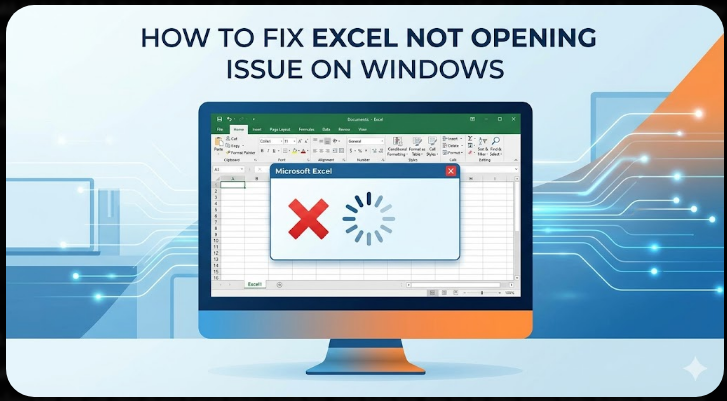
Common Reasons Why Excel Won’t Open
Understanding the possible causes will help you troubleshoot more effectively.
Some common reasons include:
- Corrupted Excel files
- Conflicting add-ins
- Outdated Office or Windows version
- Damaged Office installation
- Incorrect file associations
- Hardware acceleration issues
- System file corruption
Identifying the root cause can save time when applying fixes.
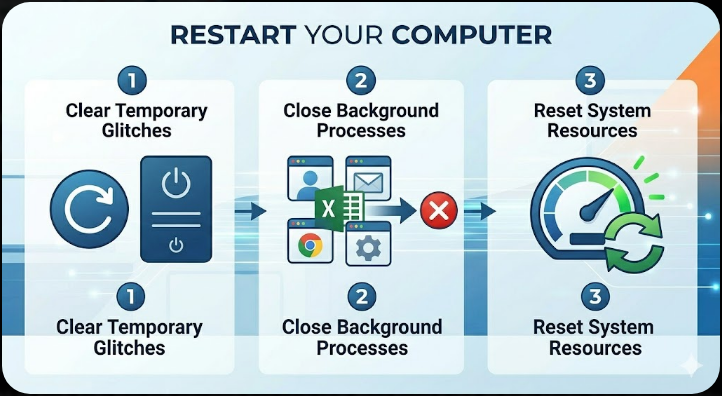
Restart Your Computer
Before trying advanced solutions, restart your computer.
This simple step can:
- Clear temporary glitches
- Close background processes
- Reset system resources
After restarting, try opening Excel again.
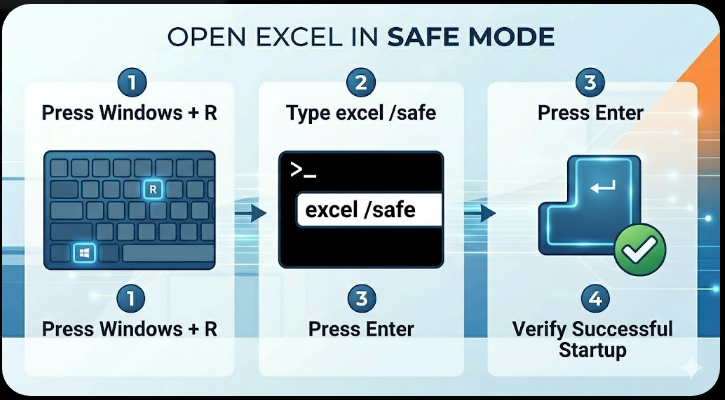
Open Excel in Safe Mode
Safe Mode disables add-ins and custom settings.
To open Excel in Safe Mode:
- Press Windows + R.
- Type excel /safe and press Enter.
If Excel opens successfully, the issue is likely caused by add-ins or settings.
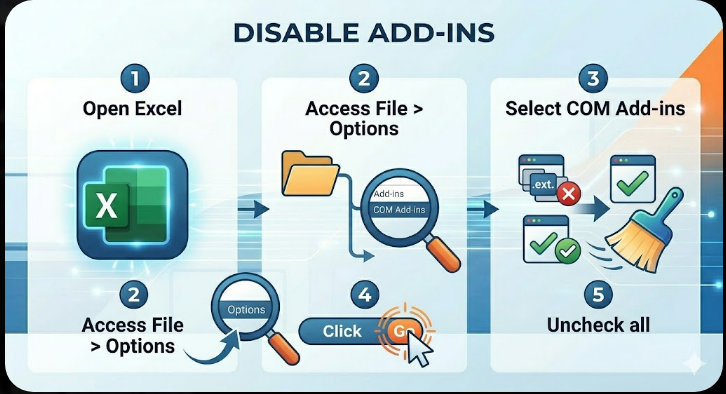
Disable Add-ins
Add-ins can interfere with Excel startup.
To disable them:
- Open Excel (in Safe Mode if needed).
- Go to File > Options > Add-ins.
- Select COM Add-ins and click Go.
- Uncheck all add-ins.
- Restart Excel normally.
Re-enable add-ins one by one to identify the problematic one.
Repair Microsoft Office
A damaged Office installation can prevent Excel from opening.
To repair Office:
- Open Control Panel.
- Go to Programs and Features.
- Select Microsoft Office.
- Click Change.
- Choose Quick Repair or Online Repair.
Restart your computer after the repair.
Check File Associations
Incorrect file associations can stop Excel from opening files.
To fix this:
- Right-click an Excel file (.xlsx).
- Select Open with > Choose another app.
- Select Microsoft Excel.
- Check Always use this app.
This ensures Excel handles spreadsheet files.
Disable Hardware Graphics Acceleration
Hardware acceleration can sometimes cause Excel to crash.
To disable it:
- Open Excel (Safe Mode if necessary).
- Go to File > Options > Advanced.
- Scroll to the Display section.
- Check Disable hardware graphics acceleration.
Restart Excel afterward.
Check for Corrupted Excel Files
Sometimes the problem is with a specific file.
To test:
- Try opening a different Excel file
- Open Excel first, then use File > Open
- Use the Open and Repair option
To use Open and Repair:
- Click File > Open.
- Select the file.
- Click the dropdown next to Open.
- Choose Open and Repair.
Update Microsoft Office
Outdated Office versions may cause compatibility issues.
To update:
- Open Excel.
- Go to File > Account.
- Click Update Options > Update Now.
Install all available updates.
Update Windows
System updates can resolve compatibility and performance issues.
To update Windows:
- Press Windows + I.
- Go to Windows Update.
- Click Check for updates.
Restart your system after updating.
Disable Protected View
Protected View can sometimes block files from opening.
To disable:
- Open Excel.
- Go to File > Options > Trust Center.
- Click Trust Center Settings.
- Select Protected View.
- Uncheck all options temporarily.
Try opening your file again.
Clear Excel Cache and Temporary Files
Temporary files may interfere with Excel.
To clear them:
- Press Windows + R.
- Type %temp% and press Enter.
- Delete unnecessary files.
Restart your system and try again.
Check Task Manager
Excel may already be running in the background.
To check:
- Press Ctrl + Shift + Esc.
- Look for Excel processes.
- End any running Excel tasks.
Then try opening Excel again.
Reinstall Microsoft Office
If nothing else works, reinstall Office completely.
Steps:
- Uninstall Microsoft Office from Programs and Features.
- Restart your computer.
- Download Office from the official website.
- Install it again.
This ensures a fresh and clean installation.
Run System File Checker
Corrupted system files can prevent applications from opening.
To run SFC:
- Open Command Prompt as administrator.
- Enter:
sfc /scannow
- Press Enter.
Restart your computer after the scan.
Use DISM Tool
If SFC doesn’t fix the issue:
- Open Command Prompt as administrator.
- Enter:
DISM /Online /Cleanup-Image /RestoreHealth
- Press Enter.
Restart your system afterward.
Create a New User Profile
Sometimes the issue is related to your Windows profile.
To test:
- Create a new user account.
- Log in with the new account.
- Try opening Excel.
If it works, your original profile may be corrupted.
Final Thoughts
The Excel won’t open issue can be caused by a variety of factors, ranging from simple glitches to deeper system problems. While it may seem frustrating, most cases can be resolved using straightforward troubleshooting methods.
Opening Excel in Safe Mode, disabling add-ins, repairing Office, and checking file associations are among the most effective solutions. In more complex cases, reinstalling Office or repairing system files may be necessary.
Related articles
How to Fix Wi-Fi Disconnecting Issues on Windows 10