


Excel Opens Blank on Windows? Here’s How to Fix It
Microsoft Excel is an essential tool for working with data, spreadsheets, and calculations. However, some users encounter a frustrating issue where Excel opens but displays a blank screen, even when opening existing files. This can make it seem like the application is not working properly, even though it has launched successfully.
The Excel opens blank issue on Windows is usually caused by misconfigured settings, add-in conflicts, corrupted files, or display-related problems. Fortunately, this issue is quite common and can be resolved with a series of straightforward troubleshooting steps.
In this guide, you’ll learn the most effective ways to fix the problem and restore Excel to normal functionality.
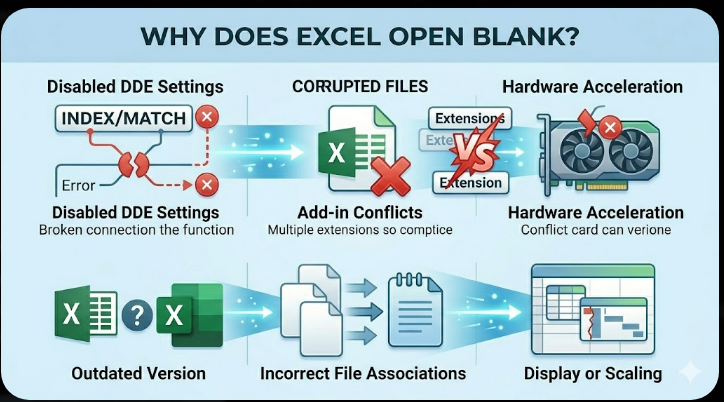
Why Does Excel Open Blank?
Before diving into solutions, it’s important to understand what may be causing the issue.
Common reasons include:
- Disabled Dynamic Data Exchange (DDE) settings
- Corrupted Excel files
- Add-in conflicts
- Hardware graphics acceleration issues
- Outdated Excel or Windows version
- Incorrect file associations
- Display or scaling problems
Identifying the cause can help you apply the right fix more efficiently.
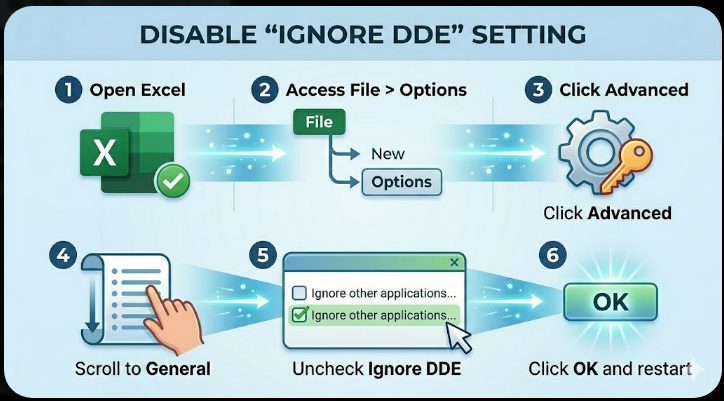
Disable “Ignore DDE” Setting
One of the most common causes of Excel opening blank is the DDE (Dynamic Data Exchange) setting.
To disable it:
- Open Excel.
- Go to File > Options.
- Click Advanced.
- Scroll down to the General section.
- Uncheck Ignore other applications that use Dynamic Data Exchange (DDE).
- Click OK and restart Excel.
This setting often causes Excel to open without displaying content.
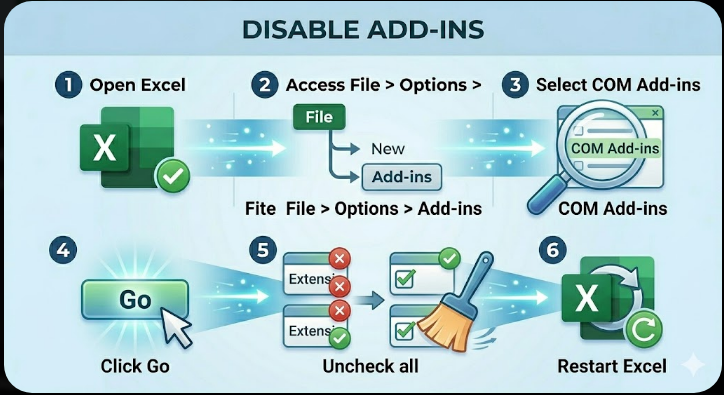
Disable Add-ins
Add-ins can interfere with Excel’s normal behavior.
To disable add-ins:
- Open Excel in Safe Mode by pressing Windows + R, typing excel /safe, and pressing Enter.
- Go to File > Options > Add-ins.
- Select COM Add-ins and click Go.
- Uncheck all add-ins.
- Restart Excel normally.
If Excel works, re-enable add-ins one at a time to find the culprit.
Disable Hardware Graphics Acceleration
Display-related issues can cause Excel to open blank.
To disable hardware acceleration:
- Open Excel.
- Go to File > Options > Advanced.
- Scroll to the Display section.
- Check Disable hardware graphics acceleration.
- Restart Excel.
This often resolves rendering problems.

Use “Open and Repair” Feature
If the issue occurs with specific files, they may be corrupted.
To repair a file:
- Open Excel.
- Go to File > Open.
- Select the problematic file.
- Click the dropdown next to Open.
- Choose Open and Repair.
This can restore damaged files.
Check File Associations
Incorrect file associations can prevent Excel from displaying content.
To fix:
- Right-click an Excel file (.xlsx).
- Select Open with > Choose another app.
- Choose Microsoft Excel.
- Check Always use this app.
This ensures Excel handles its files properly.
Disable Protected View
Protected View can sometimes block files from loading.
To disable it:
- Open Excel.
- Go to File > Options > Trust Center.
- Click Trust Center Settings.
- Select Protected View.
- Uncheck all options temporarily.
Try opening the file again.
Update Microsoft Excel
Outdated software can cause compatibility issues.
To update Excel:
- Open Excel.
- Go to File > Account.
- Click Update Options > Update Now.
Install all available updates and restart Excel.
Update Windows
Keeping Windows updated ensures compatibility with applications.
To update:
- Press Windows + I.
- Go to Windows Update.
- Click Check for updates.
Restart your system after updating.
Check Task Manager
Excel might be running in the background but not displaying properly.
To check:
- Press Ctrl + Shift + Esc.
- Look for Microsoft Excel processes.
- End any running tasks.
Then reopen Excel.
Clear Temporary Files
Temporary files can interfere with Excel.
To clear them:
- Press Windows + R.
- Type %temp% and press Enter.
- Delete unnecessary files.
Restart your computer afterward.
Repair Microsoft Office
A damaged Office installation can cause Excel to behave incorrectly.
To repair:
- Open Control Panel.
- Go to Programs and Features.
- Select Microsoft Office.
- Click Change.
- Choose Quick Repair or Online Repair.
Restart your system after the repair.
Disable Excel Startup Files
Excel may be loading problematic startup files.
To check:
- Navigate to the Excel startup folder:
C:\Users\YourUsername\AppData\Roaming\Microsoft\Excel\XLSTART - Move files out of this folder.
- Restart Excel.
If the issue is resolved, one of the startup files was causing the problem.
Check Display Scaling Settings
High DPI or scaling settings can affect how Excel displays content.
To adjust:
- Right-click the desktop and select Display settings.
- Set scaling to 100% or 125%.
- Restart Excel.
This can fix visual display issues.
Create a New User Profile
User profile corruption can cause Excel problems.
To test:
- Create a new Windows user account.
- Log in with the new account.
- Open Excel and check if the issue persists.
If it works, your original profile may be the problem.
Run System File Checker
Corrupted system files can affect application behavior.
To run SFC:
- Open Command Prompt as administrator.
- Enter:
sfc /scannow
- Press Enter.
Restart your computer after completion.
Use DISM Tool
If SFC doesn’t fix the issue:
- Open Command Prompt as administrator.
- Enter:
DISM /Online /Cleanup-Image /RestoreHealth
- Press Enter.
Restart your system afterward.
Final Thoughts
The Excel opens blank on Windows issue can be frustrating, but it is usually caused by simple configuration or compatibility problems. Whether it’s a DDE setting, add-in conflict, or display issue, most users can resolve it with a few adjustments.
Disabling problematic settings, updating software, repairing Office, and checking file integrity are among the most effective solutions. In more complex cases, system repairs or profile changes may be required.
Related articles
Fixing the “Kernel Security Check Failure” Error on Windows 10