


Resolve Excel Unreadable Content Error with These Steps
If you’ve ever tried to open an Excel file and encountered the message “Excel found unreadable content in [filename]. Do you want to recover the contents of this workbook?”, you’re not alone. This error can be alarming, especially when the file contains important data.
The issue typically indicates that Excel has detected corruption or invalid elements within the file, which prevents it from displaying content correctly. While this may sound serious, the good news is that in most cases, your data can still be recovered or the file can be repaired.
In this guide, you’ll learn what causes this error and how to fix the Excel unreadable content issue effectively.
What Does “Unreadable Content” Mean in Excel?
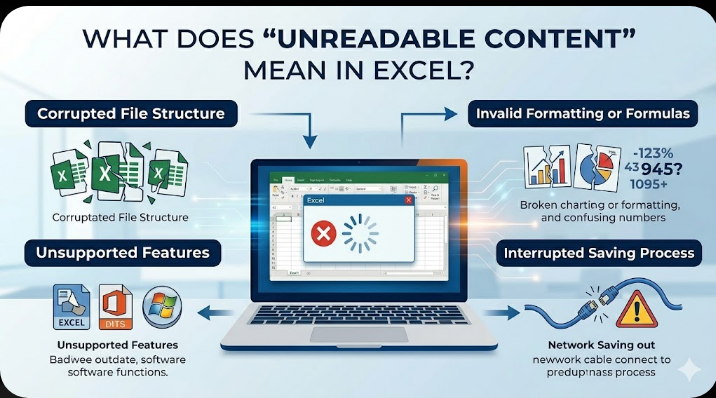
This error occurs when Excel encounters data or formatting it cannot interpret properly. It may happen due to:
- Corrupted file structure
- Invalid formatting or formulas
- Unsupported features
- Interrupted file saving process
When this happens, Excel may prompt you to recover the file or repair it automatically.
Common Causes of the Error
Understanding the causes can help prevent future issues.
Some common reasons include:
- File corruption due to improper shutdown
- Malware or virus infection
- Incompatible Excel versions
- Faulty add-ins
- Network interruptions while saving files
- Damaged storage devices
Identifying the source can help you choose the right solution.

Use Excel’s Built-in Repair Tool
Excel provides a built-in feature to repair damaged files.
To use it:
- Open Excel.
- Click File > Open.
- Browse and select the problematic file.
- Click the arrow next to Open.
- Choose Open and Repair.
- Select Repair or Extract Data.
This is often the quickest way to fix the issue.

Click “Yes” to Recover the File
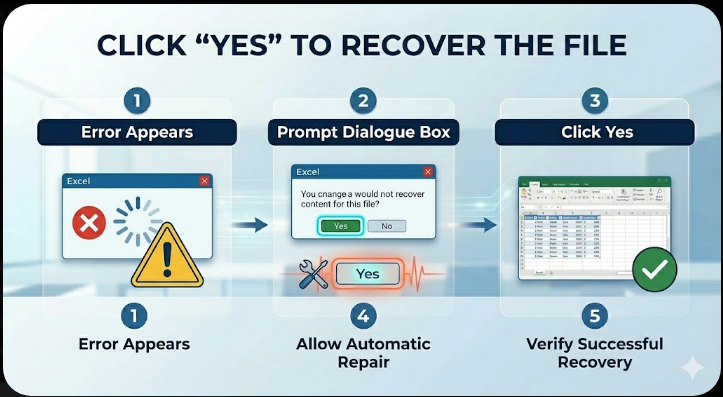
When the error appears, Excel gives you an option to recover content.
- Click Yes when prompted
- Allow Excel to attempt automatic repair
After recovery, save the file with a new name.
Save the File in a Different Format
Changing the file format can sometimes fix corruption.
Steps:
- Open the file (if possible).
- Click File > Save As.
- Choose a different format (e.g., .xlsx or .xls).
- Save the file.
Reopen the newly saved file to check if the issue is resolved.
Disable Protected View
Protected View can block file content.
To disable:
- Open Excel.
- Go to File > Options > Trust Center.
- Click Trust Center Settings.
- Select Protected View.
- Uncheck all options temporarily.
Try opening the file again.
Check for External Links
Broken external links can cause unreadable content errors.
To fix:
- Go to Data > Edit Links.
- Check for broken or missing links.
- Update or remove invalid links.
Save the file afterward.
Remove Problematic Add-ins
Add-ins can interfere with file loading.
To disable them:
- Open Excel in Safe Mode (Windows + R, type excel /safe).
- Go to File > Options > Add-ins.
- Disable all add-ins.
- Restart Excel normally.
Re-enable add-ins one by one to identify the issue.
Copy Data to a New Workbook
If the file opens partially, you can recover data manually.
Steps:
- Open the damaged file.
- Copy accessible data.
- Paste it into a new workbook.
- Save the new file.
Avoid copying corrupted elements like complex formulas or charts initially.
Check File Extension
Incorrect file extensions can cause compatibility issues.
To verify:
- Enable File name extensions in File Explorer.
- Ensure the file uses the correct extension (.xlsx, .xls).
- Rename if necessary.
Scan for Malware
Malware can corrupt files and cause errors.
To scan your system:
- Open Windows Security.
- Go to Virus & threat protection.
- Run a Full scan.
Remove any detected threats.
Update Microsoft Excel
Outdated Excel versions may struggle with newer file formats.
To update:
- Open Excel.
- Go to File > Account.
- Click Update Options > Update Now.
Restart Excel after updating.
Repair Microsoft Office
If Excel continues to have issues, repairing Office may help.
Steps:
- Open Control Panel.
- Go to Programs and Features.
- Select Microsoft Office.
- Click Change.
- Choose Quick Repair or Online Repair.
Restart your system afterward.
Use Previous File Versions
If the file became corrupted recently, restore an earlier version.
To do this:
- Right-click the file.
- Select Properties.
- Go to the Previous Versions tab.
- Restore an earlier version if available.
Check Storage Device
If the file is stored on an external drive or network, the issue may be related to storage.
You should:
- Copy the file to your local drive
- Check the storage device for errors
- Avoid unstable network connections
Prevent Future File Corruption
To avoid similar issues in the future:
- Save files regularly
- Use reliable storage devices
- Avoid force shutdowns
- Keep Excel and Windows updated
- Use antivirus protection
These practices can reduce the risk of file corruption.
Final Thoughts
The “Excel found unreadable content” error can be concerning, but it does not always mean your data is lost. In many cases, Excel’s built-in repair tools and simple troubleshooting steps can restore your file successfully.
Using features like Open and Repair, disabling add-ins, and copying data to a new workbook are among the most effective solutions. In more serious cases, repairing Office or restoring previous versions may be necessary.
If you’ve ever tried to open an Excel file and encountered the message “Excel found unreadable content in [filename]. Do you want to recover the contents of this workbook?”, you’re not alone. This error can be alarming, especially when the file contains important data.
The issue typically indicates that Excel has detected corruption or invalid elements within the file, which prevents it from displaying content correctly. While this may sound serious, the good news is that in most cases, your data can still be recovered or the file can be repaired.
In this guide, you’ll learn what causes this error and how to fix the Excel unreadable content issue effectively.
What Does “Unreadable Content” Mean in Excel?
This error occurs when Excel encounters data or formatting it cannot interpret properly. It may happen due to:
- Corrupted file structure
- Invalid formatting or formulas
- Unsupported features
- Interrupted file saving process
When this happens, Excel may prompt you to recover the file or repair it automatically.
Common Causes of the Error
Understanding the causes can help prevent future issues.
Some common reasons include:
- File corruption due to improper shutdown
- Malware or virus infection
- Incompatible Excel versions
- Faulty add-ins
- Network interruptions while saving files
- Damaged storage devices
Identifying the source can help you choose the right solution.
Use Excel’s Built-in Repair Tool
Excel provides a built-in feature to repair damaged files.
To use it:
- Open Excel.
- Click File > Open.
- Browse and select the problematic file.
- Click the arrow next to Open.
- Choose Open and Repair.
- Select Repair or Extract Data.
This is often the quickest way to fix the issue.
Click “Yes” to Recover the File
When the error appears, Excel gives you an option to recover content.
- Click Yes when prompted
- Allow Excel to attempt automatic repair
After recovery, save the file with a new name.
Save the File in a Different Format
Changing the file format can sometimes fix corruption.
Steps:
- Open the file (if possible).
- Click File > Save As.
- Choose a different format (e.g., .xlsx or .xls).
- Save the file.
Reopen the newly saved file to check if the issue is resolved.
Disable Protected View
Protected View can block file content.
To disable:
- Open Excel.
- Go to File > Options > Trust Center.
- Click Trust Center Settings.
- Select Protected View.
- Uncheck all options temporarily.
Try opening the file again.
Check for External Links
Broken external links can cause unreadable content errors.
To fix:
- Go to Data > Edit Links.
- Check for broken or missing links.
- Update or remove invalid links.
Save the file afterward.
Remove Problematic Add-ins
Add-ins can interfere with file loading.
To disable them:
- Open Excel in Safe Mode (Windows + R, type excel /safe).
- Go to File > Options > Add-ins.
- Disable all add-ins.
- Restart Excel normally.
Re-enable add-ins one by one to identify the issue.
Copy Data to a New Workbook
If the file opens partially, you can recover data manually.
Steps:
- Open the damaged file.
- Copy accessible data.
- Paste it into a new workbook.
- Save the new file.
Avoid copying corrupted elements like complex formulas or charts initially.
Check File Extension
Incorrect file extensions can cause compatibility issues.
To verify:
- Enable File name extensions in File Explorer.
- Ensure the file uses the correct extension (.xlsx, .xls).
- Rename if necessary.
Scan for Malware
Malware can corrupt files and cause errors.
To scan your system:
- Open Windows Security.
- Go to Virus & threat protection.
- Run a Full scan.
Remove any detected threats.
Update Microsoft Excel
Outdated Excel versions may struggle with newer file formats.
To update:
- Open Excel.
- Go to File > Account.
- Click Update Options > Update Now.
Restart Excel after updating.
Repair Microsoft Office
If Excel continues to have issues, repairing Office may help.
Steps:
- Open Control Panel.
- Go to Programs and Features.
- Select Microsoft Office.
- Click Change.
- Choose Quick Repair or Online Repair.
Restart your system afterward.
Use Previous File Versions
If the file became corrupted recently, restore an earlier version.
To do this:
- Right-click the file.
- Select Properties.
- Go to the Previous Versions tab.
- Restore an earlier version if available.
Check Storage Device
If the file is stored on an external drive or network, the issue may be related to storage.
You should:
- Copy the file to your local drive
- Check the storage device for errors
- Avoid unstable network connections
Prevent Future File Corruption
To avoid similar issues in the future:
- Save files regularly
- Use reliable storage devices
- Avoid force shutdowns
- Keep Excel and Windows updated
- Use antivirus protection
These practices can reduce the risk of file corruption.
Final Thoughts
The “Excel found unreadable content” error can be concerning, but it does not always mean your data is lost. In many cases, Excel’s built-in repair tools and simple troubleshooting steps can restore your file successfully.
Using features like Open and Repair, disabling add-ins, and copying data to a new workbook are among the most effective solutions. In more serious cases, repairing Office or restoring previous versions may be necessary.
Related articles
Fixing the “Kernel Security Check Failure” Error on Windows 10