


Fix Excel Formula Calculation Problems Easily
Microsoft Excel is designed to automatically calculate formulas and update results whenever data changes. However, there are times when users encounter a frustrating issue where Excel formulas are not updating, leaving outdated or incorrect values in cells.
This problem can affect productivity and lead to errors in calculations, especially when working with large datasets. The issue is usually caused by calculation settings, formatting errors, or software-related problems, and fortunately, it can be resolved with the right troubleshooting steps.
In this guide, you’ll learn why Excel formulas are not updating and how to fix calculation issues effectively.
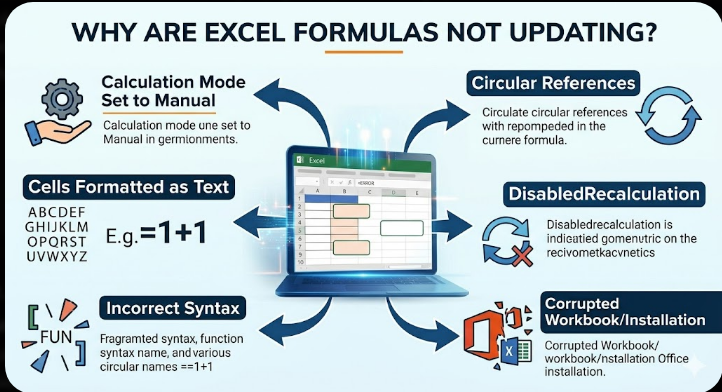
Why Are Excel Formulas Not Updating?
Before applying fixes, it’s important to understand the common causes.
Some typical reasons include:
- Calculation mode set to manual
- Cells formatted as text
- Incorrect formula syntax
- Circular references
- Disabled automatic recalculation
- Corrupted workbook or Excel installation
Identifying the cause will help you apply the correct solution quickly.
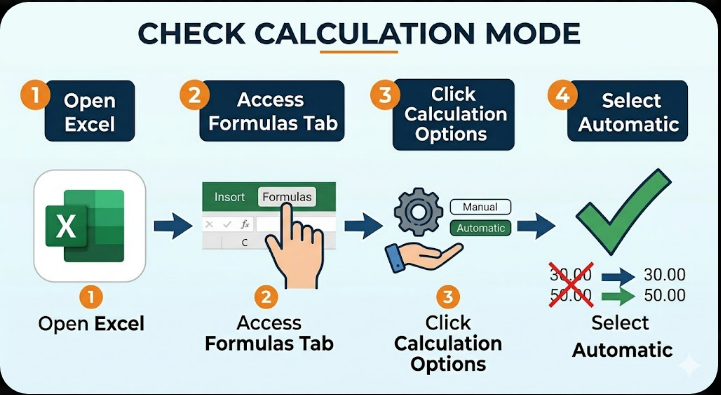
Check Calculation Mode
One of the most common reasons formulas don’t update is that Excel is set to manual calculation mode.
To fix this:
- Open Excel.
- Go to the Formulas tab.
- Click Calculation Options.
- Select Automatic.
Once enabled, Excel will recalculate formulas automatically.
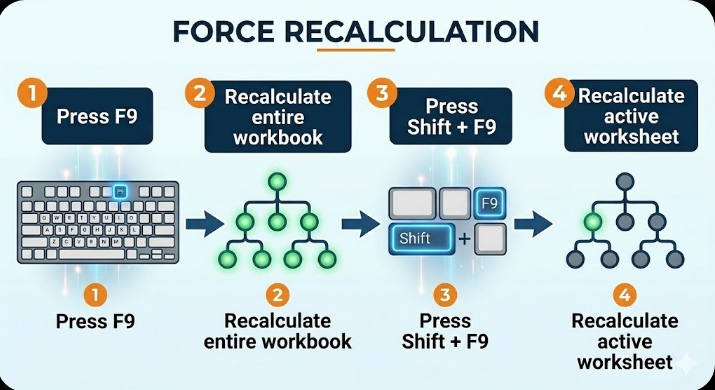
Force Recalculation
If formulas are still not updating, you can manually recalculate.
To do this:
- Press F9 to recalculate the entire workbook
- Press Shift + F9 to recalculate the active worksheet
This can refresh all formula results instantly.
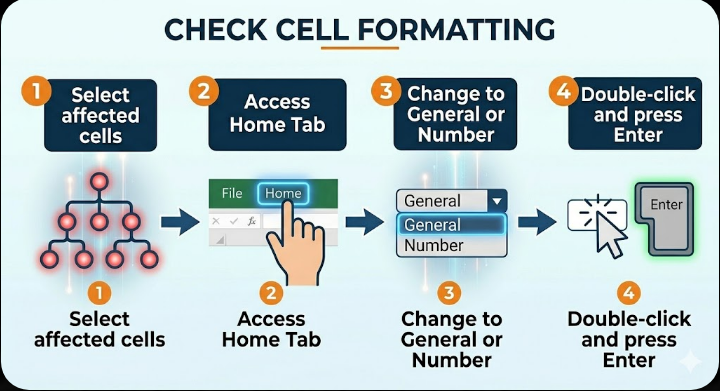
Check Cell Formatting
If a cell is formatted as text, Excel will not calculate the formula.
To fix this:
- Select the affected cell(s).
- Go to the Home tab.
- Change the format to General or Number.
- Double-click the cell and press Enter.
This forces Excel to recognize the formula.
Remove Apostrophes
Sometimes formulas are preceded by an apostrophe (‘) which makes Excel treat them as text.
To fix:
- Click the cell
- Remove the apostrophe before the formula
- Press Enter
This will enable calculation.
Check for Circular References
Circular references occur when a formula refers to its own cell, directly or indirectly.
To identify them:
- Go to the Formulas tab.
- Click Error Checking.
- Select Circular References.
Fix the reference to eliminate the issue.
Ensure Correct Formula Syntax
Incorrect syntax can prevent formulas from calculating.
Check for:
- Missing parentheses
- Incorrect function names
- Wrong separators (comma vs semicolon)
Correct any errors and re-enter the formula.
Enable Iterative Calculation (If Needed)
If your workbook requires circular calculations, enable iterative calculation.
To do this:
- Go to File > Options.
- Select Formulas.
- Check Enable iterative calculation.
- Set limits for iterations and changes.
Use this only when necessary.
Check for Hidden Spaces
Extra spaces in cells can affect formulas.
To fix:
- Use the TRIM() function to remove spaces
- Clean your data before applying formulas
Example:
=TRIM(A1)
Disable “Show Formulas” Mode
Excel may display formulas instead of results if this mode is enabled.
To turn it off:
- Press Ctrl + ` (grave accent key)
- Or go to Formulas > Show Formulas and disable it
This will restore normal calculation view.
Update Excel
Outdated versions of Excel may have bugs affecting calculations.
To update:
- Open Excel.
- Go to File > Account.
- Click Update Options > Update Now.
Restart Excel after updating.
Check for External Links
Formulas linked to external workbooks may not update correctly.
To fix:
- Go to Data > Edit Links.
- Update or break broken links.
Ensure all linked files are accessible.
Disable Add-ins
Add-ins can sometimes interfere with Excel functionality.
To disable them:
- Go to File > Options > Add-ins.
- Select COM Add-ins and click Go.
- Uncheck all add-ins.
- Restart Excel.
Re-enable add-ins one at a time to find the issue.
Repair Microsoft Office
If the issue persists, Excel itself may be corrupted.
To repair Office:
- Open Control Panel.
- Go to Programs and Features.
- Select Microsoft Office.
- Click Change.
- Choose Quick Repair or Online Repair.
Restart your computer after the repair.
Create a New Workbook
Sometimes the issue is specific to a single file.
To test:
- Create a new workbook
- Enter a simple formula (e.g., =1+1)
- Check if it updates automatically
If it works, the original file may be corrupted.
Use System File Checker
Corrupted system files can affect Excel performance.
To run SFC:
- Open Command Prompt as administrator.
- Enter:
sfc /scannow
- Press Enter.
Restart your system after completion.
Use DISM Tool
If SFC does not resolve the issue:
- Open Command Prompt as administrator.
- Enter:
DISM /Online /Cleanup-Image /RestoreHealth
- Press Enter.
Restart your computer afterward.
Final Thoughts
The issue of Excel formulas not updating can lead to inaccurate data and confusion, but it is usually caused by simple settings or formatting problems. Whether it’s manual calculation mode, text formatting, or syntax errors, most issues can be resolved quickly.
Ensuring automatic calculation is enabled, checking formatting, and verifying formulas are among the most effective fixes. In more complex cases, repairing Office or addressing system issues may be necessary.
Related articles
How to Fix Wi-Fi Disconnecting Issues on Windows 10