


Why Does the “Unmountable Boot Volume” Error Occur on Windows 10?
The “Unmountable Boot Volume” error is one of the more serious issues Windows 10 users can encounter. It typically appears as a Blue Screen of Death (BSOD) and prevents your system from booting properly. When this error occurs, your computer may restart repeatedly or get stuck during startup, making it impossible to access your files or desktop.
Although it may seem alarming, this error usually has identifiable causes—and in many cases, it can be fixed. Understanding what triggers the problem is the first step toward resolving it.
In this guide, we’ll break down the main causes of the “Unmountable Boot Volume” error and explain what’s happening behind the scenes.
What Does “Unmountable Boot Volume” Mean?
The boot volume is the partition of your hard drive or SSD that contains the Windows operating system. During startup, Windows needs to access (or “mount”) this volume to load system files.
When the system cannot access this partition, it throws the “Unmountable Boot Volume” error. This means Windows is unable to read or load the necessary data to start properly.
As a result, your PC may:
- Fail to boot into Windows
- Display a blue screen error
- Restart automatically in a loop
- Become completely inaccessible

Common Causes of the Error
There are several reasons why Windows cannot mount the boot volume. Below are the most common causes.
Corrupted File System
One of the leading causes is a corrupted file system on the boot drive.
How It Happens
- Improper shutdowns
- Power outages
- System crashes
- Forced restarts during updates
What It Causes
The file system becomes inconsistent, making it difficult for Windows to read essential data.
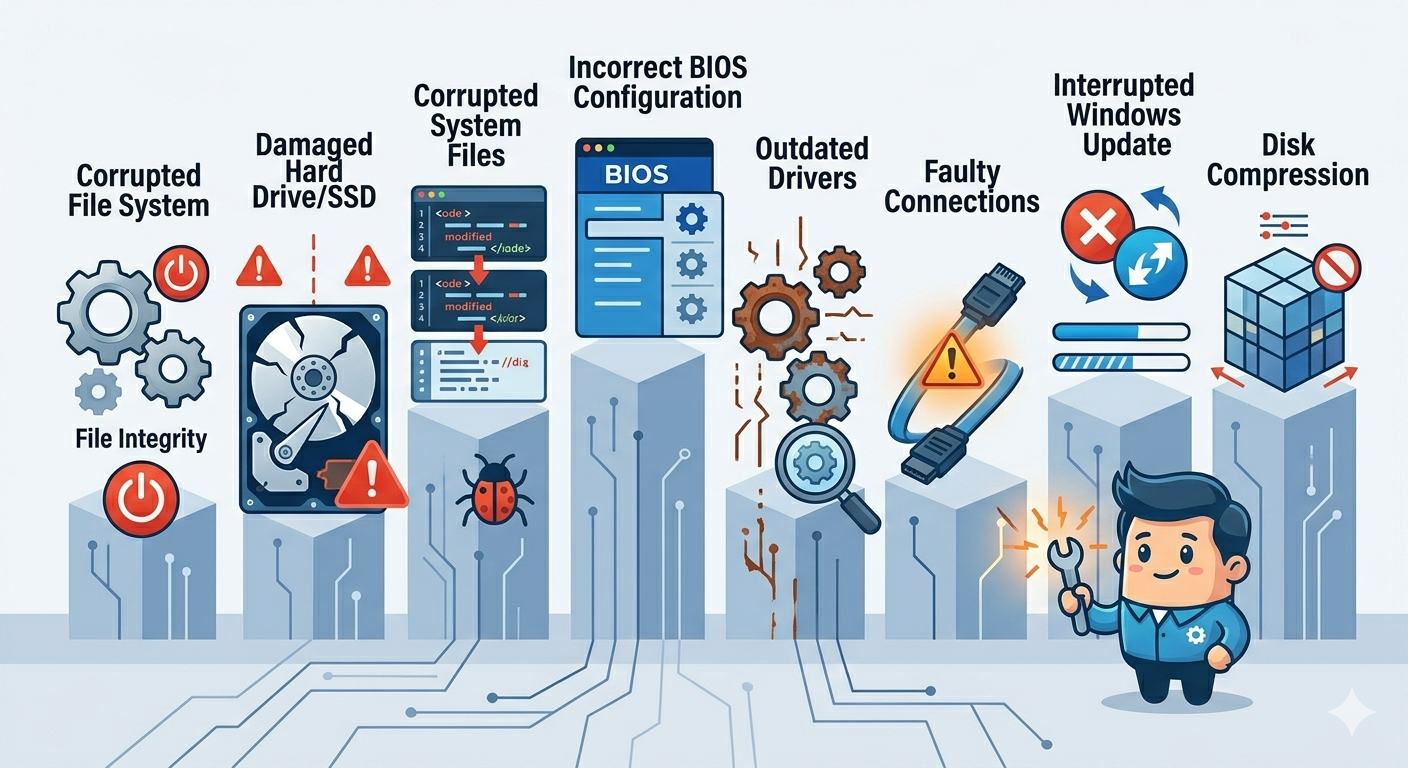
Damaged Hard Drive or SSD
Physical or logical damage to the storage device can prevent access to the boot volume.
Possible Issues
- Bad sectors on the disk
- Aging or failing hardware
- Manufacturing defects
Impact
If critical sectors are damaged, Windows cannot load system files.
Corrupted System Files
System files required for startup may become damaged or missing.
Common Triggers
- Malware infections
- Failed updates
- Software conflicts
Result
Windows cannot initialize properly, leading to boot failure.
Incorrect BIOS or Boot Configuration
Improper BIOS settings can interfere with how the system accesses the boot drive.
Examples
- Wrong SATA mode (AHCI/IDE)
- Incorrect boot order
- Misconfigured firmware settings
Outcome
The system may fail to locate or access the correct boot partition.
Outdated or Faulty Drivers
Storage controller drivers play a key role in accessing the boot volume.
What Can Go Wrong
- Driver incompatibility after updates
- Corrupted or outdated drivers
Effect
Windows may lose communication with the storage device.
Faulty or Loose Hardware Connections
Physical connection issues can also cause this error.
Possible Causes
- Loose SATA cables
- Faulty connectors
- Improperly installed drives
Impact
The system may intermittently lose access to the boot drive.
Interrupted Windows Updates
Updates that are interrupted during installation can damage system files.
How It Happens
- Power loss during update
- Forced shutdown
- System crash mid-update
Result
Incomplete updates can corrupt the boot environment.
Disk Compression Enabled
Enabling disk compression on the system drive can sometimes cause boot issues.
Why It’s a Problem
Windows may struggle to access compressed system files during startup.
Malware or Virus Infection
Malicious software can damage boot files or alter disk structures.
Common Effects
- Modified system files
- Damaged boot records
- Hidden or deleted critical data
What Happens When This Error Occurs?
When the “Unmountable Boot Volume” error appears, Windows cannot proceed with the startup process. This leads to:
- Blue screen error messages
- Automatic restart loops
- Inability to access Safe Mode (in some cases)
- Potential data loss if not handled properly
The severity depends on the underlying cause.
How to Identify the Root Cause
To determine the exact cause, consider the following:
Recent Changes
- Did you install new software or drivers?
- Did a Windows update fail?
- Was there a sudden power outage?
System Behavior
- Is the system making unusual noises (possible hardware failure)?
- Does the error occur after every restart?
Hardware Check
- Inspect cables and connections
- Test the drive on another system if possible
Identifying the cause helps you choose the right solution.
Can This Error Be Fixed?
Yes, in most cases, the “Unmountable Boot Volume” error can be fixed. Common solutions include:
- Running disk repair tools (like CHKDSK)
- Repairing system files
- Fixing boot configuration
- Updating drivers
- Replacing faulty hardware
However, the approach depends on the root cause.
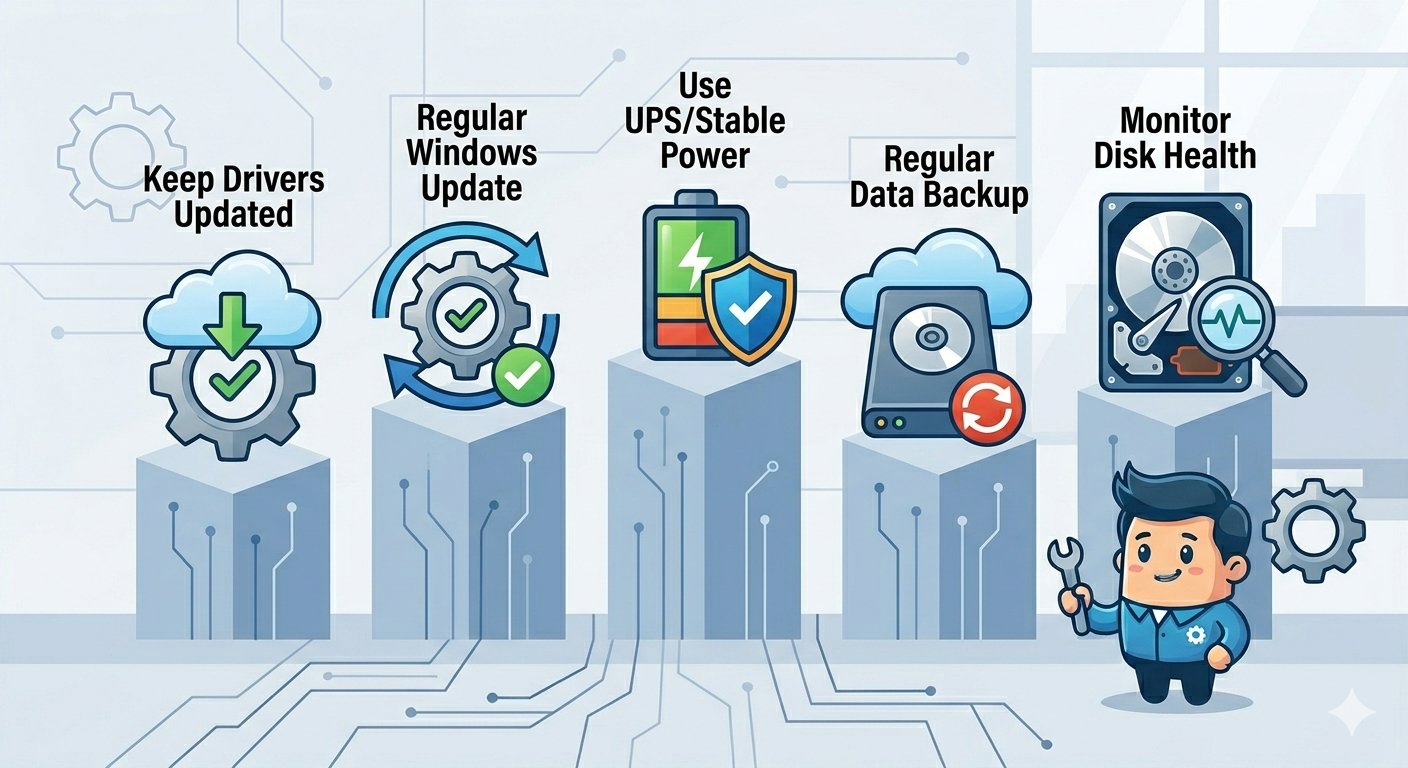
Tips to Prevent This Error
To reduce the risk of encountering this issue:
- Avoid forcing shutdowns
- Keep your system updated
- Use a reliable power source or UPS
- Regularly back up your data
- Monitor disk health
- Avoid enabling risky disk settings
Preventive measures can save you from serious problems later.
When to Seek Professional Help
You should consider professional assistance if:
- The hard drive shows signs of physical failure
- Data recovery is required
- The system fails to respond to basic repair methods
A technician can diagnose hardware issues more accurately.
Final Thoughts
The “Unmountable Boot Volume” error in Windows 10 is a serious but manageable problem. It occurs when the system cannot access the partition containing essential startup files, often due to file corruption, hardware issues, or configuration errors.
By understanding the causes—such as damaged disks, corrupted system files, or incorrect settings—you can take the right steps toward fixing the issue. While the error may prevent your system from booting, it does not always mean permanent damage.
Related articles
Fixing the “Kernel Security Check Failure” Error on Windows 10