


Fix Windows Spotlight Not Working on Lock Screen
Windows Spotlight is a popular feature in Windows 10 and Windows 11 that automatically displays stunning images on your lock screen, along with tips and information from Microsoft. It adds a fresh and dynamic look every time you lock your device. However, many users experience issues where Windows Spotlight stops working, shows a static image, or fails to update.
If your lock screen is stuck or Spotlight isn’t functioning properly, this guide will walk you through the causes and provide effective solutions to fix it.
What Is Windows Spotlight?
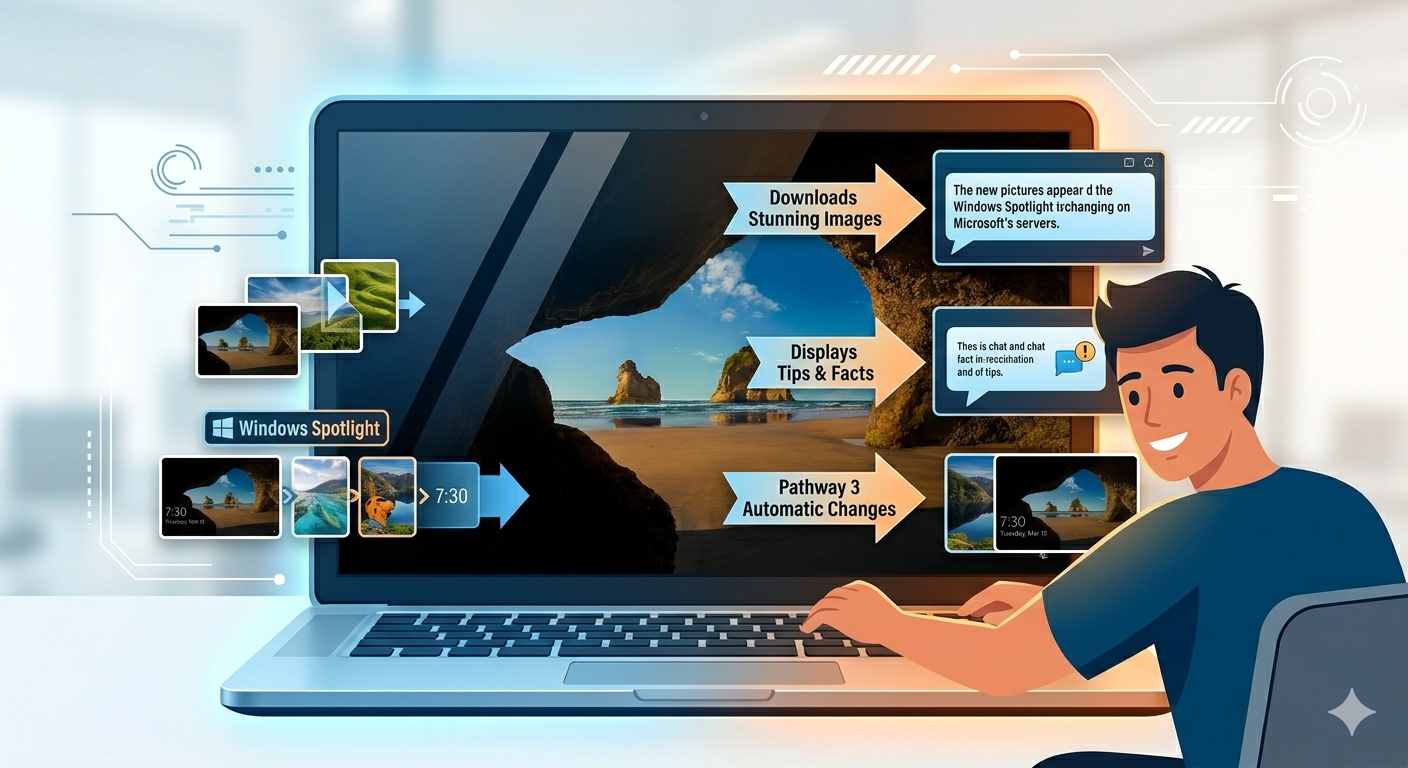
Windows Spotlight is a feature that downloads and displays high-quality images from Microsoft’s servers on your lock screen. It also occasionally shows fun facts, tips, and suggestions.
When working correctly, Spotlight:
- Changes lock screen images automatically
- Downloads new images daily
- Displays interactive options like “Like what you see?”
- Enhances visual experience without manual setup
When it stops working, you may see the same image repeatedly or a blank screen.
Common Signs of Windows Spotlight Not Working
Here are some common symptoms:
- Lock screen image doesn’t change
- Spotlight option is missing
- Stuck on a single image
- “Like what you see?” option not appearing
- Black or blank lock screen
These issues are usually related to corrupted files, network problems, or incorrect settings.
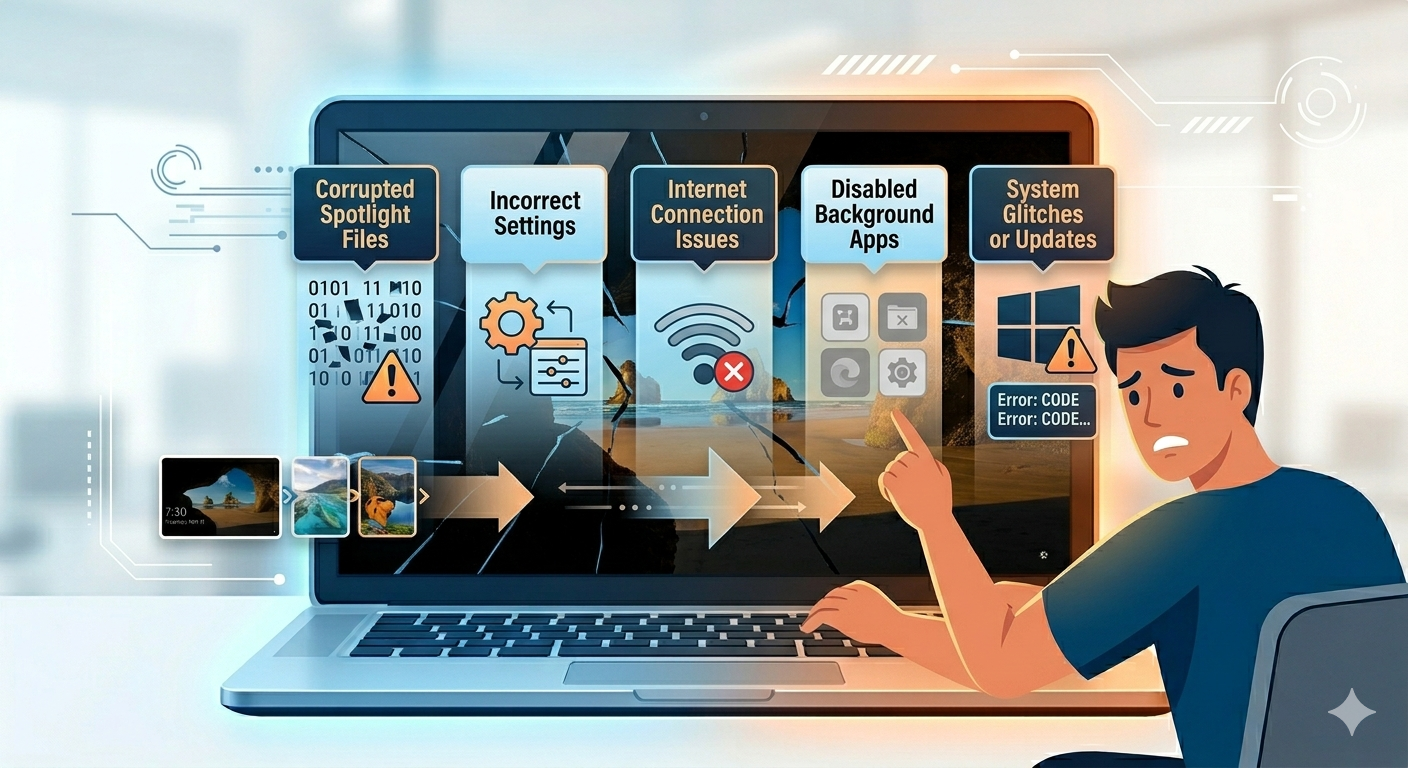
Why Windows Spotlight Stops Working
Several factors can cause this feature to malfunction.
Corrupted Spotlight Files
Temporary files used by Spotlight may become corrupted.
Incorrect Settings
Spotlight may be disabled or replaced with a static background.
Internet Connection Issues
Spotlight requires an internet connection to download new images.
Disabled Background Apps
If background apps are disabled, Spotlight may not update.
System Glitches or Updates
Windows updates or bugs can interfere with Spotlight functionality.
How to Fix Windows Spotlight Not Working
Try the following methods to restore the feature.
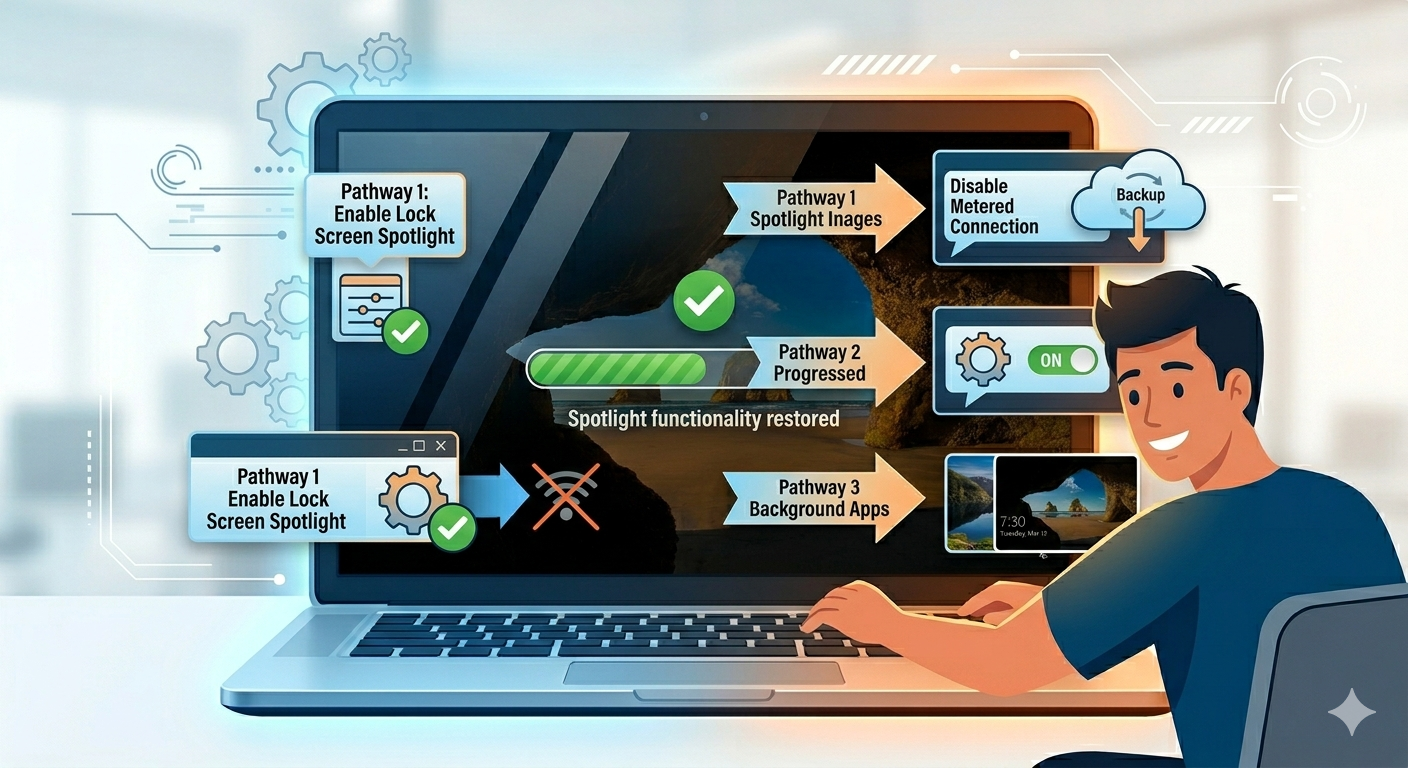
Check Lock Screen Settings
Ensure Spotlight is enabled.
Steps
- Open Settings
- Go to Personalization → Lock screen
- Under Background, select Windows Spotlight
If it’s already selected, switch to another option and back to Spotlight.
Check Internet Connection
Spotlight requires an active internet connection.
What to Do
- Ensure your device is connected to the internet
- Restart your router
- Try switching networks
A stable connection is essential for downloading images.
Enable Background Apps
Spotlight depends on background processes.
Steps
- Open Settings
- Go to Privacy → Background apps
- Turn on Let apps run in the background
This allows Spotlight to update automatically.
Reset Windows Spotlight
Resetting Spotlight often resolves the issue.
Steps
-
Press
Windows + R, type the following, and press Enter:%USERPROFILE%\AppData\Local\Packages\Microsoft.Windows.ContentDeliveryManager_cw5n1h2txyewy\LocalState\Assets - Delete all files in the folder
- Go back and open the Settings folder in the same directory
- Delete settings.dat and roaming.lock files
- Restart your computer
Re-enable Spotlight afterward.
Re-register Windows Spotlight Using PowerShell
Re-registering the feature can fix deeper issues.
Steps
- Open PowerShell as administrator
-
Run:
Get-AppxPackage -allusers Microsoft.Windows.ContentDeliveryManager | foreach {Add-AppxPackage -disabledevelopmentmode -register “$($_.InstallLocation)\AppXManifest.xml”} - Restart your computer
Disable Metered Connection
Spotlight may not download images on metered connections.
Steps
- Open Settings
- Go to Network & Internet
- Select your connection
- Turn off Metered connection
This allows downloads to proceed normally.
Run System File Checker (SFC)
Corrupted system files can affect Spotlight.
Steps
- Open Command Prompt as administrator
-
Run:
sfc /scannow - Wait for the scan to complete
Restart your system.
Use DISM Tool
DISM can repair deeper system issues.
Steps
- Open Command Prompt as administrator
-
Run:
DISM /Online /Cleanup-Image /RestoreHealth - Wait for completion
Restart your PC.
Check Date and Time Settings
Incorrect time settings can prevent downloads.
Steps
- Open Settings
- Go to Time & Language
- Enable Set time automatically
- Ensure the correct time zone is selected
Update Windows
Updates may include fixes for Spotlight issues.
Steps
- Open Settings
- Go to Windows Update
- Click Check for updates
Install updates and restart your system.
Create a New User Profile
If the issue persists, your user profile may be corrupted.
Steps
- Open Settings
- Go to Accounts → Family & other users
- Add a new user
- Log into the new account
Check if Spotlight works there.
When to Use Advanced Fixes
If none of the above methods work, consider:
- Performing a System Restore
- Resetting Windows settings
- Reinstalling Windows as a last resort
These options can resolve deeper system issues.
Tips to Keep Windows Spotlight Working
To prevent future problems:
- Keep Windows updated
- Maintain a stable internet connection
- Avoid disabling background apps
- Regularly restart your PC
- Avoid using aggressive system optimization tools
These practices help ensure smooth functionality.
Final Thoughts
Windows Spotlight is a simple yet powerful feature that enhances your lock screen experience with beautiful images and useful content. When it stops working, it can be disappointing, but the issue is usually easy to fix.
By checking settings, resetting Spotlight files, and repairing system components, you can quickly restore the feature. Start with basic fixes and move to advanced solutions if needed.
Related articles
How to Fix Wi-Fi Disconnecting Issues on Windows 10
Fix Outlook Password Prompt Issue in Office 365
Why Does the “Unmountable Boot Volume” Error Occur on Windows 10?