


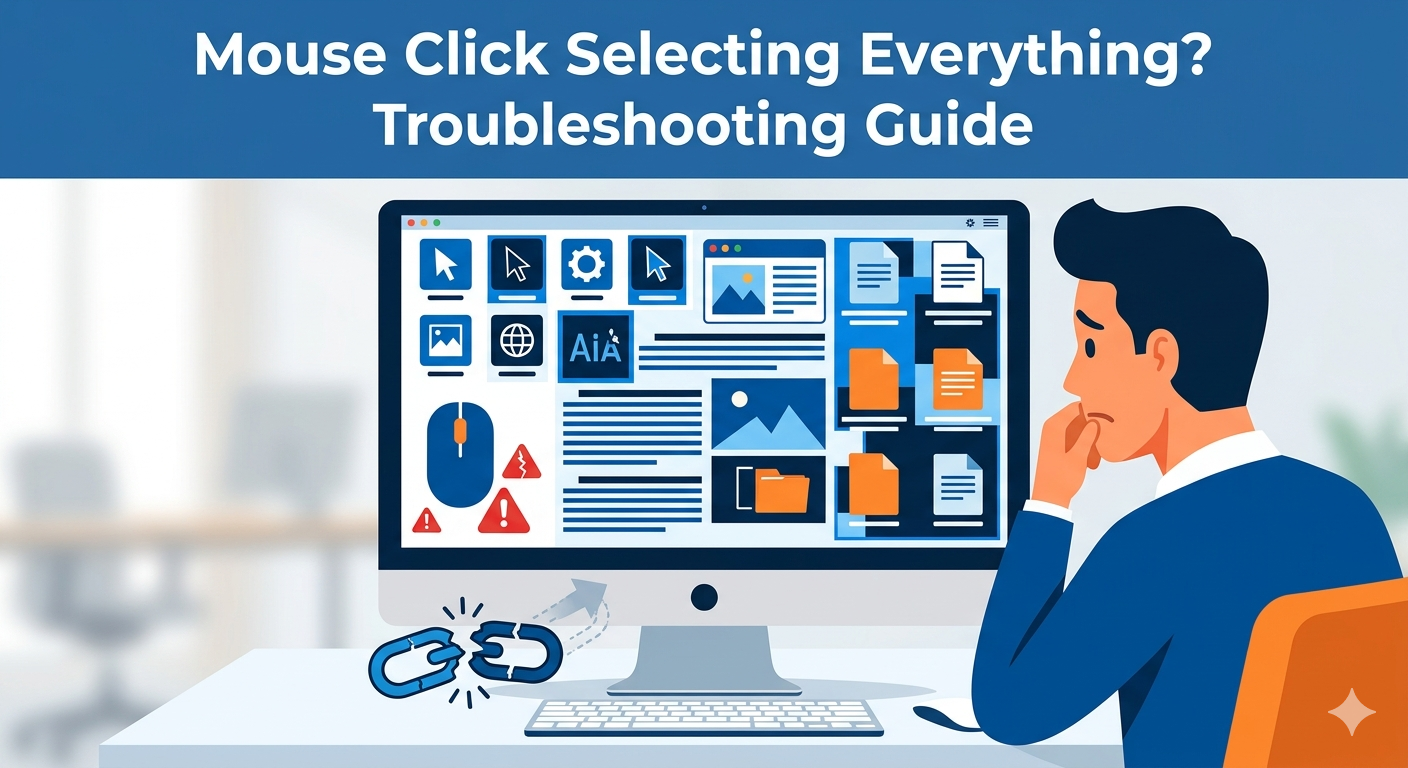
Mouse Click Selecting Everything? Troubleshooting Guide
If your mouse suddenly starts highlighting everything when you click, it can make your computer nearly impossible to use. You might notice text being selected automatically, files getting highlighted unintentionally, or dragging behavior even when you’re just clicking once.
This issue is more common than you might think and can be caused by hardware problems, incorrect settings, or software glitches. Fortunately, in most cases, it’s easy to fix.
In this guide, you’ll learn why your mouse is highlighting everything and how to solve the problem step by step.
Common Signs of the Issue
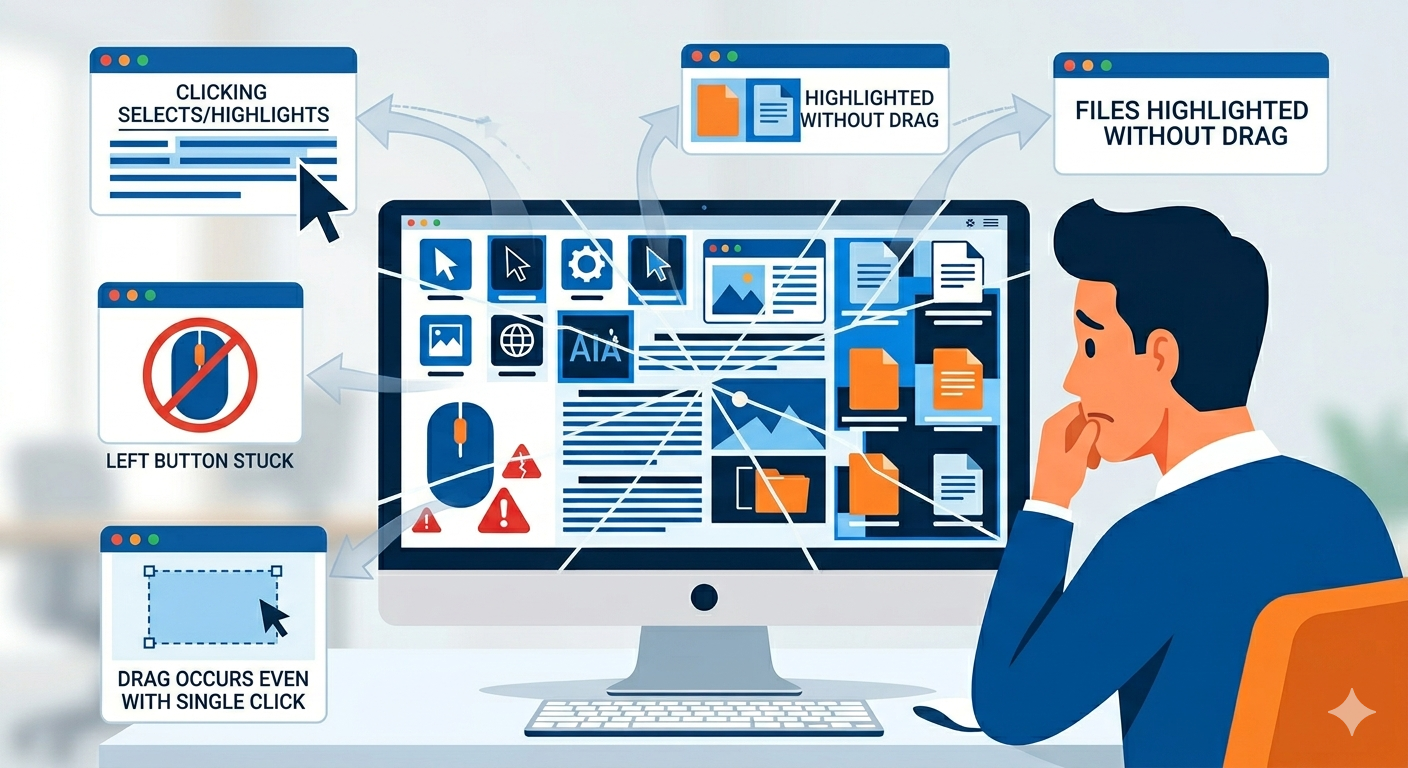
Before troubleshooting, here are the most common symptoms:
- Clicking selects or highlights text automatically
- Files get selected without dragging
- Mouse behaves like the left button is stuck
- Difficulty clicking without selecting multiple items
- Dragging occurs even with a single click
These symptoms usually point to either a stuck input signal or misconfigured settings.
Why Your Mouse Highlights Everything When Clicking
There are several possible causes behind this issue.
Stuck or Faulty Mouse Button
A worn-out or damaged left-click button may act as if it’s constantly pressed.
Touchpad Interference
On laptops, the touchpad may interfere with your external mouse input.
ClickLock Feature Enabled
Windows has a feature called ClickLock that allows you to highlight or drag without holding the mouse button.
Driver Issues
Outdated or corrupted mouse drivers can cause abnormal behavior.
Sticky Keys or Accessibility Settings
Accessibility features can sometimes affect how input devices behave.
Software Glitches or Background Apps
Certain applications or system bugs can interfere with mouse functionality.
How to Fix Mouse Highlighting Everything When Clicking
Try the following solutions to resolve the issue.
Check Your Mouse Hardware
Start by verifying whether the problem is hardware-related.
What to Do
- Try using a different mouse
- Test your mouse on another computer
- Check if the button feels stuck or loose
If the issue persists across devices, your mouse may need replacement.
Restart Your Computer
A simple restart can fix temporary glitches.
Steps
- Save your work
- Restart your PC
- Test your mouse again
This often resolves minor software issues.
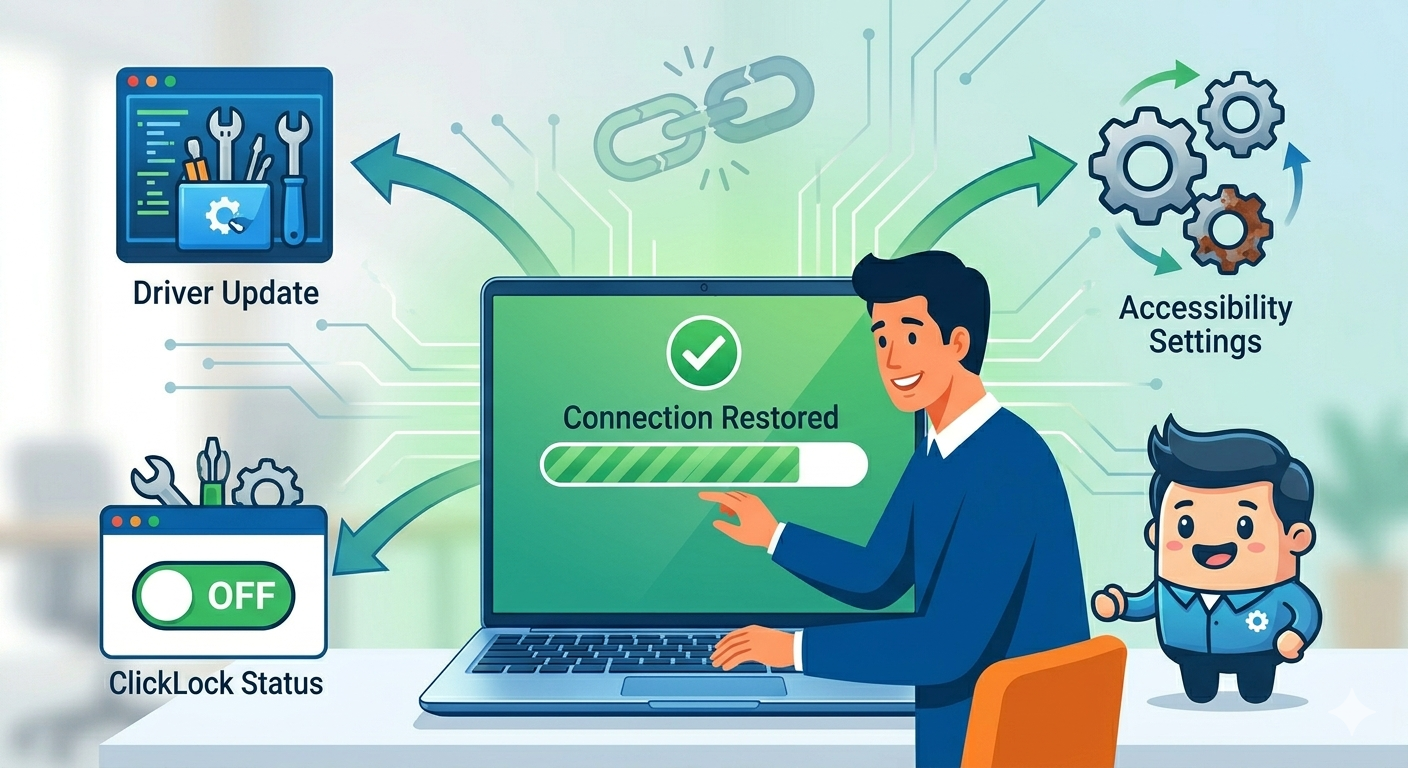
Disable ClickLock
ClickLock is one of the most common causes of this problem.
Steps
- Open Control Panel
- Go to Mouse
- Under the Buttons tab
- Uncheck Turn on ClickLock
- Click Apply and OK
Try clicking again to see if the issue is resolved.
Check Mouse Settings
Incorrect settings can cause unexpected behavior.
Steps
- Open Settings
- Go to Devices → Mouse
- Review settings such as:
- Primary button
- Scroll behavior
- Reset to default if needed
Disable Touchpad Temporarily
If you’re using a laptop, the touchpad may interfere.
Steps
- Use the keyboard shortcut (usually Fn + Touchpad key)
- Or go to Settings → Devices → Touchpad and turn it off
Test your external mouse afterward.
Update or Reinstall Mouse Drivers
Driver issues can cause erratic input.
Steps to Update
- Right-click Start
- Select Device Manager
- Expand Mice and other pointing devices
- Right-click your mouse
- Click Update driver
Steps to Reinstall
- In Device Manager, right-click your mouse
- Select Uninstall device
- Restart your computer
Windows will reinstall the driver automatically.
Check for Sticky Keys and Accessibility Settings
Accessibility features may affect mouse behavior.
Steps
- Open Settings
- Go to Ease of Access
- Check Keyboard and Mouse settings
- Disable features like Sticky Keys if enabled
Scan for Malware
Malicious software can interfere with input devices.
Steps
- Open Windows Security
- Run a Full scan
- Remove any threats
Restart your system afterward.
Close Background Applications
Some apps may conflict with mouse input.
Steps
- Open Task Manager
- Close unnecessary programs
- Restart your PC
Check if the issue persists.
Adjust Double-Click Speed
Improper double-click settings can cause issues.
Steps
- Open Control Panel → Mouse
- Adjust the Double-click speed slider
- Test the settings
Set it to a comfortable level.
Use a Clean Boot
A clean boot helps identify software conflicts.
Steps
- Press
Windows + R, type msconfig, and press Enter - Go to the Services tab
- Check Hide all Microsoft services
- Click Disable all
- Disable startup programs
- Restart your PC
If the problem disappears, a third-party app is likely responsible.
Check USB Port or Connection
Connection issues can cause erratic behavior.
What to Do
- Try a different USB port
- Avoid using faulty USB hubs
- Ensure a stable connection
For wireless mice, replace batteries or reconnect the receiver.
When to Consider Replacing the Mouse
If none of the fixes work, your mouse may be physically damaged.
Signs of Hardware Failure
- Button feels stuck
- Clicking triggers dragging
- Issue occurs on multiple devices
In this case, replacing the mouse is the best solution.
Tips to Prevent Mouse Issues
To avoid similar problems in the future:
- Keep drivers updated
- Clean your mouse regularly
- Avoid dropping or damaging it
- Use quality hardware
- Maintain your system properly
These habits can extend your mouse’s lifespan.
Final Thoughts
When your mouse starts highlighting everything when clicking, it can be extremely frustrating. Fortunately, the issue is usually caused by simple problems like ClickLock being enabled, driver issues, or a faulty mouse.
By following the steps in this guide—checking hardware, adjusting settings, and updating drivers—you can quickly identify and fix the problem. Start with the easiest solutions and work your way through more advanced methods if needed.
Related articles
How to Fix Wi-Fi Disconnecting Issues on Windows 10