


Microsoft Office Not Opening and Stuck on Updating Screen? Here’s the Fix
Microsoft Office updates are important for security, stability, and new features. However, many users encounter a frustrating problem where Office becomes stuck on the message:
Updating Office, Please Wait a MomentThe update window may remain frozen for a very long time, Office applications may fail to open, or the update process may repeatedly restart without finishing successfully.
This issue can affect Microsoft 365, Office 2019, Office 2021, and older Office versions on both Windows 10 and Windows 11. In most cases, the problem is caused by corrupted Office update files, background service conflicts, internet connectivity problems, or damaged Office installations.
Fortunately, there are several reliable methods to fix the issue and restore normal Office functionality.
Why Does Office Get Stuck Updating?
Microsoft Office uses background services to download and install updates automatically. If any part of the process becomes corrupted or interrupted, Office may remain stuck indefinitely.
Common Causes Include
- Corrupted Office update cache
- Slow or unstable internet connection
- Damaged Office installation
- Windows Update conflicts
- Antivirus interference
- Background Office services freezing
- Multiple Office versions installed
- Insufficient system permissions
Common Symptoms
You may notice:
- “Updating Office, Please Wait a Moment” never disappears
- Office apps fail to launch
- Word or Excel freezing at startup
- Office update looping repeatedly
- High CPU or disk usage from OfficeClickToRun
- Office crashing after update attempts
How To Fix Office Stuck at “Updating Office, Please Wait a Moment”
Try the following solutions carefully.
Wait Several Minutes First
Some Office updates genuinely take time to complete.
Important
Large updates may require:
- Several minutes
- Longer on slower hard drives
- Extra time during feature upgrades
If the process remains frozen for over 30 minutes, proceed with troubleshooting.
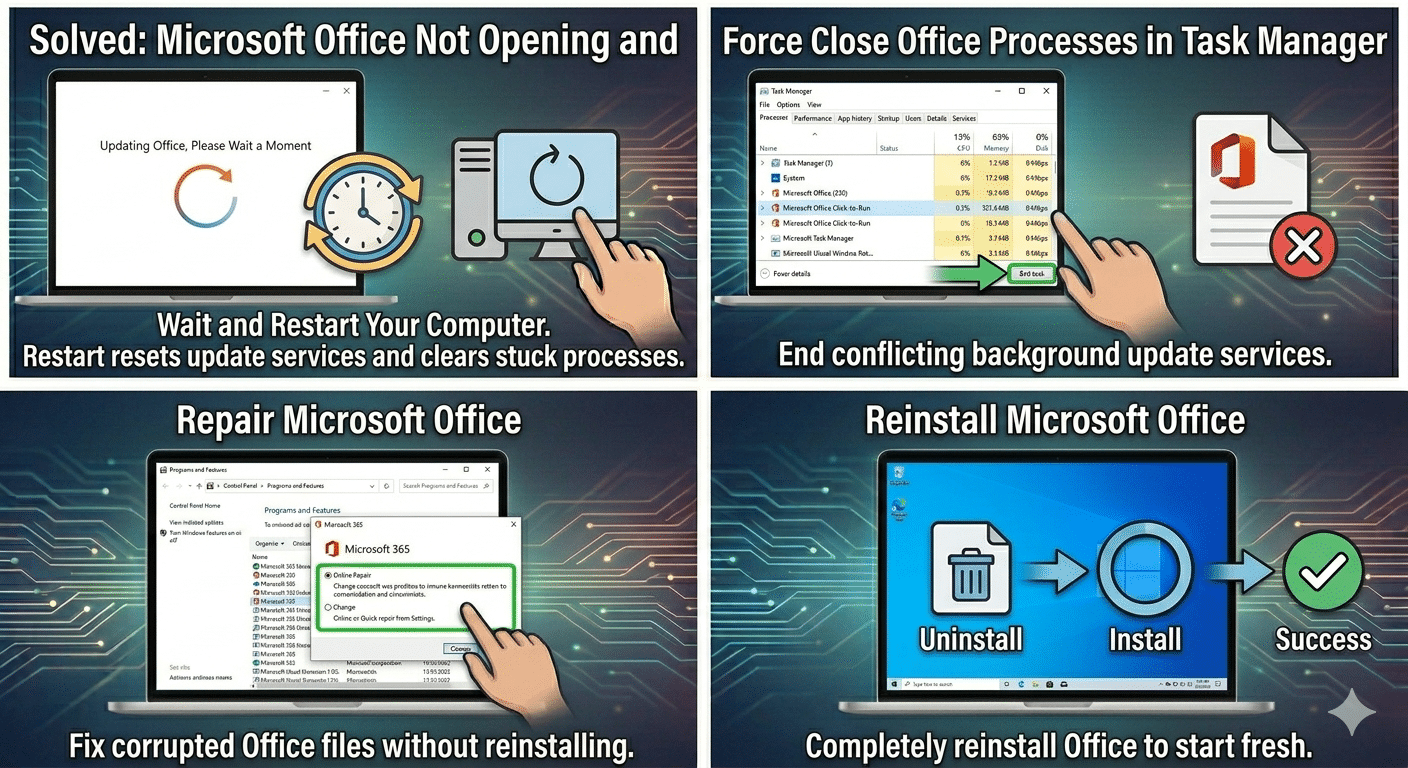
Restart Your Computer
Temporary update glitches may disappear after rebooting.
Why It Helps
Restarting refreshes Office services and clears stuck processes.
Check Your Internet Connection
Office updates require stable internet access.
Try
- Restarting the router
- Using a wired connection
- Disabling VPN temporarily
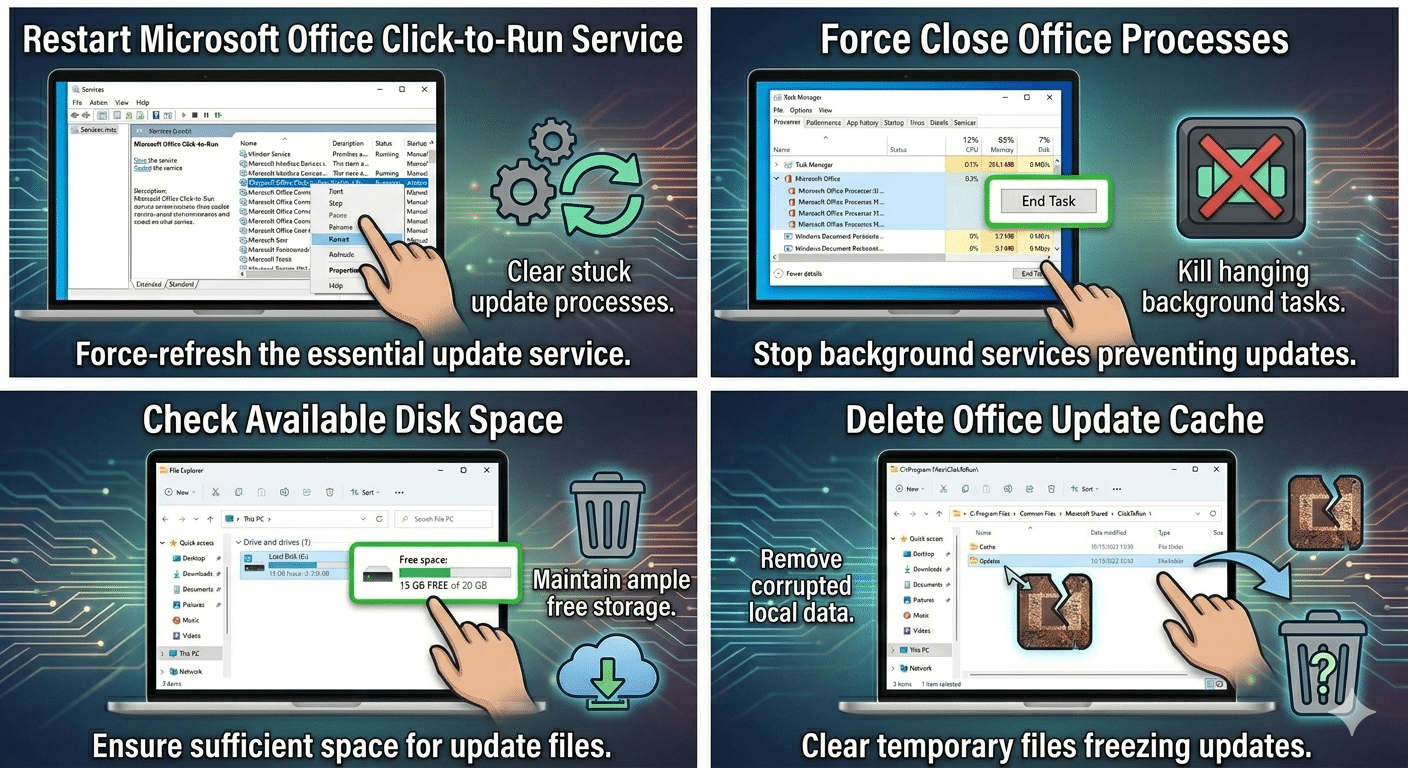
Force Close Office Processes
Stuck Office background services may prevent updates from completing.
Steps
- Press:
Ctrl + Shift + Esc- Open Task Manager
- End processes related to:
- Microsoft Office
- OfficeClickToRun
- Word
- Excel
- PowerPoint
Restart Office afterward.
Run Office as Administrator
Permission problems may block updates.
Steps
- Right-click an Office app
- Select:
Run as administrator- Allow Office to complete the update process
Repair Microsoft Office
Corrupted Office files commonly cause update freezes.
Steps
- Open:
- Control Panel → Programs and Features
- Select Microsoft Office
- Click:
- Change
- Try:
- Quick Repair
If the issue continues, use:
- Online Repair
Restart Office Click-to-Run Service
Office updates rely heavily on this service.
Steps
- Press
Windows + R - Type:
services.msc- Find:
Microsoft Office Click-to-Run Service- Right-click it
- Select:
- Restart
Update Windows
Outdated Windows components may interfere with Office updates.
Steps
- Open:
- Settings → Windows Update
- Install all available updates
- Restart the PC
Disable Antivirus Temporarily
Security software may block Office update files.
Important
Disable antivirus only temporarily while testing.
Delete Office Update Cache
Corrupted cache files may freeze the update process.
Steps
Navigate to:
C:\Program Files\Common Files\Microsoft Shared\ClickToRunTemporary update files may be cleared safely after closing Office.
Check Available Disk Space
Office updates require sufficient storage.
Recommended
Keep at least:
- 10–20 GB of free disk space
Delete unnecessary files if storage is low.
Run System File Checker (SFC)
Corrupted Windows files may affect Office services.
Steps
Open Command Prompt as administrator and run:
sfc /scannowRestart after completion.
Use DISM Tool
Repair deeper Windows image corruption.
Steps
Run:
DISM /Online /Cleanup-Image /RestoreHealthDisable Background Startup Apps
Some applications may conflict with Office updates.
Steps
- Press:
Ctrl + Shift + Esc- Open the Startup tab
- Disable unnecessary startup applications
- Restart the PC
Perform a Clean Boot
Third-party services may interfere with Office updating.
Steps
- Press
Windows + R - Type:
msconfig- Hide Microsoft services
- Disable unnecessary services
- Restart the PC
Remove Multiple Office Versions
Conflicting Office installations can break updates.
Try Removing
- Older Office versions
- Trial editions
- Unused Office components
Manually Update Office
Instead of waiting for automatic updates:
Steps
- Open an Office app
- Go to:
- File → Account
- Select:
- Update Options → Update Now
Reinstall Microsoft Office
If updates remain permanently stuck, reinstalling Office may help.
Steps
- Uninstall Microsoft Office
- Restart the PC
- Download the latest installer from Microsoft
- Reinstall Office
Check Microsoft Services Status
Sometimes Microsoft servers experience temporary issues.
Possible Signs
- Multiple users reporting update failures
- Activation problems occurring simultaneously
- Office services unavailable online
Waiting may resolve temporary server-related problems.
When Office Click-to-Run Causes High CPU Usage
The update service may continue consuming system resources.
Possible Causes
- Corrupted update downloads
- Incomplete installation
- Background service loops
Restarting the Click-to-Run service often helps.
When Office Apps Open Slowly After Updates
This may happen because:
- Office is finalizing installation
- Add-ins are conflicting
- Cache rebuilding is occurring
Disabling add-ins temporarily may improve performance.
Tips to Prevent Office Update Problems
To reduce future issues:
- Keep Windows updated
- Maintain stable internet access
- Avoid shutting down during updates
- Use official Microsoft installers
- Keep enough free disk space
When to Seek Additional Help
Consider advanced troubleshooting if:
- Office repeatedly fails to update
- Applications crash after updates
- Activation problems appear simultaneously
- Multiple Office components stop working
Final Thoughts
The “Updating Office, Please Wait a Moment” problem usually occurs because of corrupted update files, background service conflicts, damaged Office installations, or internet connectivity issues. Although the update process may appear frozen, the issue is often fixable using built-in repair tools and service troubleshooting.
By restarting Office services, repairing Office installations, updating Windows, clearing update caches, and reinstalling Office when necessary, most users can restore normal Office functionality successfully.
Related articles
Fixing the “Kernel Security Check Failure” Error on Windows 10
How to Fix Mobile Hotspot Not Working in Windows 10
Can’t Download Attachments From Outlook Web App? Here’s the Fix