


Fixing Windows Media Player Error 0xC00D5212
The 0xC00D5212 error in Windows Media Player is a common playback issue that usually appears when trying to open video files such as AVI, MP4, MOV, or MKV formats. Instead of playing normally, Windows Media Player displays an error message indicating that the file cannot be played.
This problem is often related to missing codecs, corrupted media files, outdated drivers, unsupported formats, or damaged system components. While the error may look technical, it is usually fixable with a few troubleshooting steps.
In this guide, you’ll learn what causes Windows Media Player error 0xC00D5212 and how to fix it effectively on Windows 10 and Windows 11.
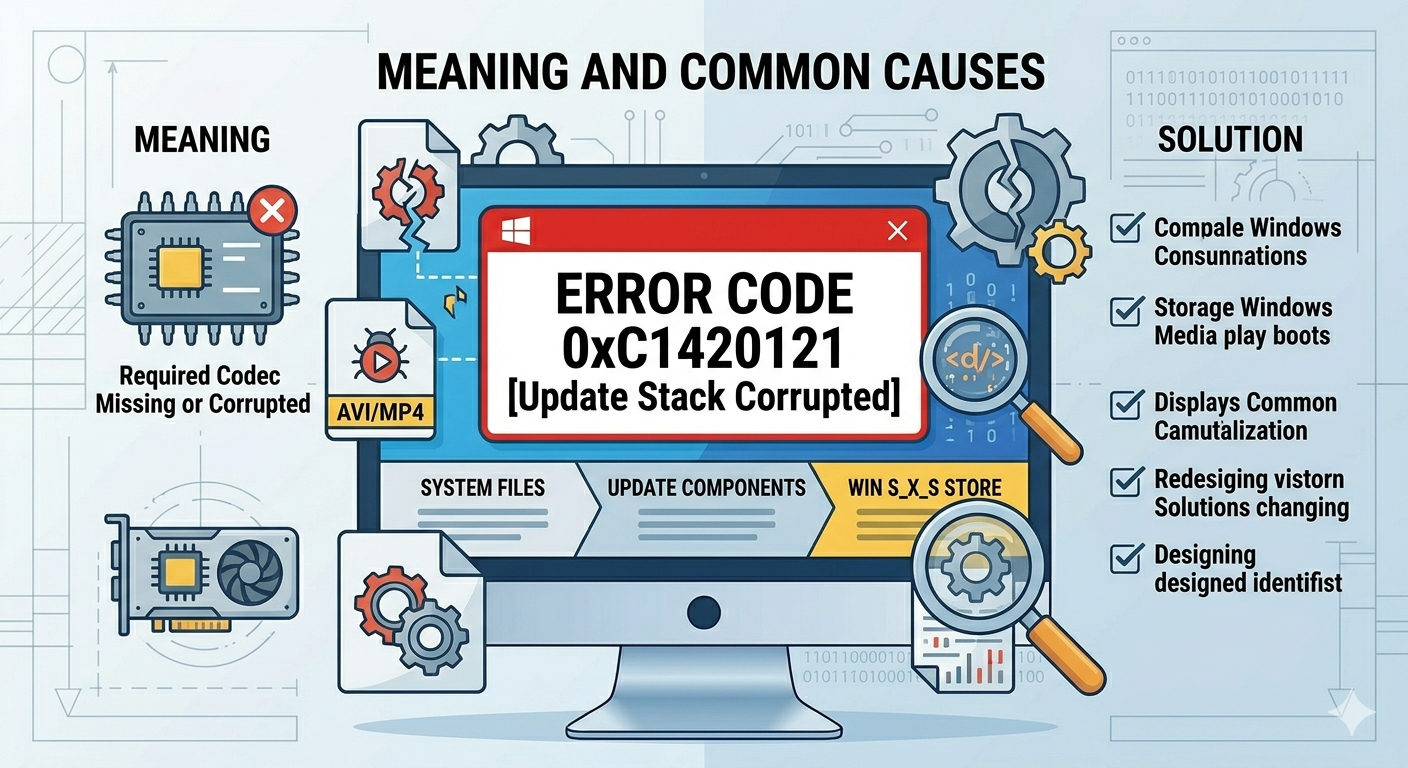
What Does Error 0xC00D5212 Mean?
Error 0xC00D5212 generally means Windows Media Player cannot decode or process the video file correctly. This usually happens when the required audio or video codec is missing or incompatible.
A codec is software that helps Windows encode and decode multimedia content.
Without the proper codec, the player cannot read the file format properly.
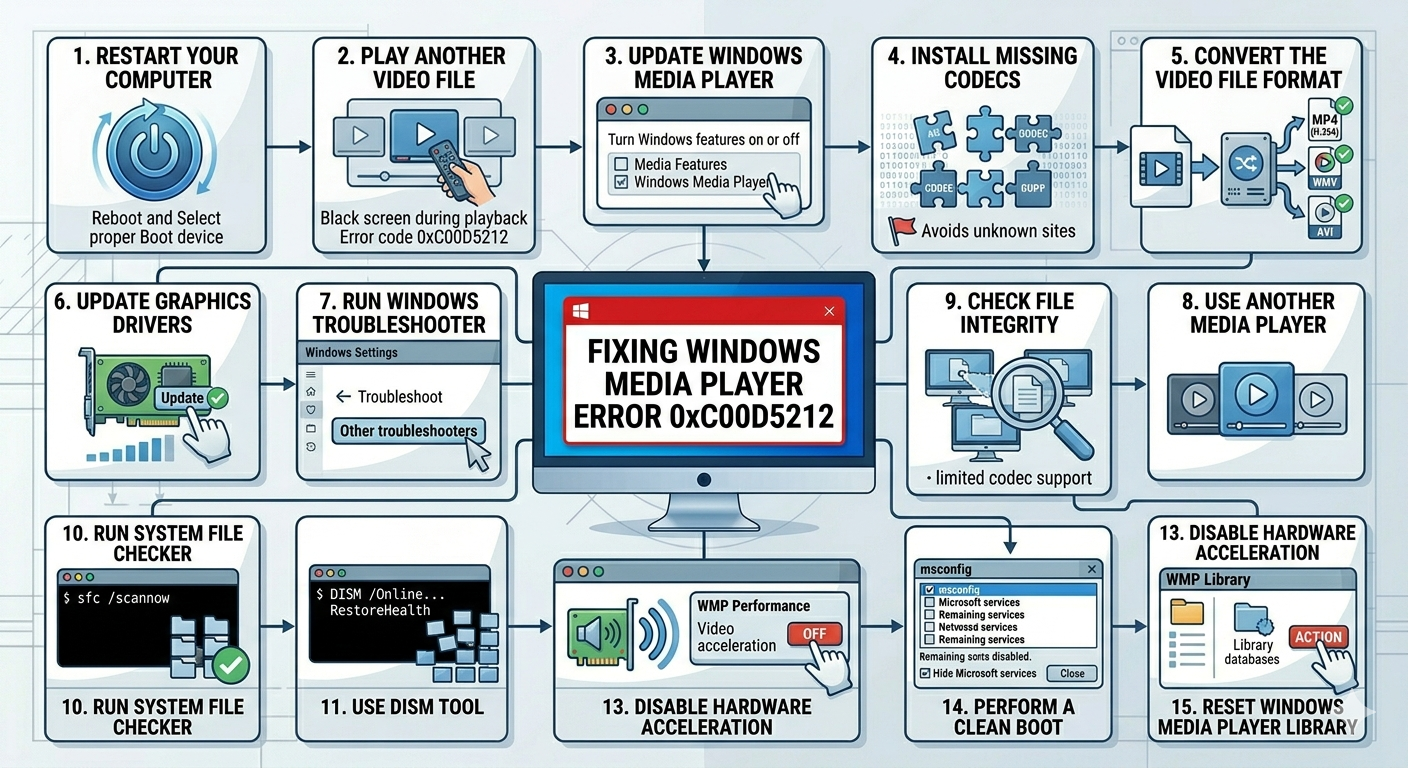
Common Symptoms
You may notice:
- Videos fail to play
- Black screen during playback
- Audio without video
- Error code 0xC00D5212 appears
- Windows Media Player crashes
- Unsupported format warnings
Common Causes of the Error
Missing Video Codecs
Windows Media Player may not support certain codecs by default.
Corrupted Media File
The video itself may be damaged.
Outdated Graphics Drivers
Display driver issues can interfere with playback.
Unsupported File Format
Some modern formats are not fully supported by Windows Media Player.
Corrupted Windows Media Player Components
Player files or settings may be damaged.
System File Corruption
Windows system corruption may affect media playback.
How to Fix Error 0xC00D5212 in Windows Media Player
Try the following methods step by step.
Restart Your Computer
Start with a simple reboot.
Why It Helps
Temporary glitches affecting media services or drivers may disappear after restarting.
Try Playing Another Video File
Determine whether the problem is with one file or all videos.
What to Check
- If only one file fails, the video may be corrupted
- If all files fail, the issue is likely system-related
Update Windows Media Player
Outdated components may cause compatibility problems.
Steps
- Open Control Panel
- Go to Programs and Features
- Select Turn Windows features on or off
- Expand Media Features
- Disable Windows Media Player
- Restart PC
- Re-enable it and restart again
Install Missing Codecs
This is one of the most common fixes.
What to Do
Install a trusted codec pack such as:
- K-Lite Codec Pack
- Official codec updates
Avoid downloading codecs from unknown websites.
Convert the Video File Format
If the format is unsupported:
Convert To
- MP4 (H.264)
- WMV
- AVI
You can use reliable video conversion tools.
Update Graphics Drivers
Video playback depends on GPU drivers.
Steps
- Right-click Start
- Open Device Manager
- Expand Display adapters
- Right-click your graphics device
- Select Update driver
Restart after updating.
Run Windows Troubleshooter
Windows may detect media-related issues automatically.
Steps
- Open Settings
- Go to Troubleshoot
- Select Other troubleshooters
- Run relevant troubleshooters if available
Use Another Media Player
Windows Media Player has limited codec support.
Popular Alternatives
- VLC Media Player
- Media Player Classic
- PotPlayer
These players support many formats natively.
Check File Integrity
The file itself may be corrupted.
Try
- Playing the file on another PC
- Downloading the file again
- Copying it from the original source again
Run System File Checker
Repair corrupted Windows files.
Steps
Open Command Prompt as administrator and run:
sfc /scannowRestart after completion.
Use DISM Tool
If SFC cannot repair everything:
Steps
Run:
DISM /Online /Cleanup-Image /RestoreHealthCheck Audio Device Drivers
Audio codec issues can also trigger playback errors.
Steps
- Open Device Manager
- Expand Sound, video and game controllers
- Update audio drivers
Disable Hardware Acceleration
Sometimes GPU acceleration causes playback issues.
Steps
- Open Windows Media Player
- Go to Options → Performance
- Adjust video acceleration settings
Perform a Clean Boot
Background apps may interfere with playback.
Steps
- Press
Windows + R - Type msconfig
- Hide Microsoft services
- Disable non-essential services
- Restart PC
Reset Windows Media Player Library
Corrupted media databases may cause errors.
Steps
- Close Windows Media Player
- Navigate to:
%LOCALAPPDATA%\Microsoft\Media Player- Delete library database files
- Restart Windows Media Player
The library will rebuild automatically.
Check Windows Updates
Media compatibility updates may already exist.
Steps
- Open Settings → Windows Update
- Install available updates
- Restart your PC
When to Reinstall Media Components
If nothing works:
Try
- Reinstall Windows Media Player
- Install Media Feature Pack (for Windows N editions)
Tips to Prevent Media Playback Errors
To reduce future issues:
- Keep drivers updated
- Use supported video formats
- Avoid corrupted downloads
- Maintain Windows updates
- Use trusted media software only
When to Seek Further Help
Consider additional support if:
- Multiple media apps fail
- System crashes during playback
- GPU issues appear elsewhere
- Media files constantly become corrupted
Final Thoughts
The 0xC00D5212 error in Windows Media Player is usually caused by missing codecs, unsupported formats, outdated drivers, or corrupted files. While the error can interrupt video playback, it is often straightforward to fix.
By updating drivers, installing codecs, repairing Windows files, and testing alternative players, most users can restore smooth media playback quickly.
Related articles
Fix Outlook Password Prompt Issue in Office 365
How to Fix Mobile Hotspot Not Working in Windows 10
How to Fix the Taskbar Showing in Full-Screen Mode on Windows