


How to Fix the Taskbar Showing in Full-Screen Mode on Windows
One of the most annoying issues Windows users encounter is when the taskbar keeps showing in full-screen mode. Whether you’re watching videos, playing games, browsing the web, or giving presentations, the taskbar appearing on top of full-screen applications can interrupt the experience and reduce screen space.
Normally, the Windows taskbar should automatically hide when an app enters full-screen mode. However, due to software conflicts, notification issues, system glitches, or incorrect settings, the taskbar may refuse to disappear.
The good news is that this problem is usually easy to fix. In this guide, you’ll learn why the taskbar appears during full-screen mode and how to solve it on Windows 10 and Windows 11.
Why Does the Taskbar Show in Full-Screen Mode?
The taskbar is designed to remain hidden when applications run in exclusive full-screen mode. If it continues appearing, Windows may think the app is not fully active or another process may be interrupting the interface.
This issue commonly affects:
- YouTube videos in browsers
- Full-screen games
- Streaming apps
- PowerPoint presentations
- Media players
Common Symptoms
You may notice:
- Taskbar stays visible over games
- Taskbar appears during videos
- Auto-hide does not work
- Icons flash repeatedly
- Notifications keep bringing back the taskbar
- Full-screen apps lose focus
Common Causes of the Problem
Taskbar Auto-Hide Glitches
Windows auto-hide settings may stop working correctly.
Background Notifications
Apps sending notifications can force the taskbar to appear.
Windows Explorer Issues
Explorer.exe controls the taskbar and may malfunction.
Browser Problems
Web browsers sometimes fail to enter proper full-screen mode.
Third-Party Applications
Overlay apps and utilities can interfere with full-screen behavior.
Outdated Graphics Drivers
Display issues may affect window rendering.
How to Fix Taskbar Showing in Full-Screen
Try these solutions one by one.
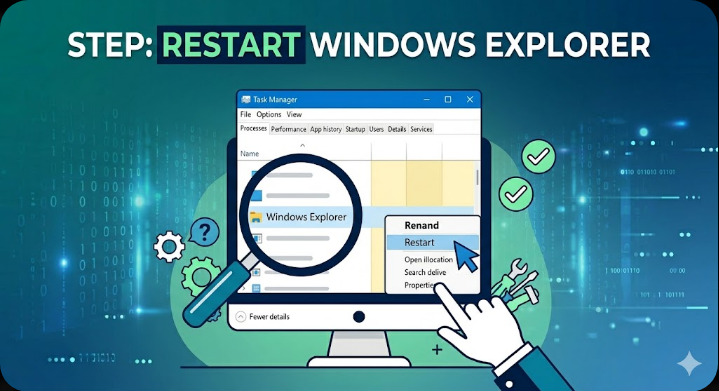
Restart Windows Explorer
Restarting Explorer often fixes taskbar glitches instantly.
Steps
- Press
Ctrl + Shift + Esc - Open Task Manager
- Find Windows Explorer
- Right-click it
- Select Restart
Test full-screen mode again afterward.
Enable and Disable Auto-Hide Taskbar
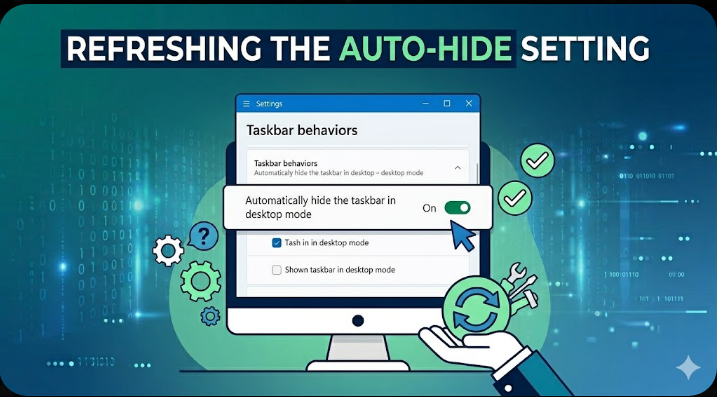
Refreshing the setting may resolve the issue.
Steps
- Right-click the taskbar
- Select Taskbar settings
- Turn on:
- Automatically hide the taskbar in desktop mode
- Wait a few seconds
- Turn it off and on again if needed
Check Full-Screen Mode Properly
Sometimes apps are maximized but not truly full-screen.
Try
- Press
F11in browsers - Use in-game full-screen settings instead of borderless mode
- Double-click video windows if supported
Close Notification-Heavy Applications
Notifications can interrupt full-screen mode.
Common Apps
- Discord
- Teams
- Outlook
- Messaging apps
- Antivirus software
Temporarily close these apps and test again.
Disable Taskbar Notifications
Reduce interruptions from system alerts.
Steps
- Open Settings
- Go to System → Notifications
- Turn off unnecessary notifications
Update Graphics Drivers
Display driver issues may cause rendering problems.
Steps
- Right-click Start
- Open Device Manager
- Expand Display adapters
- Right-click your GPU
- Select Update driver
Restart your PC afterward.
Use Task Manager to Identify Problem Apps
Some apps force the taskbar to stay visible.
What to Look For
- Apps with flashing notifications
- Overlay software
- Background media tools
Close suspicious apps and test again.
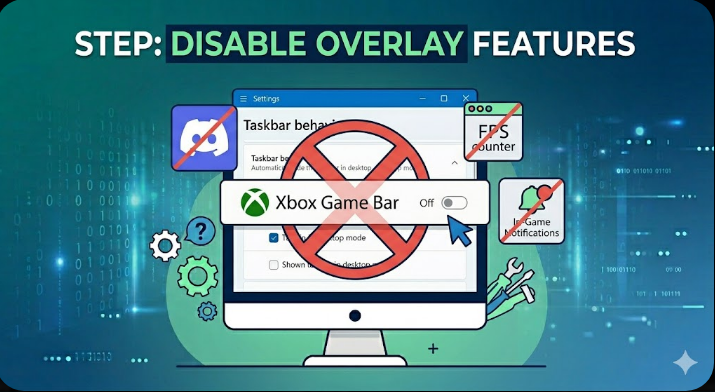
Disable Overlay Features
Overlays frequently interfere with full-screen applications.
Examples
- Xbox Game Bar
- Discord overlay
- NVIDIA overlay
- Steam overlay
How to Disable Xbox Game Bar
- Open Settings
- Go to Gaming → Xbox Game Bar
- Turn it off
Check Browser Issues
Browsers commonly cause this problem.
Try These Fixes
- Restart browser
- Disable extensions
- Clear browser cache
- Update browser
If using Chrome or Edge, press:
F11to enter proper full-screen mode.
Run System File Checker
Corrupted system files can affect taskbar behavior.
Steps
Open Command Prompt as administrator and run:
sfc /scannowRestart after the scan finishes.
Use DISM Tool
If system corruption remains:
Steps
Run:
DISM /Online /Cleanup-Image /RestoreHealthPerform a Clean Boot
Background software may interfere with Windows Explorer.
Steps
- Press
Windows + R - Type:
msconfig- Hide Microsoft services
- Disable non-essential services
- Disable startup apps
- Restart your PC
Check Multi-Monitor Setup
Multiple displays may confuse taskbar behavior.
Try
- Disconnecting secondary monitor temporarily
- Changing primary display
- Updating monitor drivers
Reset Taskbar Settings
Corrupted settings may cause persistent problems.
Quick Fix
Toggle taskbar settings several times and restart Windows Explorer.
Create a New User Account
Profile corruption may affect taskbar functionality.
Steps
- Open Settings → Accounts
- Add a new user account
- Log into the new profile
- Test full-screen mode
Check for Windows Updates
Microsoft often fixes UI bugs through updates.
Steps
- Open Settings → Windows Update
- Click Check for updates
- Install updates
- Restart your computer
When Games Cause the Issue
Games using borderless mode often trigger taskbar problems.
Try
- Switching to exclusive full-screen mode
- Updating game settings
- Verifying game files
Tips to Prevent Taskbar Full-Screen Problems
To reduce future issues:
- Keep Windows updated
- Minimize unnecessary startup apps
- Avoid excessive overlays
- Update graphics drivers regularly
- Restart Explorer when UI glitches appear
When to Seek Additional Help
Consider further troubleshooting if:
- Taskbar issues occur constantly
- Full-screen apps crash frequently
- Explorer.exe keeps failing
- Multiple UI problems appear
Final Thoughts
The issue where the taskbar shows during full-screen mode is usually caused by Explorer glitches, notifications, overlays, or display-related problems. Although frustrating, the problem is often simple to fix with a few adjustments.
By restarting Windows Explorer, updating drivers, disabling overlays, and checking taskbar settings, most users can restore proper full-screen behavior quickly.
Related articles
Fixing the “Kernel Security Check Failure” Error on Windows 10