


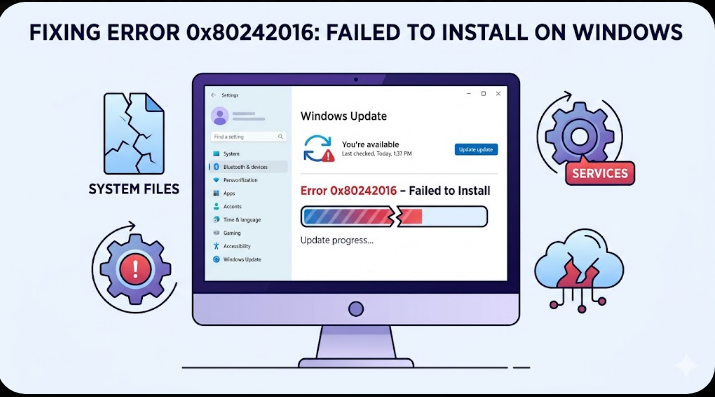
Fixing Error 0x80242016: Failed to Install on Windows
Windows updates are important for system security, performance, and stability. However, users sometimes encounter installation failures accompanied by error messages such as 0x80242016 – Failed to Install. This issue commonly appears when Windows Update cannot complete the installation of cumulative updates, security patches, or feature upgrades.
The error can occur on both Windows 10 and Windows 11, and it is often related to corrupted update files, damaged system components, interrupted update services, or software conflicts.
Fortunately, this issue is usually fixable without reinstalling Windows. In this guide, you’ll learn what causes Windows Update error 0x80242016 and how to resolve it step by step.
What Does Error 0x80242016 Mean?
The error code 0x80242016 generally indicates that a Windows update installation process was interrupted or could not complete successfully.
You may see messages like:
- Failed to install updates
- Windows Update encountered an error
- Update installation failed
- Error code 0x80242016
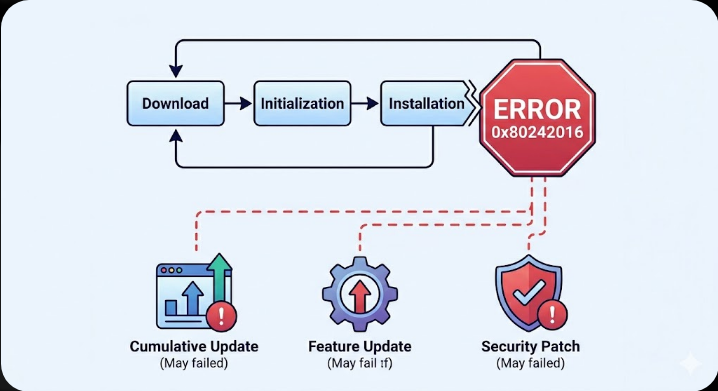
This often happens during:
- Cumulative updates
- Feature updates
- Driver updates
- Security patch installations
Common Symptoms
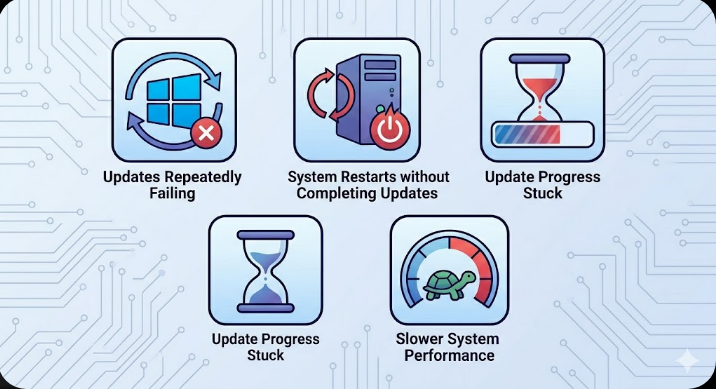
You may notice:
- Windows updates repeatedly failing
- System restarts without completing updates
- Update progress stuck for long periods
- Slower system performance
- Error messages after reboot
Common Causes of the Error
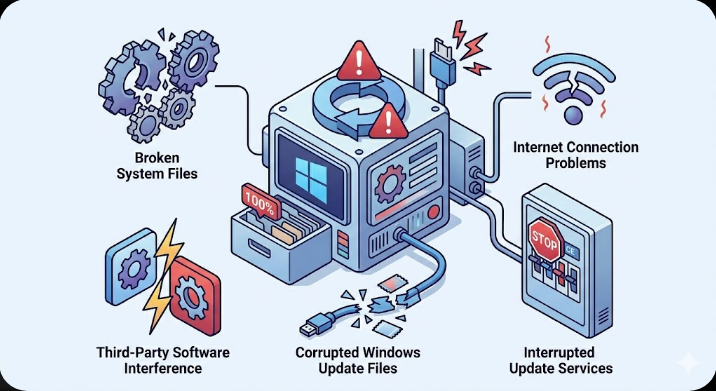
Corrupted Windows Update Files
Damaged cache files can interrupt updates.
Broken System Files
Corrupted Windows system files may prevent installation.
Interrupted Update Services
Required Windows services may stop unexpectedly.
Insufficient Disk Space
Updates require enough free storage to complete.
Third-Party Software Interference
Antivirus or optimization tools may block updates.
Internet Connection Problems
Unstable downloads may corrupt update packages.
How to Fix Error 0x80242016 on Windows
Try the following methods carefully.
Restart Your Computer
Temporary glitches may disappear after restarting.
Steps
- Save your work
- Restart your PC
- Retry Windows Update
Run Windows Update Troubleshooter
Windows includes a built-in repair tool.
Steps
- Open Settings
- Go to System → Troubleshoot
- Select Other troubleshooters
- Run Windows Update Troubleshooter
Allow Windows to detect and fix issues automatically.
Check Internet Connection
A stable internet connection is essential.
Try
- Restarting your router
- Using Ethernet instead of Wi-Fi
- Disconnecting VPN services temporarily
Free Up Disk Space
Lack of storage can prevent updates.
Steps
- Open Settings → System → Storage
- Remove temporary files
- Empty Recycle Bin
- Delete unnecessary applications
Aim for at least 20 GB of free space.
Run System File Checker (SFC)
Repair corrupted system files.
Steps
Open Command Prompt as administrator and run:
sfc /scannowWait for the scan to complete and restart your PC.
Use DISM Tool
DISM repairs the Windows component store.
Steps
Run:
DISM /Online /Cleanup-Image /RestoreHealthRestart after completion.
Reset Windows Update Components
Corrupted update cache often causes installation failures.
Steps
Open Command Prompt as administrator and run:
net stop wuauserv
net stop bits
net stop cryptsvc
net stop msiserver
ren C:\Windows\SoftwareDistribution SoftwareDistribution.old
ren C:\Windows\System32\catroot2 catroot2.old
net start wuauserv
net start bits
net start cryptsvc
net start msiserver
Restart your PC afterward.
Pause and Resume Updates
Refreshing the update process can help.
Steps
- Open Settings → Windows Update
- Pause updates temporarily
- Restart the computer
- Resume updates
Install Updates Manually
If automatic updates fail repeatedly:
Steps
- Note the KB number of the failed update
- Visit the Microsoft Update Catalog
- Download the correct update manually
- Install it
Disable Antivirus Temporarily
Security software may interfere with installation.
What to Do
- Disable third-party antivirus temporarily
- Run Windows Update again
- Re-enable protection afterward
Perform a Clean Boot
Background apps may block update services.
Steps
- Press
Windows + R - Type:
msconfig- Hide Microsoft services
- Disable remaining services
- Disable startup applications
- Restart your PC
Check Windows Update Services
Essential services must be running.
Steps
- Press
Windows + R - Type:
services.msc- Ensure these services are running:
- Windows Update
- Background Intelligent Transfer Service (BITS)
- Cryptographic Services
Run CHKDSK
Disk errors may interrupt updates.
Steps
Run:
chkdsk /f /rRestart if prompted.
Use Windows Installation Assistant
If feature updates keep failing:
Alternative Tools
- Windows 11 Installation Assistant
- Media Creation Tool
- ISO in-place upgrade
These methods often bypass update-related issues.
Perform System Restore
If the problem started recently:
Steps
- Search for System Restore
- Select a restore point before the issue
- Restore the system
Reset Windows (Last Resort)
If all methods fail:
Steps
- Open Settings → Recovery
- Choose Reset this PC
- Keep personal files if possible
Tips to Prevent Windows Update Errors
To avoid future issues:
- Keep enough free storage
- Avoid interrupting updates
- Maintain stable internet connection
- Keep drivers updated
- Use reliable antivirus software only
- Restart your PC regularly
When to Seek Professional Help
Consider advanced support if:
- Updates fail continuously
- System crashes frequently
- Multiple error codes appear
- Disk or hardware problems are suspected
Final Thoughts
The 0x80242016 – Failed to Install error on Windows is commonly caused by corrupted update files, damaged system components, interrupted services, or software conflicts. Although frustrating, the issue is usually repairable using built-in troubleshooting tools and update repair methods.
By running SFC and DISM scans, resetting Windows Update components, freeing up storage space, and checking services, most users can successfully install updates again.
Related articles
Fixing the “Kernel Security Check Failure” Error on Windows 10