


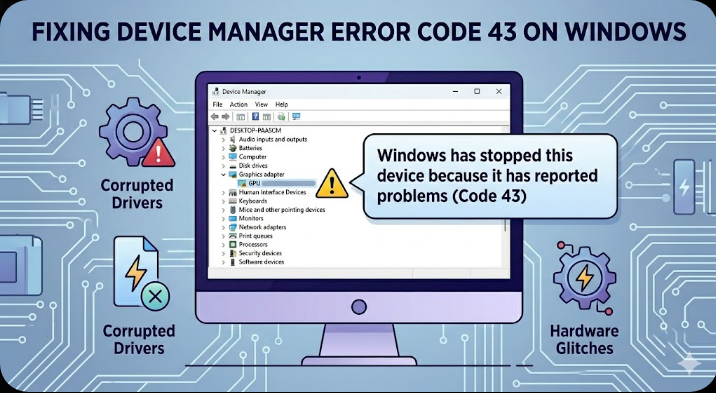
Fixing Device Manager Error Code 43 on Windows
The “Windows has stopped this device because it has reported problems (Code 43)” error is a common Device Manager issue in Windows 10 and Windows 11. It usually appears when Windows detects a hardware problem and disables the affected device to prevent system instability.
This error can affect many types of hardware, including:
- Graphics cards (GPU)
- USB devices
- Bluetooth adapters
- External drives
- Network adapters
- Audio devices
Although Code 43 may seem like a serious hardware failure, it is often caused by driver problems, corrupted settings, power issues, or temporary system glitches. In many cases, the device can be restored without replacing hardware.
In this guide, you’ll learn what causes Code 43 and how to fix it effectively.
What Does Code 43 Mean?
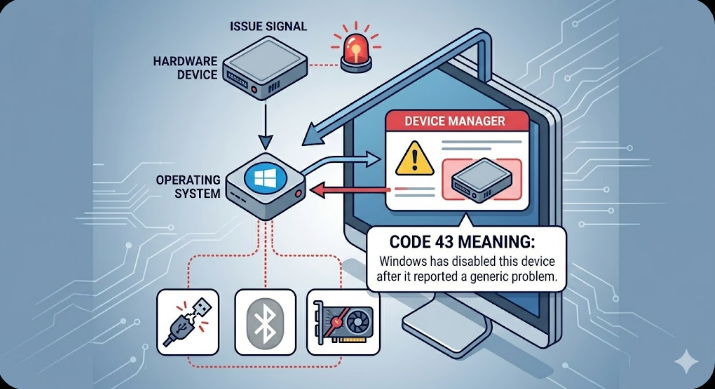
Code 43 is a Windows Device Manager error indicating that a hardware device reported a problem to the operating system, causing Windows to stop the device.
You can usually find the error by:
- Right-clicking the Start menu
- Opening Device Manager
- Checking devices with a yellow warning icon
The device status often says:
“Windows has stopped this device because it has reported problems. (Code 43)”
Common Symptoms
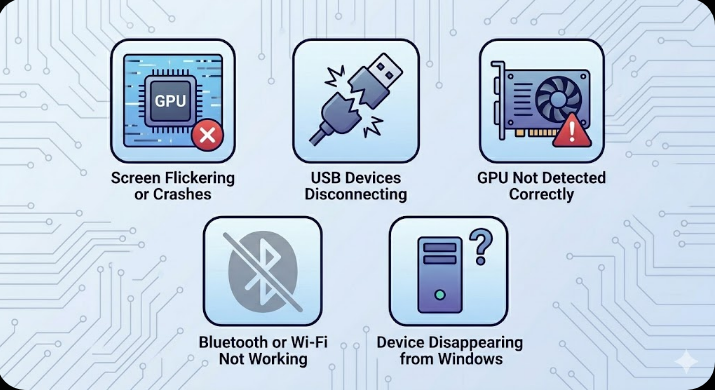
You may notice:
- Hardware not functioning properly
- USB devices disconnecting
- GPU not detected correctly
- Screen flickering or crashes
- Bluetooth or Wi-Fi not working
- Device disappearing from Windows
Common Causes of Code 43
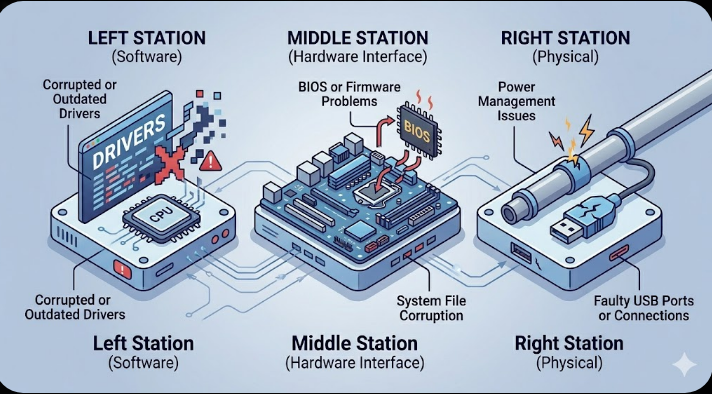
Corrupted or Outdated Drivers
Damaged drivers are one of the most common causes.
Hardware Malfunction
The device itself may be failing.
Power Management Issues
Windows may incorrectly disable devices to save power.
System File Corruption
Broken Windows components may interfere with hardware communication.
BIOS or Firmware Problems
Outdated firmware can trigger compatibility issues.
Faulty USB Ports or Connections
Loose or damaged ports can interrupt communication.
How To Fix Code 43 Error on Windows
Follow these solutions in order.
Restart Your Computer
Temporary hardware communication glitches can often be fixed with a reboot.
Steps
- Shut down your PC completely
- Wait a few seconds
- Restart the system
Check if the device works again.
Reconnect the Device
If it’s an external device:
Try
- Unplugging and reconnecting
- Using another USB port
- Testing on another computer
This helps determine whether the issue is hardware-related.
Update Device Drivers
Outdated drivers commonly trigger Code 43.
Steps
- Right-click Start
- Open Device Manager
- Locate the affected device
- Right-click it
- Select Update driver
Choose:
- Search automatically for drivers
Restart afterward.
Reinstall the Device Driver
Sometimes reinstalling works better than updating.
Steps
- Open Device Manager
- Right-click the problematic device
- Select Uninstall device
- Restart your PC
Windows will reinstall the driver automatically.
Download Drivers from Manufacturer Website
Generic Windows drivers may not work correctly.
Examples
- NVIDIA
- AMD
- Intel
- Realtek
- Logitech
Install the latest official drivers directly from the manufacturer.
Disable Power Saving for USB Devices
Windows may disable devices to conserve power.
Steps
- Open Device Manager
- Expand Universal Serial Bus controllers
- Right-click USB Root Hub
- Select Properties
- Open Power Management tab
- Uncheck:
Allow the computer to turn off this device to save powerRepeat for multiple USB hubs if needed.
Run Hardware and Devices Troubleshooter
Windows may detect configuration problems automatically.
Steps
Press Windows + R and run:
msdt.exe -id DeviceDiagnosticFollow the prompts.
Update Windows
System updates may include important hardware fixes.
Steps
- Open Settings → Windows Update
- Click Check for updates
- Install updates
- Restart your PC
Run System File Checker (SFC)
Corrupted system files may affect device communication.
Steps
Open Command Prompt as administrator and run:
sfc /scannowRestart afterward.
Use DISM Tool
If SFC does not fully repair the system:
Steps
Run:
DISM /Online /Cleanup-Image /RestoreHealthCheck Hardware Connections
For internal devices such as GPUs:
Try
- Reseating the graphics card
- Reconnecting power cables
- Cleaning dust from slots
Always turn off and unplug the PC first.
Update BIOS or Firmware
Outdated BIOS versions may cause compatibility problems.
Important
Only update BIOS if necessary and follow manufacturer instructions carefully.
Check GPU Temperatures
Graphics cards often trigger Code 43 due to overheating.
Warning Signs
- Loud fans
- Random shutdowns
- Screen artifacts
- Black screens
Ensure proper cooling and airflow.
Remove Recent Hardware Changes
If the error started after installing new hardware:
Try
- Removing the new component
- Updating motherboard drivers
- Checking compatibility
Perform System Restore
If the issue started recently:
Steps
- Search for System Restore
- Select a restore point before the error
- Restore the system
Check for Hardware Failure
Sometimes the device itself is damaged.
Signs of Hardware Failure
- Device not detected on other computers
- Physical damage
- Burning smell
- Frequent disconnects
In such cases, replacement may be necessary.
When Code 43 Affects Graphics Cards
GPU-related Code 43 errors are especially common.
Possible Causes
- Driver corruption
- Overclock instability
- GPU overheating
- Hardware failure
Additional GPU Fixes
- Clean install GPU drivers
- Remove overclock settings
- Test GPU in another PC
Tips to Prevent Code 43 Errors
To reduce future hardware issues:
- Keep drivers updated
- Avoid unsafe USB removal
- Maintain proper cooling
- Avoid unstable overclocking
- Use quality power supplies
- Install Windows updates regularly
When to Seek Professional Help
Consider expert assistance if:
- Hardware is physically damaged
- GPU artifacts appear constantly
- Device disappears entirely
- BIOS no longer detects the hardware
Final Thoughts
The “Windows has stopped this device (Code 43)” error is usually caused by driver issues, power management problems, corrupted system files, or hardware faults. Although the error can disable important devices, it is often repairable using standard troubleshooting methods.
By updating drivers, reinstalling devices, adjusting power settings, and checking hardware connections, most users can resolve the problem successfully.
Related articles
Fix Outlook Password Prompt Issue in Office 365