


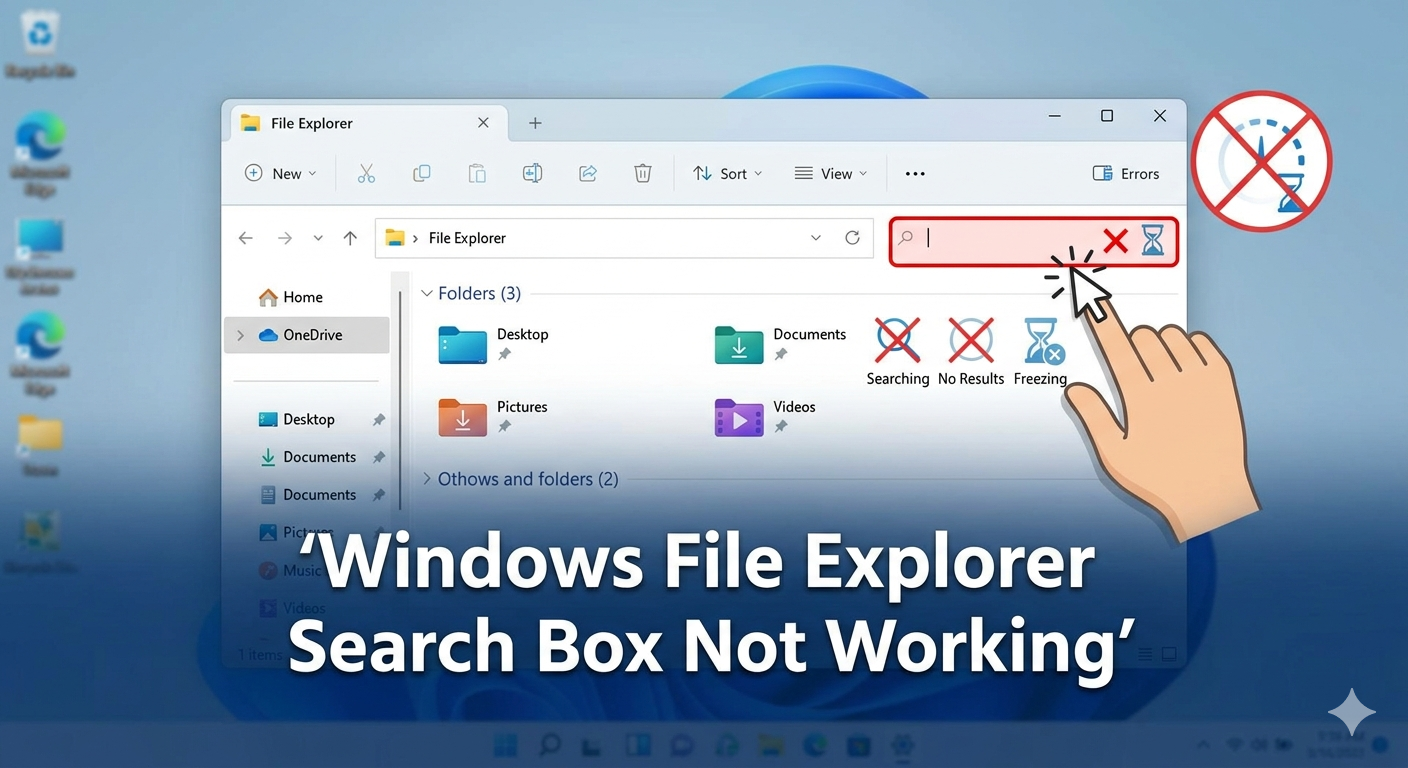
Solved: Windows File Explorer Search Box Not Working
The File Explorer search box not working issue is a frustrating problem that affects many Windows 10 and Windows 11 users. You may click the search bar and find that you cannot type, searches return no results, or File Explorer freezes whenever you attempt to search for files.
Since File Explorer search is essential for locating documents, apps, folders, and media quickly, this issue can seriously slow down productivity. Fortunately, the problem is usually caused by software glitches, indexing issues, corrupted system files, or Windows Search service problems — all of which can often be fixed without reinstalling Windows.
In this guide, you’ll learn the most common causes of the File Explorer search problem and the best ways to fix it.
Why Is the File Explorer Search Box Not Working?
The File Explorer search feature depends on several Windows components working together properly, including:
- Windows Search service
- Search indexing
- File Explorer processes
- System files
- User permissions
If any of these components become corrupted or disabled, the search box may stop responding.
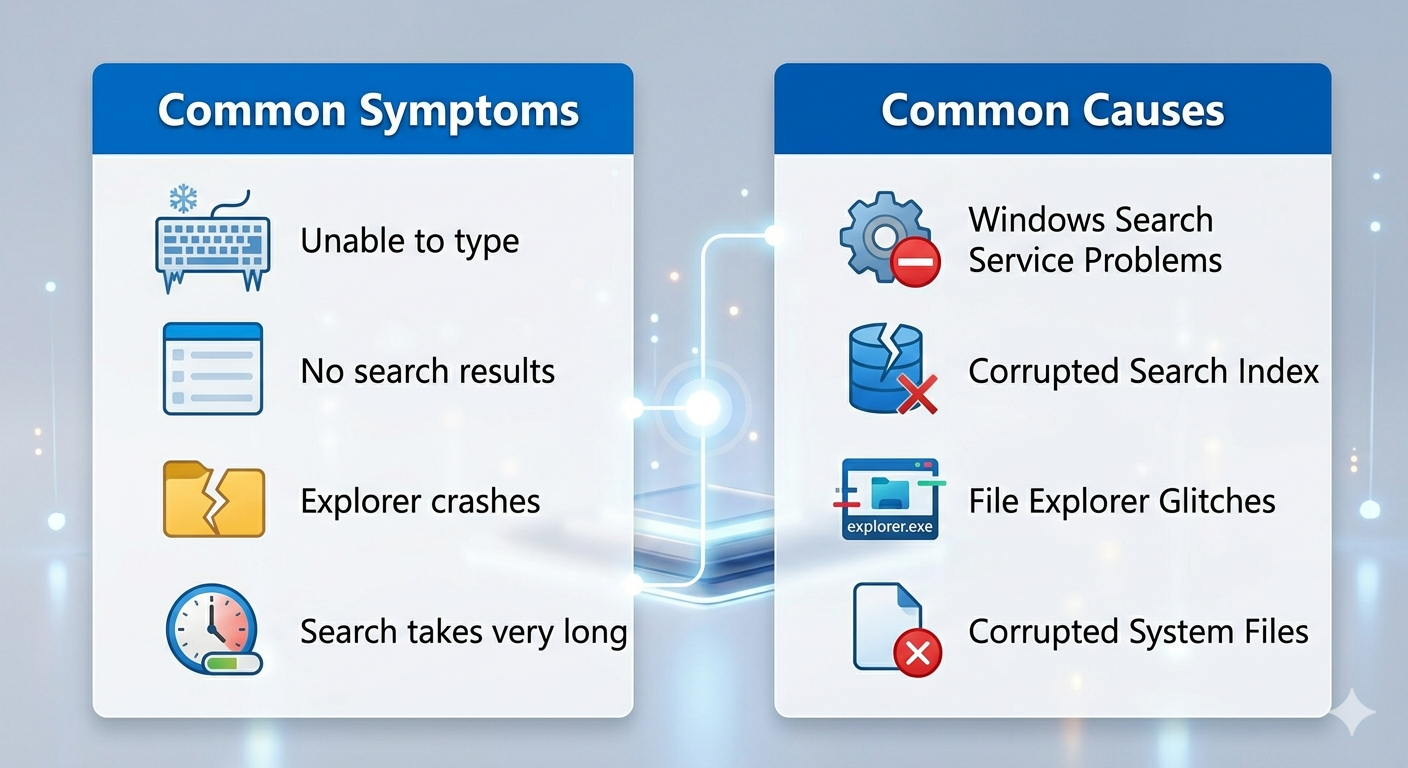
Common Symptoms
You may notice:
- Unable to type in the search box
- Search bar freezes
- Search results missing
- File Explorer crashes during search
- Search takes extremely long
- Search box appears blank or inactive
Common Causes of the Problem
Windows Search Service Problems
The search service may be disabled or stuck.
Corrupted Search Index
Damaged indexing data can break search functionality.
File Explorer Glitches
Explorer.exe may stop responding correctly.
Windows Update Bugs
Certain updates may temporarily affect search features.
Corrupted System Files
Damaged Windows components can interfere with search.
Third-Party Software Conflicts
Antivirus or optimization tools may block indexing.
How To Fix File Explorer Search Box Not Working
Follow these methods step by step.
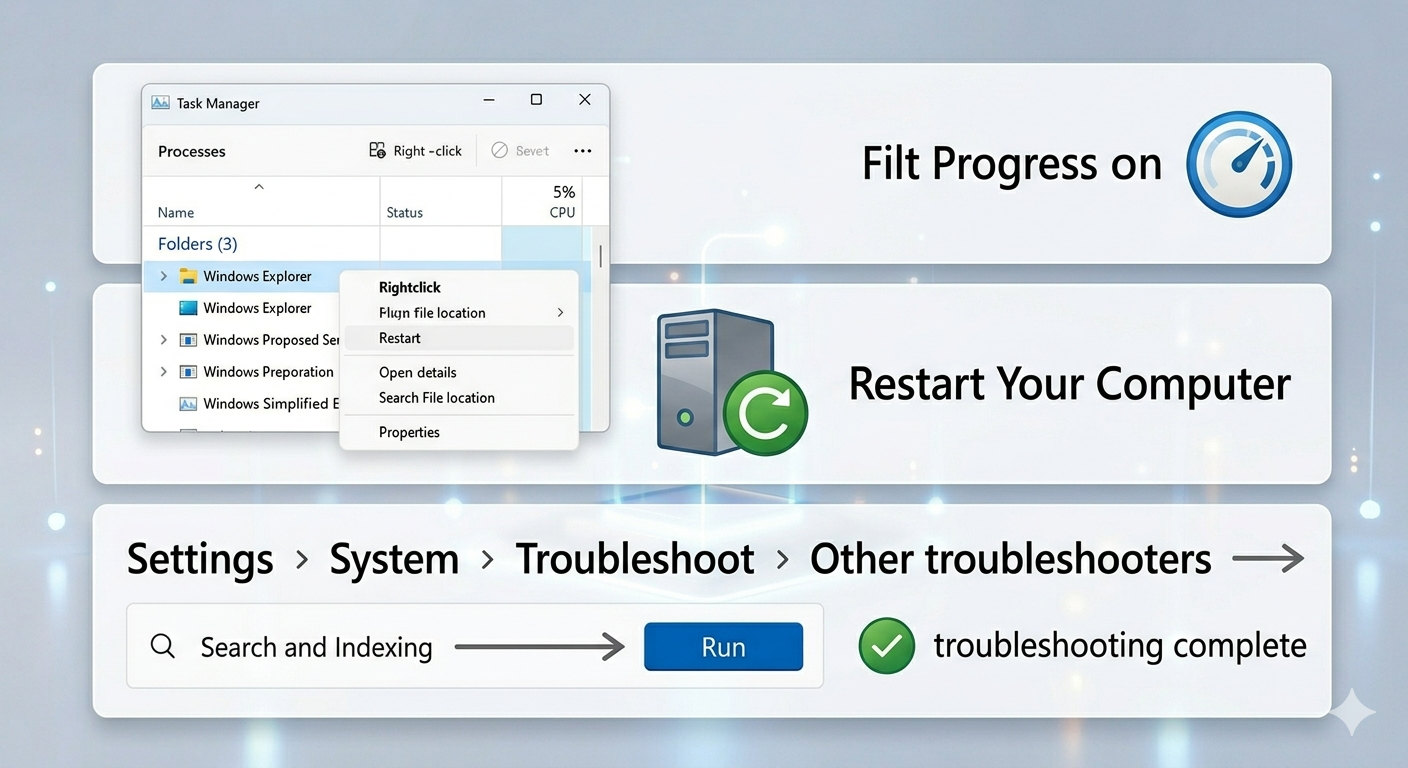
Restart File Explorer
Restarting Explorer can quickly resolve temporary glitches.
Steps
- Press
Ctrl + Shift + Esc - Open Task Manager
- Find Windows Explorer
- Right-click it
- Select Restart
Test the search box again afterward.
Restart Your Computer
A simple reboot may restore search functionality.
Why It Helps
Temporary Windows processes or services may be stuck.
Run the Search and Indexing Troubleshooter
Windows includes a built-in search repair tool.
Steps
- Open Settings
- Go to System → Troubleshoot
- Select Other troubleshooters
- Run Search and Indexing
Choose the issue that best matches your problem.
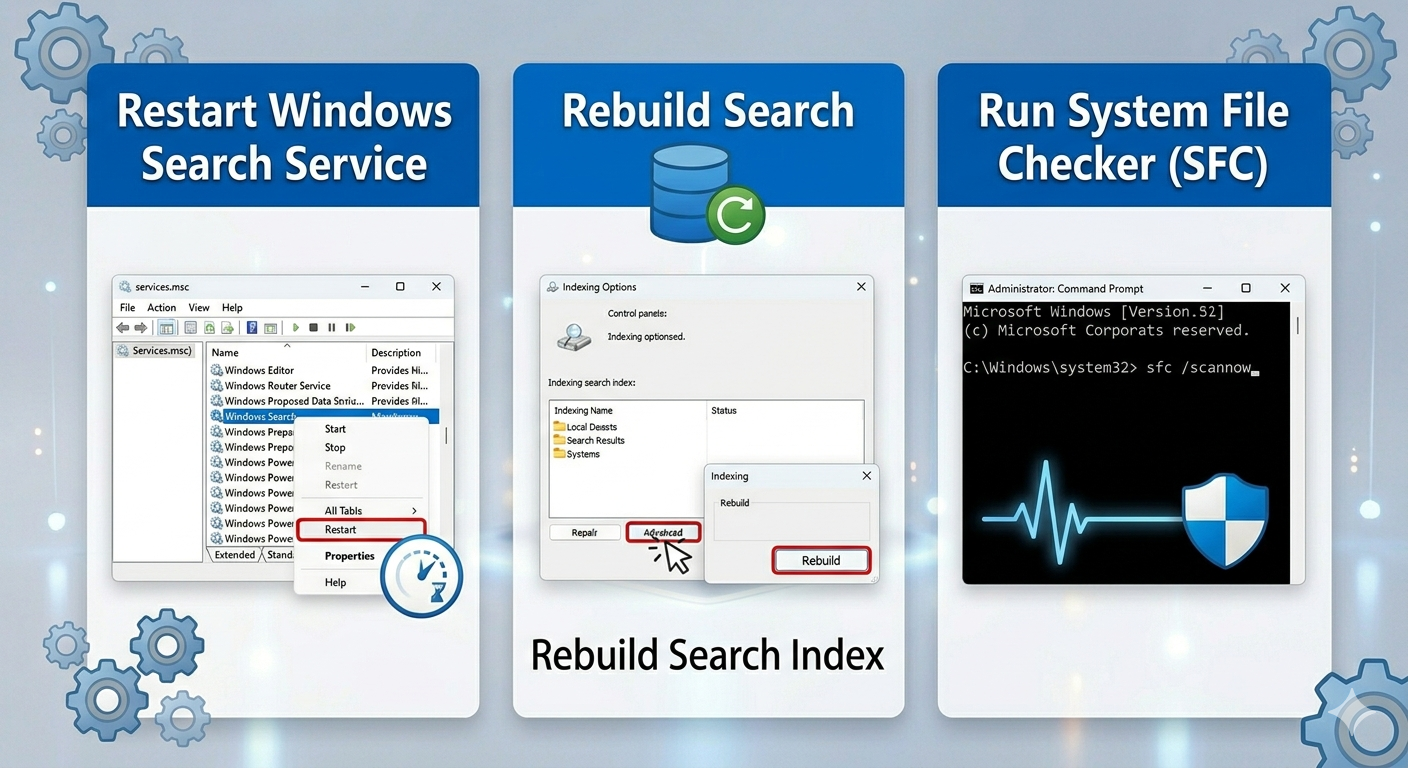
Restart Windows Search Service
The search service may not be running correctly.
Steps
- Press
Windows + R - Type:
services.msc- Find Windows Search
- Right-click it
- Select Restart
If disabled, set Startup Type to Automatic.
Rebuild Search Index
A corrupted search index can prevent results from appearing.
Steps
- Open Control Panel
- Search for Indexing Options
- Click Advanced
- Select Rebuild
Note
Rebuilding may take time depending on file count.
Update Windows
Search-related bugs are often fixed through updates.
Steps
- Open Settings → Windows Update
- Click Check for updates
- Install available updates
- Restart your PC
Run System File Checker (SFC)
Corrupted system files may break File Explorer search.
Steps
Open Command Prompt as administrator and run:
sfc /scannowRestart after the scan completes.
Use DISM Tool
If SFC cannot repair everything:
Steps
Run:
DISM /Online /Cleanup-Image /RestoreHealthClear File Explorer Search History
Corrupted search history may cause issues.
Steps
- Open File Explorer
- Click inside the search box
- Open the Search tab
- Select Recent searches → Clear search history
Reset Windows Search
Resetting Windows Search may restore functionality.
PowerShell Command
Open PowerShell as administrator and run the appropriate reset script if available for your Windows version.
Check Keyboard Functionality
If you cannot type in the search box:
Test
- Use another keyboard
- Try on-screen keyboard
- Test typing in other applications
Disable Third-Party Antivirus Temporarily
Security software may interfere with indexing.
Try
- Disable antivirus temporarily
- Restart File Explorer
- Test search again
Perform a Clean Boot
Background software may conflict with search features.
Steps
- Press
Windows + R - Type:
msconfig- Hide Microsoft services
- Disable non-essential services
- Disable startup applications
- Restart the PC
Check Search Permissions
Search may fail if folders are excluded or inaccessible.
Steps
- Open Indexing Options
- Select Modify
- Ensure important folders are included
Create a New User Account
User profile corruption may affect File Explorer.
Steps
- Open Settings → Accounts
- Add a new user account
- Log into the new account
- Test the search feature
Reset File Explorer Options
Corrupted Explorer settings may cause search issues.
Steps
- Open File Explorer Options
- Go to General tab
- Click Clear under Privacy
- Restore defaults if needed
Check for High CPU Usage
Search indexing may become overloaded.
What to Do
- Let indexing finish
- Avoid heavy background tasks
- Restart Windows Search service
When Search Results Are Slow
Slow searches often indicate indexing problems.
Solutions
- Rebuild index
- Reduce indexed locations
- Use SSD storage if possible
Tips to Prevent Search Problems
To avoid future File Explorer search issues:
- Keep Windows updated
- Avoid aggressive registry cleaners
- Maintain sufficient disk space
- Restart your PC regularly
- Keep indexing enabled
When to Seek Additional Help
Consider advanced troubleshooting if:
- Search crashes File Explorer repeatedly
- Multiple Windows features stop working
- System corruption keeps returning
- Search remains broken after all fixes
Final Thoughts
The File Explorer search box not working problem is commonly caused by indexing issues, broken services, File Explorer glitches, or corrupted system files. Although the issue can be frustrating, it is usually fixable using built-in Windows tools and a few troubleshooting steps.
By restarting Windows Explorer, rebuilding the search index, repairing system files, and checking Windows Search services, most users can restore normal search functionality quickly.
Related articles
Fixing the “Kernel Security Check Failure” Error on Windows 10