


Excel Formulas Not Refreshing – How to Resolve Calculation Problems
Working with Excel becomes frustrating when formulas don’t update as expected. Whether you’re changing values, copying formulas, or working with large datasets, seeing outdated results in cells can lead to confusion or errors in your work.
This guide explains why Excel formulas might not update and walks you through proven solutions to fix calculation issues in Excel.
Common Symptoms of Formula Calculation Problems
Here are typical signs that indicate Excel formulas are not calculating or updating correctly:
-
Cells show the formula (e.g.,
=A1+B1) instead of the result. -
The result doesn’t change even after you change related cells.
-
Pressing F9 or Enter does nothing to refresh the value.
-
The entire sheet seems to be “stuck” or inactive.
If you’re experiencing any of these, continue reading for the likely causes and fixes.
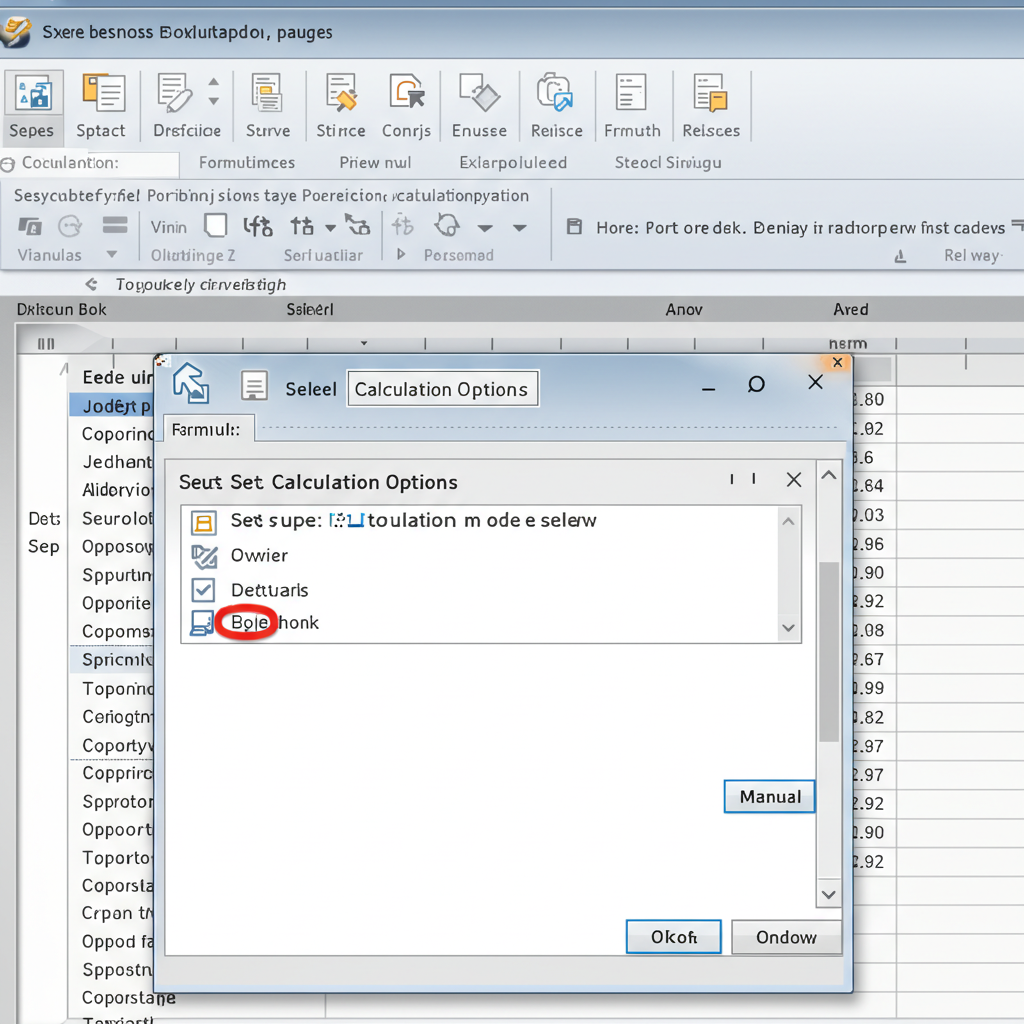
1. Excel is Set to Manual Calculation Mode
The most common reason for formulas not updating is that Excel is set to Manual Calculation Mode.
How to Check and Fix This Setting:
-
Go to the Formulas tab on the ribbon.
-
Click Calculation Options.
-
If Manual is selected, change it to Automatic.
Once set to Automatic, Excel will calculate and update all formulas automatically whenever you change data in related cells.
2. Cell is Formatted as Text
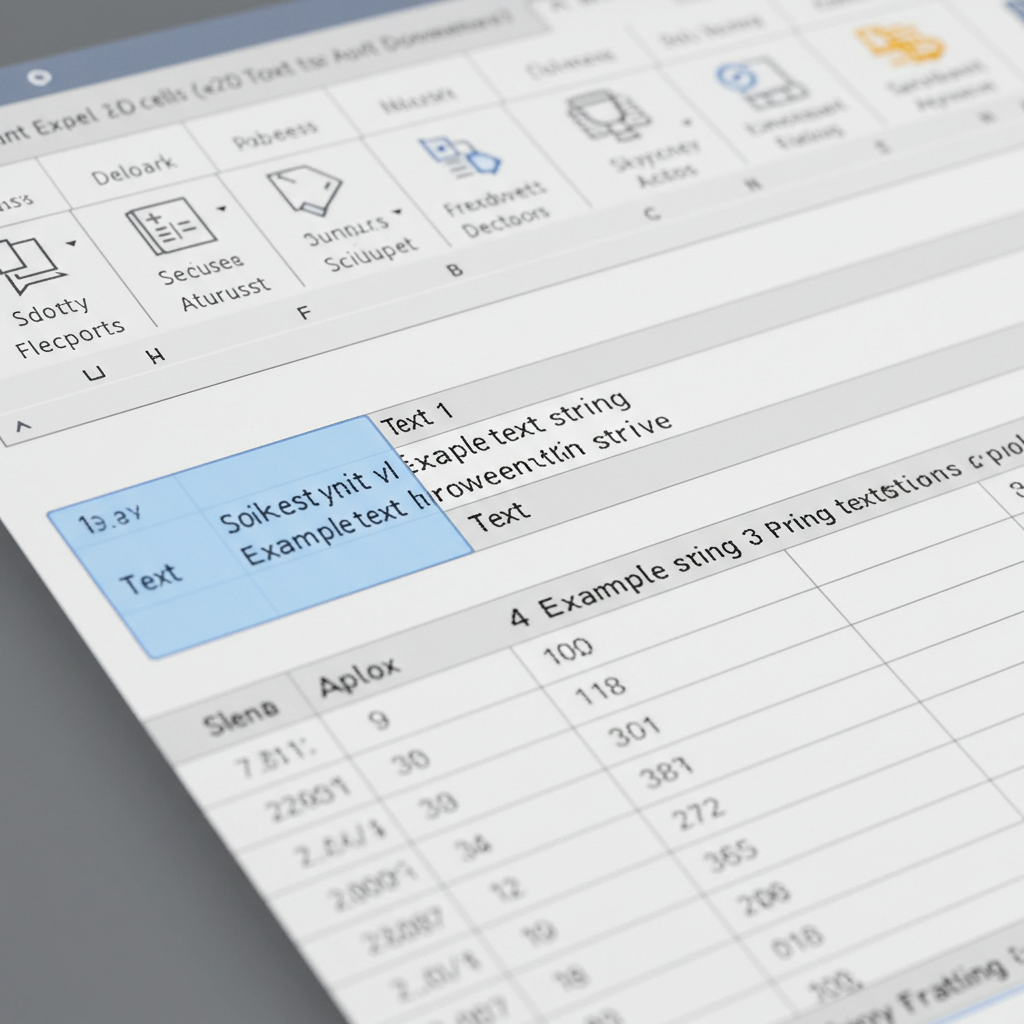
If a formula appears in the cell as =SUM(A1:A5) and is not computing the result, the cell might be formatted as Text.
How to Fix:
-
Select the cell or range with the formula.
-
Go to the Home tab.
-
Change the format from Text to General.
-
Press F2, then Enter to refresh the cell.
After this, Excel should evaluate the formula and show the correct result.
3. Cell Contains an Apostrophe Before the Formula
Sometimes, a formula is accidentally entered like this:'=A1+B1
The leading apostrophe (') tells Excel to treat the input as plain text, not a formula.
Solution:
-
Click into the cell.
-
Remove the apostrophe.
-
Press Enter to re-evaluate.
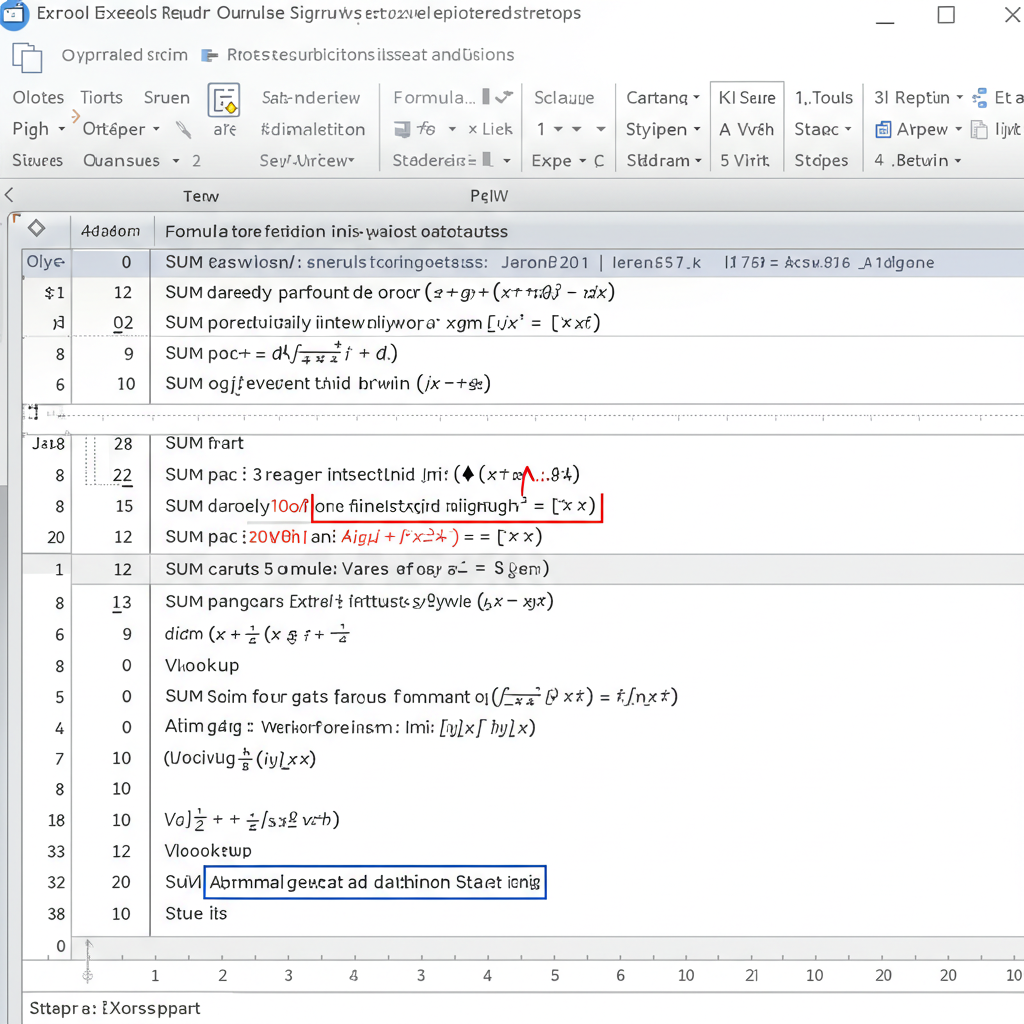
4. Excel Shows Formulas Instead of Results
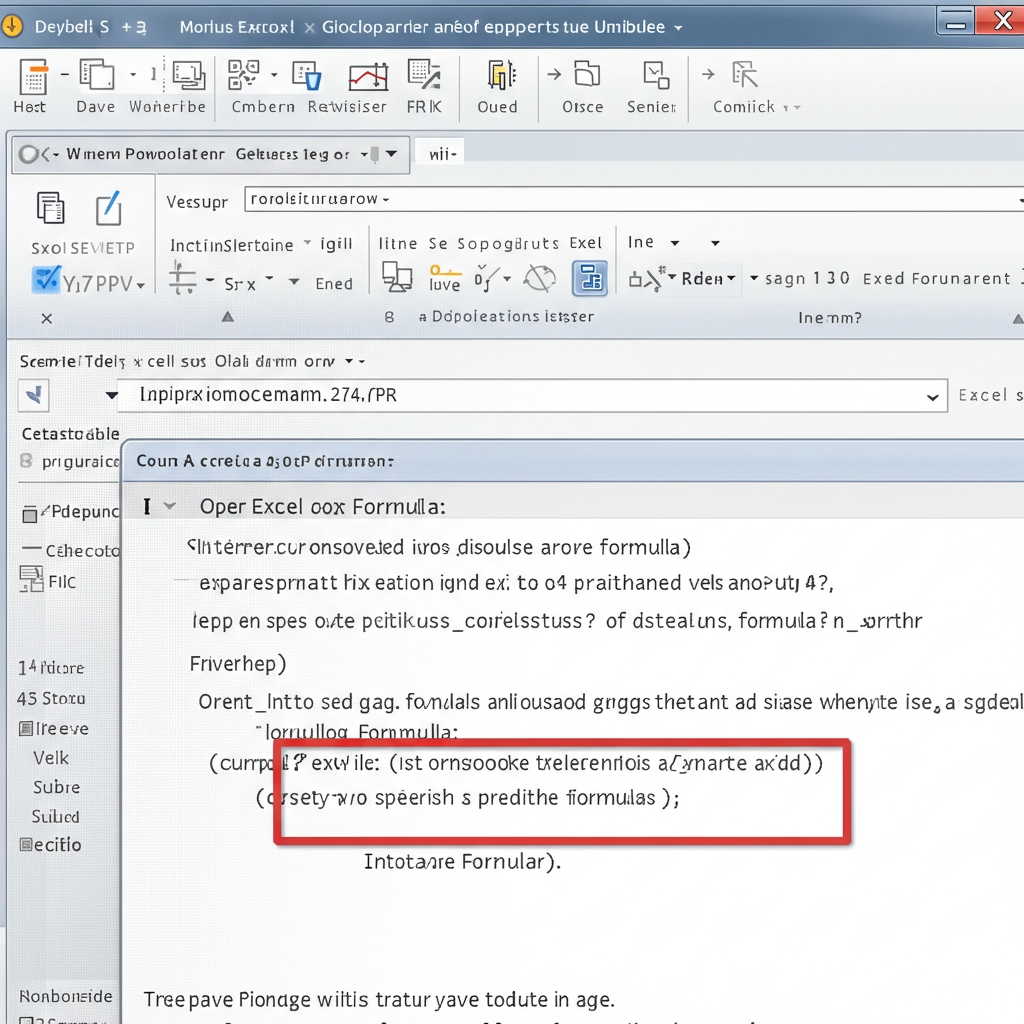
If all formulas in your worksheet are visible instead of their calculated values, you may have enabled Show Formulas.
To Disable Show Formulas:
-
Go to the Formulas tab.
-
Click on Show Formulas to turn it off.
-
Alternatively, press Ctrl + ` (grave accent key).
-
This toggles between displaying formulas and displaying results.
5. Formula Has Circular References
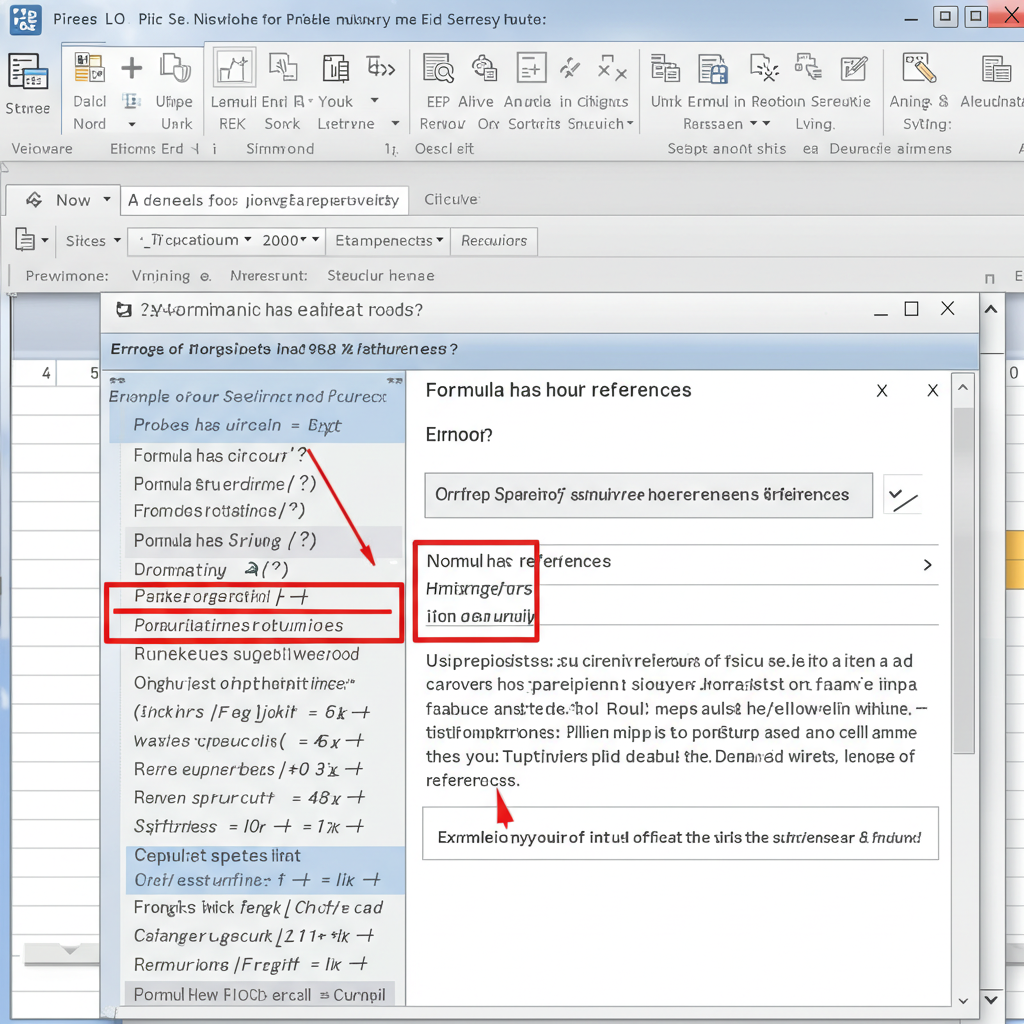
A circular reference occurs when a formula refers back to its own cell either directly or indirectly. Excel will usually warn you, but sometimes this setting is ignored or missed.
How to Check:
-
Go to Formulas > Error Checking.
-
Choose Circular References.
-
Excel will highlight the cell(s) with circular references.
Correct the formula to eliminate the circular dependency to allow proper calculation.
6. Cell Dependencies Are Not Triggering Recalculation
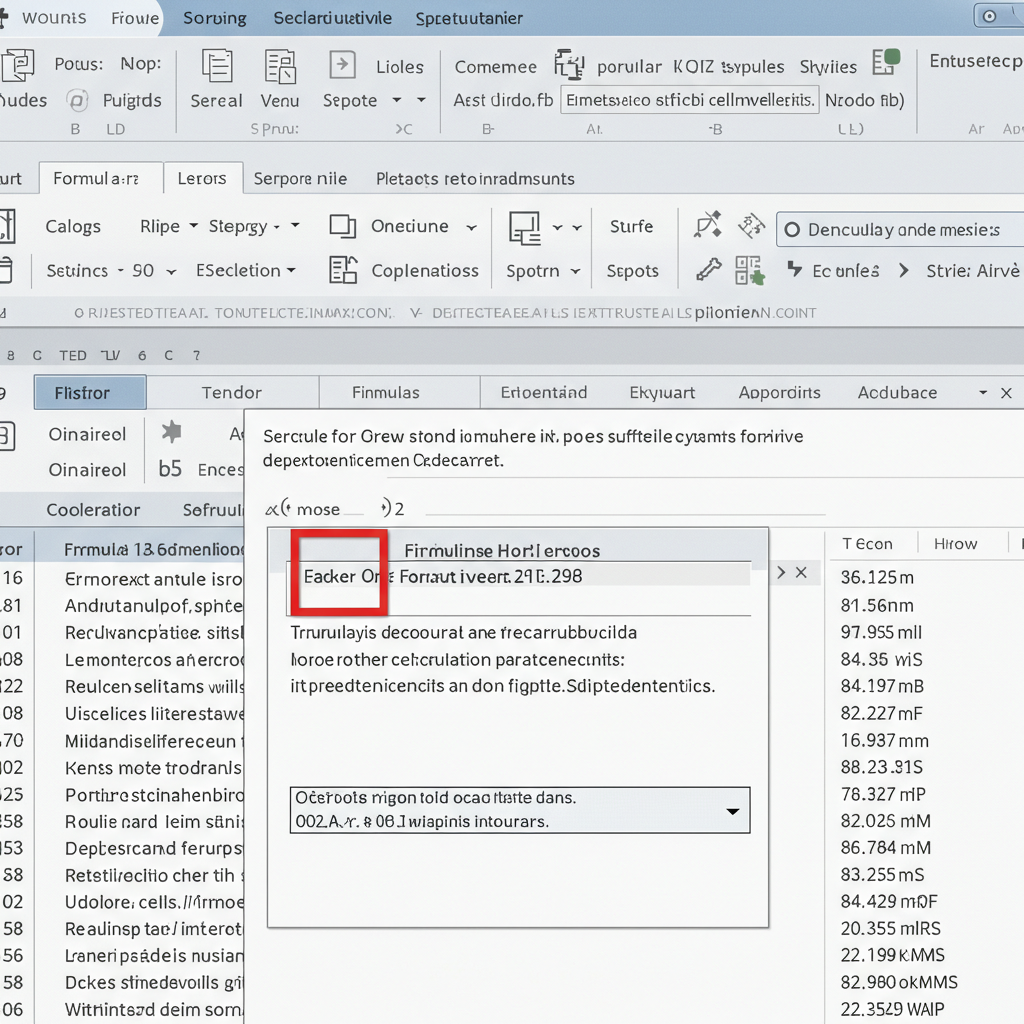
Even with automatic calculation turned on, Excel might miss updates if the cell links aren’t properly established.
Fix: Force a Full Workbook Recalculation
-
Press Ctrl + Alt + F9 to recalculate all formulas in the workbook.
If this solves the issue, something interrupted Excel’s calculation chain, and a full refresh was required.
7. Array Formulas Not Entered Properly
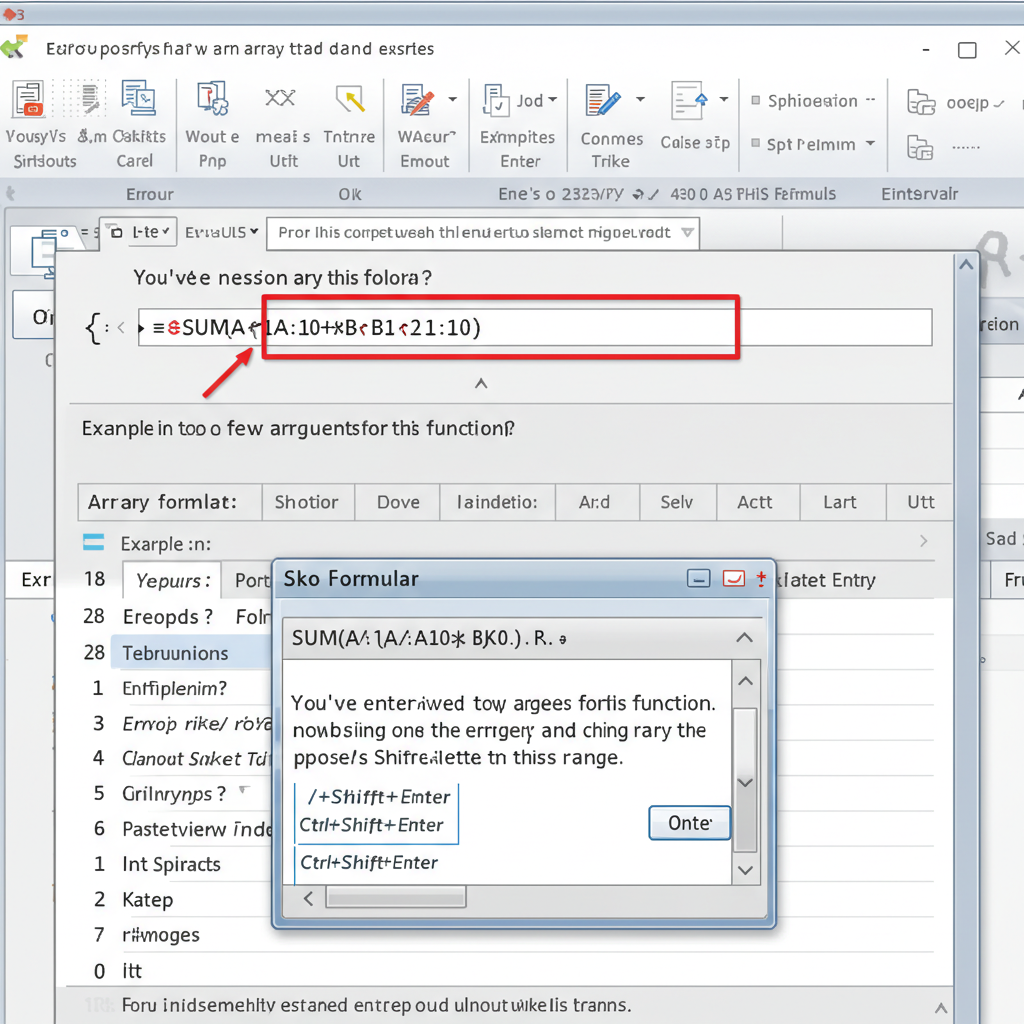
When using array formulas (e.g., =SUM(A1:A5*B1:B5)), Excel expects them to be entered in a special way.
Fix in Excel 365 / Excel 2019:
-
Simply press Enter (Dynamic Arrays are supported).
Fix in Older Excel Versions:
-
Select the formula cell.
-
Press Ctrl + Shift + Enter instead of just Enter.
This wraps the formula in {} brackets and tells Excel it’s an array formula.
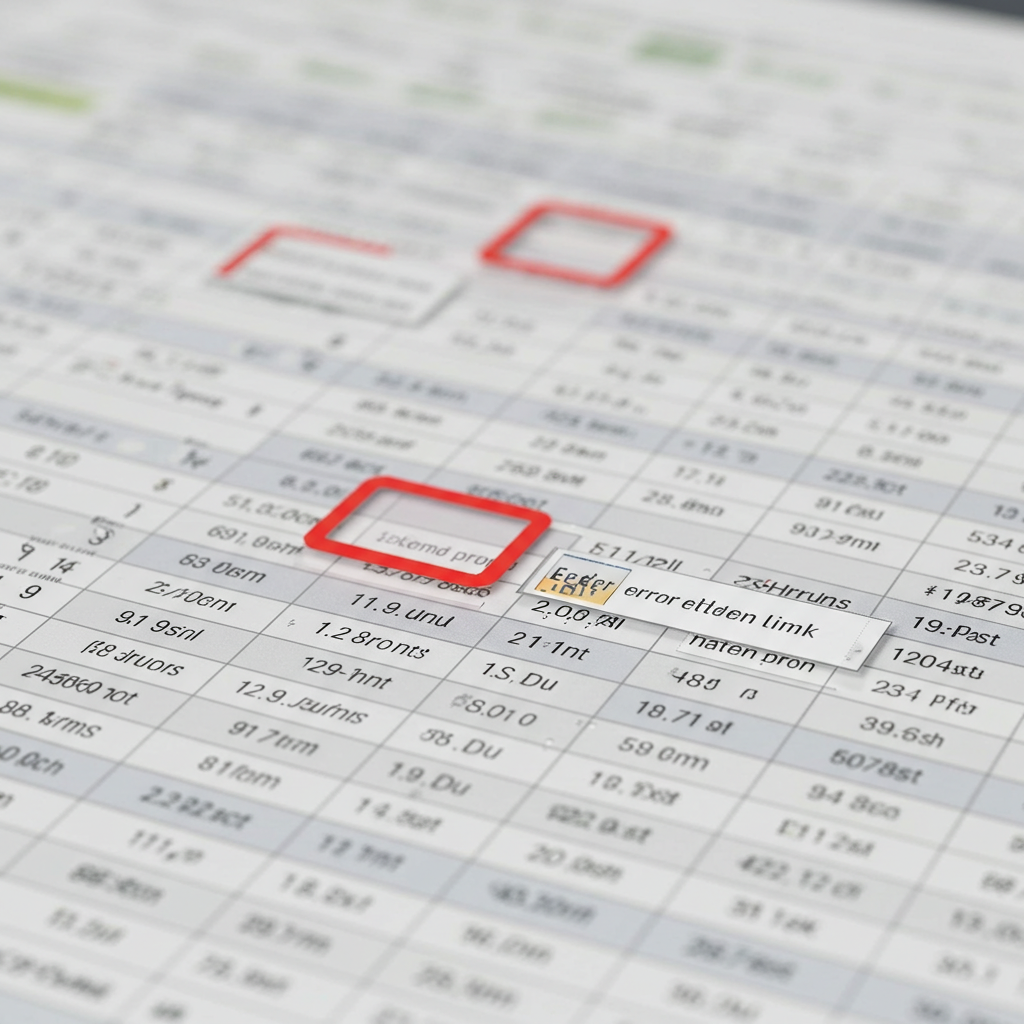
8. External Links Are Broken
If your formula refers to data in another workbook (e.g., [Budget.xlsx]Sheet1!A1), and that file is moved, renamed, or deleted, Excel might not update correctly.
Solution:
-
Open the source workbook.
-
Use Data > Edit Links to check and fix or update external references.
9. Macros or VBA Disabling Calculation
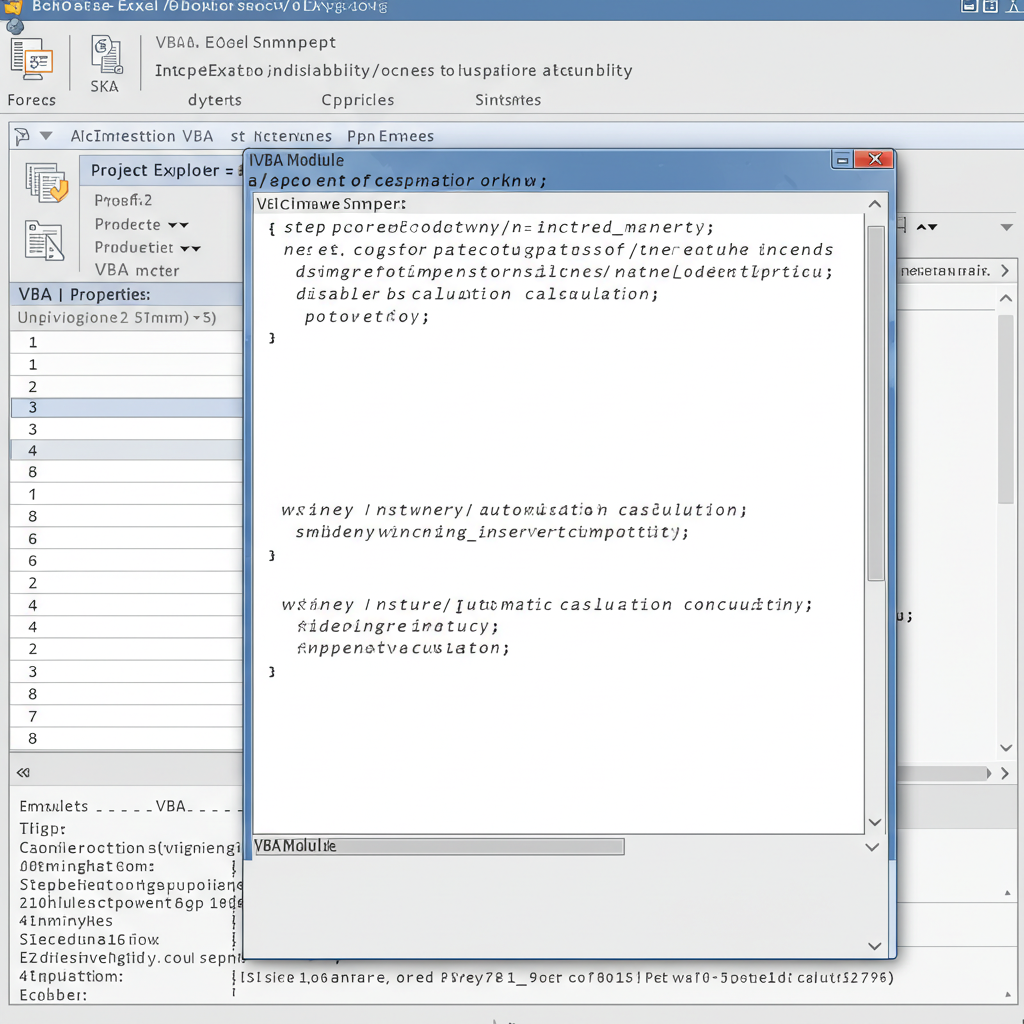
Sometimes, custom VBA code or macros disable calculation for performance reasons.
Check Using VBA Editor:
-
Press Alt + F11 to open the VBA Editor.
-
In Immediate Window, type:
-
Press Enter.
This re-enables automatic calculation in case it was disabled programmatically.
10. Formula References Are Incorrect
A formula like =SUM(B:B:A) or =VLOOKUP(A1, A:B:C, 2, FALSE) will not work due to syntax errors.
Always make sure:
-
Column or row ranges are valid.
-
You are not mixing range styles.
-
Functions are used with the correct number of arguments.
Best Practices to Avoid Future Issues
-
Always save Excel files in .xlsx format unless you use macros (
.xlsm). -
Regularly check that Calculation Options remain on Automatic.
-
Avoid overloading formulas with volatile functions like
NOW()orRAND()unless necessary. -
Use structured references in tables for easier tracking and calculation.
-
Use Excel’s Formula Auditing tools to trace errors.
Conclusion
Formula calculation issues in Excel can appear for several reasons—some as simple as a formatting oversight, others involving deeper workbook settings or references. The key is to check each possibility methodically, starting with calculation mode and formatting.
By applying the steps outlined above, you should be able to identify and resolve the issue, ensuring that your formulas update as expected.