


Invalid Data Source Reference in Excel
Creating or updating a PivotTable or chart in Excel is usually straightforward—until you’re suddenly stopped by the message:
“Data source reference is not valid.”
This error is common but can be confusing. It usually means Excel can’t understand the range or reference you’ve used for your data source. Fortunately, the issue is often easy to resolve once you know what to check.
In this guide, we’ll go through the possible causes of this error and how to fix them step-by-step.
When Does This Error Occur?
You may encounter the “Data source reference is not valid” error in Excel when:
-
Creating a PivotTable
-
Inserting a chart or table
-
Refreshing or editing an existing PivotTable
-
Opening a workbook that contains PivotTables linked to external data
-
Moving or renaming files with referenced data ranges
Let’s take a look at the most likely causes and how to fix each.
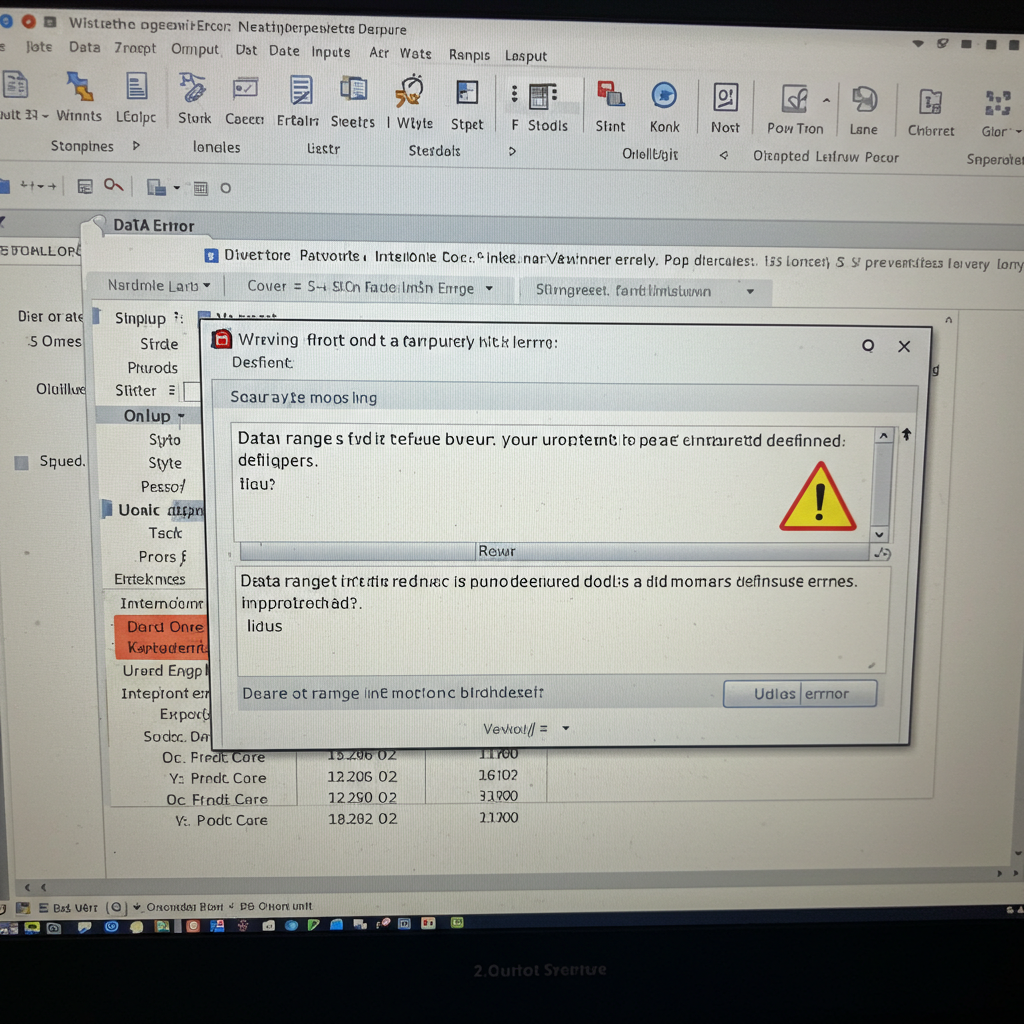
1. Your Data Range Is Not Properly Defined
One of the most common causes is that your data range doesn’t exist or is invalid. This can happen if:
-
The range includes cells that are blank or incorrectly formatted
-
The worksheet or table you’re referencing does not exist
-
The reference syntax is incorrect
How to Fix:
-
Make sure you are selecting a valid and complete range of data with:
-
No merged cells
-
Headers in the first row
-
-
Use Ctrl + T to convert your range into a table before inserting a PivotTable.
-
If entering the range manually, check spelling and ensure it refers to a valid sheet and range like:
2. The Workbook Has Not Been Saved Yet
If you’re working in a brand-new workbook and try to insert a PivotTable, Excel might show this error because the file has never been saved.
How to Fix:
-
Save the workbook to a local drive (not a network path or cloud if possible).
-
Then, try creating the PivotTable again.
This allows Excel to set a fixed path, which helps reference internal tables and ranges.
3. Your Table Name or Sheet Name Has Spaces or Invalid Characters
If you’re using a named range or table, and it includes special characters, Excel may not interpret the reference properly.
How to Fix:
-
Remove special characters from sheet names or named ranges.
-
If your sheet name includes spaces, wrap it in single quotes:
Always double-check spelling and case sensitivity..
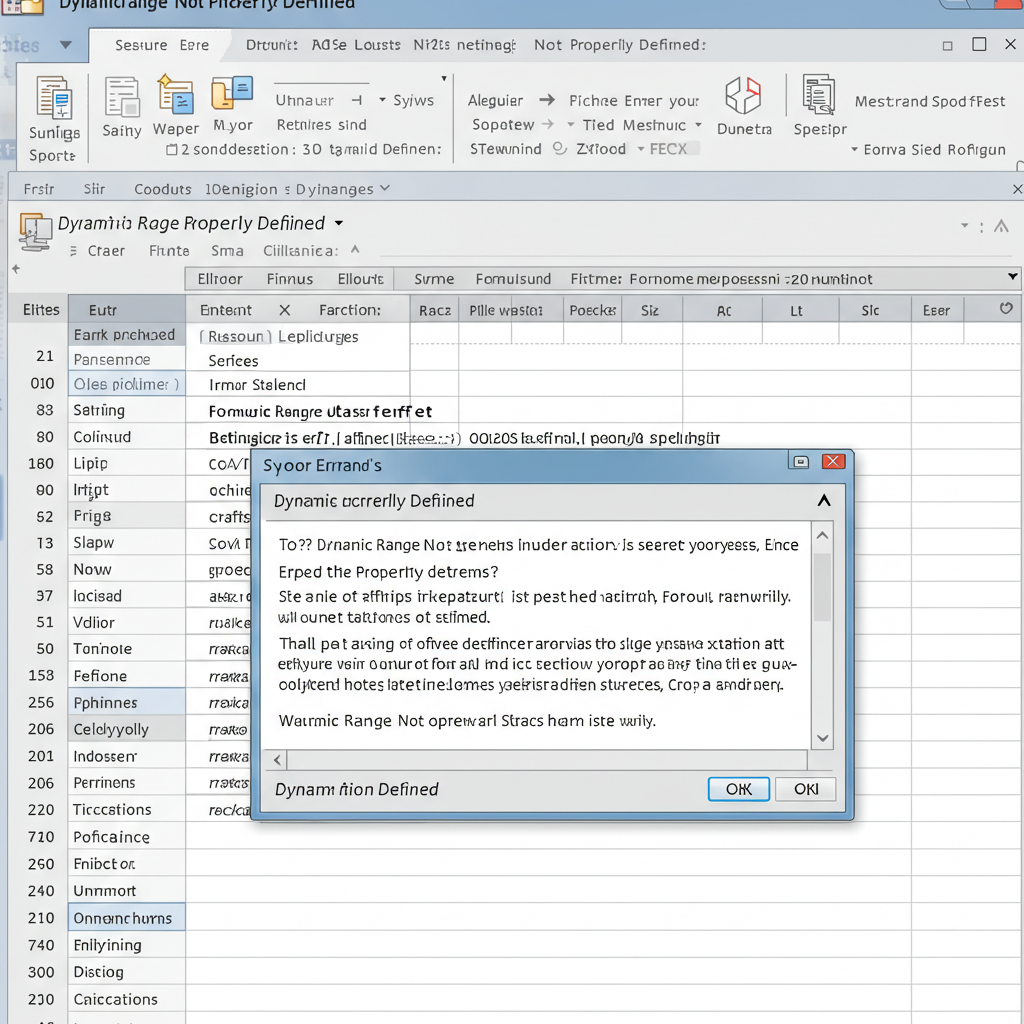
4. You’re Trying to Use a Dynamic Range That Isn’t Defined Properly
If you’re using Named Ranges or formulas like =OFFSET(...), and those aren’t set up correctly, Excel won’t be able to read the data source.
How to Fix:
-
Go to Formulas > Name Manager.
-
Check if your named ranges are:
-
Referring to valid sheets and cells
-
Not showing
#REF!errors
-
-
If necessary, redefine them with correct references.
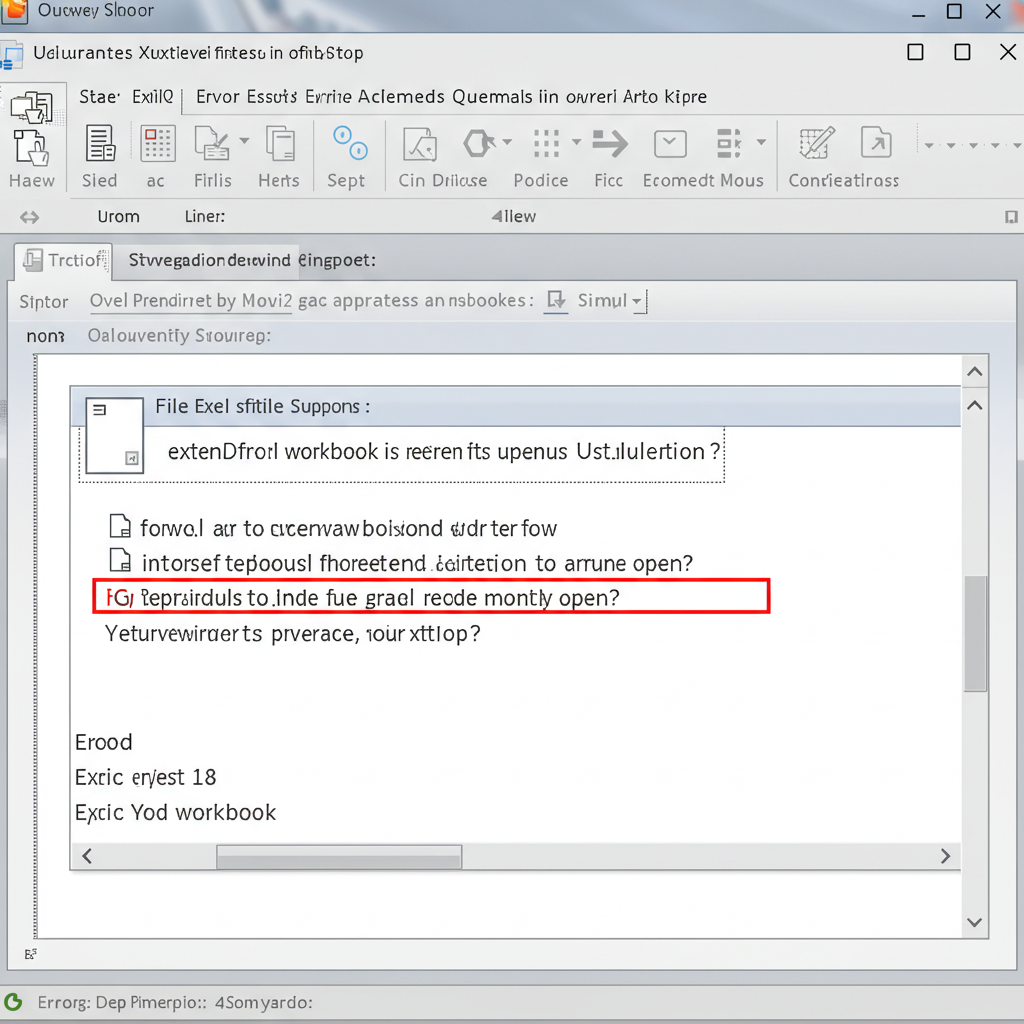
5. Referencing an External Workbook That’s Not Open
PivotTables based on external ranges or files may throw this error if the source file is moved, renamed, or not open.
How to Fix:
-
Open the external workbook.
-
Make sure the referenced data range exists and is accessible.
-
Use Power Query or linked tables for better handling of external data in newer versions of Excel.
6. You’re Trying to Reference a Whole Column in an Invalid Format
Sometimes users attempt to use entire column references like:
This may not work for PivotTables or named ranges.
Correct Way:
Use specific cell references:
Or convert the range into a Table (Ctrl + T), which will automatically expand with your data.
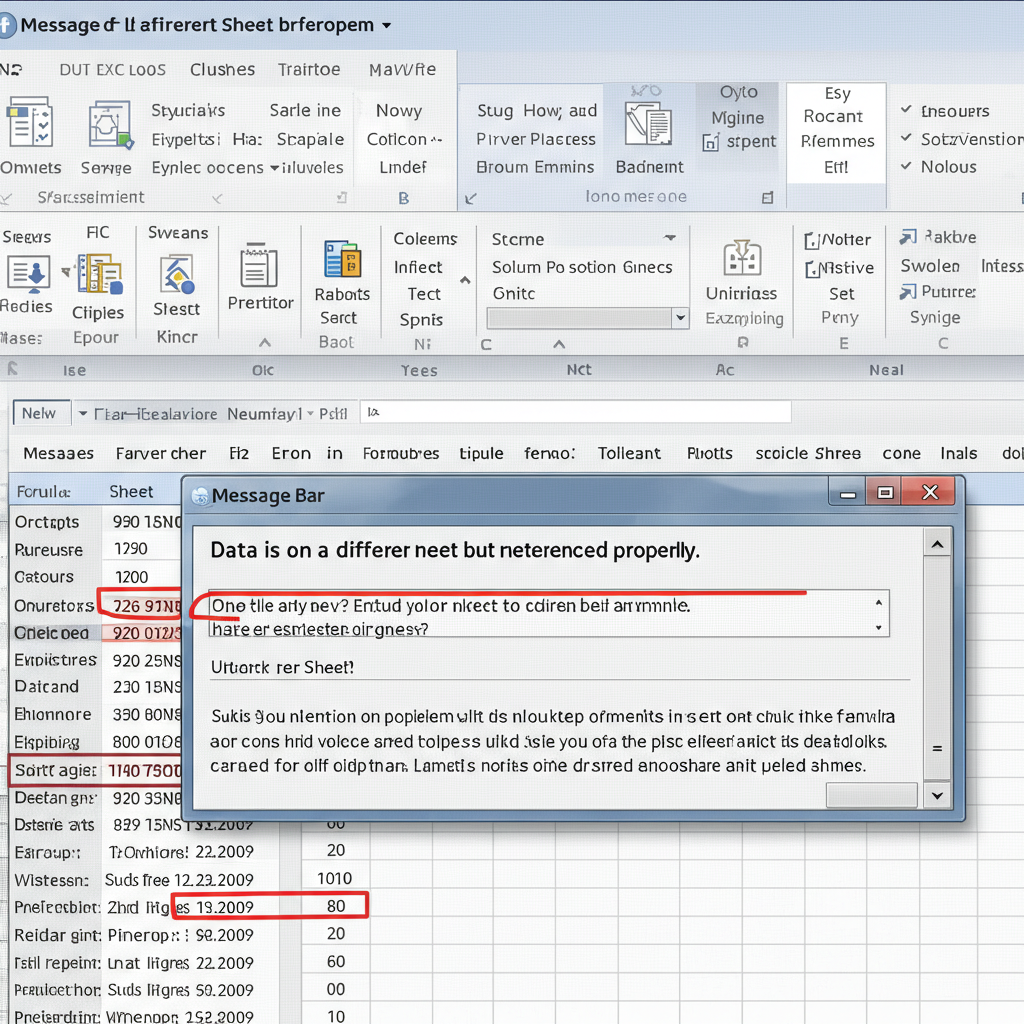
7. Data Is on a Different Sheet But Not Referenced Properly
If you’re trying to base a PivotTable on data from another worksheet, Excel needs a properly formatted reference.
How to Fix:
Use the full reference including the sheet name:
If creating the PivotTable from the ribbon, first navigate to the correct sheet and highlight the range.
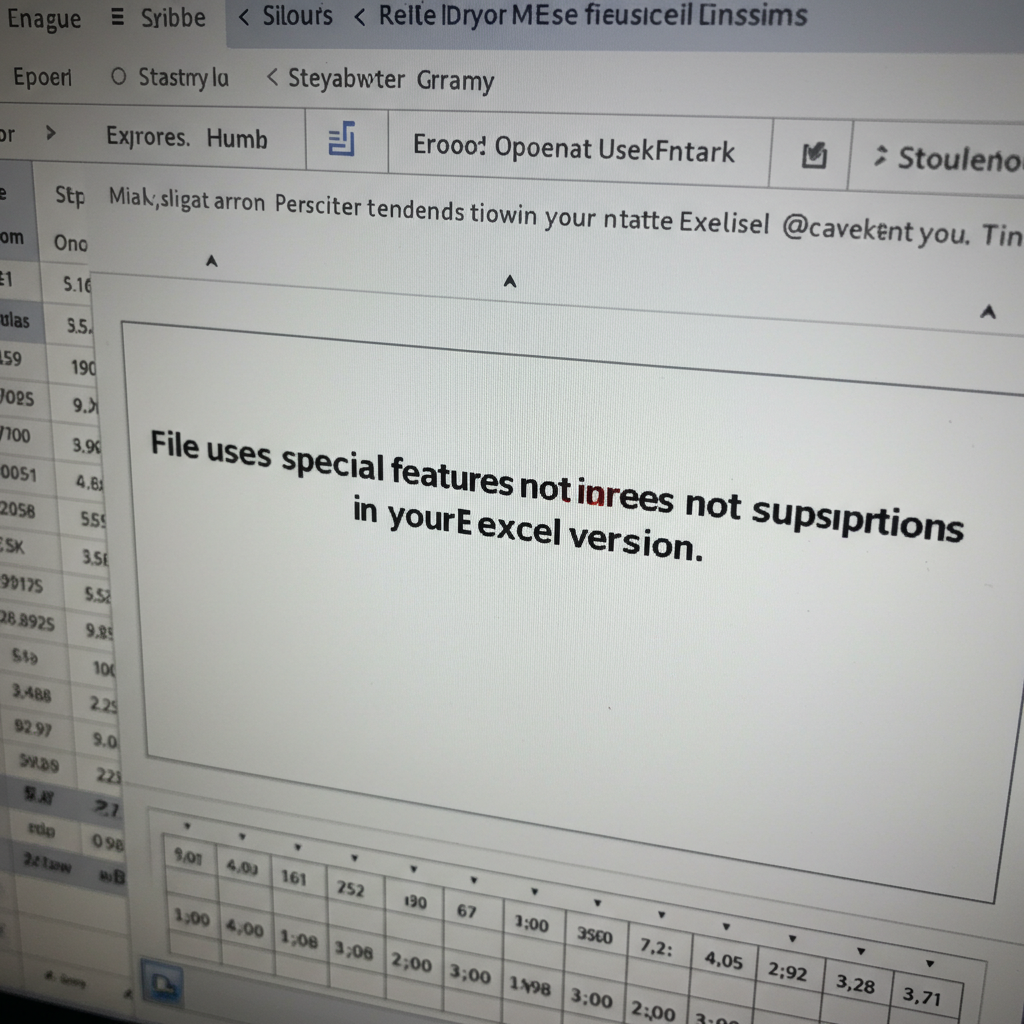
8. The File Uses Special Features Not Supported in Your Excel Version
Some files created in Excel 365 or newer versions may include dynamic arrays, linked tables, or data types that are not supported in older Excel versions.
How to Fix:
-
Try opening the file in the same version it was created in.
-
Avoid using features like linked data types in PivotTable data sources.
If possible, simplify your file or export data to a plain table before using it in PivotTables.
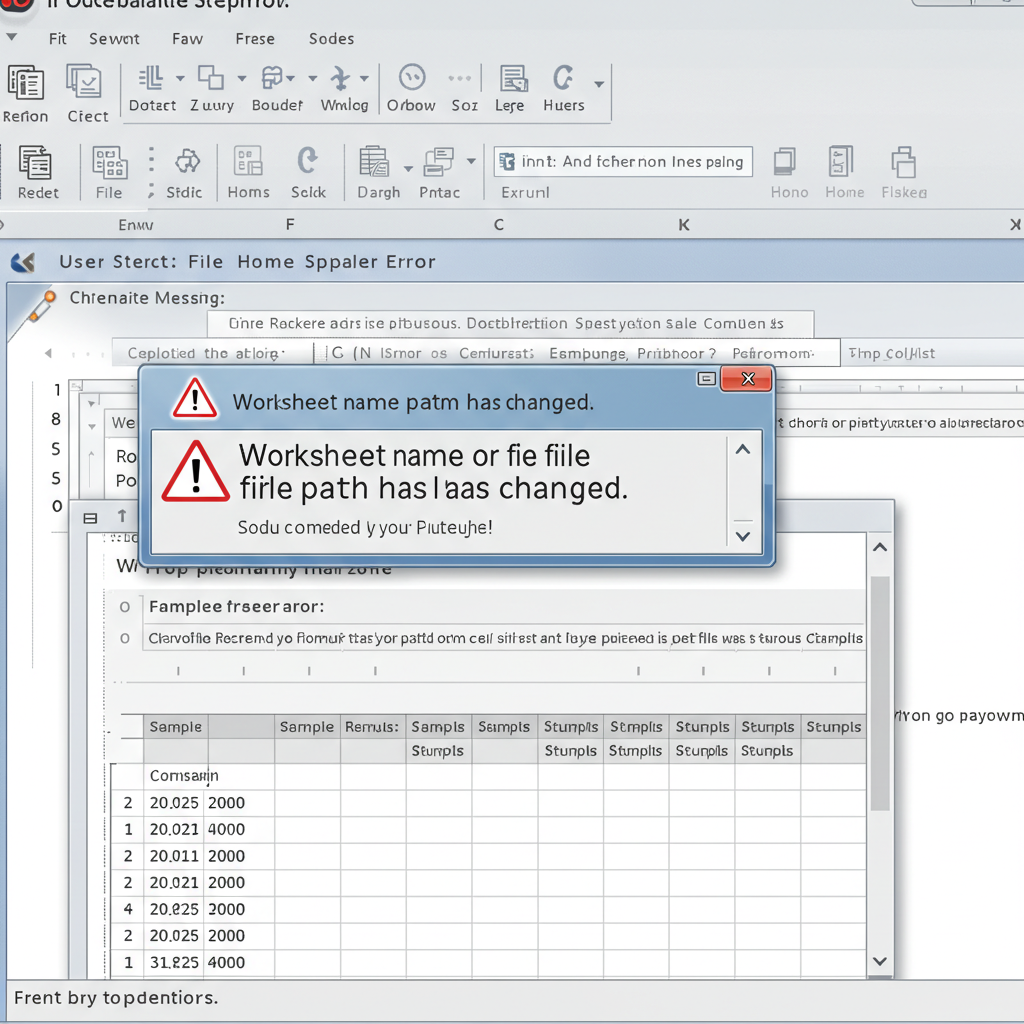
9. Worksheet Name or File Path Has Changed
If a PivotTable depends on an external sheet or a specific file path, changes to those will break the data source.
How to Fix:
-
Open PivotTable Options > Change Data Source.
-
Select a new valid range from the current workbook.
-
Avoid referencing external sources when possible.
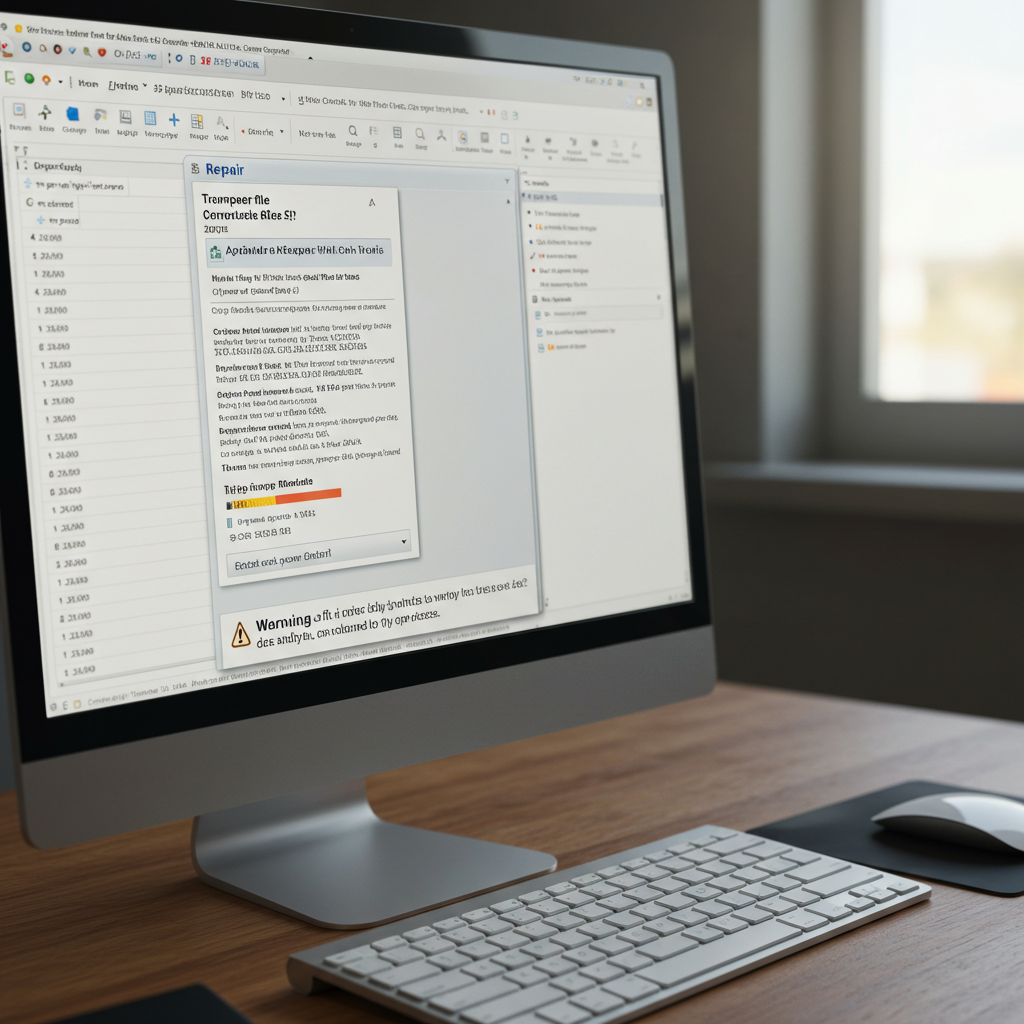
10. Repair the Workbook if It’s Corrupted
If none of the fixes above work, the workbook itself may be corrupted or the PivotTable cache may be damaged.
Try This:
-
Open Excel in Safe Mode (
excel /safein Run dialog). -
Copy data to a new workbook and recreate the PivotTable.
-
Use Open and Repair option in Excel when opening the file.
Best Practices to Prevent This Error
-
Always name your worksheets and tables clearly and consistently.
-
Avoid using special characters in sheet names and file names.
-
Save your workbook before inserting any PivotTables.
-
Use Excel Tables (Ctrl + T) for dynamic, auto-expanding data ranges.
-
Regularly check named ranges in Name Manager for broken references.
Conclusion
The “Data source reference is not valid” error in Excel can occur for various reasons, but in most cases, it comes down to an invalid range or file issue. Whether you’re dealing with a new file, a renamed sheet, or referencing an external source, the steps in this guide will help you resolve the problem quickly and get back to analyzing your data.