


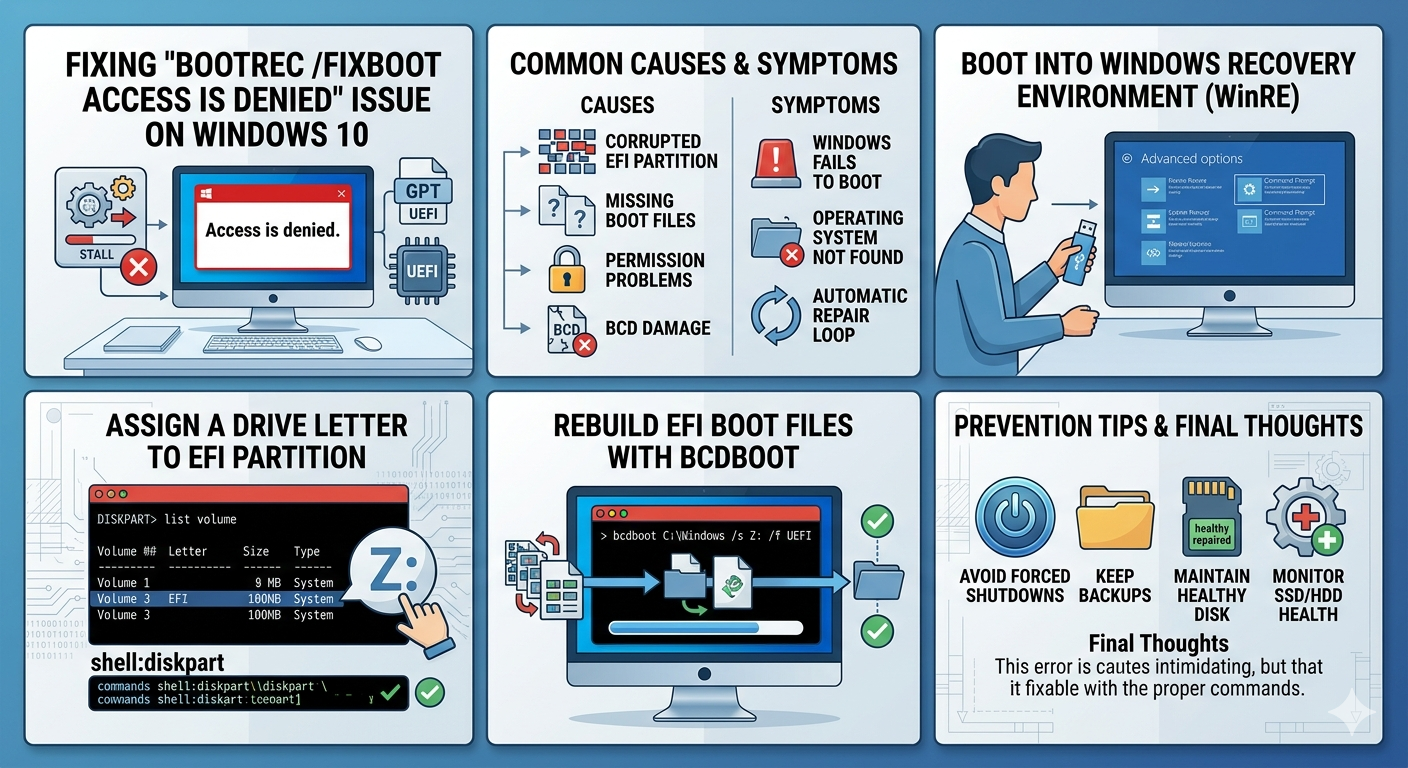
Fixing the “Bootrec /Fixboot Access Is Denied” Issue on Windows 10
The “/fixboot Access Is Denied” error is a common problem that appears when users attempt to repair Windows boot issues using the Bootrec /fixboot command in the Windows Recovery Environment (WinRE). Instead of successfully rebuilding the boot sector, Windows returns an “Access is denied” message, preventing the repair process from continuing.
This issue is especially common on Windows 10 systems using UEFI firmware and GPT partitions. It often occurs after failed updates, corrupted boot files, startup failures, or cloning drives.
Although the error can look serious, it is usually fixable with the right steps. In this guide, you’ll learn what causes the “/fixboot Access Is Denied” error and how to resolve it safely.
What Causes the “/fixboot Access Is Denied” Error?
The error usually appears because Windows Recovery Environment cannot properly access or rebuild the EFI boot partition.
Common causes include:
- Corrupted EFI partition
- Missing boot files
- Incorrect partition formatting
- Permission problems
- Damaged boot configuration data (BCD)
- UEFI and GPT boot conflicts
Common Symptoms
You may notice:
- Windows fails to boot
- Automatic Repair loops
- Black screen on startup
- “Operating System not found” errors
- Bootrec commands failing
- Startup Repair unable to fix the issue
Before You Begin
You will usually need:
- A Windows 10 installation USB/DVD
- Administrator access
- Basic knowledge of command-line tools
Important
Be careful when modifying partitions and boot files. Incorrect commands can make the system unbootable.
Boot Into Windows Recovery Environment
First, access advanced recovery tools.
Steps
- Insert Windows 10 installation media
- Boot from the USB/DVD
- Click Repair your computer
- Select:
- Troubleshoot
- Advanced options
- Command Prompt
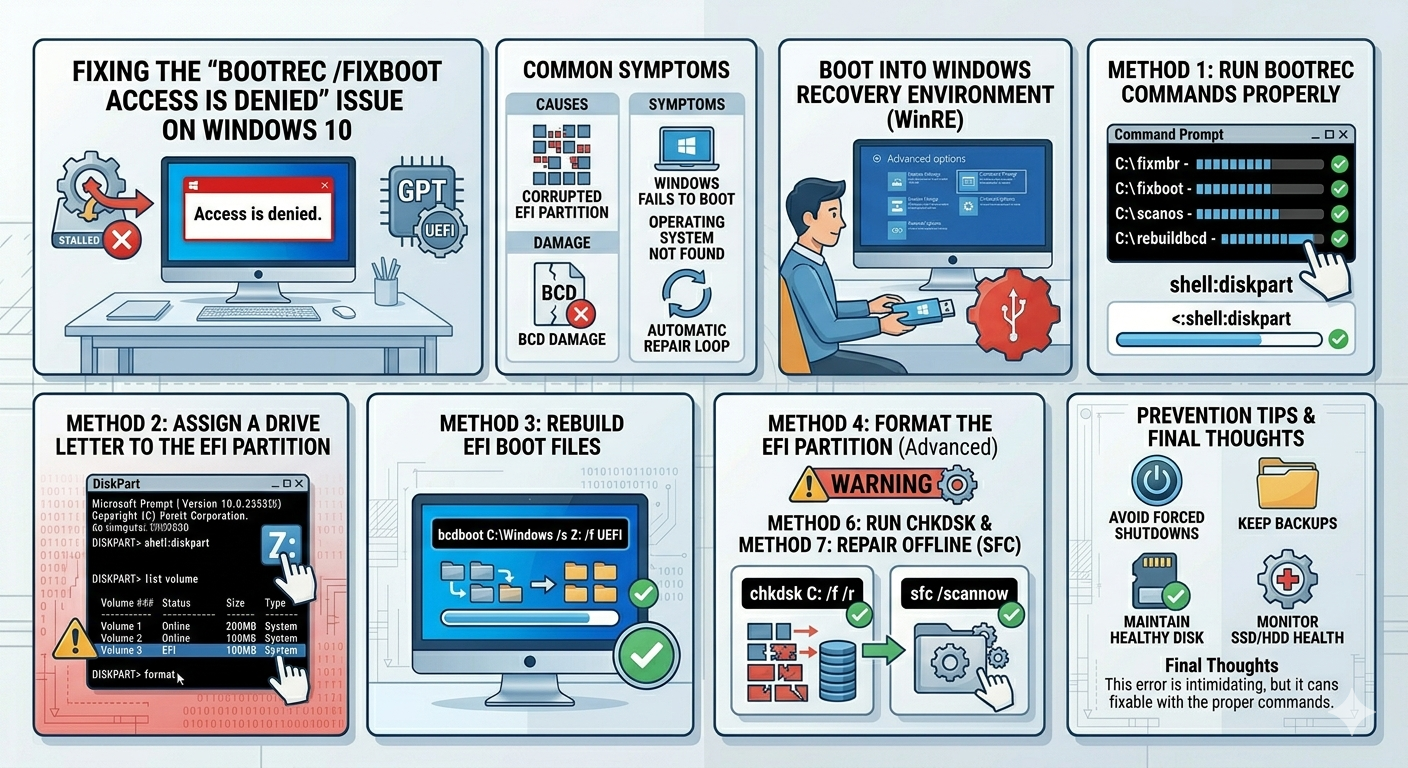
Method 1: Run Bootrec Commands Properly
Start with the standard repair commands.
Commands
In Command Prompt, run:
bootrec /fixmbr
bootrec /scanos
bootrec /rebuildbcd
Then try:
bootrec /fixbootIf “Access is denied” still appears, continue below.
Method 2: Assign a Drive Letter to the EFI Partition
This is one of the most effective fixes.
Step 1: Open DiskPart
Run:
diskpartStep 2: List Disks
list diskSelect your Windows disk:
select disk 0Step 3: List Partitions
list partitionLocate the EFI System Partition (usually around 100–300 MB).
Step 4: Select EFI Partition
Example:
select partition 1Step 5: Assign a Letter
assign letter=Z:Exit DiskPart:
exitMethod 3: Rebuild EFI Boot Files
Now recreate the boot files.
Command
Run:
bcdboot C:\Windows /s Z: /f UEFIReplace C: if Windows is installed on another drive.
This command rebuilds the EFI boot structure.
Method 4: Format the EFI Partition (Advanced)
Use this only if the EFI partition is badly corrupted.
Warning
Formatting the EFI partition incorrectly can prevent Windows from booting.
Steps
Inside DiskPart:
format fs=fat32 quickThen rebuild boot files again using:
bcdboot C:\Windows /s Z: /f UEFIMethod 5: Check BIOS/UEFI Settings
Incorrect firmware settings can interfere with boot repair.
Check These Settings
- UEFI mode enabled
- Legacy/CSM disabled (if using GPT)
- Correct boot drive selected
Method 6: Run CHKDSK
Disk errors may corrupt boot files.
Steps
Run:
chkdsk C: /f /rRestart after completion.
Method 7: Repair System Files Offline
Corrupted Windows files may also affect booting.
Run SFC Offline
sfc /scannow /offbootdir=C:\ /offwindir=C:\WindowsMethod 8: Disable Secure Boot Temporarily
In some cases, Secure Boot interferes with repair commands.
What to Do
- Enter BIOS/UEFI
- Disable Secure Boot temporarily
- Retry repair commands
Re-enable Secure Boot afterward if desired.
Method 9: Use Startup Repair
Windows may fix boot files automatically.
Steps
- Boot into recovery
- Select:
- Troubleshoot
- Advanced options
- Startup Repair
Allow Windows to scan and repair issues.
Method 10: Rebuild BCD Manually
If BCD is heavily corrupted:
Commands
ren BCD BCD.bak
bcdboot C:\Windows /l en-us /s Z: /f ALL
Common Mistakes to Avoid
Using Wrong Drive Letters
Recovery mode may assign different drive letters.
Use:
diskpart
list volume
to identify the correct Windows partition.
Formatting the Wrong Partition
Always verify before formatting anything.
Mixing Legacy and UEFI Boot Modes
UEFI systems should use GPT and EFI partitions.
How to Prevent Boot Errors in the Future
To reduce future problems:
- Avoid forced shutdowns
- Keep backups of important files
- Maintain healthy disk storage
- Use reliable cloning software
- Keep Windows updated
- Monitor SSD/HDD health
When to Consider Reinstalling Windows
A clean installation may be necessary if:
- Boot files are severely corrupted
- Recovery methods fail repeatedly
- Multiple system components are damaged
Always back up data first if possible.
When to Seek Professional Help
Consider advanced support if:
- The drive is physically failing
- BIOS does not detect the disk
- Partition tables are damaged
- Important data must be recovered safely
Final Thoughts
The “/fixboot Access Is Denied” error on Windows 10 is commonly related to EFI partition access problems, corrupted boot files, or UEFI configuration issues. Although the message can seem intimidating, it is often repairable using Windows recovery tools and proper EFI rebuilding methods.
By assigning a drive letter to the EFI partition, rebuilding boot files, repairing disk errors, and checking firmware settings, most users can restore normal boot functionality successfully.
Related articles
Fixing the “Kernel Security Check Failure” Error on Windows 10
How to Fix Mobile Hotspot Not Working in Windows 10
How to Resolve the “Select Proper Boot Device” Startup Error