


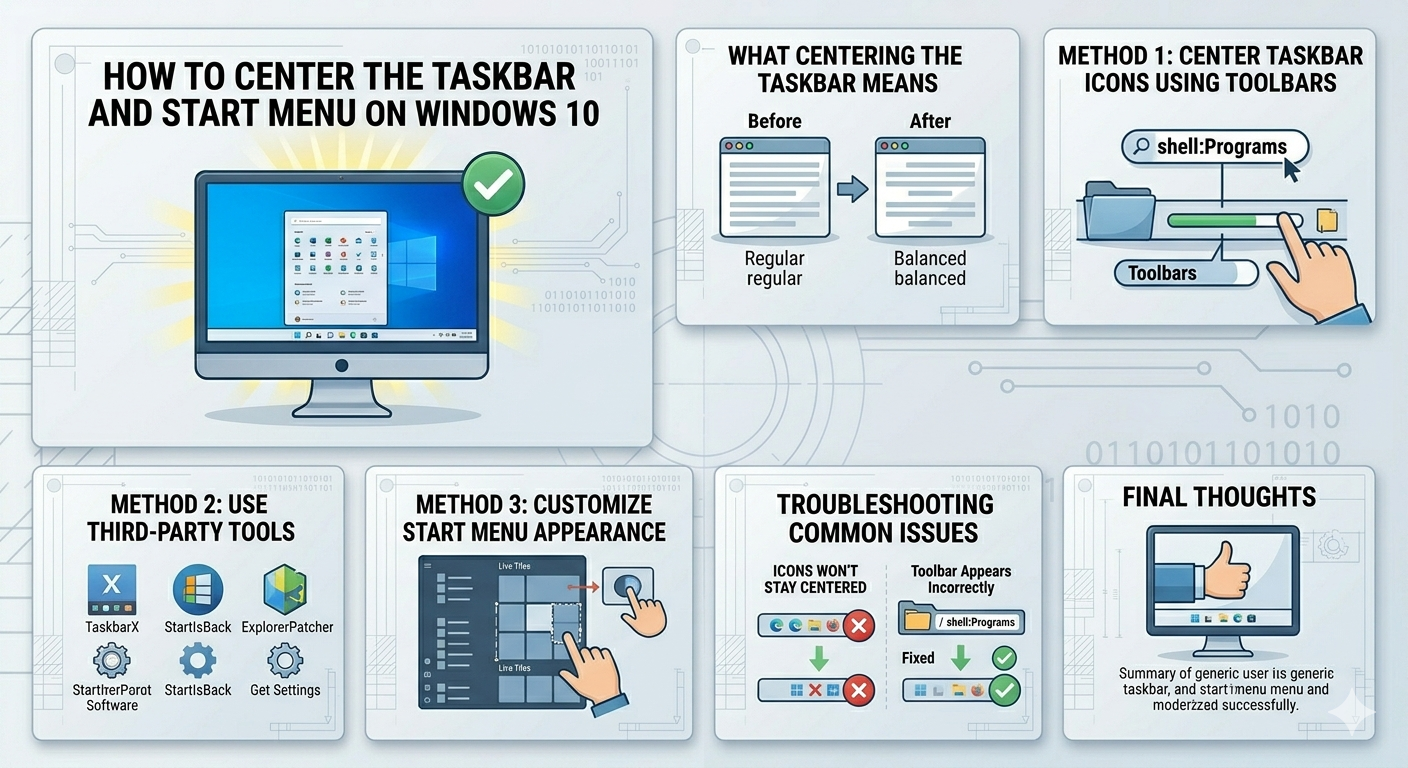
Steps to Center the Taskbar and Start Menu on Windows 10
Windows 11 introduced a centered Start menu and taskbar layout that many users find modern and visually appealing. If you’re still using Windows 10, you might be wondering whether it’s possible to achieve a similar centered look. The good news is yes—you can center the taskbar icons and create a Start menu experience that feels closer to Windows 11 using built-in settings and a few simple tweaks.
While Windows 10 does not officially support a fully centered Start menu, you can still align taskbar icons to the center and customize the appearance for a cleaner, more modern desktop layout.
In this guide, you’ll learn step-by-step methods to center your taskbar icons and adjust your Windows 10 interface.
What Does Centering the Taskbar Mean?
By default, Windows 10 aligns all taskbar icons—including the Start button—to the left side of the screen. Centering the taskbar means moving the icons toward the middle, similar to how Windows 11 displays them.
This can:
- Improve visual balance
- Make your desktop look modern
- Enhance accessibility on large screens
- Provide a macOS-like or Windows 11-like experience
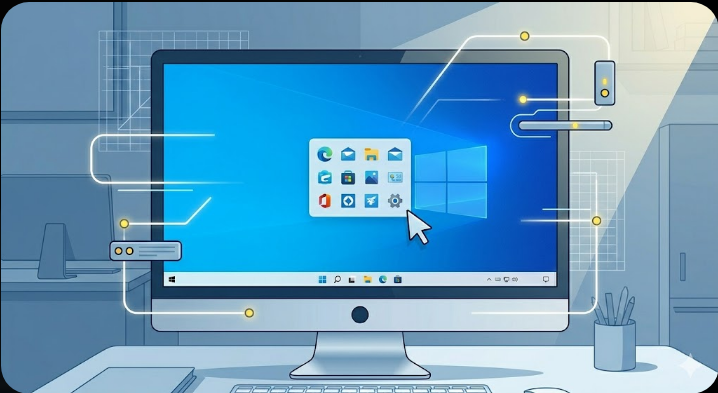
Method 1: Center Taskbar Icons Using Toolbars (No Software Needed)
This is the easiest method using built-in Windows features.
Step-by-Step Instructions
- Right-click on an empty area of the taskbar
- Make sure Lock the taskbar is unchecked
- Right-click the taskbar again
- Go to Toolbars → New toolbar
- In the folder selection window, enter:
shell:Programs- Click Select Folder
- A new toolbar will appear on the right side of the taskbar
Adjust the Position
- Drag the new toolbar to the left
- Move it until your taskbar icons shift toward the center
- Drag the icon group into the middle
- Right-click the toolbar and uncheck:
- Show text
- Show title
- Lock the taskbar again
This creates a centered effect using only native Windows tools.
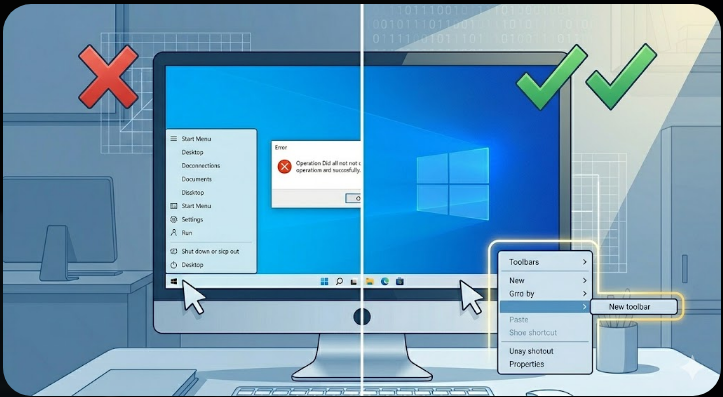
Method 2: Use Third-Party Tools for Better Centering
If you want a more polished and automatic solution, third-party tools can help.
Popular Tools
- TaskbarX
- StartIsBack
- ExplorerPatcher
Benefits
- Automatically center icons
- Smooth animations
- More customization options
- Better alignment than manual method
Basic Steps (Example with TaskbarX)
- Download TaskbarX from a trusted source
- Install and launch the program
- Choose Center taskbar icons
- Adjust animation and position settings
These tools provide a closer experience to Windows 11.
Method 3: Customize Start Menu Appearance
While you cannot fully center the Start menu in Windows 10, you can make it look cleaner and more minimal.
Steps
- Open Settings
- Go to Personalization → Start
- Turn off:
- Show suggestions occasionally
- Show recently added apps (optional)
- Resize the Start menu manually by dragging edges
This improves the visual balance when combined with centered icons.
Method 4: Auto-Hide Taskbar for a Minimal Look
You can enhance the centered effect by hiding the taskbar when not in use.
Steps
- Right-click taskbar
- Select Taskbar settings
- Turn on Automatically hide the taskbar in desktop mode
This creates a cleaner, distraction-free desktop.
Method 5: Adjust Taskbar Size and Icons
Smaller icons can improve the centered look.
Steps
- Right-click taskbar
- Open Taskbar settings
- Enable Use small taskbar buttons
This helps maintain symmetry and spacing.
Method 6: Align Icons Manually for Precision
If you want exact placement:
Steps
- Unlock the taskbar
- Drag toolbars carefully
- Adjust spacing until icons are centered visually
- Lock the taskbar again
This method requires patience but gives precise control.
Limitations of Centering in Windows 10
It’s important to understand what cannot be changed:
- Start button remains on the left
- System tray stays on the right
- Full native centering is not supported
- Some updates may reset taskbar layout
Despite these limitations, you can still achieve a visually centered layout.
Tips for a Better Centered Taskbar Experience
To make your setup look more modern:
- Use a simple wallpaper
- Reduce taskbar clutter
- Pin only essential apps
- Use transparent taskbar tools
- Keep icon count balanced
These small changes make a big difference.
Troubleshooting Common Issues
Icons Won’t Stay Centered
- Make sure taskbar is unlocked
- Re-adjust toolbar positioning
- Restart Windows Explorer
Toolbar Appears Incorrectly
- Remove and recreate the toolbar
- Ensure correct folder path
Third-Party Tool Not Working
- Run as administrator
- Update the software
- Check compatibility with your Windows version
When to Use Third-Party Tools
Consider using external tools if:
- You want automatic centering
- You prefer animations
- You want more customization
- Manual methods feel unstable
Always download from trusted sources to avoid security risks.
Is It Worth Centering the Taskbar on Windows 10?
This depends on your preference.
Pros
- Modern look
- Better symmetry
- Improved usability on wide screens
Cons
- Not officially supported
- Requires manual setup or tools
- May reset after updates
If you like the Windows 11 style, it’s definitely worth trying.
Final Thoughts
Although Windows 10 does not natively support a centered Start menu and taskbar, you can still achieve a similar effect using built-in features or third-party tools. By creating toolbars, adjusting icon placement, and customizing taskbar settings, you can significantly modernize your desktop appearance.
Start with the built-in method for a quick solution, and explore third-party tools if you want more advanced control. With a little customization, your Windows 10 system can look just as clean and modern as newer versions.
Related articles
Fix Outlook Password Prompt Issue in Office 365
How to Fix Mobile Hotspot Not Working in Windows 10
Fixing the “Bootrec /Fixboot Access Is Denied” Issue on Windows 10