


Solved: Windows Update Error Code 0xC1420121
Windows Update is essential for keeping your system secure, stable, and up to date. However, sometimes updates fail with confusing error messages such as 0xC1420121. This error typically appears during cumulative updates, feature upgrades, or when installing optional updates on Windows 10 and Windows 11.
If you’re seeing this error, it usually means that something is wrong with update components, system files, or the Windows servicing stack. While the code itself may look technical, the underlying causes are often straightforward and fixable.
In this guide, you’ll learn what Windows Update error 0xC1420121 means, why it happens, and how to fix it step by step.
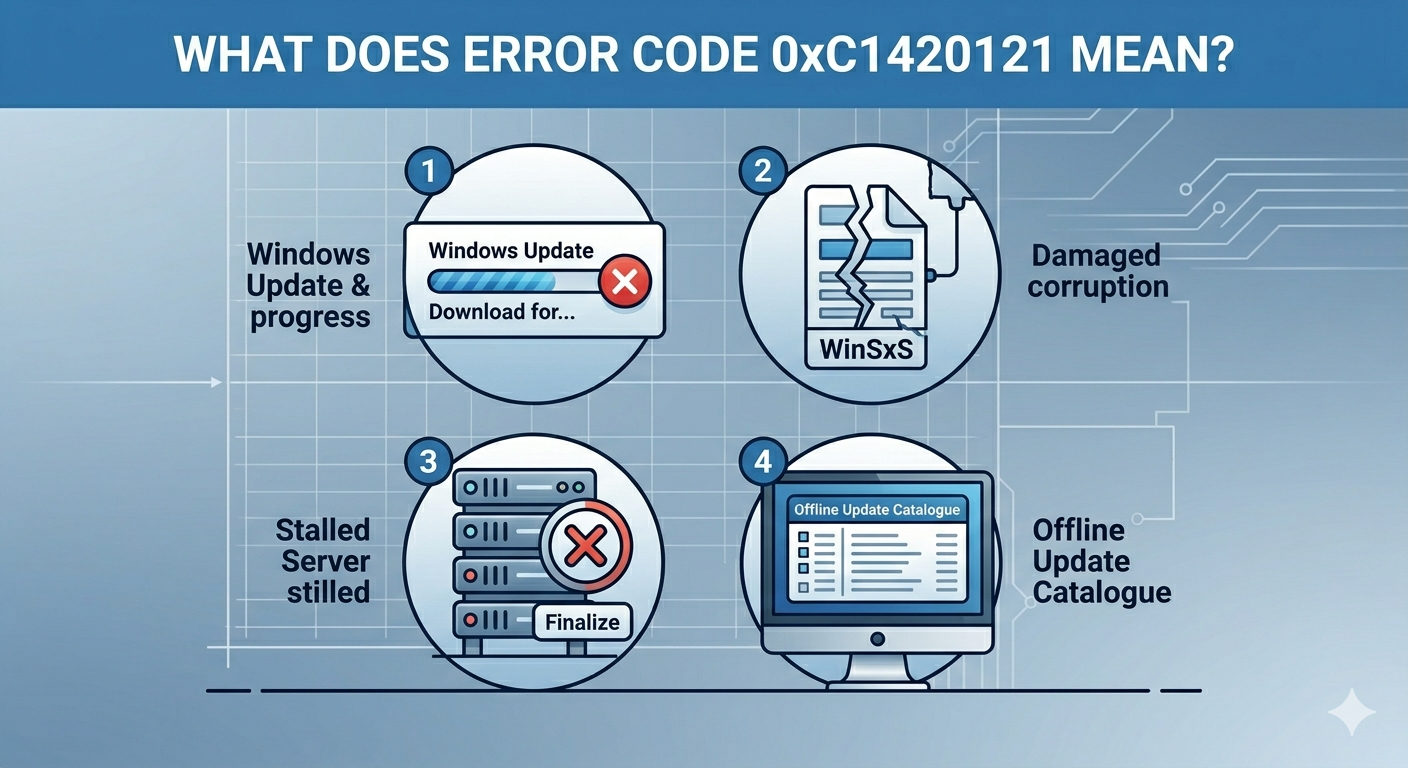
What Does Error Code 0xC1420121 Mean?
Error 0xC1420121 is commonly associated with issues in the Windows Component Store (WinSxS) or corrupted update packages. It may also appear when Windows fails to finalize or install an update due to missing or damaged files.
You might encounter this error when:
- Installing Windows updates
- Upgrading to a new Windows version
- Installing cumulative or security patches
- Running update tools or offline installers
Common Symptoms
- Windows Update fails repeatedly
- Updates download but won’t install
- Error code 0xC1420121 appears
- System may restart but rollback changes
- Slow or stuck update process
Common Causes of the Error
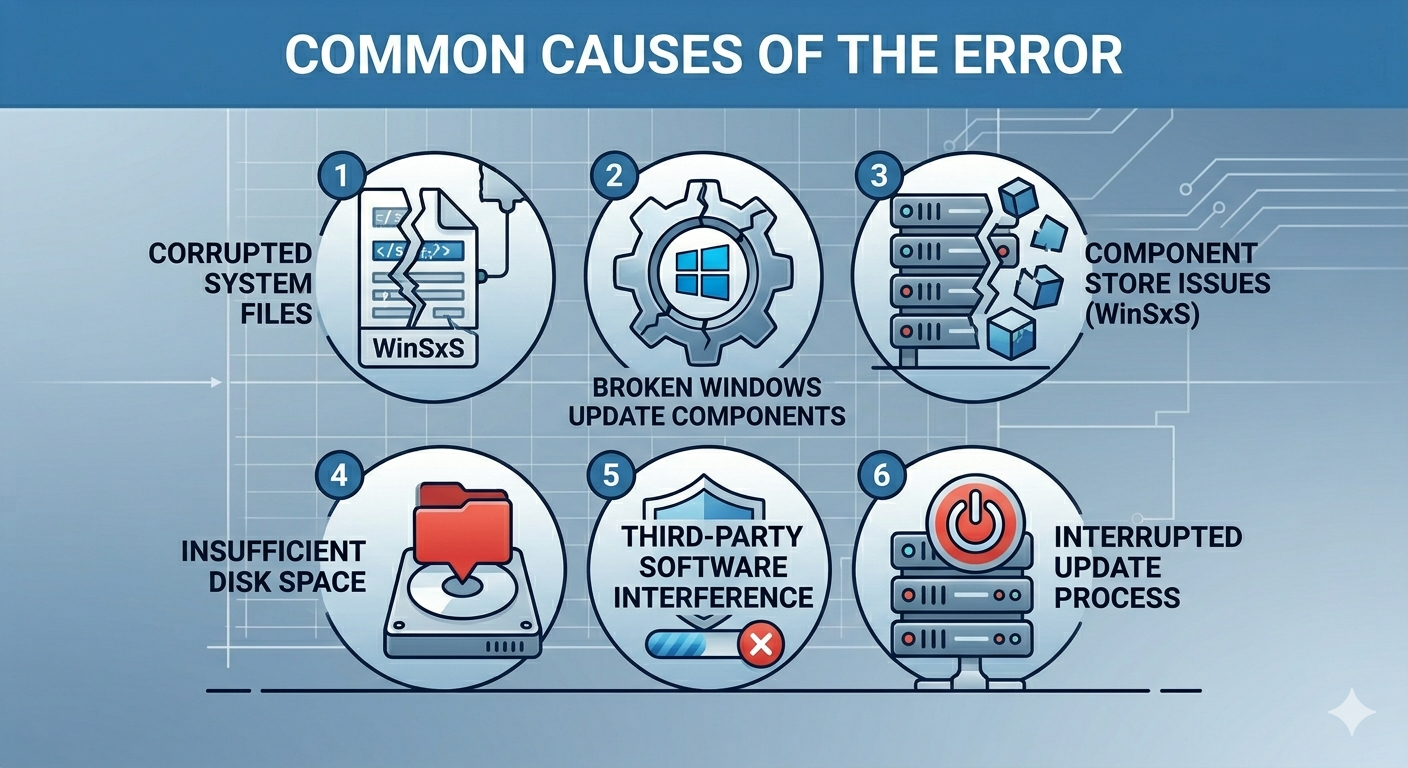
Corrupted System Files
Damaged Windows files can prevent updates from completing.
Broken Windows Update Components
Update services or cache may be corrupted.
Component Store Issues (WinSxS)
The system image used for updates may be damaged.
Insufficient Disk Space
Not enough space for update installation.
Third-Party Software Interference
Antivirus or system tools may block updates.
Interrupted Update Process
Power loss or forced shutdowns during updates.
How to Fix Windows Update Error 0xC1420121
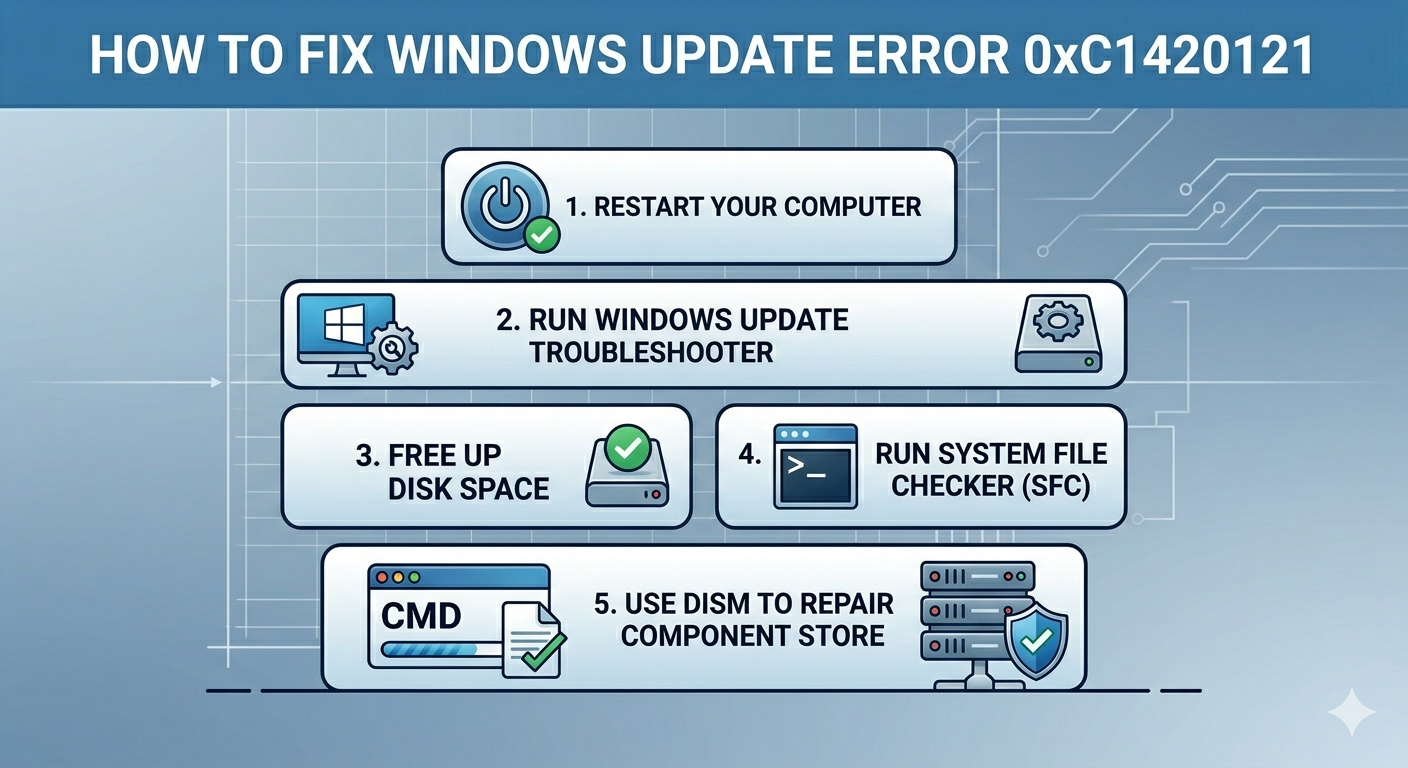
Follow these solutions in order.
Restart Your Computer
A simple restart can resolve temporary update glitches.
Steps
- Save all work
- Restart your PC
- Try updating again
Run Windows Update Troubleshooter
Windows includes a built-in tool to detect update issues.
Steps
- Open Settings
- Go to System → Troubleshoot
- Click Other troubleshooters
- Run Windows Update
Free Up Disk Space
Updates require sufficient storage.
Steps
- Open Settings → System → Storage
- Delete temporary files
- Empty Recycle Bin
- Remove unused apps
Aim for at least 20–30 GB of free space.
Run System File Checker (SFC)
Repair corrupted system files.
Steps
Open Command Prompt as administrator and run:
sfc /scannowWait for the scan to complete.
Use DISM to Repair Component Store
This is critical for update-related errors.
Steps
Run:
DISM /Online /Cleanup-Image /RestoreHealthRestart your PC afterward.
Reset Windows Update Components
Clearing update cache can fix installation problems.
Steps
Open Command Prompt as administrator and run:
net stop wuauserv
net stop bits
net stop cryptsvc
net stop msiserver
ren C:\Windows\SoftwareDistribution SoftwareDistribution.old
ren C:\Windows\System32\catroot2 catroot2.old
net start wuauserv
net start bits
net start cryptsvc
net start msiserver
Restart your computer and try again.
Install Updates Manually
If automatic updates fail:
Steps
- Visit the Microsoft Update Catalog
- Search for the update by KB number
- Download the correct version
- Install it manually
Perform a Clean Boot
Background applications may interfere with updates.
Steps
- Press
Windows + R - Type msconfig
- Hide Microsoft services
- Disable remaining services
- Disable startup apps
- Restart your PC
Then try updating again.
Disable Antivirus Temporarily
Security software may block updates.
What to Do
- Disable third-party antivirus temporarily
- Run Windows Update
- Re-enable antivirus afterward
Check Date and Time Settings
Incorrect system time can cause update failures.
Steps
- Open Settings → Time & Language
- Enable Set time automatically
- Sync time
Check Disk for Errors
Disk issues may prevent updates from installing.
Steps
Run:
chkdsk /fRestart if prompted.
Use Windows Installation Assistant or Media Tool
If updates continue to fail:
Alternative Methods
- Windows 11 Installation Assistant
- Media Creation Tool
- In-place upgrade using ISO
These methods often bypass update errors.
Run System Restore
If the error started recently:
Steps
- Search System Restore
- Choose a restore point
- Restore your system
Reset Windows (Last Resort)
If all else fails:
Steps
- Open Settings → System → Recovery
- Select Reset this PC
- Choose to keep your files if possible
Tips to Prevent Windows Update Errors
To avoid future issues:
- Keep enough free disk space
- Avoid interrupting updates
- Keep drivers updated
- Restart regularly
- Avoid using aggressive system cleaners
- Use reliable antivirus software
When to Seek Additional Help
Consider expert assistance if:
- Updates fail continuously
- System becomes unstable
- Multiple error codes appear
- Disk or hardware issues are suspected
Final Thoughts
The Windows Update error code 0xC1420121 is usually caused by corrupted system files, damaged update components, or issues within the Windows component store. While the error may seem complex, it can often be resolved using built-in tools and careful troubleshooting.
By running SFC and DISM, resetting update components, freeing up disk space, and using alternative installation methods, most users can successfully install updates.
Related articles
Fixing the “Kernel Security Check Failure” Error on Windows 10