


How to Fix File System Error -2147163893 on Windows 10/11
The “File System Error -2147163893” is a frustrating issue that can appear on both Windows 10 and Windows 11 when trying to open apps, files, or system components such as Photos, Settings, or File Explorer. This error can interrupt your workflow and may prevent certain programs from launching entirely.
In most cases, this problem is caused by corrupted system files, disk errors, Windows update issues, or conflicts with apps and services. While the error may seem complex due to its code, the underlying causes are usually fixable with standard troubleshooting steps.
In this guide, you’ll learn what causes File System Error -2147163893 and how to fix it effectively.
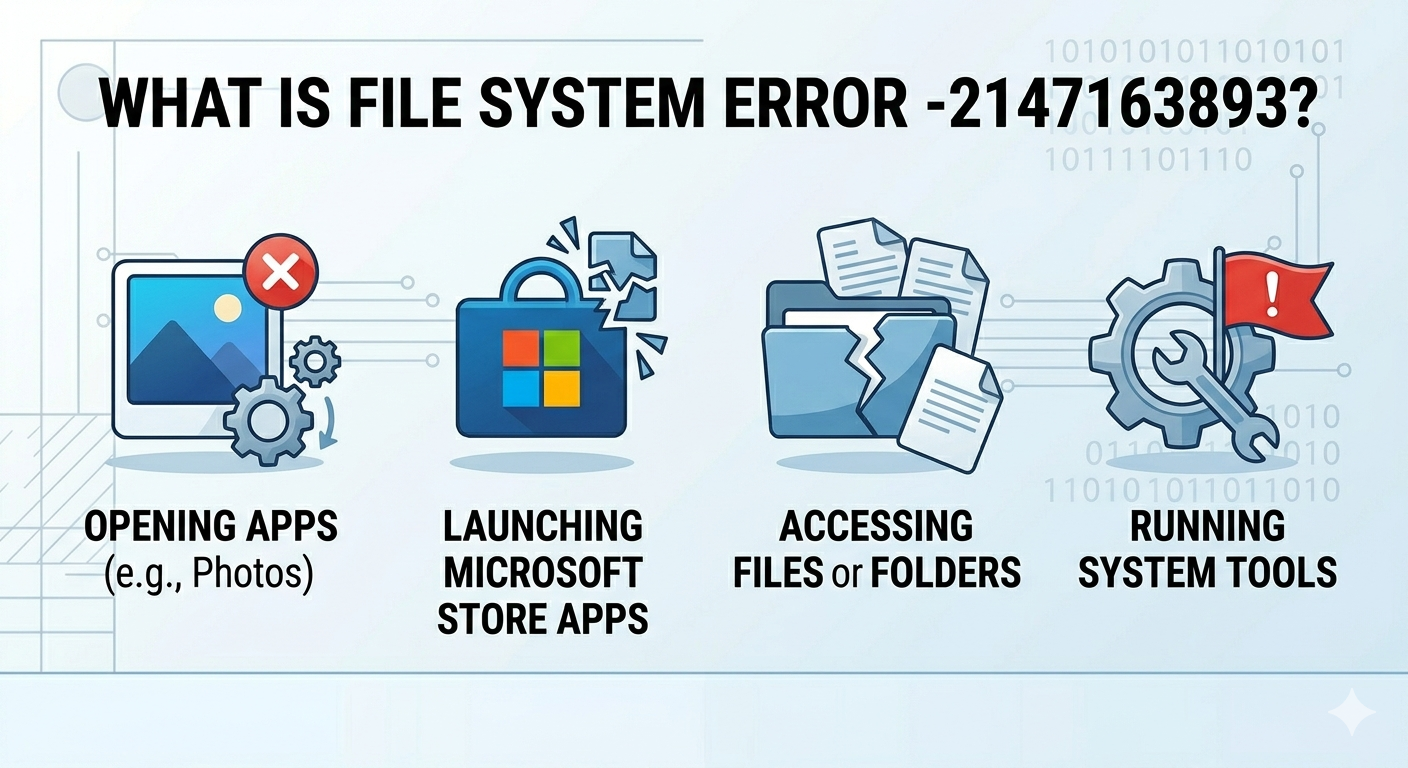
What Is File System Error -2147163893?
This error is part of a group of file system-related issues in Windows that indicate something has gone wrong with how the operating system reads or interacts with files.
You may encounter it when:
- Opening built-in apps like Photos or Calculator
- Launching Microsoft Store apps
- Accessing certain files or folders
- Running system tools
The error code itself points to corruption or failure within the Windows file system or app environment.
Common Symptoms
- Apps fail to open
- Error message appears repeatedly
- Files cannot be accessed
- System tools crash
- Slow or unstable performance
- Unexpected app behavior
Common Causes of the Error
Corrupted System Files
Damaged Windows files can break core functionality.
Disk Errors
Bad sectors or file system inconsistencies may cause failures.
Windows Update Issues
Incomplete or faulty updates can introduce bugs.
Microsoft Store App Problems
Built-in apps rely on Store components that may be broken.
User Profile Corruption
A damaged profile can affect app access.
Permission or Security Conflicts
Improper permissions may block files or apps.
How to Fix File System Error -2147163893
Try the following methods step by step.
Restart Your Computer
A simple restart can fix temporary glitches.

Steps
- Save your work
- Restart your PC
- Try opening the app again
Run System File Checker (SFC)
This tool repairs corrupted system files.
Steps
- Open Command Prompt as administrator
- Run:
sfc /scannow- Wait for completion
- Restart your PC
Use DISM to Repair Windows Image
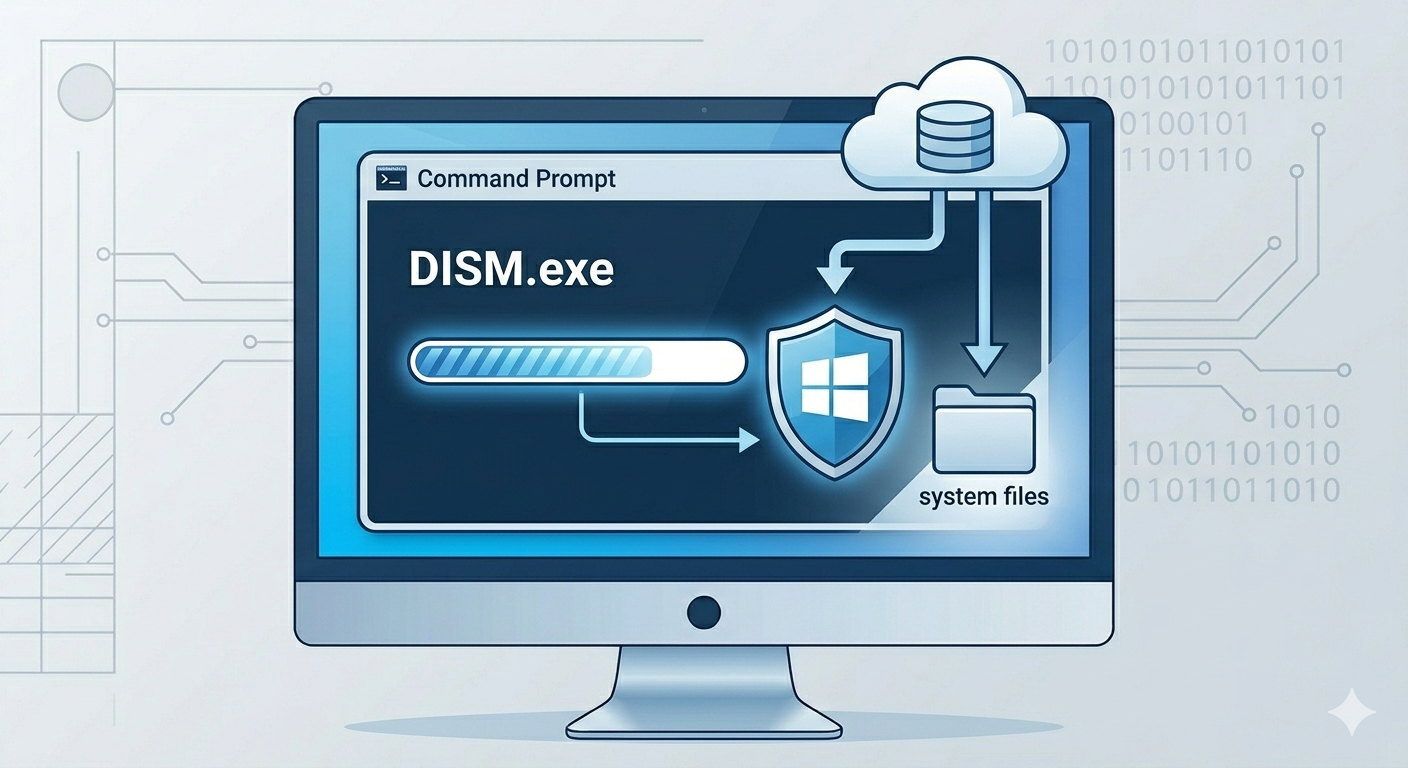
If SFC does not fix the issue:
Steps
Run:
DISM /Online /Cleanup-Image /RestoreHealthRestart after the process finishes.
Check Disk for Errors
Disk issues can trigger file system errors.
Steps
Open Command Prompt as administrator:
chkdsk /f /rYou may need to restart your PC for the scan to begin.
Update Windows
Keeping your system updated can resolve bugs.
Steps
- Open Settings
- Go to Windows Update
- Click Check for updates
- Install updates
- Restart your PC
Reset or Reinstall Affected Apps
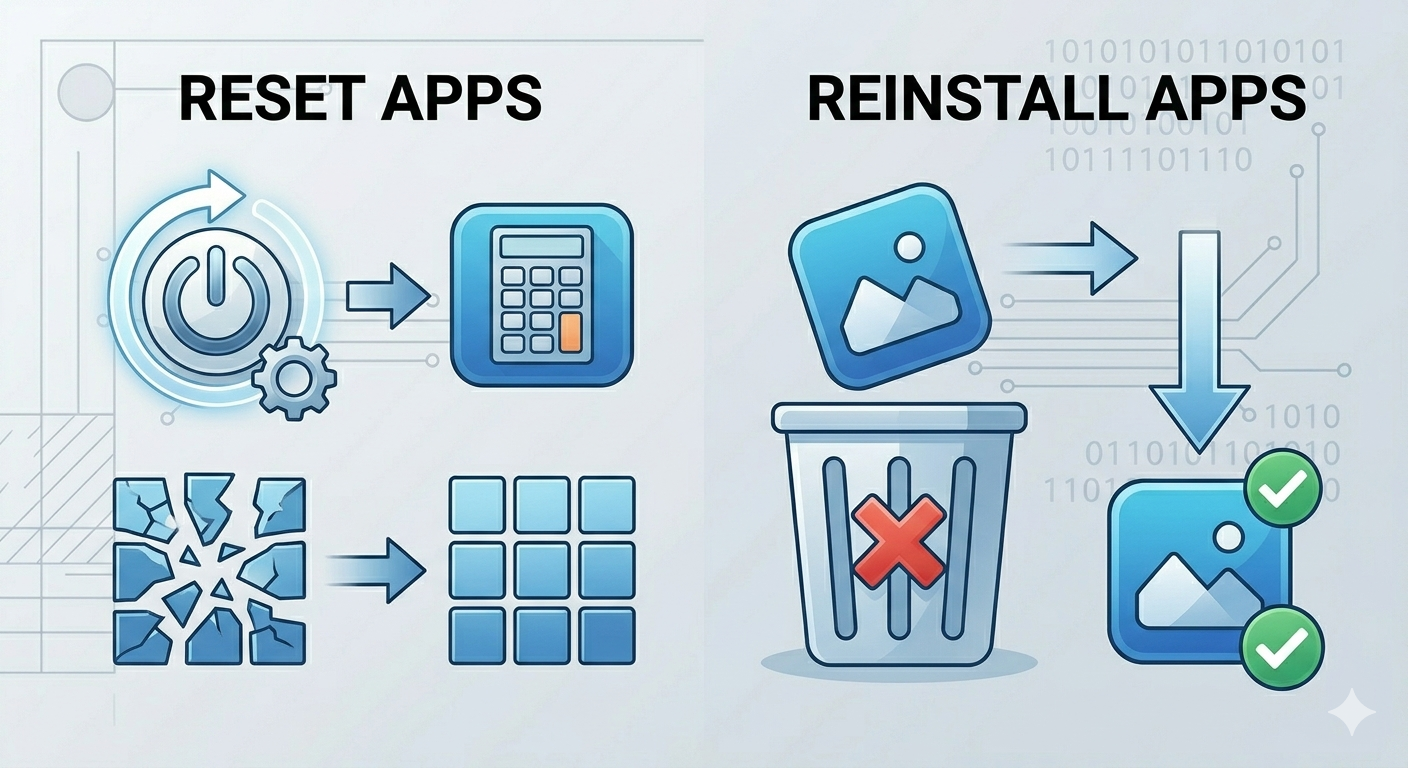
If the error occurs with specific apps:
Steps
- Open Settings → Apps → Installed apps
- Select the problematic app
- Click Advanced options
- Choose Reset
If necessary, uninstall and reinstall the app.
Re-register Microsoft Store Apps
Broken app registrations can cause file system errors.
Steps
Open PowerShell as administrator and run:
Get-AppXPackage -AllUsers | Foreach {Add-AppxPackage -DisableDevelopmentMode -Register "$($_.InstallLocation)\AppXManifest.xml"}Restart your PC afterward.
Create a New User Account
If your profile is corrupted:
Steps
- Open Settings → Accounts
- Go to Other users
- Add a new user
- Log in with the new account
- Test if the issue persists
Check Windows Services
Certain services must be running for apps to work.
Steps
- Press
Windows + R - Type:
services.msc- Ensure services like:
- Windows Update
- Windows License Manager
- AppX Deployment Service
are running properly.
Perform System Restore
If the problem started recently:
Steps
- Search for System Restore
- Choose a restore point before the issue
- Complete the restoration
Disable Problematic Software
Some third-party apps may interfere.
Examples
- Antivirus tools
- System optimizers
- File management utilities
Temporarily disable or uninstall them.
Check Permissions
Ensure your user account has access to affected files.
Steps
- Right-click the file or folder
- Select Properties → Security
- Verify permissions
Perform a Clean Boot
Identify software conflicts.
Steps
- Press
Windows + R - Type msconfig
- Disable non-Microsoft services
- Disable startup apps
- Restart PC
Reset Windows (Last Resort)
If nothing works:
Steps
- Open Settings → System → Recovery
- Choose Reset this PC
- Keep your files if possible
Tips to Prevent File System Errors
To avoid future problems:
- Keep Windows updated
- Avoid forced shutdowns
- Maintain sufficient disk space
- Use reliable antivirus software
- Regularly check disk health
- Back up important data
When to Seek Further Help
Consider expert support if:
- Disk errors keep appearing
- System crashes frequently
- Files become inaccessible
- Error persists after reset
Final Thoughts
The File System Error -2147163893 on Windows 10 and 11 is usually caused by corrupted system files, disk issues, or app-related problems. Although it may seem complicated, it can often be fixed using built-in tools like SFC, DISM, and CHKDSK.
By following the steps in this guide, you should be able to restore normal system functionality and eliminate the error.
Related articles
Fix Outlook Password Prompt Issue in Office 365