


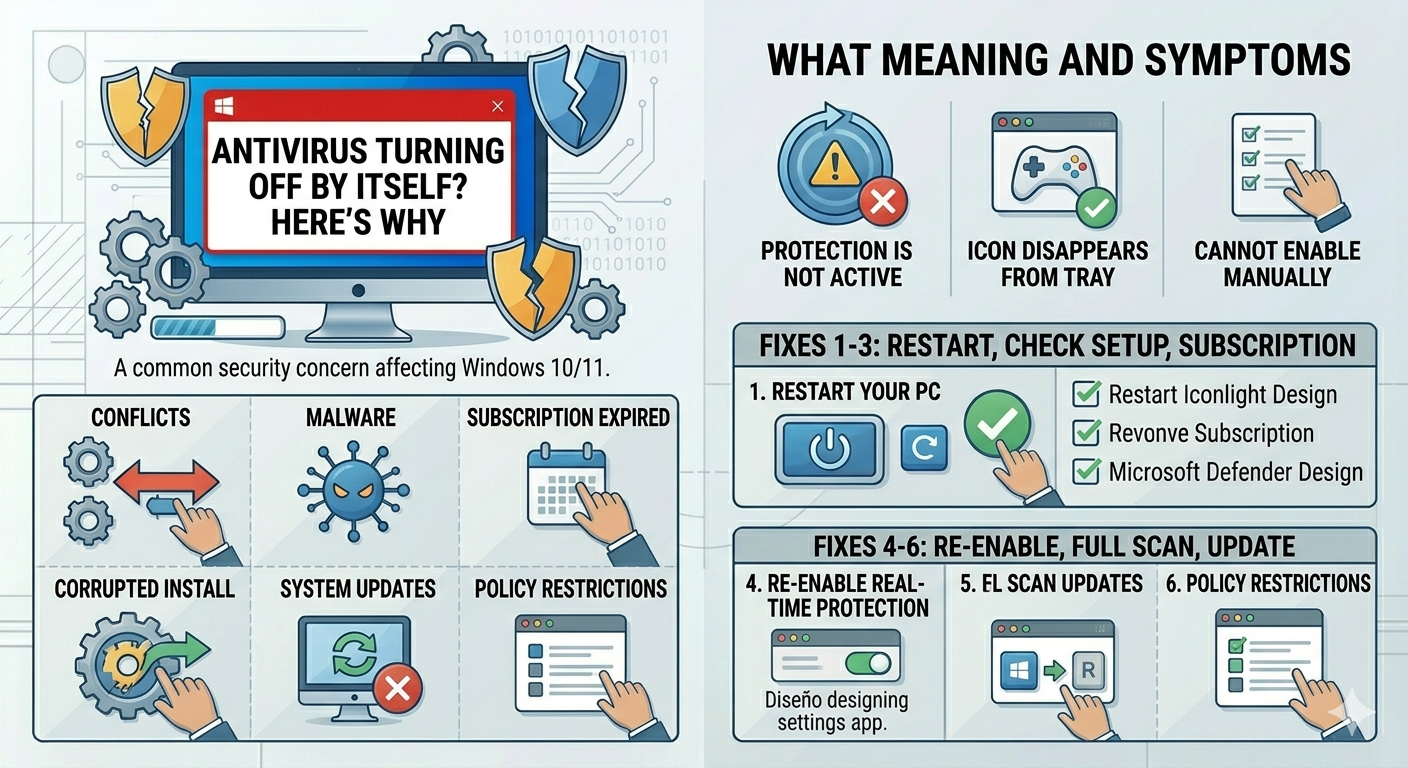
Antivirus Turning Off by Itself? Here’s Why
Antivirus software is designed to protect your computer from malware, viruses, and other online threats. So when it suddenly turns off by itself, it can feel alarming. If your antivirus keeps disabling automatically, it may leave your system vulnerable without you realizing it.
This issue can happen on both Windows 10 and Windows 11, and it affects built-in tools like Windows Security (Microsoft Defender) as well as third-party antivirus programs. The cause is not always malware—sometimes it’s due to system settings, software conflicts, or updates.
In this guide, you’ll learn the most common reasons why antivirus software turns off automatically and how to fix the problem effectively.
What Does It Mean When Antivirus Turns Off Automatically?
When your antivirus disables itself, it means real-time protection, background scanning, or core security services are no longer active.
You may notice:
- Antivirus icon disappears from the system tray
- Real-time protection is turned off
- Security warnings appear
- You cannot enable antivirus manually
- Antivirus turns off again after restarting
This behavior can either be intentional (due to settings) or caused by a deeper issue.
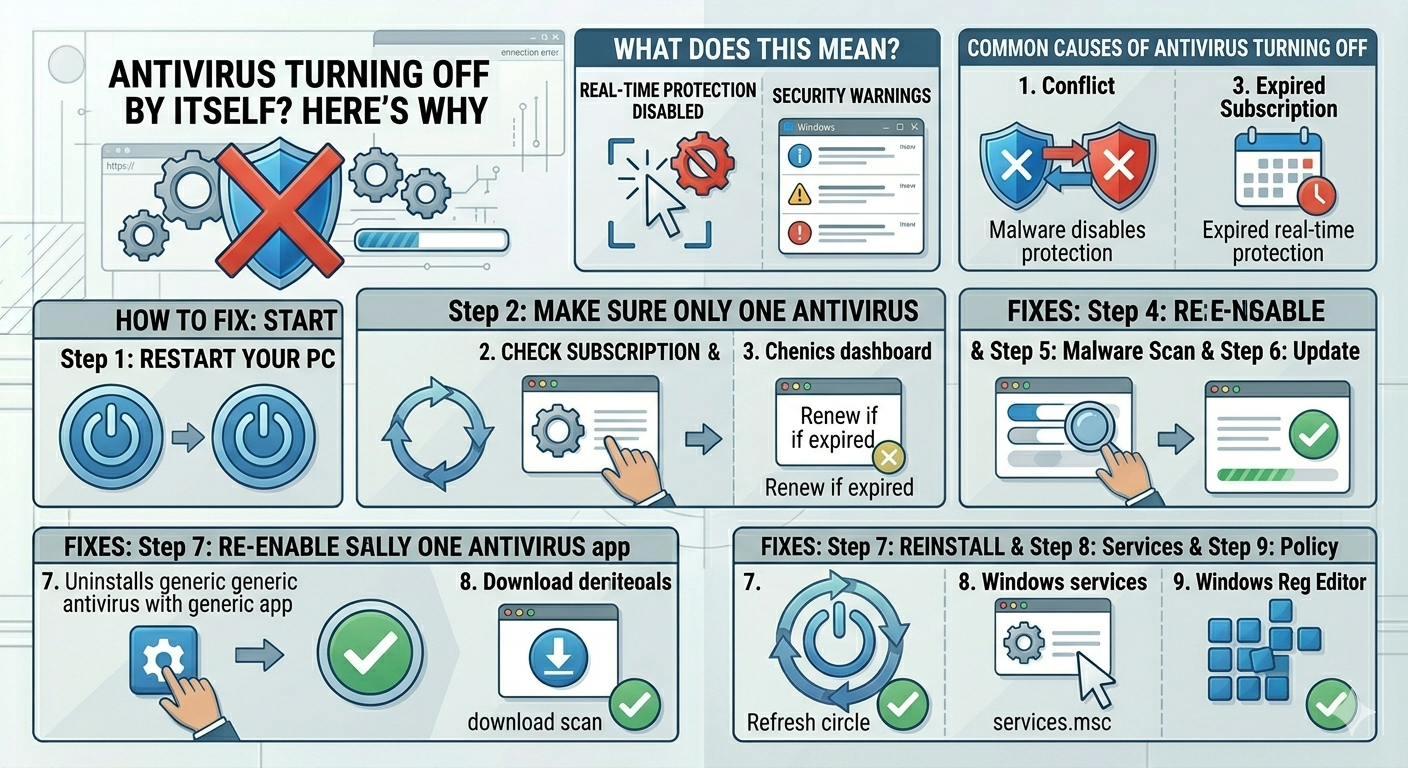
Common Causes of Antivirus Turning Off
Conflicts Between Multiple Antivirus Programs
Running more than one antivirus at the same time can cause conflicts. Windows may disable one to avoid system instability.
Windows Defender Being Disabled by Another Antivirus
When you install third-party antivirus software, Windows automatically turns off Microsoft Defender.
Malware Interference
Some malicious programs actively disable antivirus protection to avoid detection.
Expired Antivirus Subscription
Certain antivirus programs disable real-time protection when the license expires.
Corrupted Antivirus Installation
Damaged files or incomplete installation may prevent the antivirus from running properly.
Windows Updates or System Changes
Updates can reset settings or temporarily disable security services.
Group Policy or Registry Restrictions
Advanced settings may prevent antivirus from running.
How to Fix Antivirus Keeps Turning Off Automatically
Follow these solutions step by step.
Restart Your Computer
Start with a simple reboot.
Why It Helps
Temporary glitches or unfinished updates may be causing the issue.
Steps
- Save your work
- Restart your PC
- Check if antivirus stays enabled
Make Sure Only One Antivirus Is Installed
Multiple antivirus programs can conflict.
What to Do
- Open Settings → Apps
- Check installed security software
- Remove extra antivirus programs
- Restart your PC
Windows Defender will reactivate automatically if no other antivirus is present.
Check Antivirus Subscription Status
If you use paid antivirus software:
Steps
- Open the antivirus dashboard
- Check license or subscription status
- Renew if expired
Expired versions may disable key features.
Re-enable Real-Time Protection
Sometimes protection is turned off manually or by the system.
Steps for Windows Security
- Open Windows Security
- Go to Virus & threat protection
- Click Manage settings
- Turn on Real-time protection
Run a Full Malware Scan
If malware is present, it may disable antivirus.
Steps
- Open Windows Security
- Select Scan options
- Choose Full scan
- Run the scan
If possible, use a second trusted scanner for confirmation.
Update Antivirus Software
Outdated antivirus programs may malfunction.
What to Do
- Open your antivirus
- Check for updates
- Install the latest version
Reinstall Antivirus Program
If the installation is corrupted:
Steps
- Uninstall antivirus from Settings → Apps
- Restart your PC
- Download the latest version from the official website
- Install again
Check Windows Security Services
Important services must be running.
Steps
- Press
Windows + R - Type:
services.msc- Ensure these are running:
- Windows Security Service
- Security Center
- Windows Defender Antivirus Service
Restart them if needed.
Check Group Policy Settings
Some systems may block antivirus via policy.
Steps
- Press
Windows + R - Type:
gpedit.msc- Navigate to:
Computer Configuration → Administrative Templates → Windows Components → Microsoft Defender Antivirus
- Ensure policies are set to Not Configured
Check Registry Settings (Advanced)
Incorrect registry values may disable antivirus.
Steps
- Press
Windows + R - Type:
regedit- Navigate to:
HKEY_LOCAL_MACHINE\SOFTWARE\Policies\Microsoft\Windows Defender- Look for DisableAntiSpyware and set it to 0 or remove it
Always back up the registry before making changes.
Disable Conflicting Programs
Some apps may interfere with antivirus.
Examples
- System optimizers
- VPN software
- Firewall tools
- Cracked or modified software
Disable or uninstall suspicious programs.
Check Windows Updates
Security updates may fix issues.
Steps
- Open Settings
- Go to Windows Update
- Click Check for updates
- Install all updates
Use System Restore
If the issue started recently:
Steps
- Search System Restore
- Choose a restore point before the issue
- Complete the process
When the Problem Is Malware
If antivirus keeps disabling itself repeatedly:
Warning Signs
- You cannot turn protection back on
- Settings change automatically
- Unknown programs appear
- Browser redirects occur
In this case:
- Disconnect from the internet
- Run offline or boot-time scans
- Consider professional help if necessary
Tips to Prevent Antivirus Issues
To keep your protection active:
- Use only one antivirus program
- Keep software updated
- Avoid downloading unknown files
- Do not use cracked software
- Scan regularly
- Monitor security alerts
When to Seek Further Help
Consider expert support if:
- Antivirus cannot be enabled at all
- System behaves abnormally
- Reinstalling does not help
- You suspect advanced malware
Final Thoughts
If your antivirus software keeps turning off automatically, it is usually caused by software conflicts, expired subscriptions, corrupted installations, or system misconfigurations. In some cases, malware may also be responsible.
By checking your antivirus setup, updating software, scanning for threats, and repairing system settings, you can restore full protection and keep your system secure.
Related articles
Fix Outlook Password Prompt Issue in Office 365