


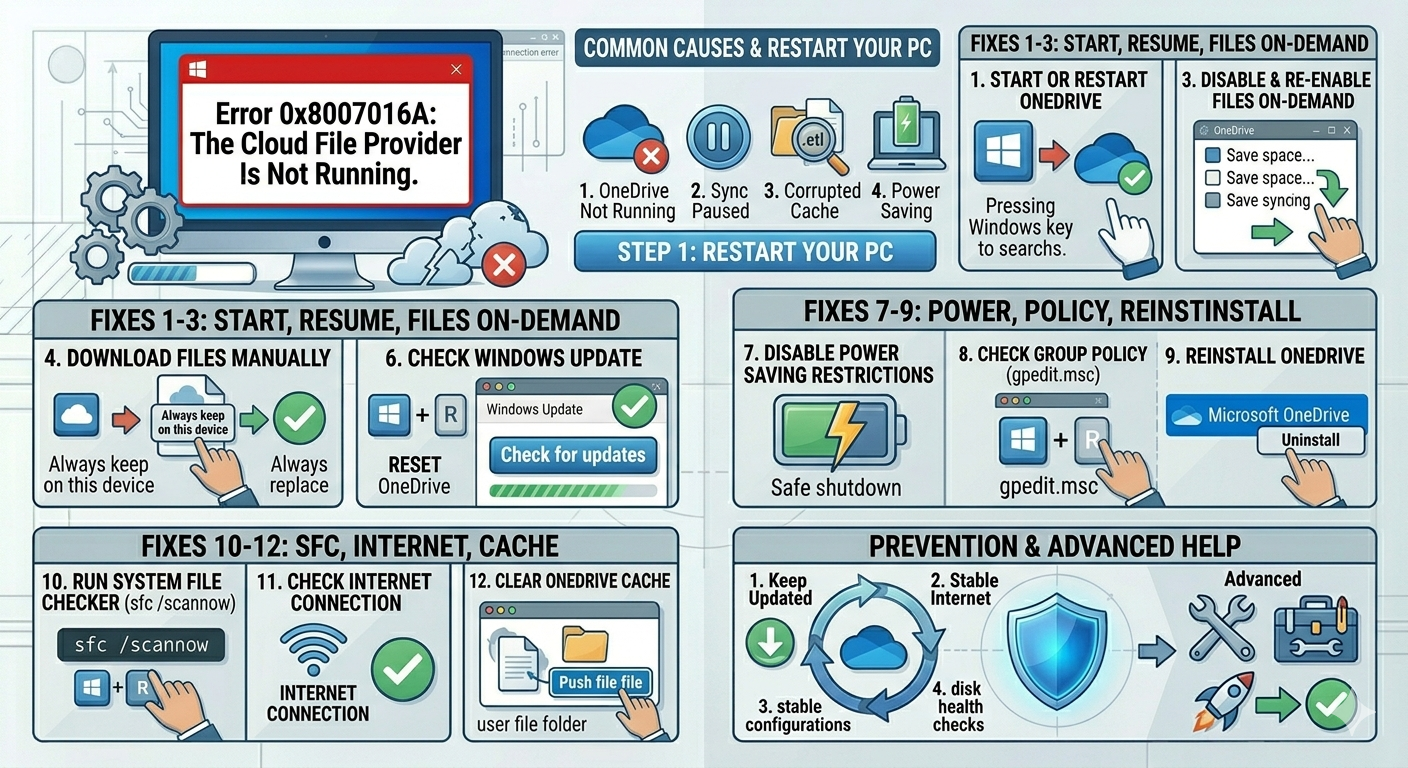
How to Fix OneDrive Error 0x8007016A: Cloud File Provider Is Not Running
The error “0x8007016A: The Cloud File Provider Is Not Running” is a common issue faced by Windows 10 and Windows 11 users when working with Microsoft OneDrive. It usually appears when you try to open, copy, move, or delete files stored in OneDrive, especially when Files On-Demand is enabled.
This error can be confusing because it may block access to files even though OneDrive appears installed and signed in. In most cases, the problem is related to OneDrive not running properly, sync issues, disabled services, or system misconfiguration.
The good news is that this error is usually easy to fix. In this guide, you’ll learn what causes OneDrive error 0x8007016A and how to resolve it effectively.
What Does Error 0x8007016A Mean?
The error indicates that Windows cannot communicate with the cloud file provider, which in this case is OneDrive. This happens when the OneDrive service responsible for syncing and accessing cloud files is not active or has stopped responding.
You may encounter this error when:
- Opening files stored in OneDrive
- Deleting cloud-only files
- Copying files from OneDrive folders
- Accessing synced directories
- Using Files On-Demand
Common Symptoms
- Files fail to open or download
- Error message appears repeatedly
- OneDrive folder behaves like offline storage
- Sync status is stuck or paused
- Files show cloud icons but cannot be accessed
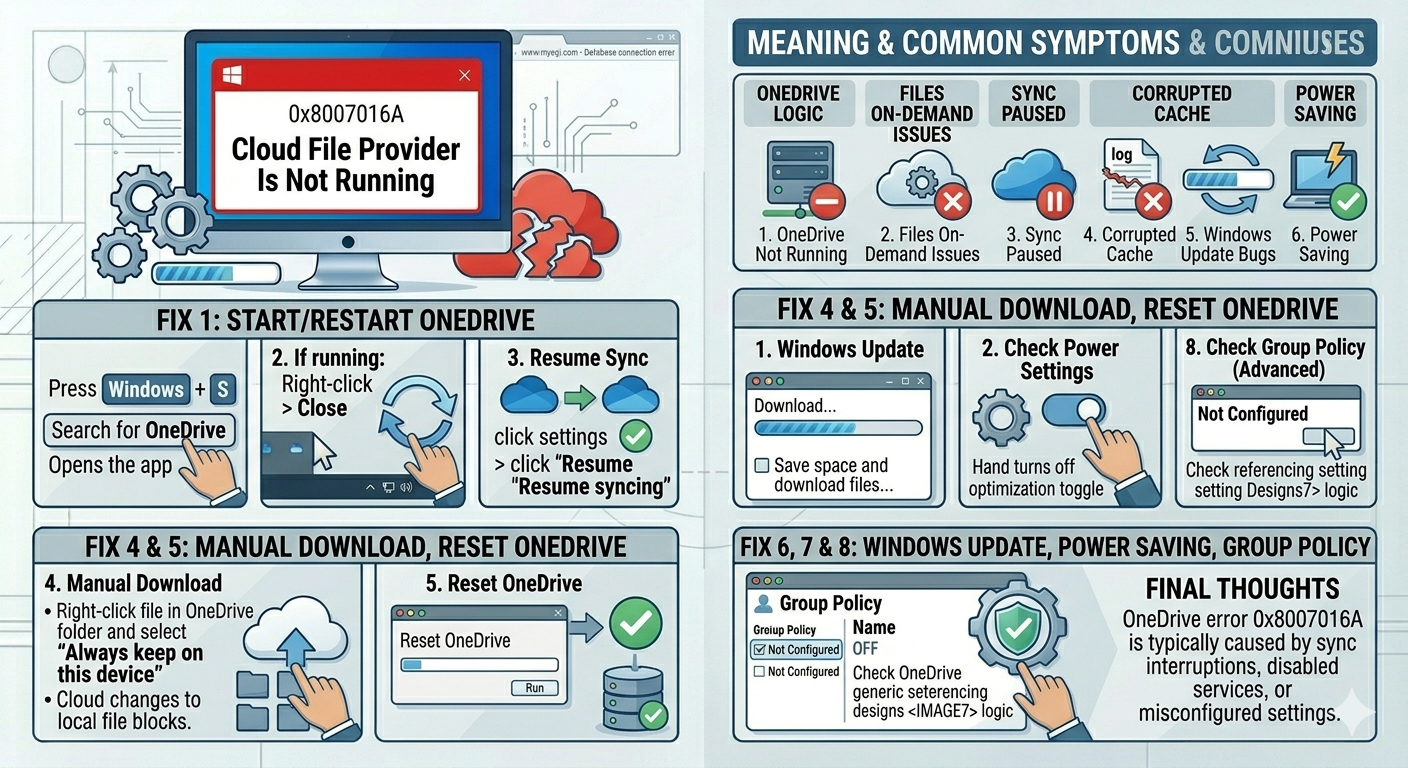
Common Causes of the Error
OneDrive Not Running
The OneDrive app may not be started or has crashed.
Files On-Demand Issues
This feature may fail to retrieve files from the cloud.
Sync Paused or Disabled
Sync settings may be turned off manually or by the system.
Corrupted OneDrive Cache
Temporary files may interfere with proper syncing.
Windows Update Bugs
Certain updates may cause temporary OneDrive issues.
Power Saving or Battery Settings
Background apps may be restricted from running.
How to Fix OneDrive 0x8007016A Error
Try the following methods step by step.
Start or Restart OneDrive
Ensure OneDrive is running.
Steps
- Press
Windows + S - Search for OneDrive
- Open the app
- Sign in if required
If already running:
- Right-click OneDrive icon in system tray
- Select Close OneDrive
- Reopen it
Resume OneDrive Sync
Sync may be paused.
Steps
- Click OneDrive icon in the system tray
- Select Help & Settings
- Click Resume syncing
Disable and Re-enable Files On-Demand
This feature can cause the error if it fails.
Steps
- Click OneDrive icon
- Go to Settings
- Open Sync and backup or Settings tab
- Uncheck Save space and download files as you use them
- Apply changes
- Restart OneDrive
Then enable it again if needed.
Download Files Manually
If files are cloud-only:
Steps
- Open your OneDrive folder
- Right-click the file
- Select Always keep on this device
This downloads the file locally and avoids the error.
Reset OneDrive
Resetting can fix many sync-related problems.
Steps
- Press
Windows + R - Type:
%localappdata%\Microsoft\OneDrive\onedrive.exe /reset- Press Enter
- Wait a few minutes
- Restart OneDrive manually if it does not reopen
Check Windows Updates
Ensure your system is up to date.
Steps
- Open Settings
- Go to Windows Update
- Click Check for updates
- Install all updates
- Restart your PC
Disable Power Saving Restrictions
Battery optimization may stop OneDrive.
Steps
- Open Settings
- Go to System → Power & battery
- Disable aggressive power-saving modes
- Allow background apps to run
Check Group Policy Settings (Advanced)
In some systems, OneDrive may be disabled by policy.
Steps
- Press
Windows + R - Type:
gpedit.msc- Navigate to:
Computer Configuration → Administrative Templates → Windows Components → OneDrive
- Ensure Prevent the usage of OneDrive is set to Not Configured
Reinstall OneDrive
If the app is corrupted:
Steps
- Open Settings → Apps
- Find Microsoft OneDrive
- Uninstall it
- Download the latest version from Microsoft
- Install and sign in again
Run System File Checker
Corrupted system files may affect OneDrive.
Steps
Open Command Prompt as administrator and run:
sfc /scannowRestart afterward.
Use DISM Tool
If system issues persist:
Steps
Run:
DISM /Online /Cleanup-Image /RestoreHealthCheck Internet Connection
OneDrive requires stable internet access.
What to Check
- Wi-Fi connection
- Firewall restrictions
- VPN interference
Try disabling VPN temporarily.
Clear OneDrive Cache Manually
Corrupted cache files may cause syncing issues.
Steps
- Close OneDrive
- Navigate to:
C:\Users\YourUsername\AppData\Local\Microsoft\OneDrive- Remove temporary files
- Restart OneDrive
When Files Are Locked or Stuck
If specific files cause the error:
Try
- Renaming the file
- Moving it to another folder
- Deleting it from OneDrive web interface
Tips to Prevent OneDrive Errors
To avoid future issues:
- Keep OneDrive updated
- Maintain stable internet connection
- Avoid force shutdowns during sync
- Regularly restart your PC
- Use sufficient disk space
- Monitor sync status
When to Seek Additional Help
Consider further assistance if:
- Files cannot be recovered
- Sync fails continuously
- OneDrive crashes repeatedly
- Error persists after reinstall
- Important data is missing
Final Thoughts
The OneDrive 0x8007016A “Cloud File Provider Is Not Running” error is typically caused by sync interruptions, disabled services, or misconfigured settings. While it can block access to important files, it is usually fixable with simple troubleshooting steps.
By restarting OneDrive, resetting the app, adjusting sync settings, and ensuring system updates, most users can restore normal functionality quickly.
Related articles
Fixing the “Kernel Security Check Failure” Error on Windows 10