


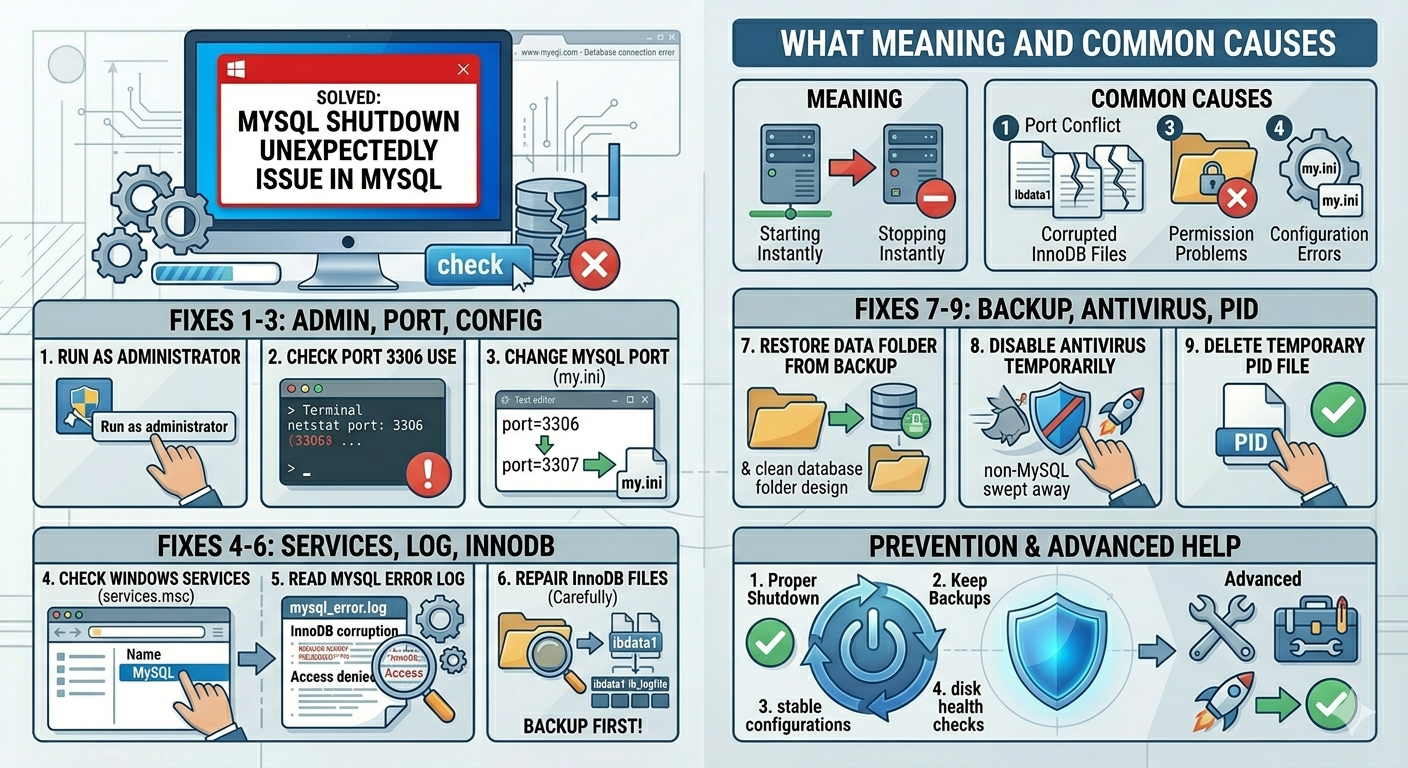
Solved: MySQL Shutdown Unexpectedly Issue in MySQL
The “MySQL Shutdown Unexpectedly” error is a common problem many users encounter when using XAMPP, WAMP, MAMP, Laragon, or standalone MySQL installations. It usually appears when trying to start MySQL, but the service immediately stops or fails to run.
This issue can interrupt website development, database access, local server testing, and business applications that depend on MySQL. In most cases, the error is caused by port conflicts, corrupted database files, permission issues, improper shutdowns, or damaged configuration settings.
The good news is that this problem is often repairable without losing your databases. In this guide, you’ll learn what causes the error and how to fix MySQL safely on Windows.
What Does “MySQL Shutdown Unexpectedly” Mean?
This message usually means the MySQL server started but then stopped immediately due to a problem it could not recover from.
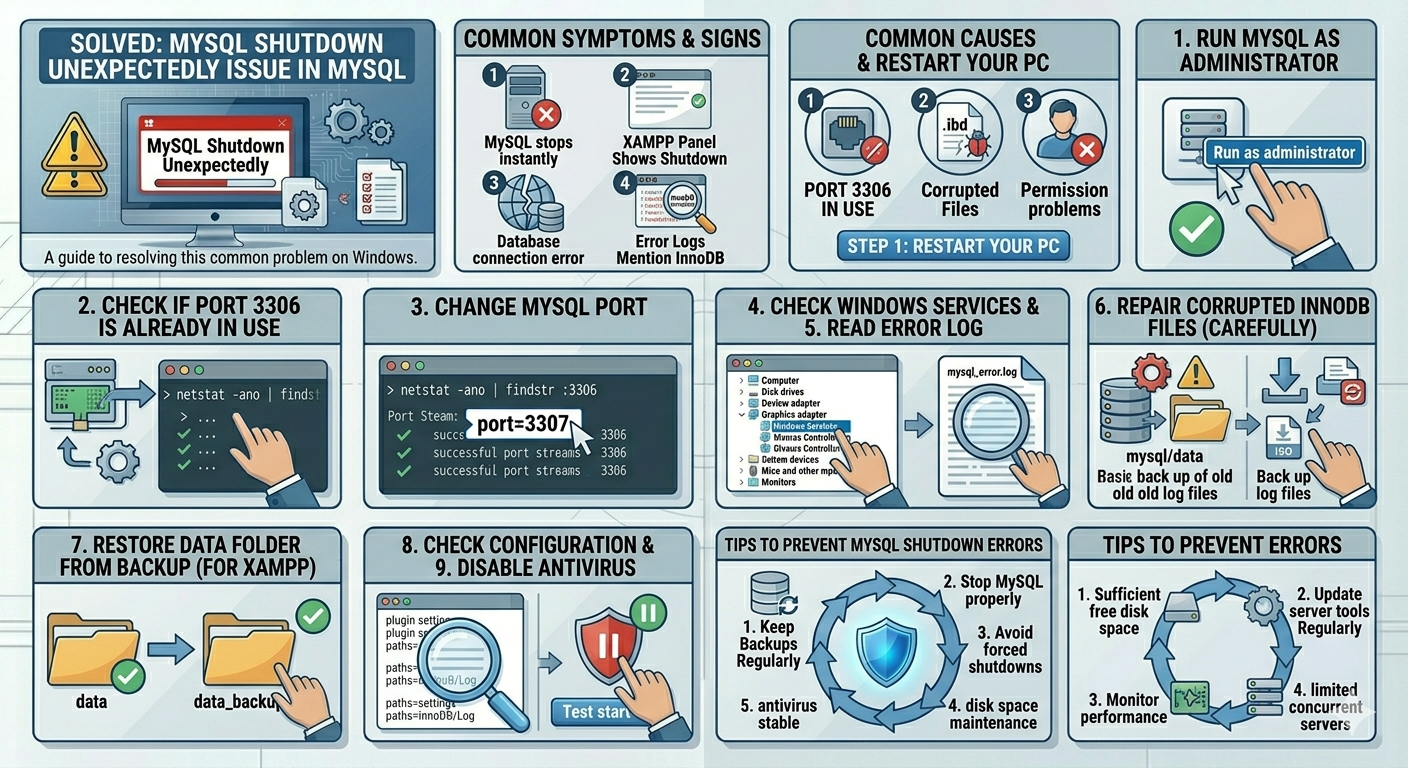
Common signs include:
- MySQL starts then stops instantly
- XAMPP Control Panel shows shutdown unexpectedly
- Port 3306 in use
- Database connection errors
- Apache works but MySQL does not
- Error logs mention InnoDB or ibdata files
Common Causes of MySQL Shutdown Unexpectedly
Port 3306 Already in Use
Another MySQL service or application may already be using the default port.
Corrupted InnoDB Files
Improper shutdowns or crashes can damage MySQL storage files.
Permission Problems
MySQL may lack permission to access folders or data files.
Broken Configuration File
Incorrect my.ini settings can stop startup.
Conflicting MySQL Services
Multiple MySQL installations can interfere with each other.
Antivirus or Security Software
Some security tools may block MySQL processes.
How To Fix MySQL Shutdown Unexpectedly
Try these methods in order.
Run XAMPP or MySQL as Administrator
Permission issues are common.
Steps
- Close XAMPP or your MySQL tool
- Right-click it
- Select Run as administrator
- Try starting MySQL again
Check If Port 3306 Is Already in Use
This is one of the most common causes.
Steps
- Open Command Prompt
- Run:
netstat -ano | findstr :3306If another process uses port 3306, you can:
- Stop that service
- Change MySQL port
- Remove duplicate MySQL installations
Change MySQL Port
If port 3306 is busy, use another port such as 3307.
Steps
- Open MySQL configuration file (
my.ini) - Find:
port=3306- Change to:
port=3307- Save file
- Restart MySQL
Update your apps to use the new port.
Check Windows Services
Another installed MySQL service may conflict.
Steps
- Press
Windows + R - Type:
services.msc- Press Enter
- Look for:
- MySQL
- MySQL80
- MariaDB
Stop conflicting services temporarily.
Read the MySQL Error Log
The log often reveals the real issue.
Common Locations
- XAMPP:
xampp/mysql/data/mysql_error.log - MySQL install folder logs
Look for messages about:
- InnoDB corruption
- Access denied
- Port in use
- Missing files
Repair Corrupted InnoDB Files (Carefully)
If MySQL crashed improperly, InnoDB files may be damaged.
Important
Back up your mysql/data folder first.
Common Files Involved
- ibdata1
- ib_logfile0
- ib_logfile1
Sometimes removing old log files allows MySQL to recreate them on startup.
Only do this if you understand your setup and have backups.
Restore Data Folder from Backup
If you use XAMPP and MySQL stopped after corruption:
Typical Recovery Method
- Back up current
datafolder - Use XAMPP backup folder
- Restore database folders from old data directory
This can recover local databases.
Check my.ini Configuration File
Wrong settings can block startup.
Look For Problems Such As
- Wrong data directory path
- Wrong port number
- Invalid plugin settings
- Syntax mistakes
If recently edited, undo changes.
Disable Antivirus Temporarily
Some antivirus tools block local server software.
What to Do
Temporarily disable third-party security tools and test MySQL startup.
Re-enable protection afterward.
Delete Temporary PID File
A stuck process file can prevent launch.
Look For Files Like
mysql.pidmysqld.pid
Delete only when MySQL is fully closed.
Reinstall Visual C++ Redistributables
Some MySQL packages depend on Microsoft runtime files.
What to Do
Install the latest supported Microsoft Visual C++ Redistributables.
Reinstall MySQL or XAMPP
If configuration is badly damaged:
Steps
- Back up database folders
- Uninstall MySQL/XAMPP
- Install latest version
- Restore databases carefully
Use Task Manager to End Old MySQL Processes
Sometimes MySQL remains stuck in memory.
Steps
- Press Ctrl + Shift + Esc
- Find:
- mysqld.exe
- mysql.exe
- End task
- Start MySQL again
Check Disk Space
MySQL may fail if storage is full.
What to Do
Ensure the drive containing your data folder has free space.
Run Disk Check
Storage errors can corrupt database files.
Steps
Open Command Prompt as administrator:
chkdsk /fRestart if prompted.
When Using XAMPP Specifically
If XAMPP shows the shutdown unexpectedly message:
Best Quick Checks
- Run as administrator
- Check port conflicts
- Restore backup folder
- Inspect
mysql_error.log - End old mysqld.exe processes
How to Prevent MySQL Shutdown Errors
To avoid future issues:
- Always stop MySQL properly
- Keep backups of databases
- Avoid forced shutdowns
- Keep enough free disk space
- Do not run multiple MySQL servers unnecessarily
- Update XAMPP/MySQL regularly
When to Seek Advanced Help
Consider expert support if:
- Important databases are inaccessible
- InnoDB corruption repeats often
- Data files are missing
- MySQL crashes after every restart
- You suspect disk failure
Final Thoughts
The “MySQL Shutdown Unexpectedly” error is usually caused by port conflicts, corrupted database files, permission problems, or damaged settings. While frustrating, it is often fixable without losing data if handled carefully.
By checking port 3306, reviewing logs, repairing configuration files, ending stuck processes, and restoring backups when needed, most users can get MySQL running again quickly.
Related articles
Fixing the “Kernel Security Check Failure” Error on Windows 10
How to Fix Mobile Hotspot Not Working in Windows 10
How to Fix OneDrive Error 0x8007016A: Cloud File Provider Is Not Running