


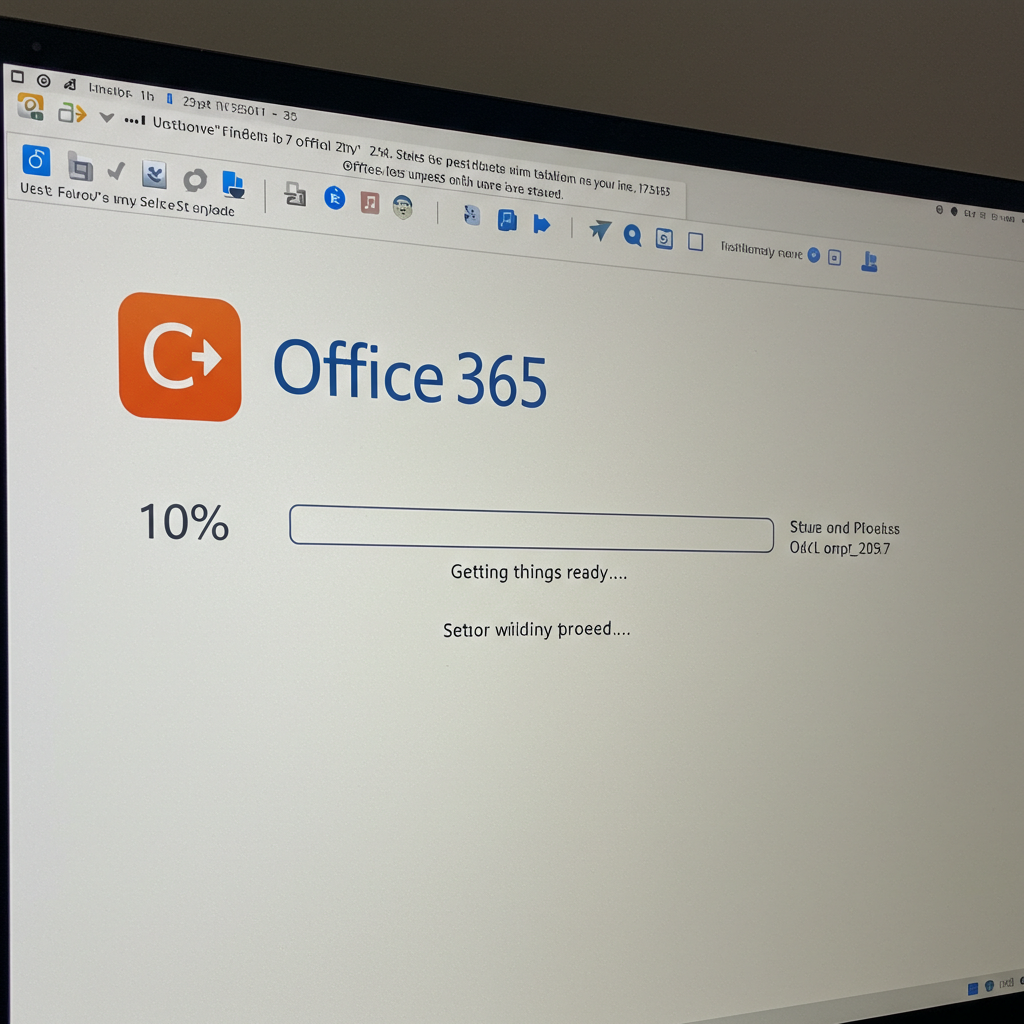
Common Setup Problems for Microsoft Office 365 Admins
Microsoft Office 365 is one of the most popular productivity suites in the world, especially for businesses and organizations. However, even experienced administrators can sometimes face frustrating issues during installation.
In this article, we will go through the most common Microsoft Office 365 admin installation errors and provide clear steps to fix each one.
Why Office 365 Installation Errors Happen
There are many factors that can cause problems during installation, including:
-
Poor internet connection
-
Corrupt installation files
-
Outdated operating system
-
Conflicts with existing software
-
Incorrect user permissions
-
Issues with activation or licensing
Identifying the root cause is the first step toward solving the problem.
Most Common Office 365 Installation Errors and Solutions
1. Error Code 0-1011, 30088-26, or 30183-28
These error codes typically indicate network problems or firewall settings blocking the installation.
How to Fix:
-
Check your internet connection and make sure it is stable.
-
Disable any VPN or proxy temporarily.
-
Make sure your firewall allows Office 365 installations.
-
Restart your router and computer before trying again.
You can also run the Office Repair Tool or Microsoft Support and Recovery Assistant to automatically diagnose and fix issues.

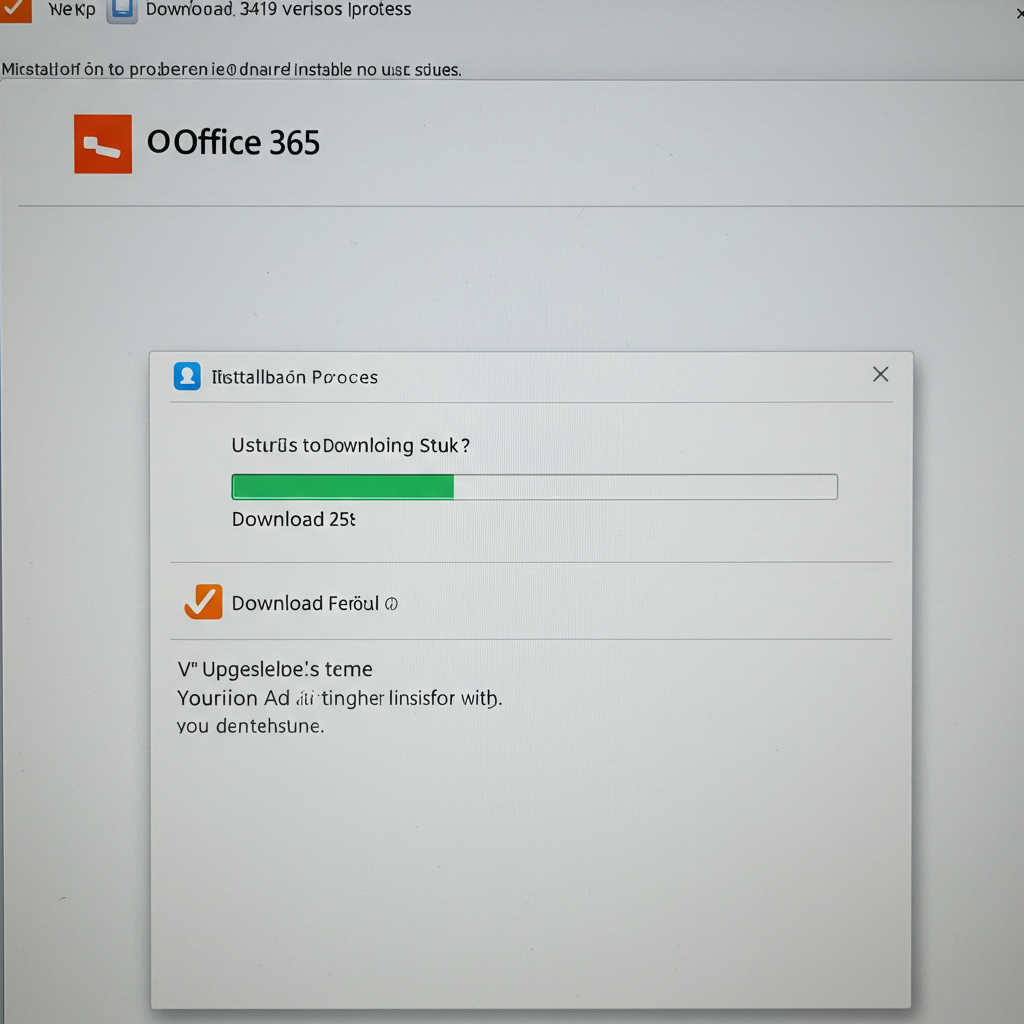
2. Office is Stuck at “Installing” or “Downloading”
Sometimes Office 365 appears to be stuck during installation without any progress.
How to Fix:
-
Cancel the installation and restart your computer.
-
Use a wired Ethernet connection instead of Wi-Fi for more stable downloads.
-
Download and install Office offline by using the Office Deployment Tool.
-
Make sure you are installing on a supported version of Windows (Windows 10 or later).
3. Error Code 0x4004f00c – Licensing Issues
This error usually means Office cannot verify the license with Microsoft’s servers.
How to Fix:
-
Confirm you are signed in with the correct Office 365 admin account.
-
Ensure the assigned license includes the correct Office apps.
-
Go to Settings > Accounts > Access work or school and make sure your device is connected to your organization’s account.
-
Try activating Office again after checking your subscription status.

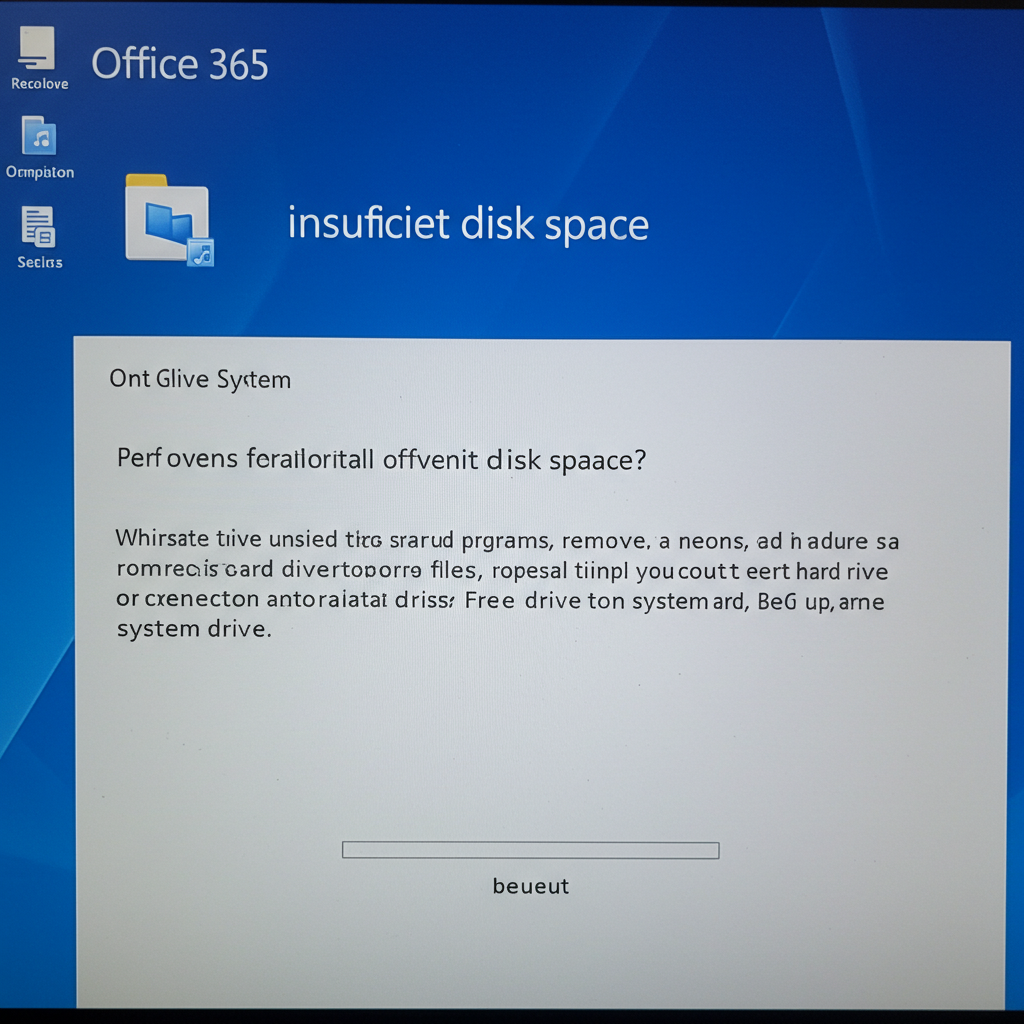
4. Installation Error 30174-4 – Insufficient Disk Space
If you are receiving this error, it means there isn’t enough space on your hard drive.
How to Fix:
-
Free up disk space by deleting unnecessary files, temporary files, and emptying the Recycle Bin.
-
Move large files (like videos) to an external drive.
-
Run the Disk Cleanup tool to remove system junk.
-
Make sure at least 4 GB of free space is available before installation.
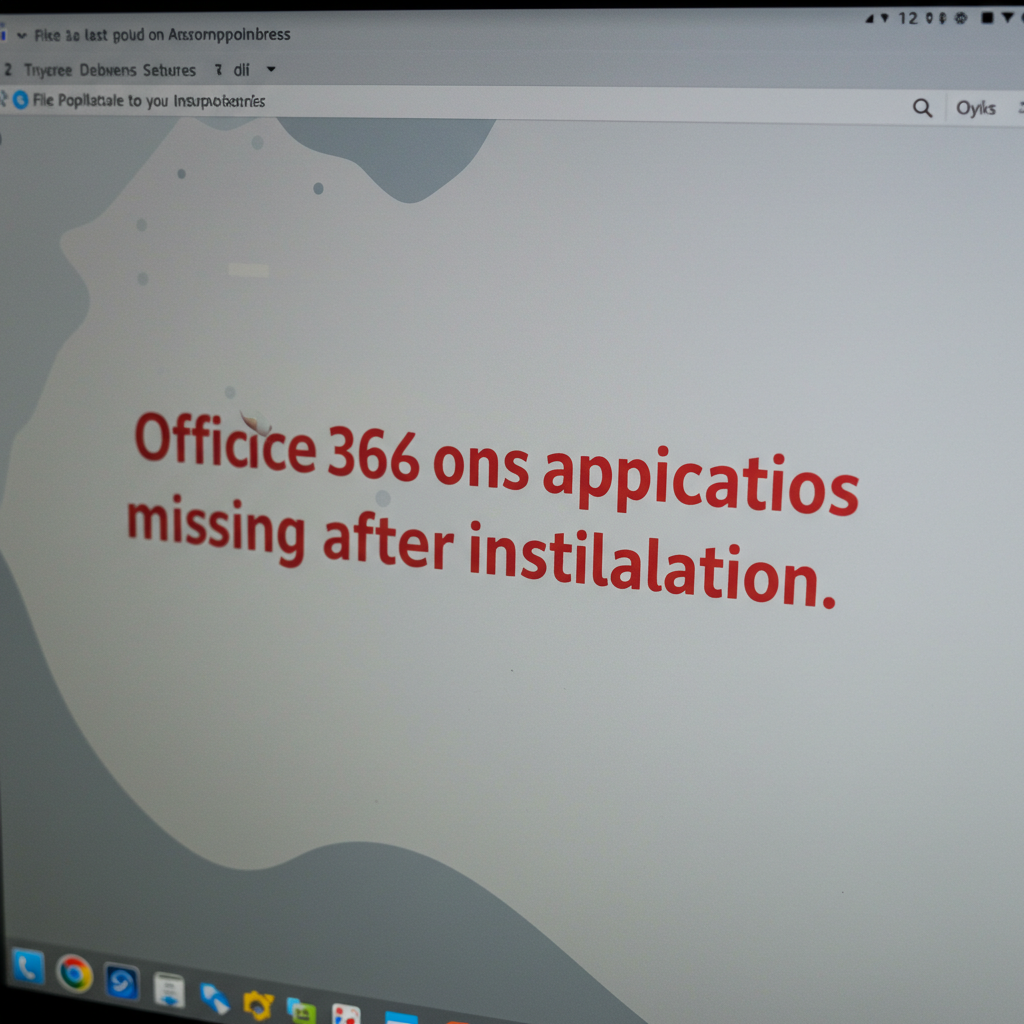
5. Office Applications Missing After Installation
Sometimes after installing Office 365, you notice that some apps like Outlook or Excel are missing.
How to Fix:
-
Make sure you chose the correct installation package that includes all apps.
-
Go to Control Panel > Programs and Features, locate Microsoft Office, and choose Change > Add or Remove Features to modify the installation.
-
Use the Office Deployment Tool to customize which apps get installed.
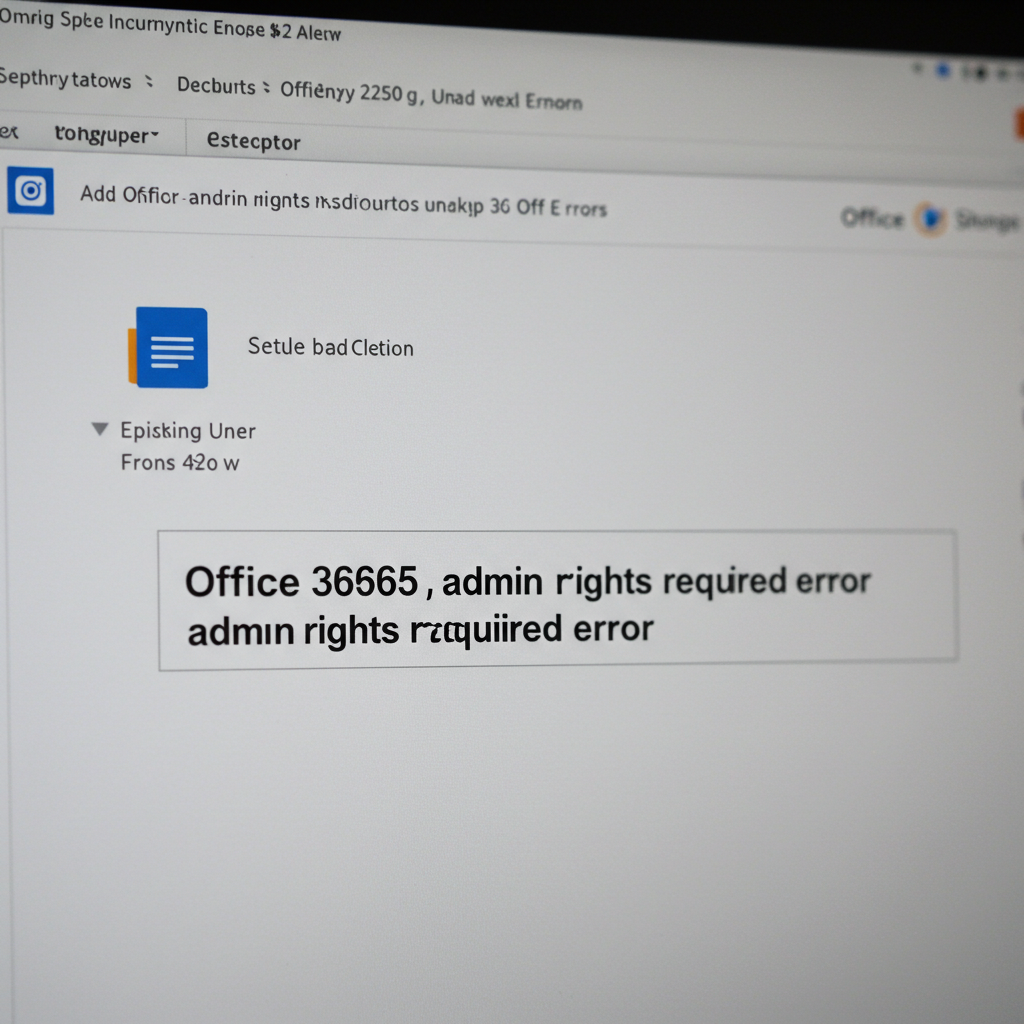
6. Admin Rights Required Error
If the installation fails and says you need admin rights, your account may not have sufficient privileges.
How to Fix:
-
Right-click the Office installer file and choose Run as administrator.
-
Make sure you are signed in with a Windows administrator account.
-
Contact your IT department if you are on a managed device and cannot elevate your permissions.
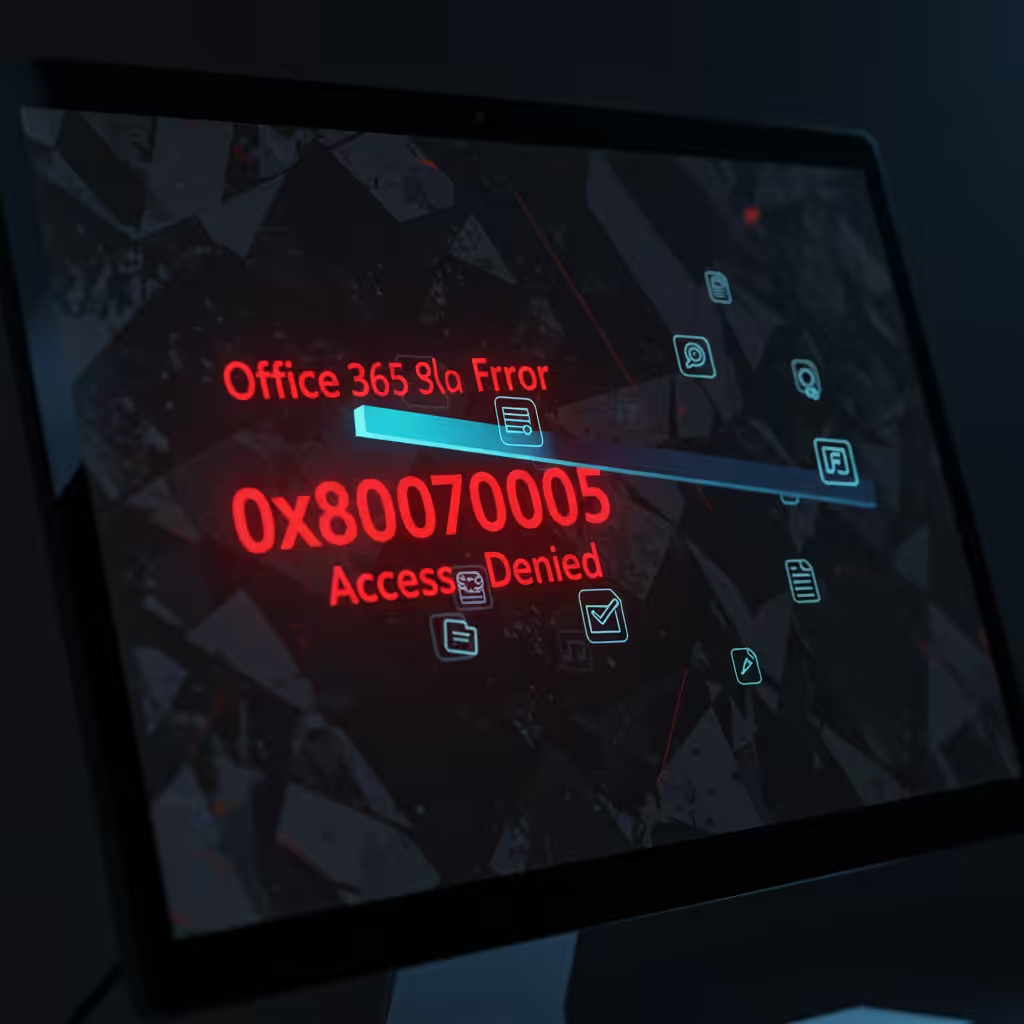
7. Error Code 0x80070005 – Access Denied
This error often relates to permissions issues, antivirus software conflicts, or corrupted system files.
How to Fix:
-
Disable antivirus or any third-party security software temporarily.
-
Run the installer with administrator privileges.
-
Update Windows to the latest version using Settings > Update & Security.
-
Use the System File Checker by running the command
sfc /scannowin an elevated Command Prompt.
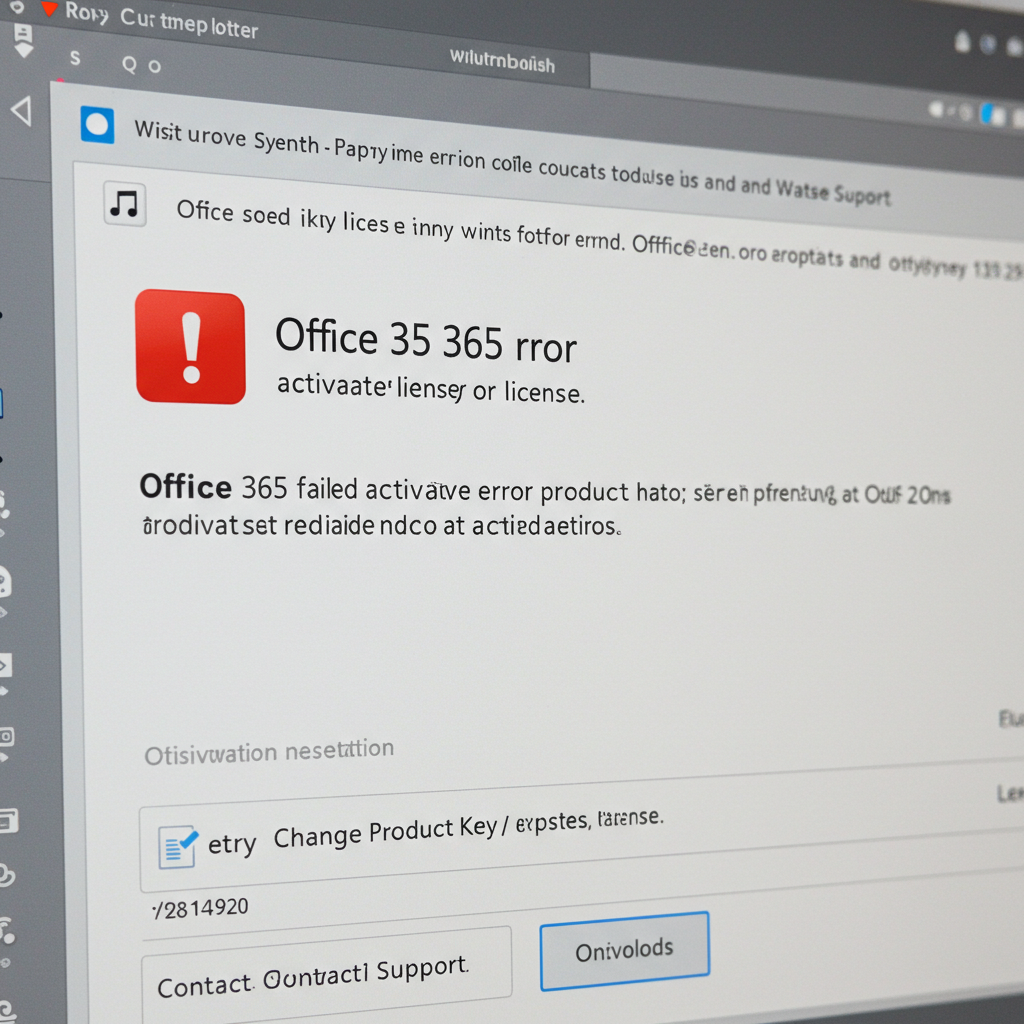
8. Office Won’t Activate After Installation
Installation might complete successfully, but activation could fail with errors like 0xC004F074.
How to Fix:
-
Verify that the system clock is accurate. Activation servers reject connections from computers with incorrect dates or times.
-
Make sure your device is connected to the internet.
-
Check your Office 365 admin portal to ensure your license is active.
-
Open any Office app, go to File > Account, and click Activate Product.
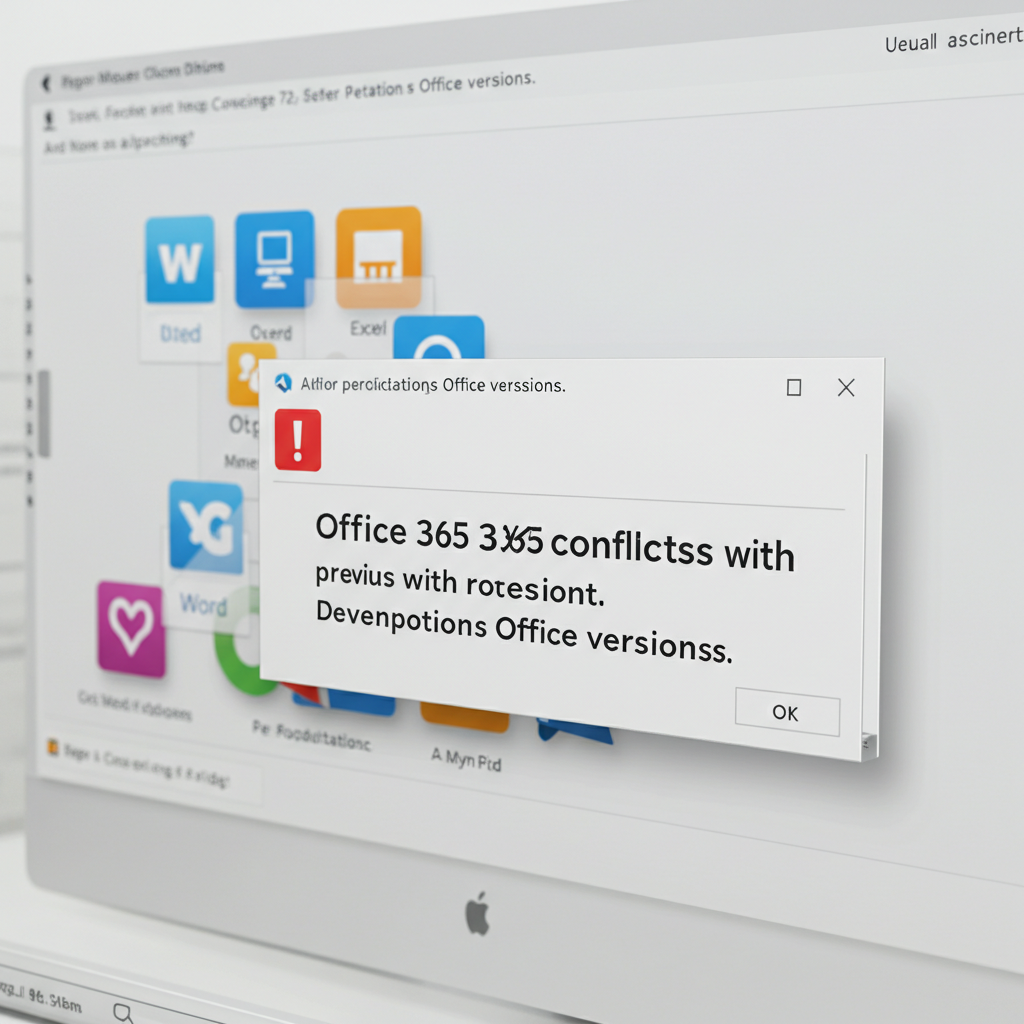
9. Conflicts with Previous Office Versions
Old versions of Office can interfere with the new installation.
How to Fix:
-
Uninstall all previous versions of Office completely.
-
Use the Microsoft Support and Recovery Assistant tool to completely remove old Office files.
-
Restart your computer before attempting a fresh installation.
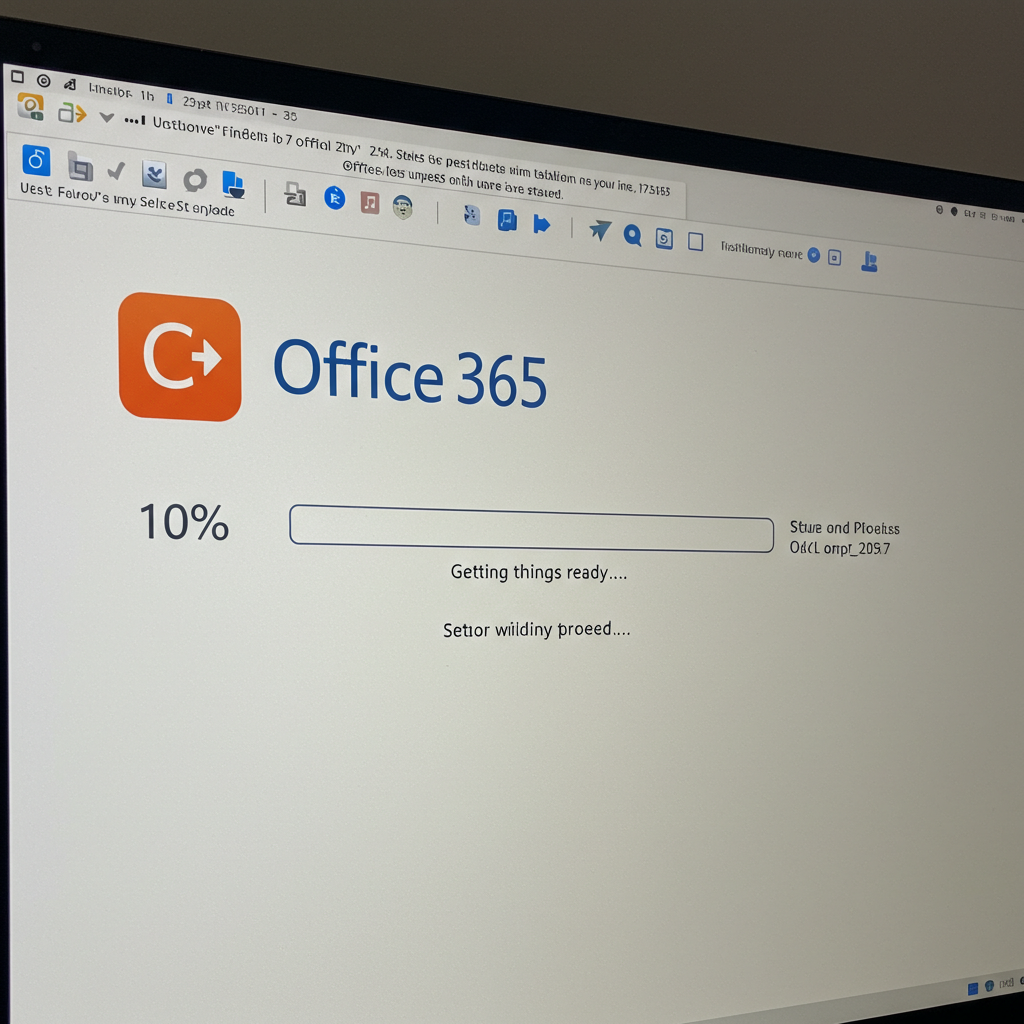
10. Setup Freezing at “We’re Getting Things Ready”
If the setup screen is stuck for too long, it could be caused by slow performance or background processes.
How to Fix:
-
Close unnecessary background apps via Task Manager.
-
Disable startup apps temporarily.
-
Check the Task Manager for any OfficeClickToRun process—end it and try running the installer again.
-
Restart the PC and run the installer freshly after cleanup.
Best Practices for Smooth Office 365 Installations
-
Always download the latest version of the Office installer.
-
Install updates for Windows and drivers before starting installation.
-
Make sure your antivirus software is compatible with the Office version.
-
Keep your Office 365 Admin Center updated with active licenses and assigned users.
-
Use the Office Deployment Tool for customized large-scale deployments.
Conclusion
Installing Microsoft Office 365 as an administrator should be a straightforward process, but sometimes unexpected errors appear. Most problems can be resolved with a little troubleshooting — whether it’s fixing your internet connection, adjusting user permissions, clearing out old versions, or running Microsoft’s own repair tools.
Follow these steps carefully and your Office 365 installation should complete successfully. And if problems continue, don’t hesitate to use Microsoft Support and Recovery Assistant, or contact Microsoft Support directly for more detailed help.