


Failed to Access Windows Activation Servers
Windows activation is an essential process that confirms your copy of Windows is genuine. But sometimes, you might run into a frustrating message: “We can’t activate Windows on this device because we can’t connect to the activation server.”
This issue can happen even if you’re using a valid product key. In this article, we’ll walk you through exactly why this happens and how to fix it step by step.
What Does “Unable to Reach Activation Servers” Mean?
This error simply means that Windows cannot connect to Microsoft’s activation servers to verify your license. It doesn’t necessarily mean your key is invalid—it could be caused by a variety of factors:
-
Internet connectivity issues
-
Microsoft activation servers being temporarily down
-
Incorrect time and date settings
-
Problems with your Microsoft account
-
Firewall or proxy settings blocking access
-
Activation server glitch after a hardware change (e.g., new motherboard)
How to Fix Windows Activation Server Connection Errors
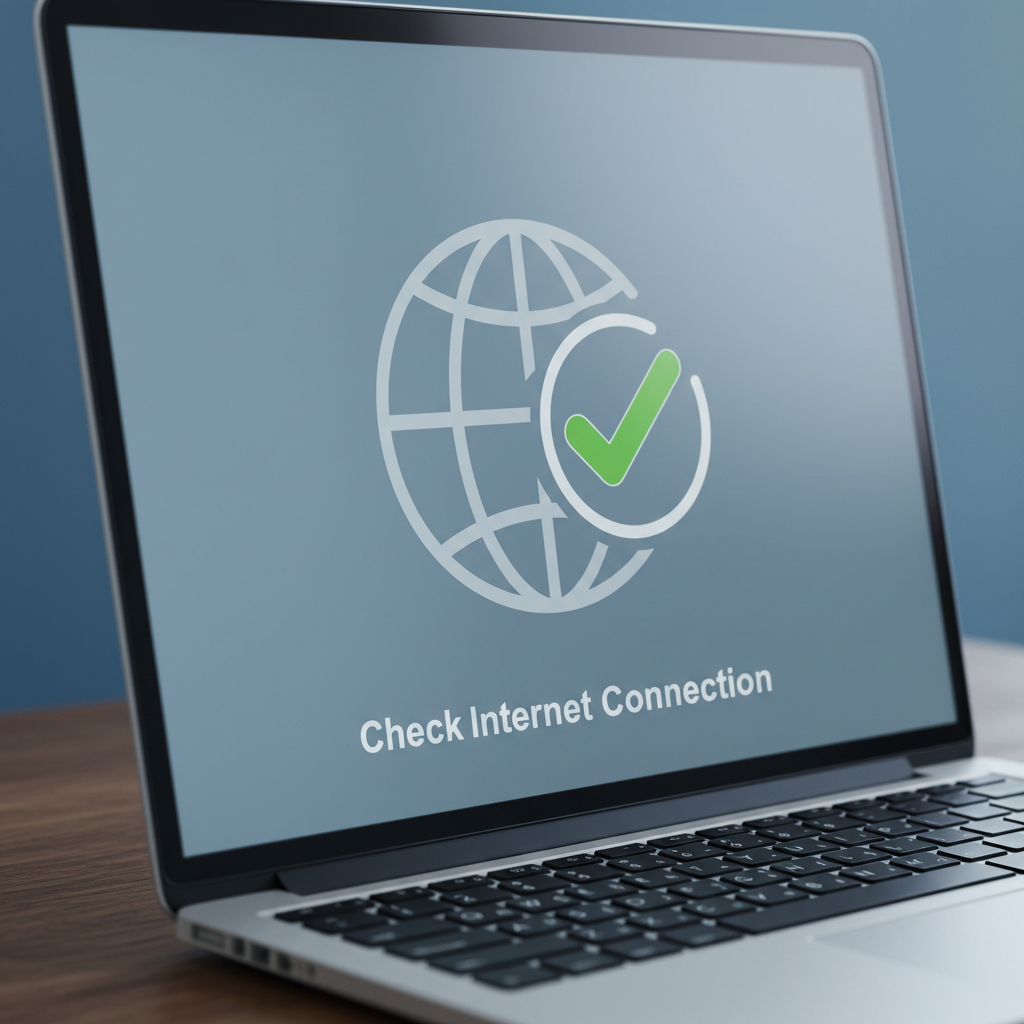
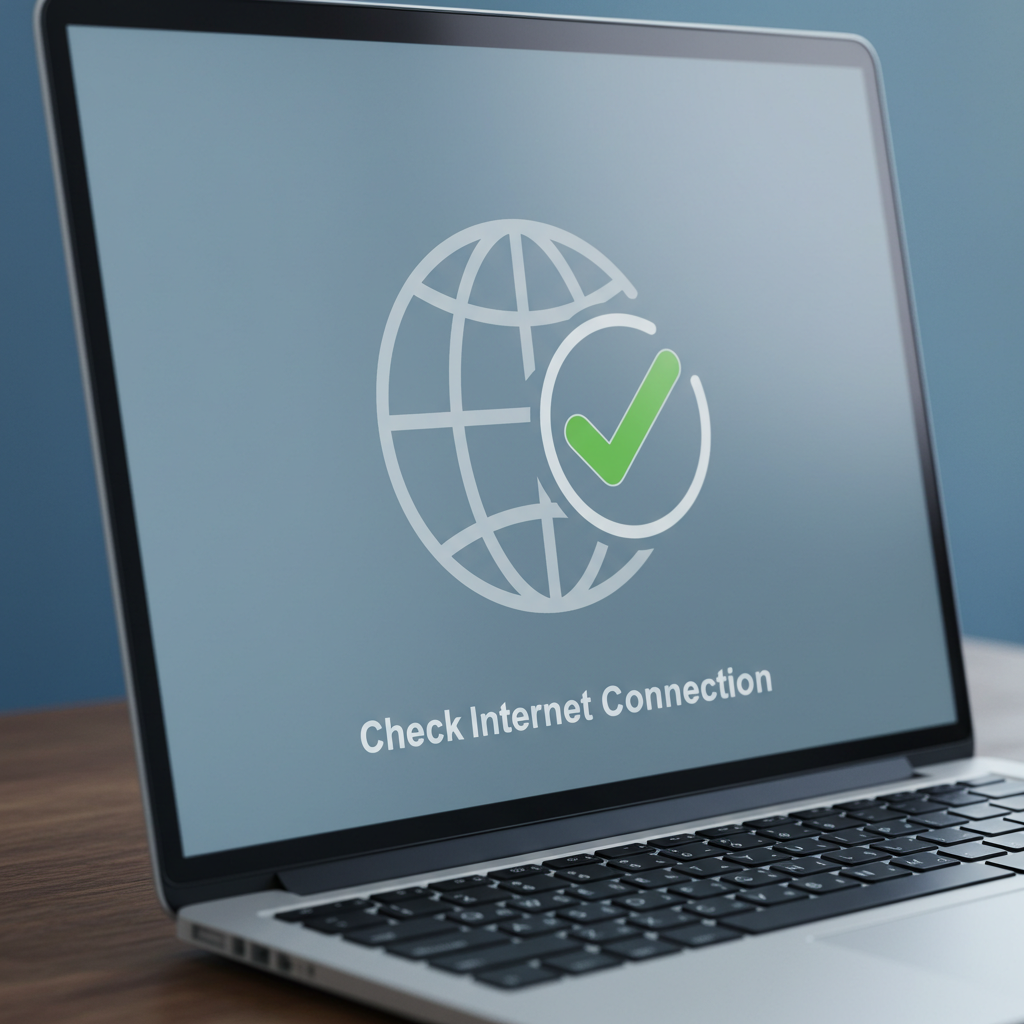
1. Check Your Internet Connection
This might sound simple, but make sure you’re connected to the internet. Try browsing a few websites to confirm.
What to Do:
-
Reboot your modem or router if necessary
-
Try switching from Wi-Fi to Ethernet or vice versa
-
If you’re using a VPN, disable it temporarily
2. Verify Date and Time Settings
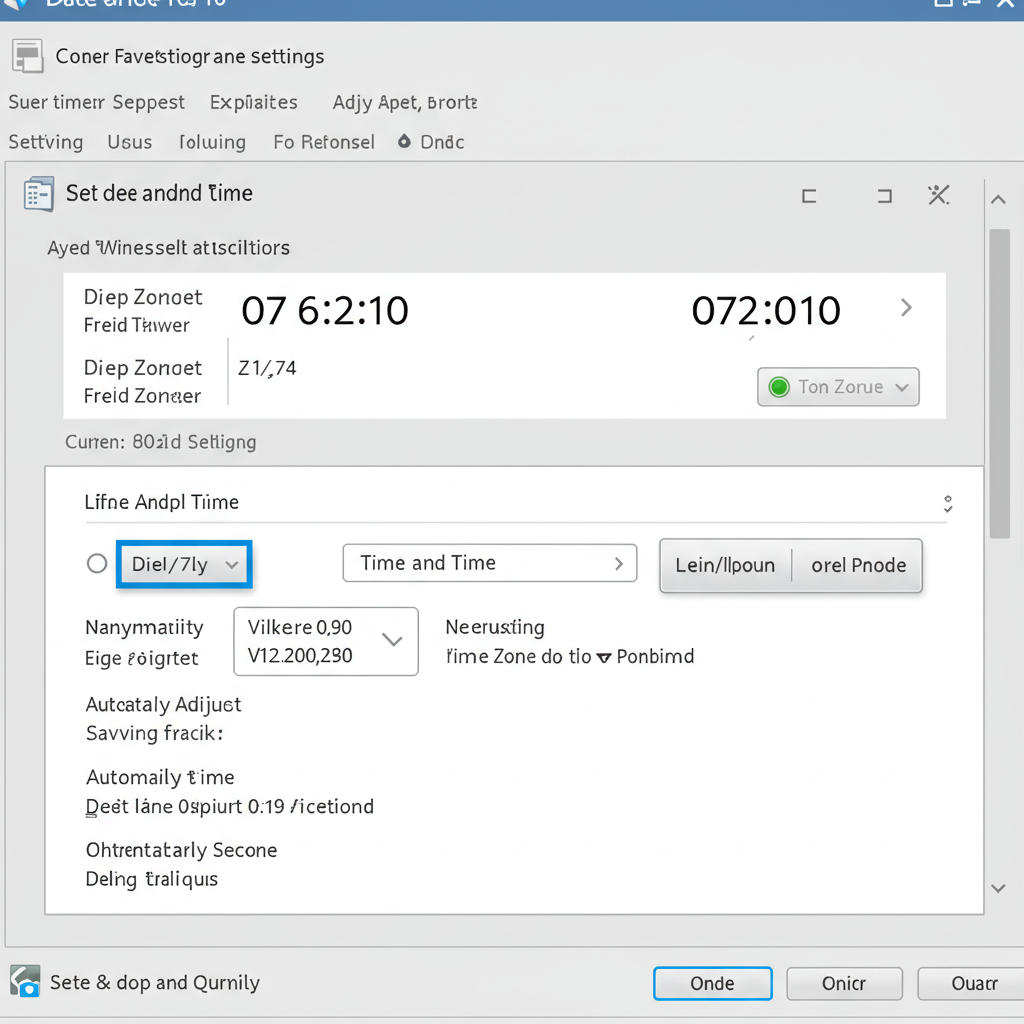
Incorrect date and time can block your system from contacting Microsoft’s servers.
Steps to Fix It:
-
Press Windows + I to open Settings
-
Go to Time & Language > Date & time
-
Enable Set time automatically and Set time zone automatically
-
Restart your PC and try activating again
3. Restart the Windows Activation Process
Sometimes, a quick restart of the activation service helps.
How to Restart Activation:
-
Press Windows + I to open Settings
-
Go to Update & Security > Activation
-
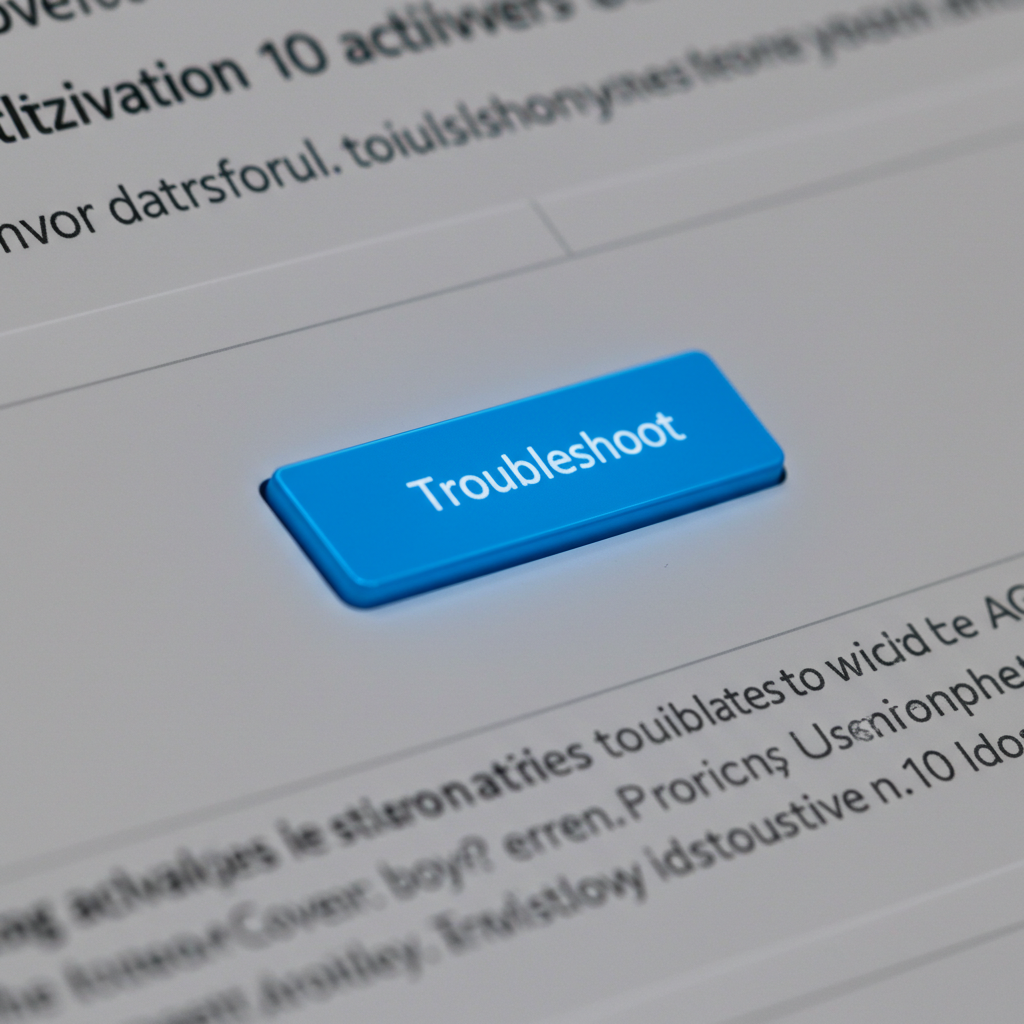
Click Troubleshoot under the error message
-
Follow the on-screen instructions
If you recently changed hardware, Windows might think it’s a new device. The troubleshooter will attempt to reactivate using your linked Microsoft account.
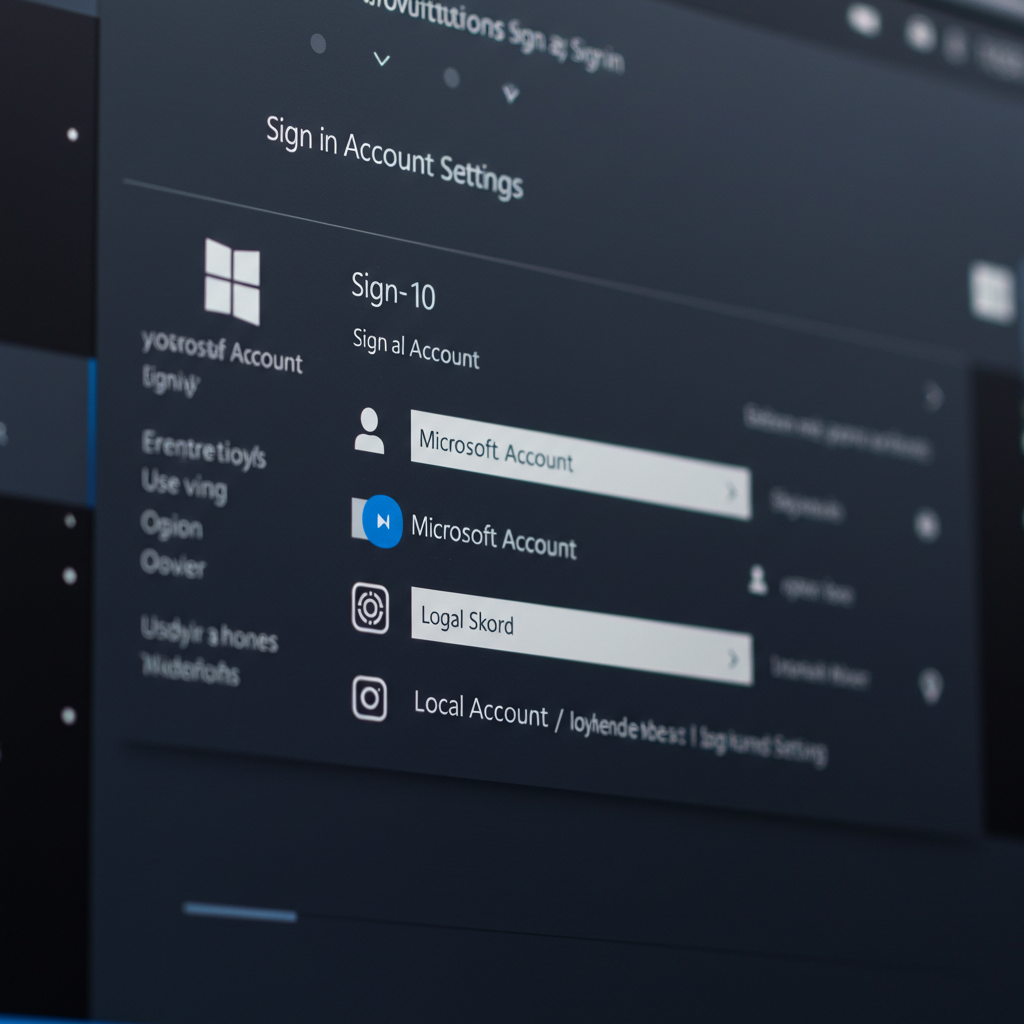
4. Sign in with Your Microsoft Account (if applicable)
If your Windows license is linked to your Microsoft account, make sure you’re signed in.
Steps:
-
Go to Settings > Accounts > Your info
-
Sign in with the same Microsoft account you used when first activating Windows
-
Go back to Activation and check if it recognizes the digital license
5. Run the Activation Troubleshooter
Windows includes a built-in tool to fix activation errors.
How to Run It:
-
Open Settings > Update & Security > Activation
-
If you see the error message, click Troubleshoot
-
Windows will try to detect and resolve the issue
This tool is especially helpful if you’ve upgraded your hardware or just reinstalled Windows.
6. Disable Proxy or VPN
Sometimes VPNs or proxy servers can block communication with Microsoft.
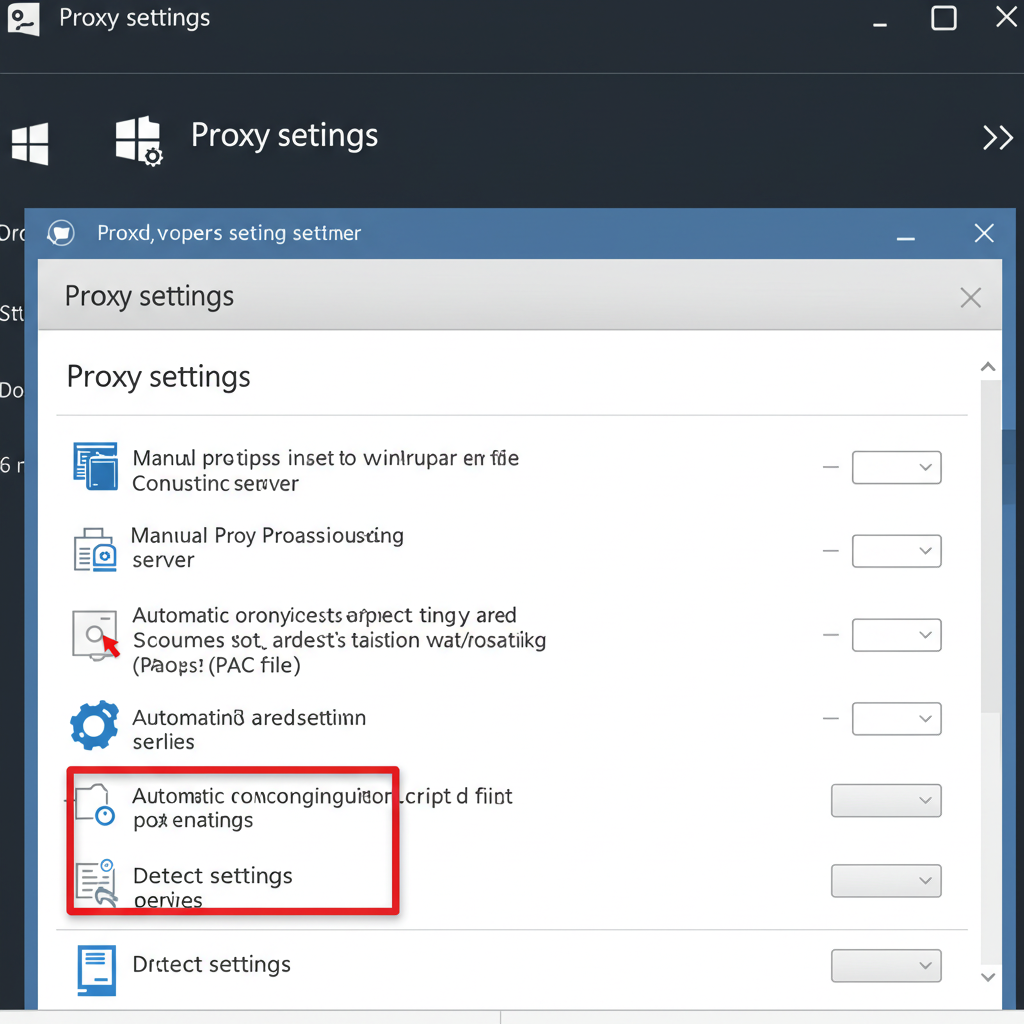
To Turn Off Proxy:
-
Open Settings > Network & Internet > Proxy
-
Under Manual proxy setup, turn everything Off
-
Restart your system and try again
To Disable VPN:
If you’re using a third-party VPN service, disconnect it and exit the program temporarily.
7. Temporarily Disable Firewall or Antivirus
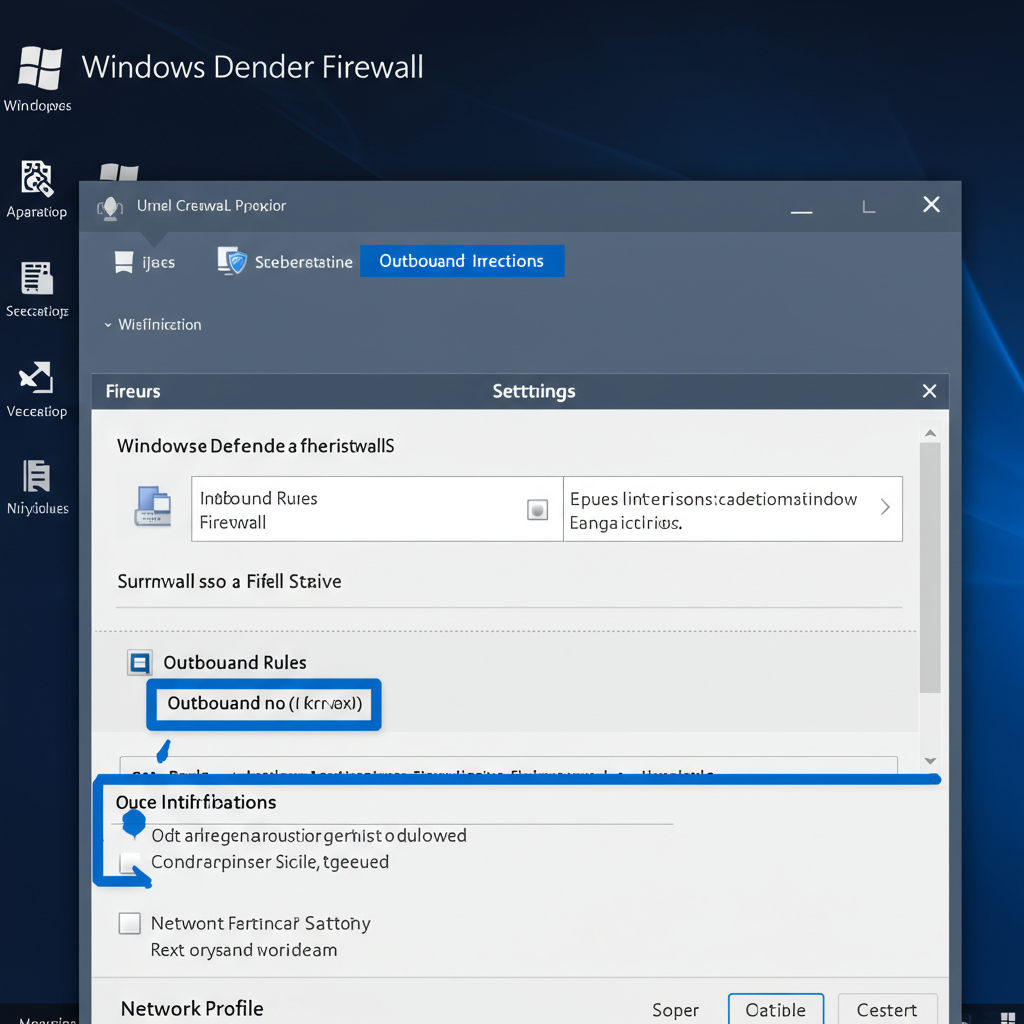
Your firewall or third-party antivirus might block Windows from reaching activation servers.
Steps to Test:
-
Press Windows + R, type
control, and press Enter -
Go to System and Security > Windows Defender Firewall
-
Click Turn Windows Defender Firewall on or off
-
Temporarily turn it off for both private and public networks
-
Try activating again
Be sure to turn your firewall back on after testing.
8. Contact Microsoft Activation Support
If nothing works and you have a valid key, contact Microsoft support directly.
Ways to Reach Them:
-
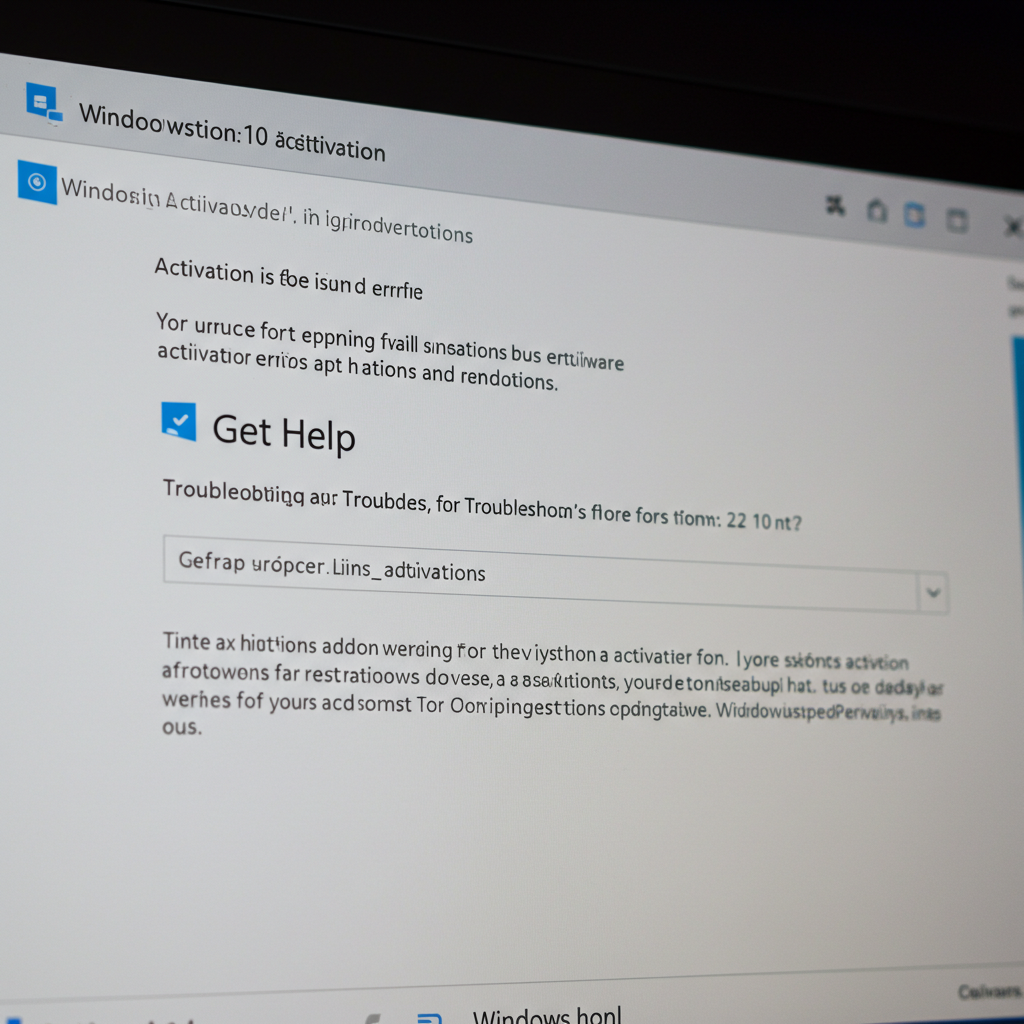
Go to Settings > Update & Security > Activation and click Get help
-
Call Microsoft Activation Support (you can find the number online for your region)
-
Use the Get Help app built into Windows 10/11
They may activate your system manually or help resolve hardware-related license issues.
9. Use the Command Prompt to Force Activation
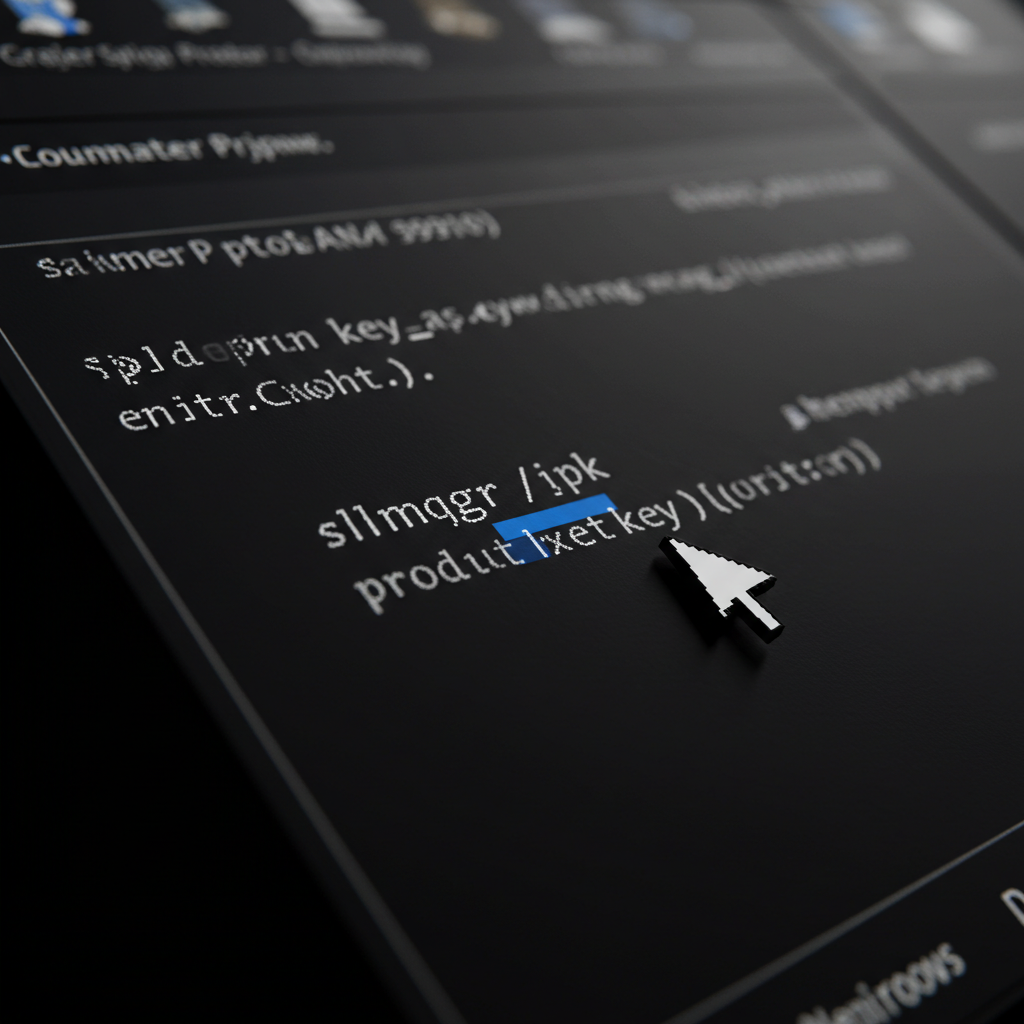
If you’re comfortable with command-line tools, you can use the SLMGR command.
Steps:
-
Press Windows + S, type cmd, right-click and choose Run as administrator
-
Enter the following command to install your product key:
(Replace Xs with your actual product key)
-
Then type this command to try activation:
-
Wait a few moments to see if activation is successful
10. Wait and Try Again Later
Sometimes the problem isn’t you—it’s Microsoft.
Their servers might be experiencing temporary downtime or congestion, especially after major updates or regional outages. Try waiting a few hours and checking again.
Conclusion
Running into the “Unable to reach Windows activation servers” error is annoying, but usually solvable. Whether the cause is a date mismatch, network problem, hardware change, or just a hiccup on Microsoft’s end, the steps above should guide you back to a fully activated Windows system.
Remember, if you’ve recently replaced a motherboard or made major hardware changes, linking your Windows license to a Microsoft account beforehand makes reactivation much easier.