


Fixed: Second Monitor Not Recognized in Windows 10
A second monitor can make your workflow more productive and enjoyable—whether you’re editing, designing, multitasking, or just spreading out your workspace. But sometimes Windows 10 doesn’t cooperate, and your second monitor just won’t show up.
If you’re staring at a blank screen or Windows 10 keeps insisting there’s only one monitor, don’t worry. This article will guide you through the most effective ways to fix the issue.
What Causes Windows 10 to Miss a Second Monitor?
There are several possible reasons, including:
-
Outdated or corrupted display drivers
-
Incorrect display settings
-
Hardware connection issues
-
Faulty cables or ports
-
Windows not recognizing the second display
-
Problems with display adapters (HDMI, DisplayPort, USB-C, etc.)
Let’s walk through step-by-step fixes to solve the problem.
Step-by-Step Solutions to Fix Second Monitor Not Detected
1. Check Physical Connections First
Before diving into software, double-check all the physical connections.
Things to verify:
-
Make sure both monitors are powered on.
-
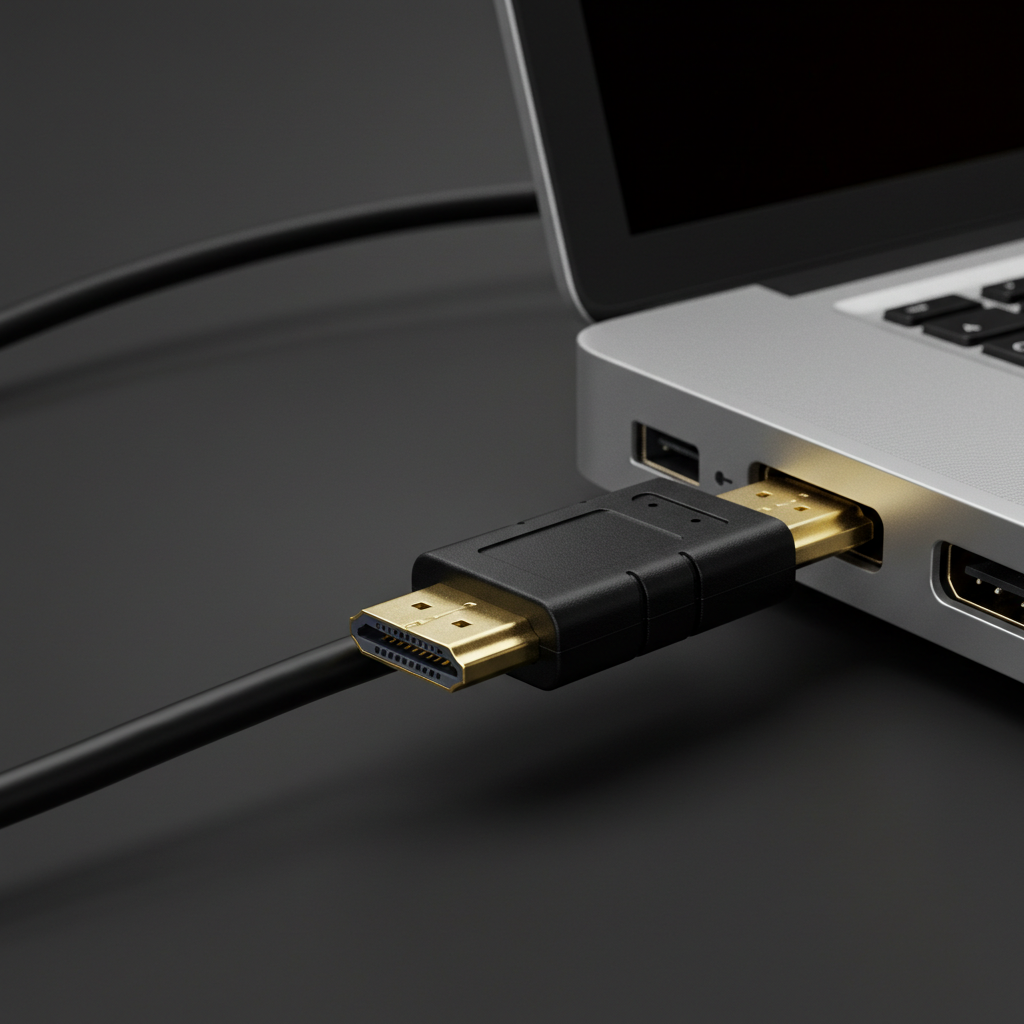
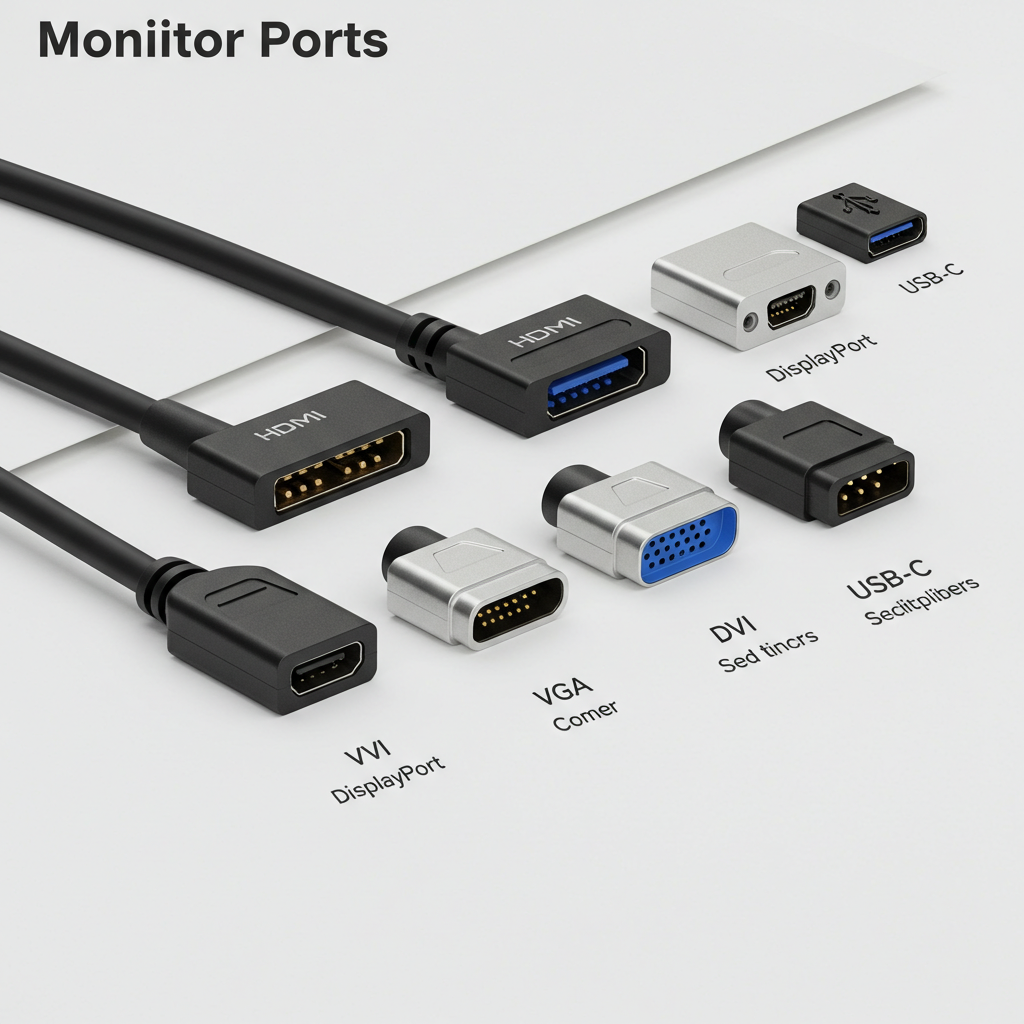
Confirm that cables (HDMI, DisplayPort, VGA, etc.) are fully inserted into the ports.
-
Try switching cables to rule out a faulty one.
-
Test the second monitor on another computer to ensure it works.
-
If using a docking station, check that it’s working properly.
2. Use the “Detect” Button in Display Settings
Windows might not automatically detect the second display. You can manually trigger detection.
How to Manually Detect a Monitor:
-
Press Windows + I to open Settings.
-
Go to System > Display.
-
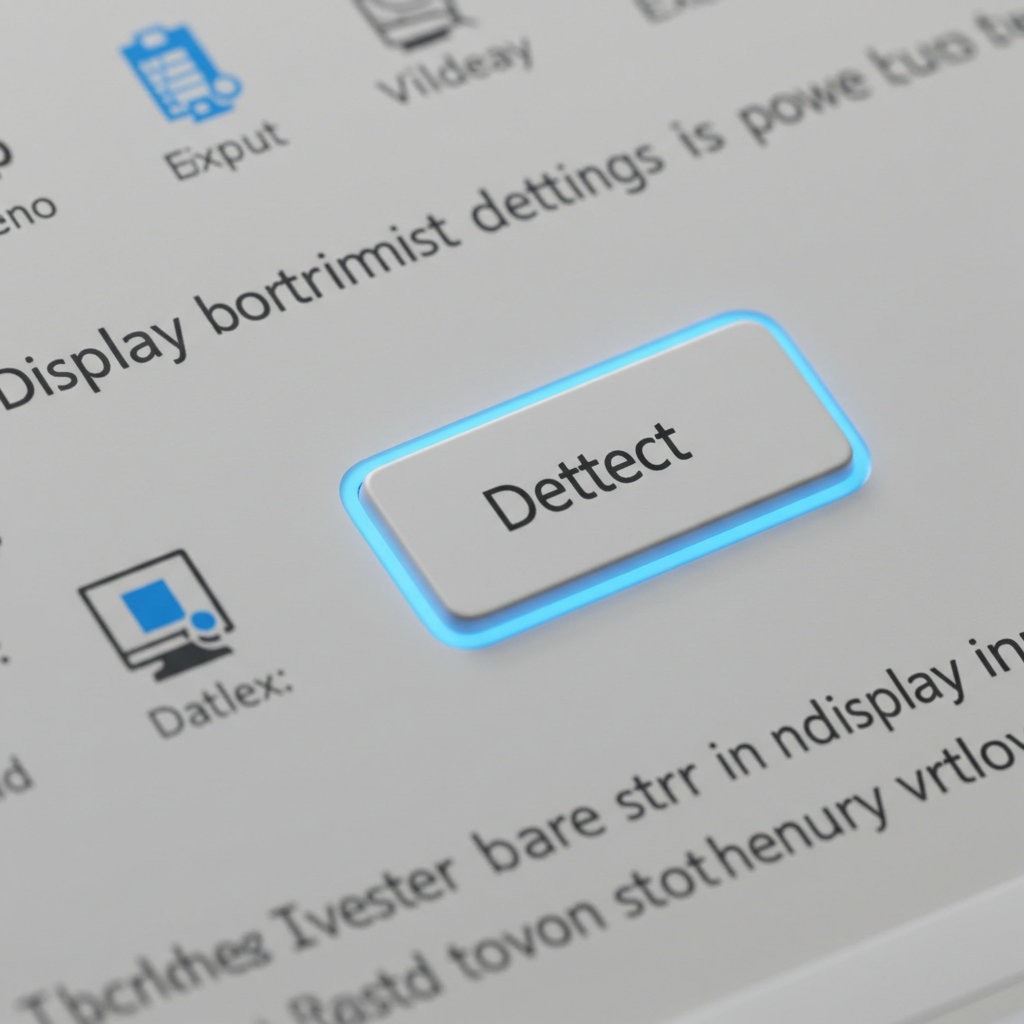
Scroll down and click the Detect button under Multiple displays.
-
If Windows recognizes it, configure your second monitor here.
3. Use Keyboard Shortcuts to Extend Display
Sometimes, Windows fails to switch to extended mode automatically. Try using a shortcut.
Steps:
-
Press Windows + P to open the Project menu.
-
Choose Extend or Duplicate, depending on your needs.
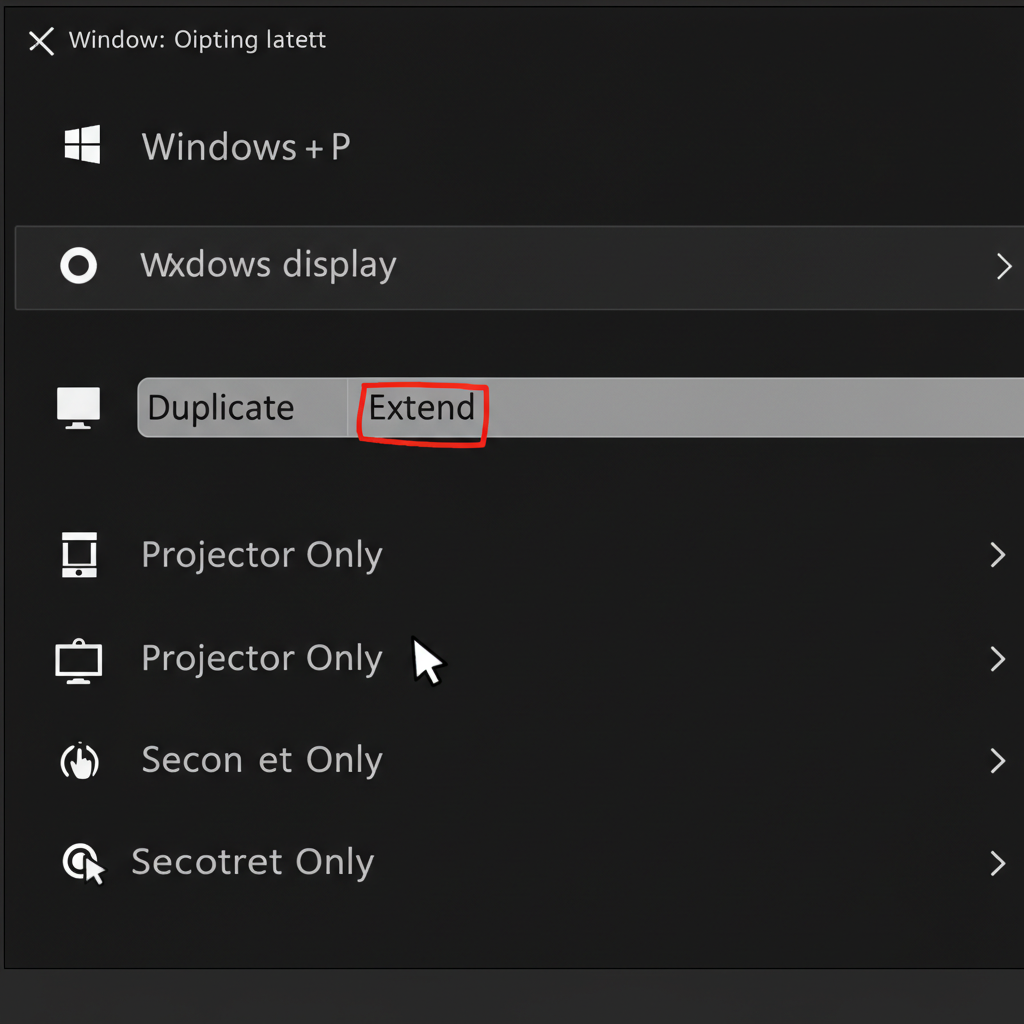
If nothing happens, Windows might not be detecting the monitor at all—continue to the next step.
4. Update Your Display Drivers
Outdated or corrupted graphics drivers often cause this problem.
How to Update Manually:
-
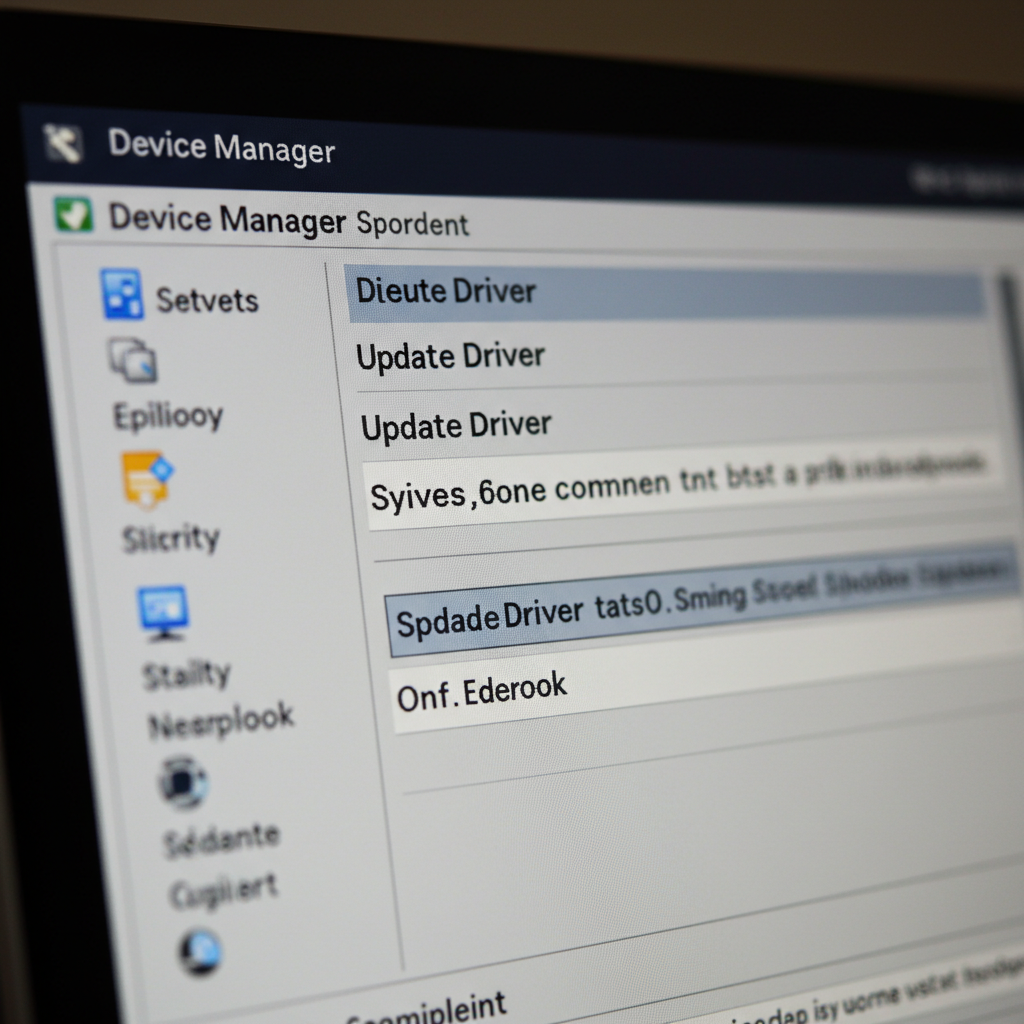
Right-click on the Start button and choose Device Manager.
-
Expand the Display adapters section.
-
Right-click your graphics card and select Update driver.
-
Choose Search automatically for updated driver software.
-
Restart your PC after installation.
If Windows doesn’t find a new driver, check your GPU manufacturer’s website (NVIDIA, AMD, Intel) for the latest version.
5. Roll Back the Display Driver (if it recently updated)
If the problem started after a driver update, rolling it back might help.
Steps to Roll Back a Driver:
-
Open Device Manager.
-
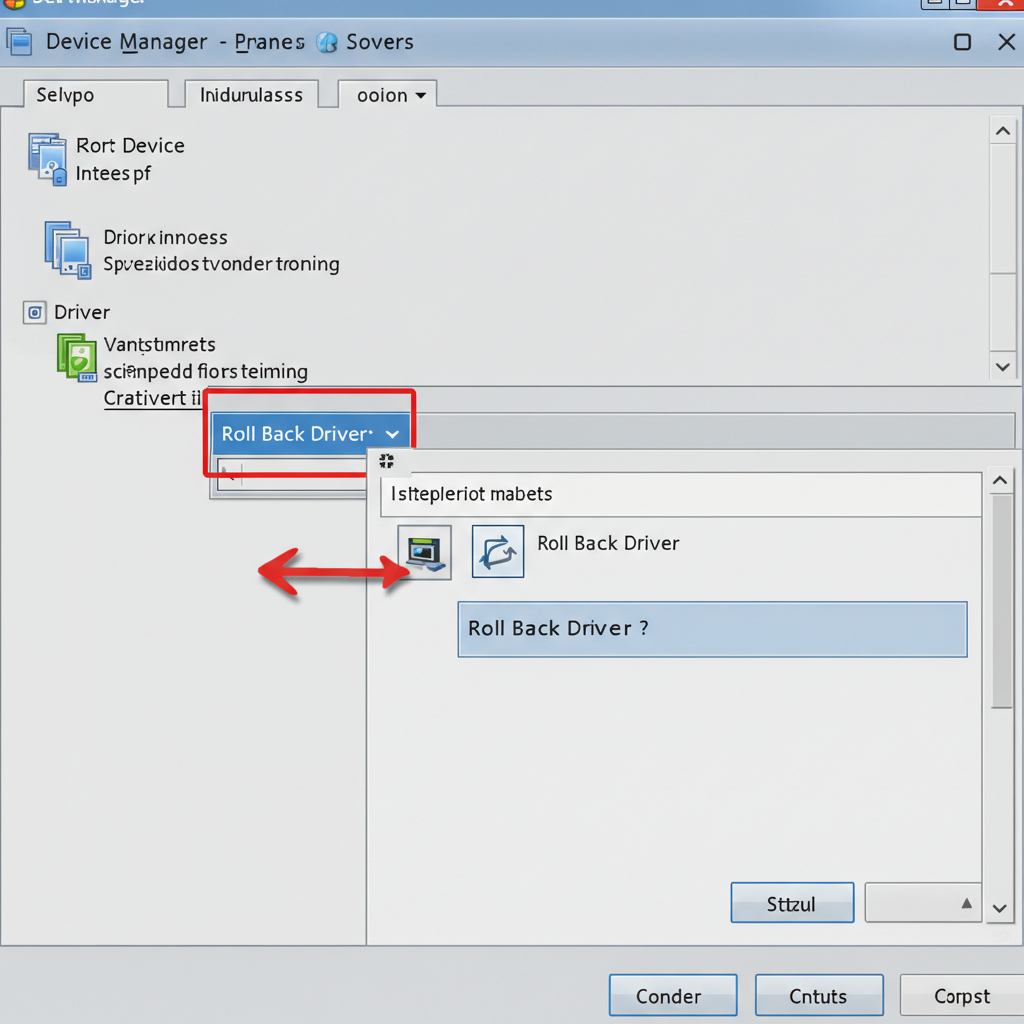
Right-click on your display adapter and select Properties.
-
Go to the Driver tab and click Roll Back Driver.
-
Follow the instructions, then reboot.
6. Set the Monitor Manually via Display Settings
Sometimes Windows recognizes the monitor but doesn’t display anything on it.
How to Assign It:
-
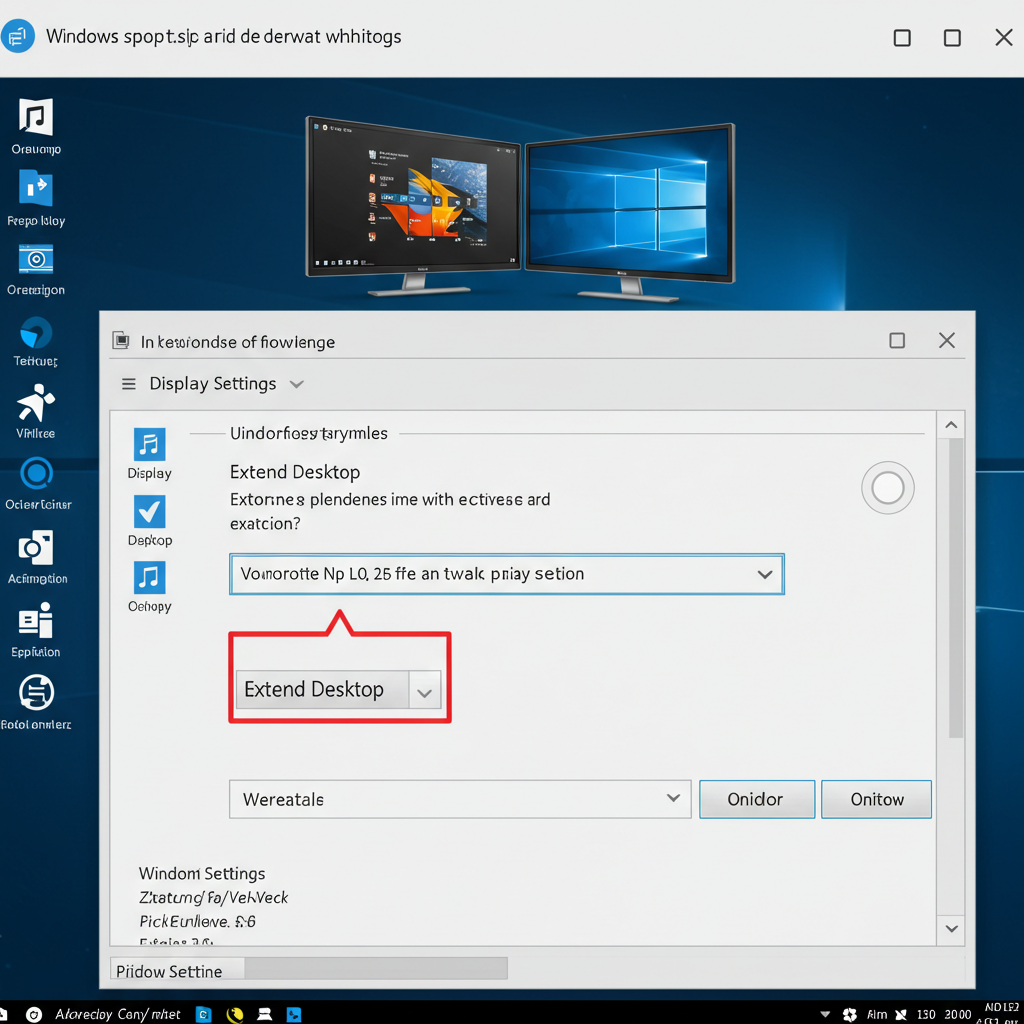
Go to Settings > System > Display.
-
You’ll see numbered boxes for monitors (e.g., 1 and 2).
-
If you see both monitors, click the second one and choose Extend desktop to this display from the dropdown menu.
-
Click Apply.
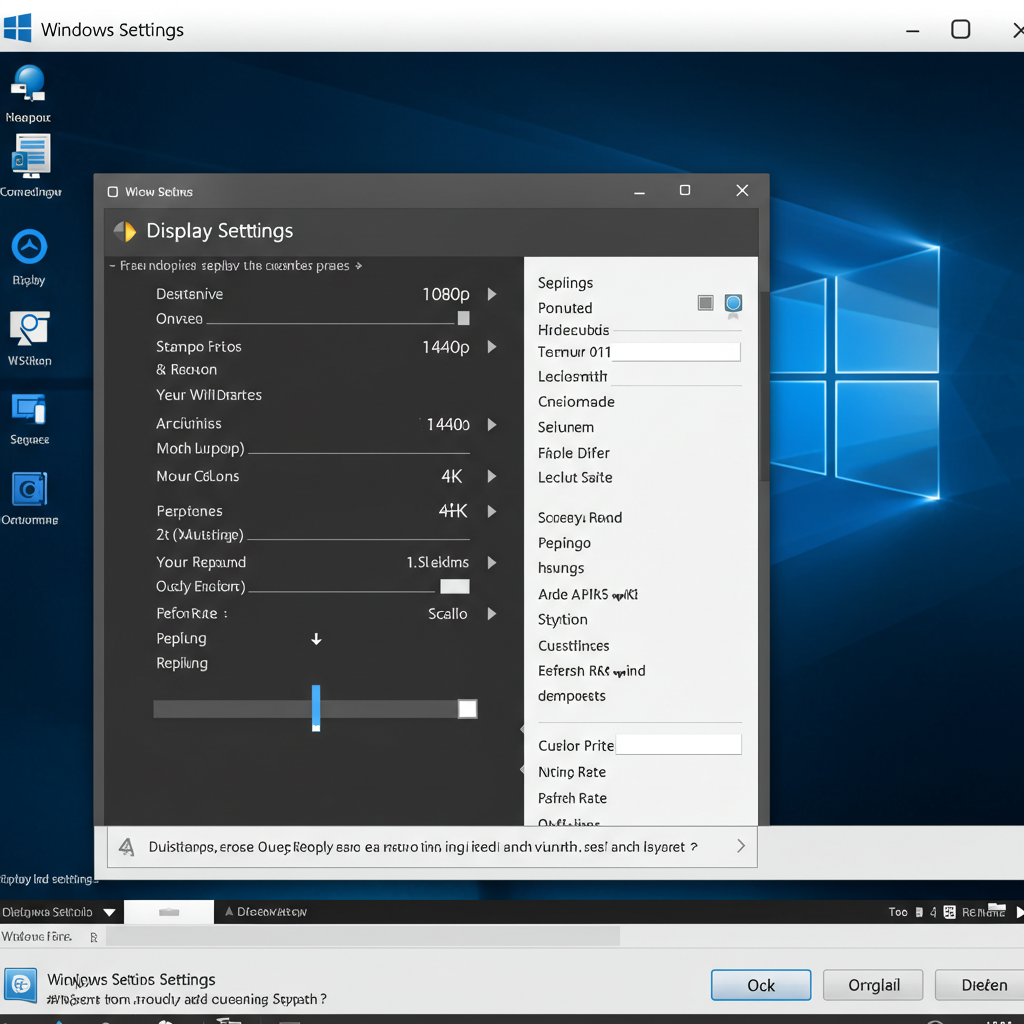
7. Check Your Display Resolution and Refresh Rate
If the second monitor is supported but shows a blank screen, the resolution or refresh rate might be too high.
Adjust Resolution:
-
Open Display settings.
-
Click on the second monitor box.
-
Scroll to Display resolution and choose a supported setting.
-
Click Advanced display settings and try lowering the refresh rate if needed.
8. Try the Monitor on Another PC or Port
To rule out hardware issues:
-
Plug the second monitor into a different port on the same PC.
-
Try a different adapter if you’re using USB-C, DVI, or DisplayPort-to-HDMI converters.
-
Test the monitor on a different computer to confirm it’s working.
9. Use Device Manager to Scan for Hardware Changes
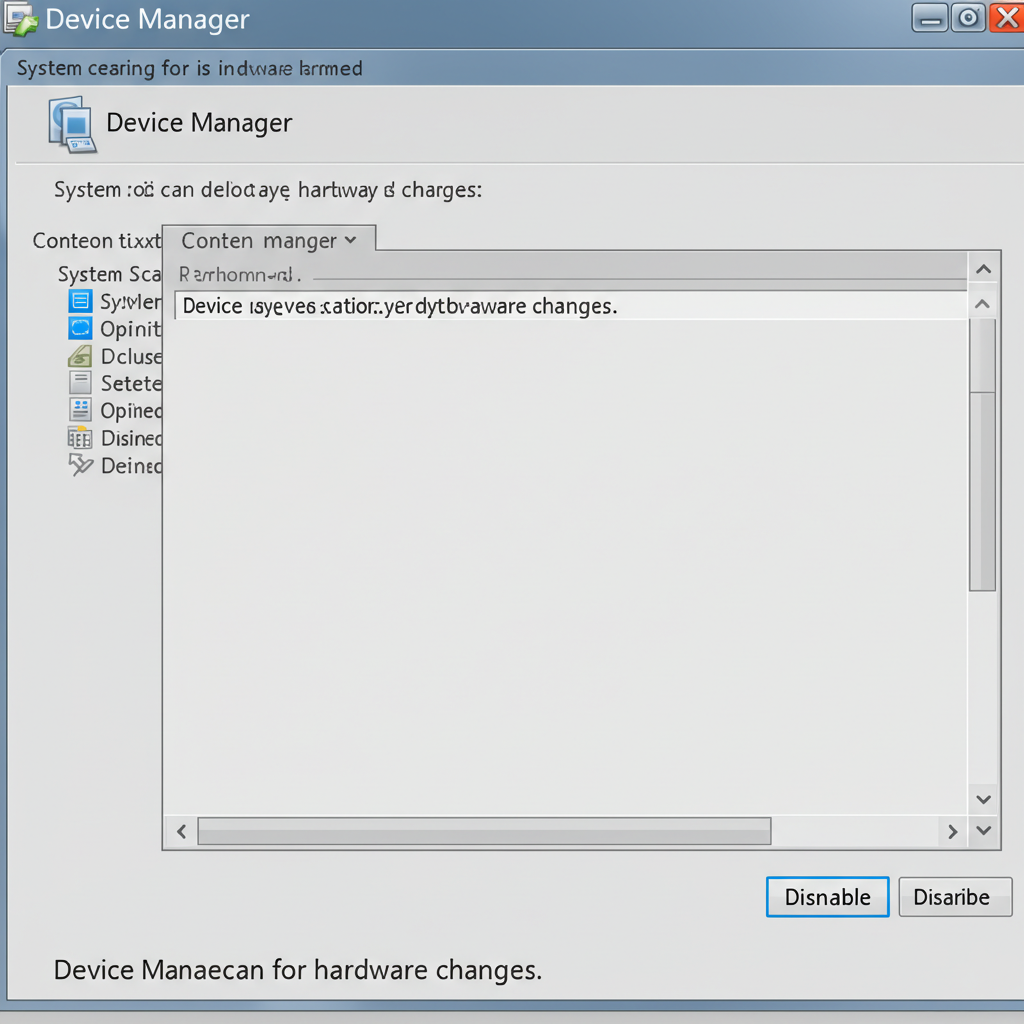
If Windows doesn’t recognize newly connected devices, this might help.
Steps:
-
Open Device Manager.
-
Click on Action at the top.
-
Select Scan for hardware changes.
-
See if the second monitor appears under Display adapters or Monitors.
10. Reinstall the Display Adapter Driver
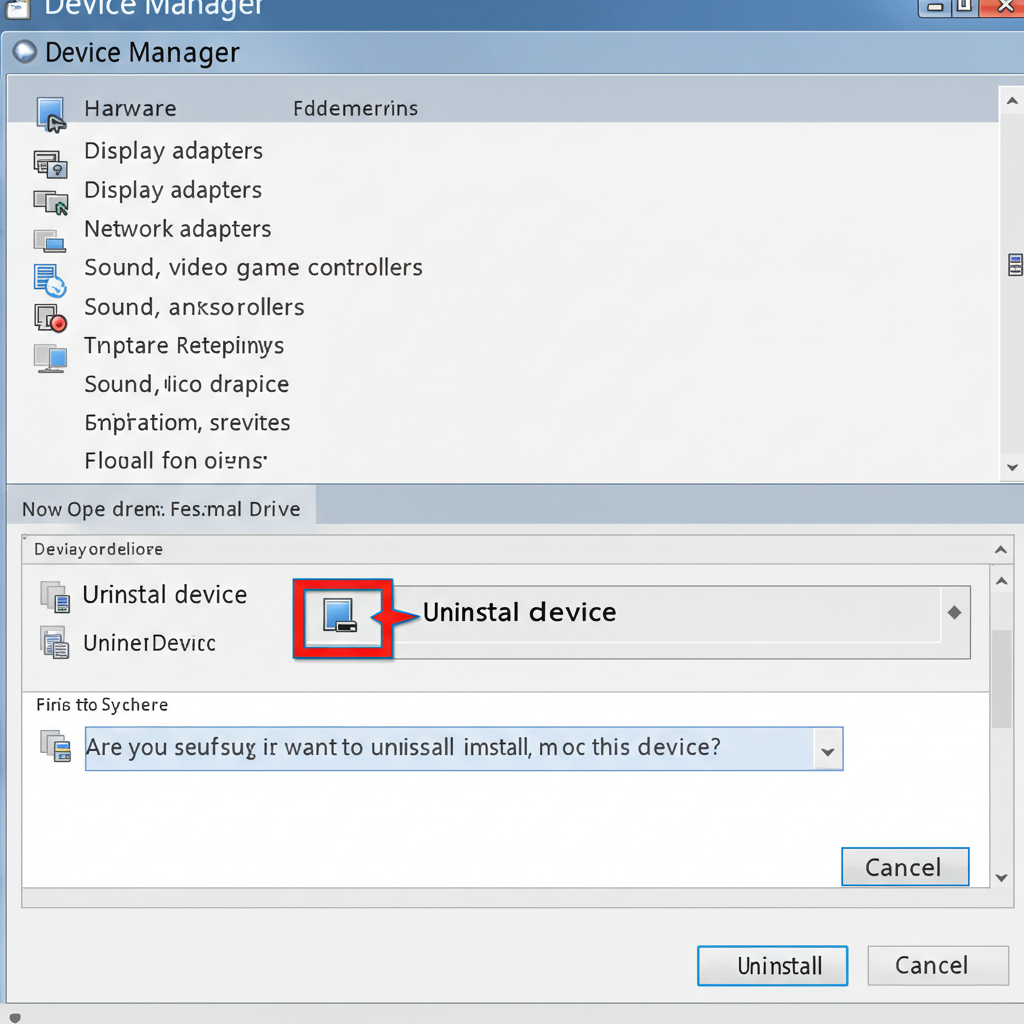
If updating or rolling back doesn’t work, try reinstalling completely.
How to Reinstall:
-
Open Device Manager.
-
Right-click the display adapter and choose Uninstall device.
-
Check the box to Delete the driver software, then confirm.
-
Restart your PC. Windows should automatically reinstall the driver.
11. Check for Windows Updates
Some display issues get resolved through system updates.
Steps:
-
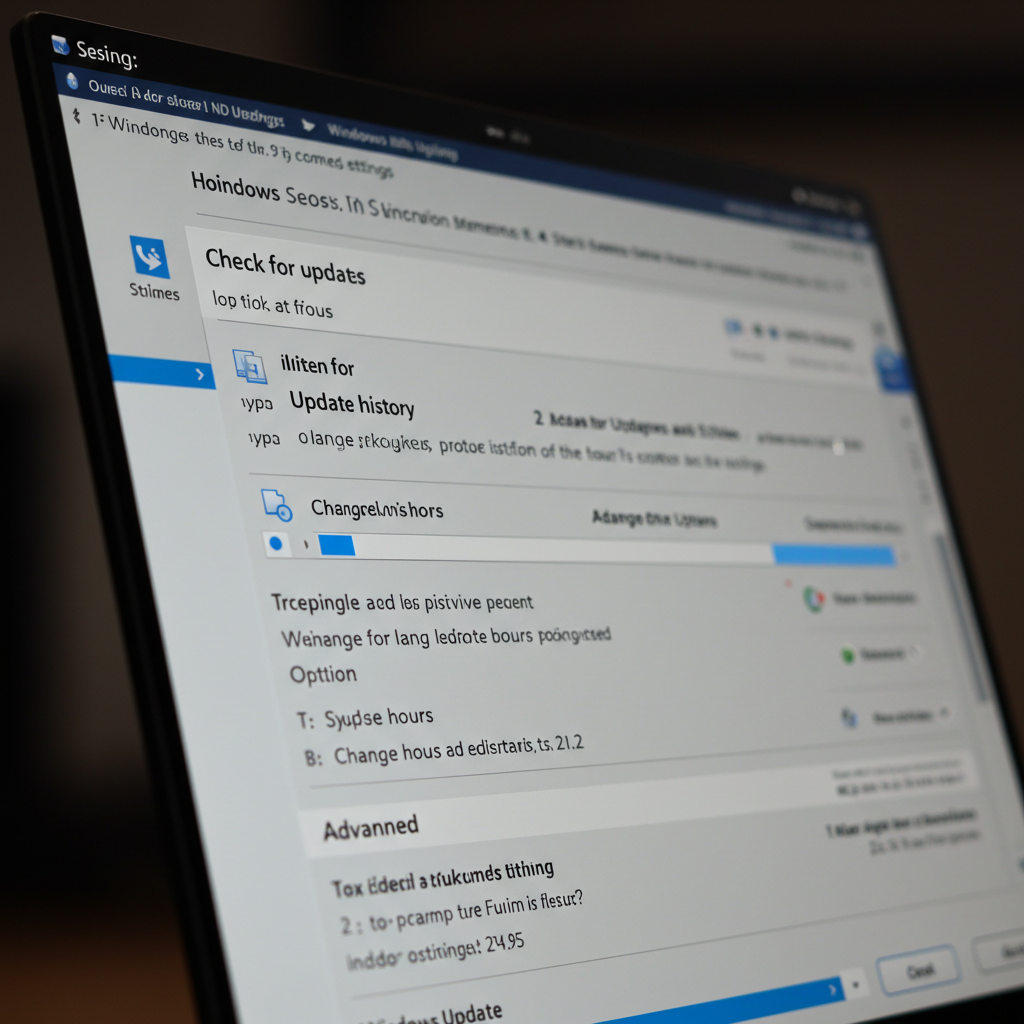
Go to Settings > Update & Security > Windows Update.
-
Click Check for updates.
-
Install all available updates and reboot.
12. BIOS and Firmware Update (Advanced)
In rare cases, outdated BIOS or firmware might prevent correct detection.
⚠️ Only update BIOS if you’re confident or with help from support staff. It can be risky if interrupted.
When Nothing Works: Try a System Restore or Reset
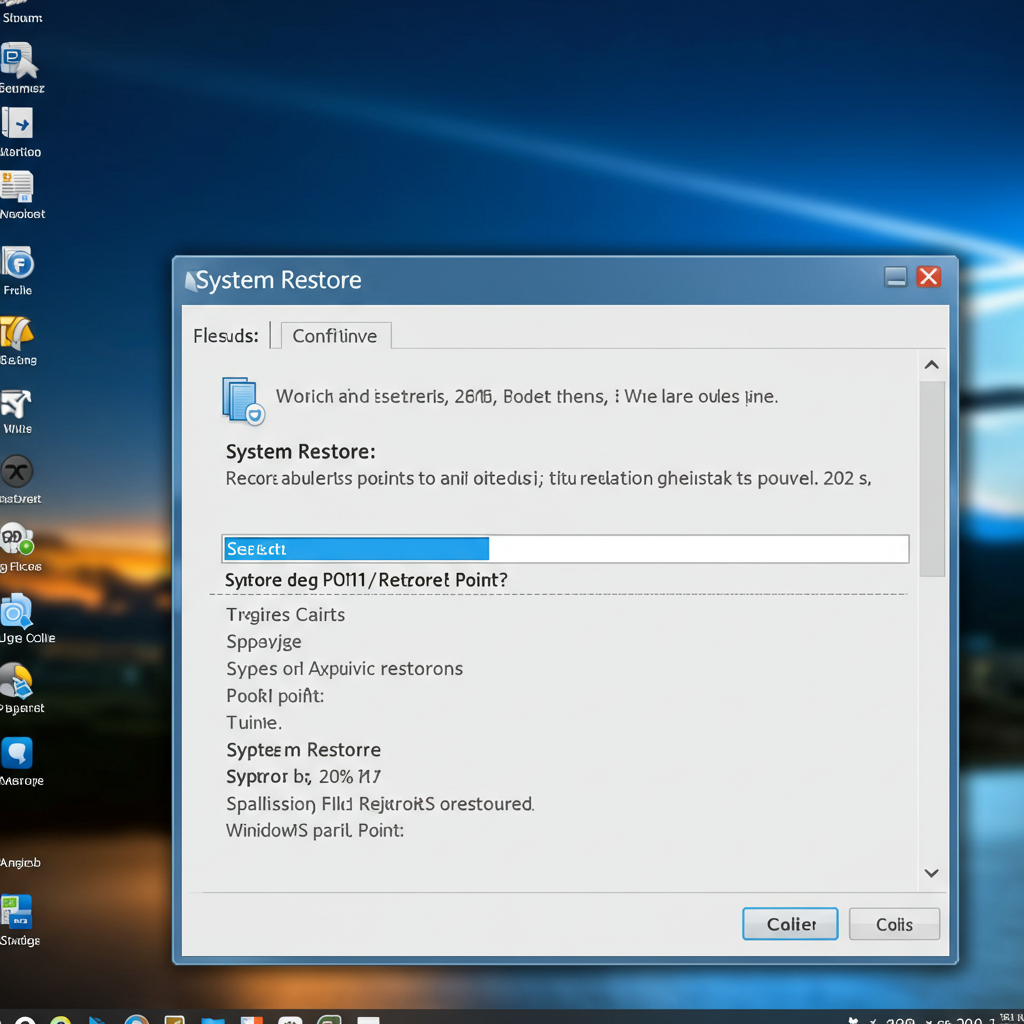
If the issue started recently and none of the steps helped, consider using System Restore to return to a point when both monitors were working.
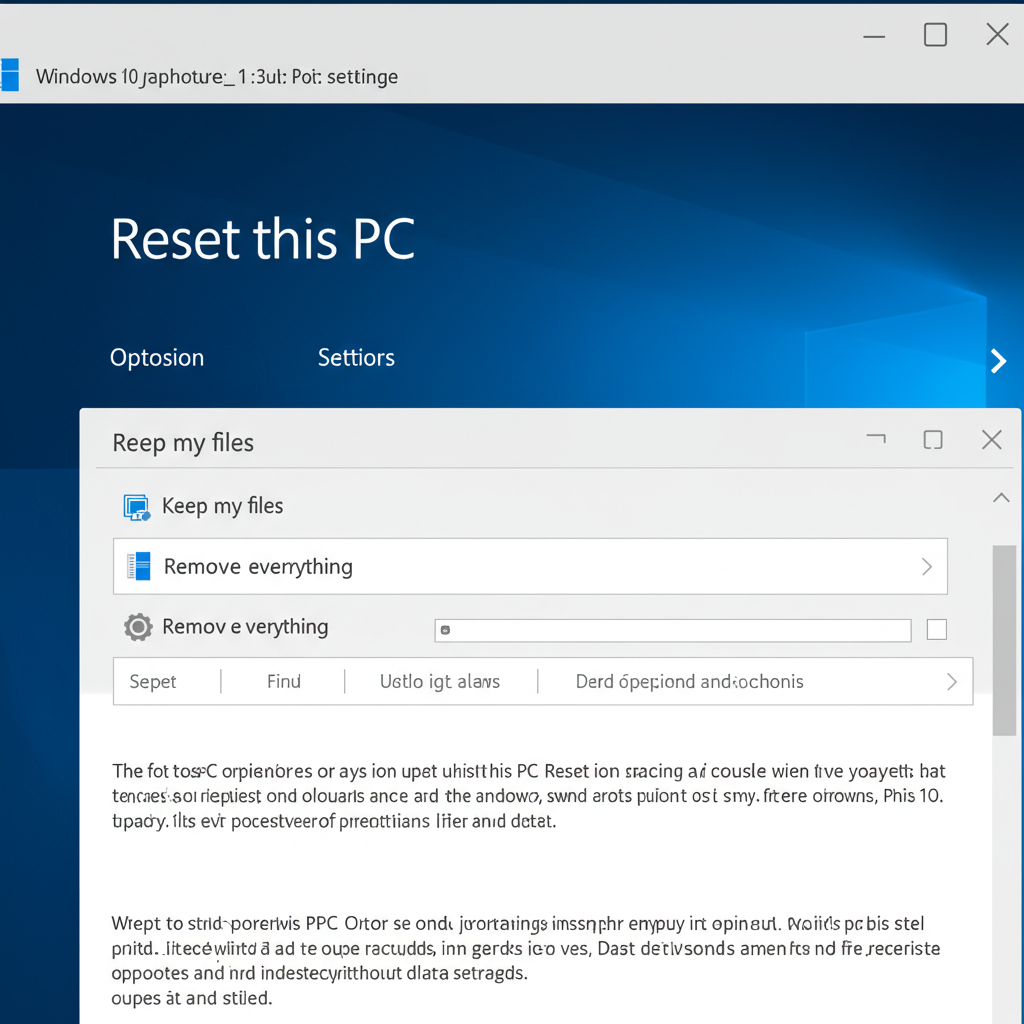
Or, as a last resort, you can reset Windows (keeping your files) under Settings > Recovery.
Final Thoughts
A second monitor setup should be simple, but sometimes Windows 10 has trouble detecting it. Most of the time, the issue is caused by a bad cable, outdated driver, or settings glitch—and the solutions above will fix it.
Take it step-by-step, and you’ll likely have both screens working in no time. If not, there may be a deeper hardware or graphics card issue requiring professional assistance.