


Fixing Windows Driver Foundation High CPU Problem on Windows
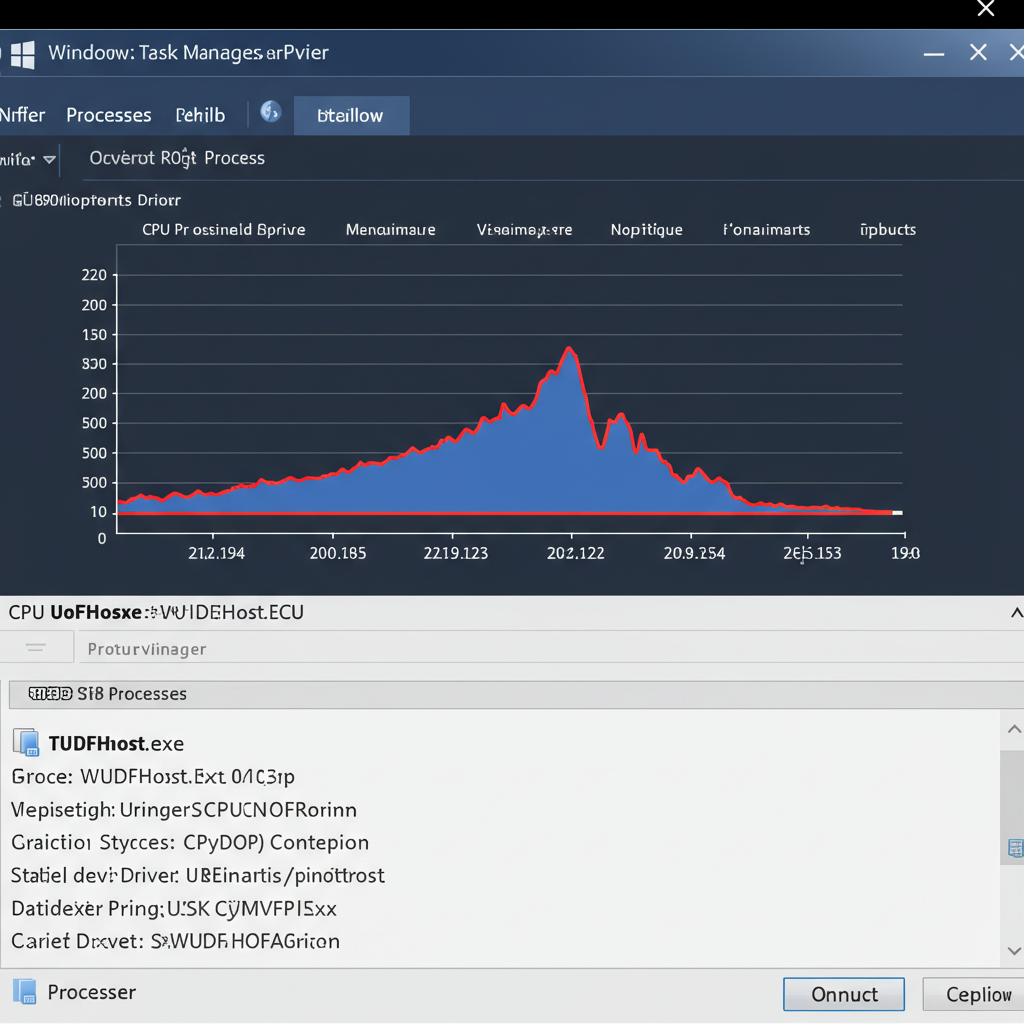
When your Windows computer suddenly slows down, the fan kicks into overdrive, or everything becomes unresponsive, you might check Task Manager only to find Windows Driver Foundation (WDF) eating up a huge chunk of your CPU. This article will help you understand what WDF is, why it might be using high CPU, and most importantly—how to fix it.
What Is Windows Driver Foundation (WDF)?
Windows Driver Foundation, also known as WDF or WUDFHost.exe, is a system service responsible for allowing drivers to run in user mode rather than kernel mode. It increases system stability by isolating faulty drivers from the core of the operating system. So, in simple terms, it’s a good thing—it helps your hardware communicate with Windows without crashing your whole system if something goes wrong.
However, when WDF begins consuming an excessive amount of CPU, it’s often a sign that something isn’t working as intended—most likely a faulty or outdated driver.
Symptoms of WDF High CPU Usage
-
The computer runs hot or the fan runs continuously
-
System performance slows down
-
CPU usage spikes to 50% or more, even when idle
-
Laptop battery drains much faster than usual
-
WUDFHost.exe appears at the top of the Task Manager
Common Causes
-
Outdated or incompatible drivers
-
USB-related driver issues (especially wireless adapters, printers, etc.)
-
System file corruption
-
Power settings misconfiguration
-
Software conflicts with hardware drivers
Step-by-Step Solutions to Fix Windows Driver Foundation High CPU
1. Restart Your Computer
Let’s start with the obvious. Reboot your computer. Sometimes, a temporary driver glitch can cause WDF to spike CPU usage.
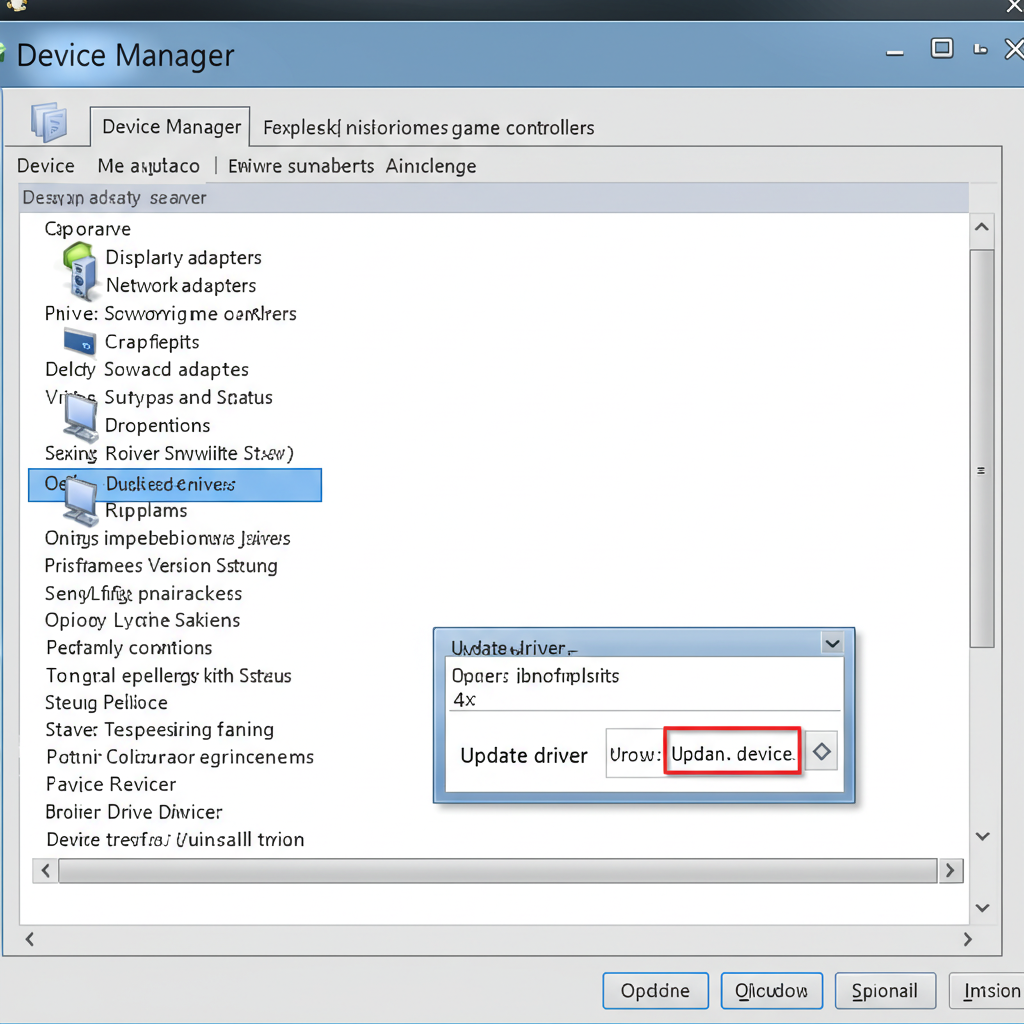
2. Update All Device Drivers
Faulty or outdated drivers are the most common culprit. Here’s how to update them manually:
Step-by-Step:
-
Press Windows + X and select Device Manager.
-
Go through the categories and right-click on the devices, especially under Network adapters, Universal Serial Bus controllers, and Display adapters.
-
Choose Update driver > Search automatically for drivers.
-
Restart your PC after updating.
Alternatively, you can visit the official website of your laptop or motherboard manufacturer to download the latest drivers.
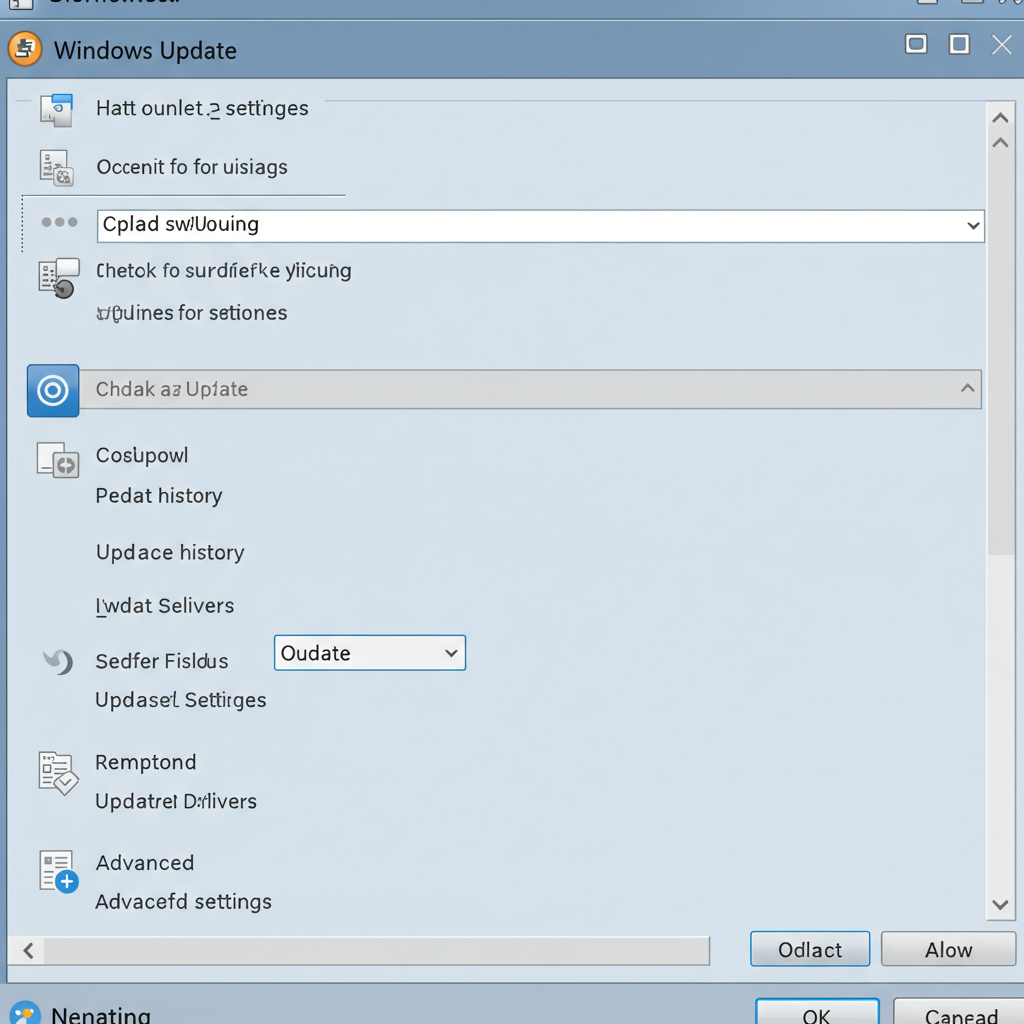
3. Use Windows Update
Some driver updates are distributed through Windows Update.
How to Check for Updates:
-
Press Windows + I to open Settings.
-
Click Windows Update from the left pane.
-
Click Check for updates and install everything available.
-
Restart your system.
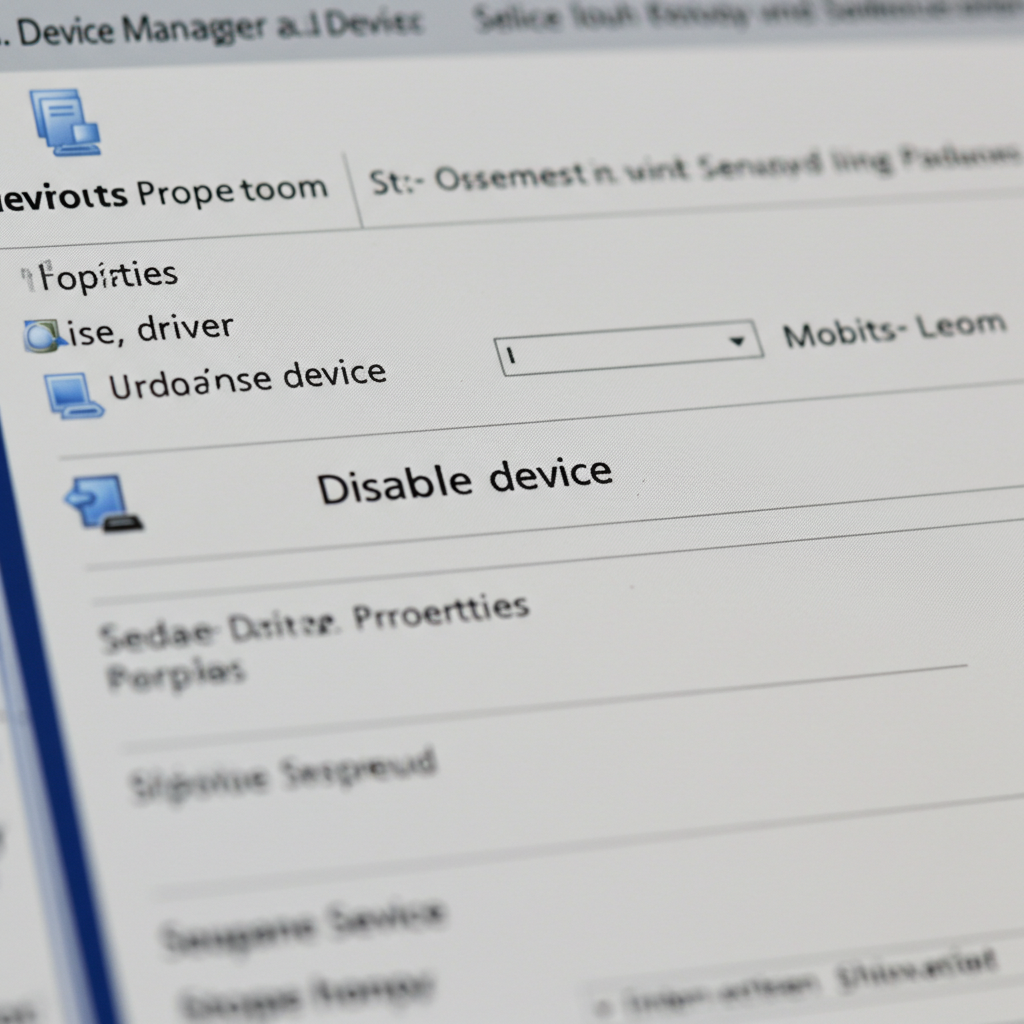
4. Disable Unused Hardware Devices
If you’re not using certain devices, disabling them can help reduce CPU usage.
How to Disable a Device:
-
Open Device Manager.
-
Right-click any unused device (like an old printer, Bluetooth adapter, or Wi-Fi dongle).
-
Choose Disable device.
-
Monitor CPU usage afterward.
5. Run the System File Checker (SFC) and DISM Tools
Corrupted system files can cause services like WDF to misbehave.
Steps to Run SFC and DISM:
-
Press Start, type cmd, right-click on Command Prompt, and choose Run as administrator.
-
Type the following command and press Enter:
-
After the scan completes, run:
-
Restart your computer when both scans are complete.
6. Change Your Power Settings
Sometimes, high-performance mode or certain power settings can cause CPU usage to spike.
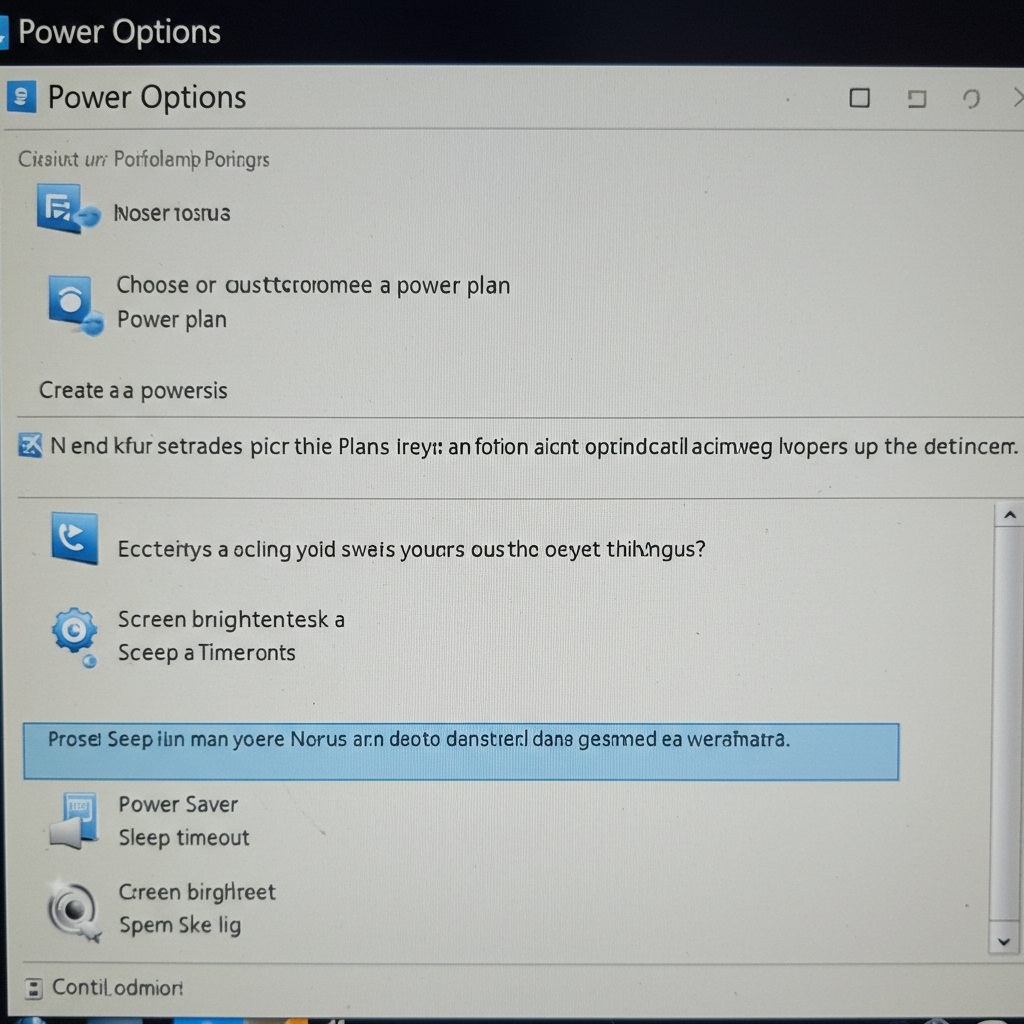
Steps to Adjust Power Settings:
-
Open Control Panel > Power Options.
-
Switch to Balanced if you’re on High performance.
-
Click on Change plan settings next to your current plan.
-
Click on Change advanced power settings.
-
Expand Processor power management, then Maximum processor state.
-
Set both On battery and Plugged in to 80% or 90%.
-
Click Apply and OK.

7. Check for Malware
Sometimes malicious software disguises itself as a system process like WUDFHost.exe.
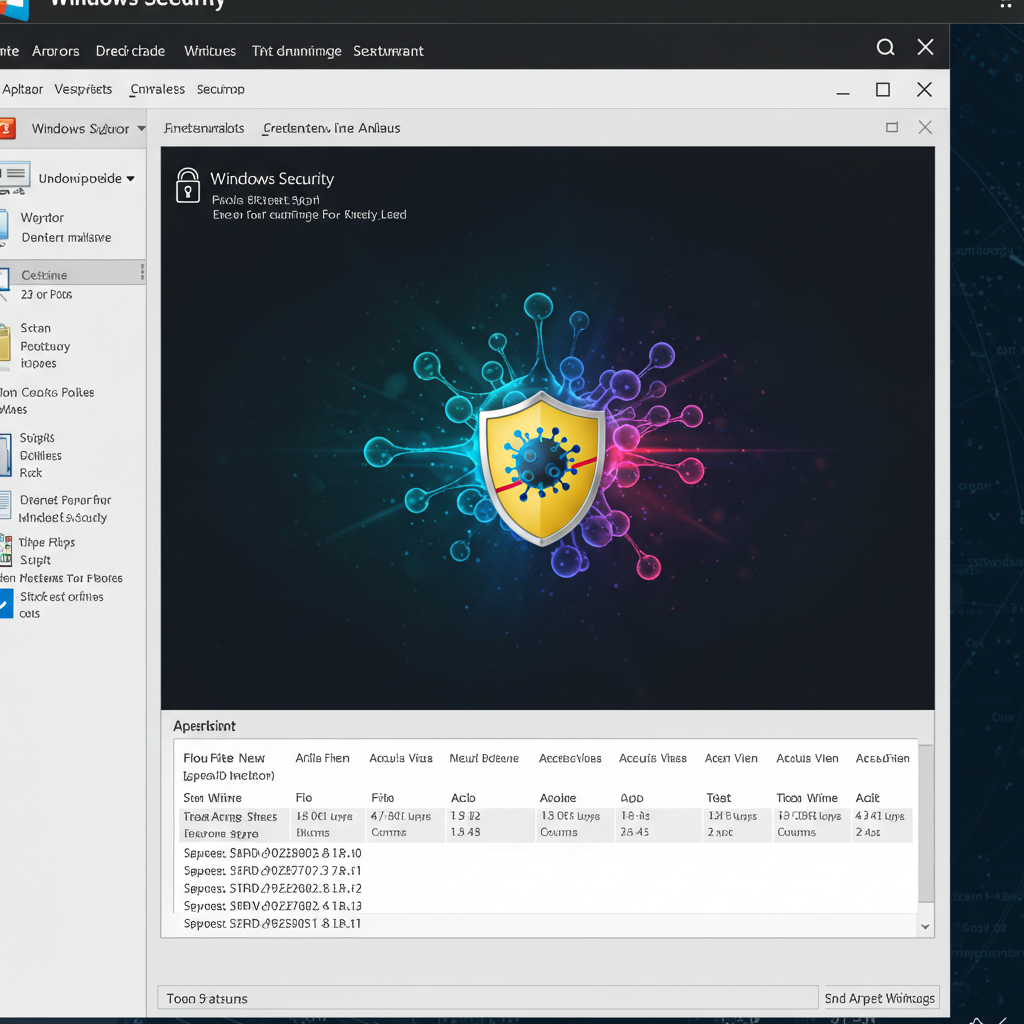
Steps to Scan for Malware:
-
Open Windows Security > Virus & threat protection.
-
Click Quick scan or choose Full scan for a deeper check.
-
You can also use a reputable third-party malware scanner like Malwarebytes.
8. Disable Windows Driver Foundation (Not Recommended)
Warning: This is a last resort. Disabling WDF might stop essential hardware from working correctly.
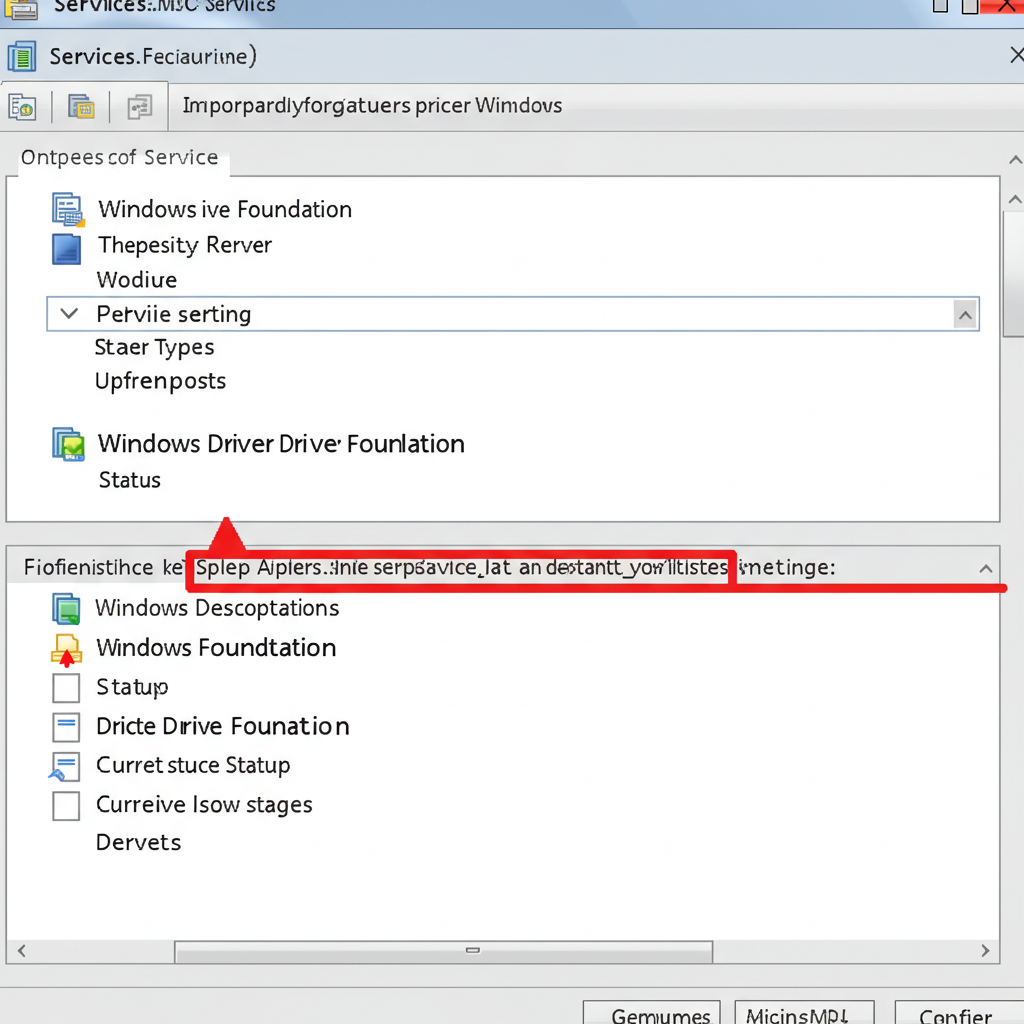
Steps to Disable Temporarily:
-
Press Windows + R, type services.msc, and press Enter.
-
Locate Windows Driver Foundation – User-mode Driver Framework.
-
Double-click it and set Startup type to Manual.
-
Click Stop to halt the service.
-
Monitor your system to see if the CPU usage drops.
If disabling the service causes issues, revert it back to Automatic.
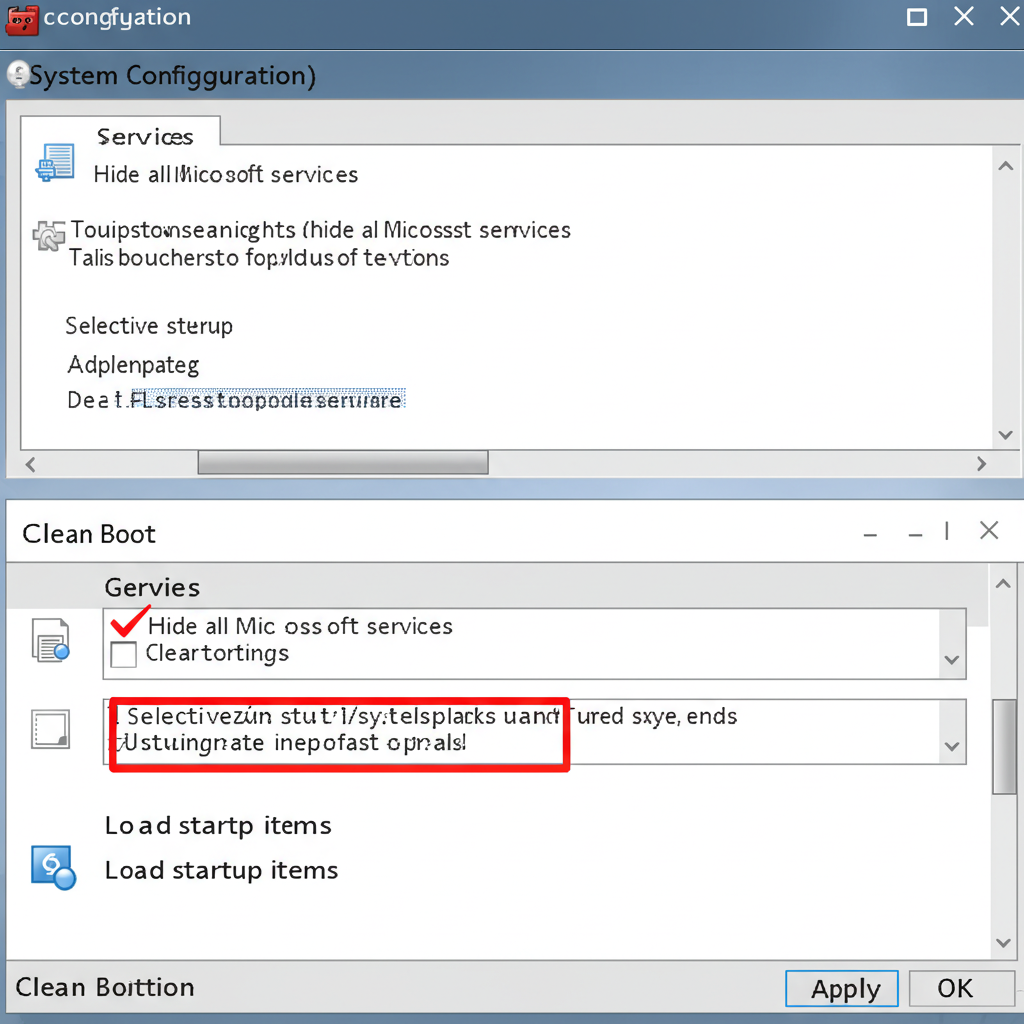
9. Perform a Clean Boot
A clean boot helps you identify if a background service or startup app is causing the high CPU usage.
Steps to Perform Clean Boot:
-
Press Windows + R, type msconfig, and hit Enter.
-
Go to the Services tab, check Hide all Microsoft services, then click Disable all.
-
Go to the Startup tab and click Open Task Manager.
-
Disable all startup items.
-
Restart your PC.
If the problem is resolved, re-enable services one by one to find the culprit.
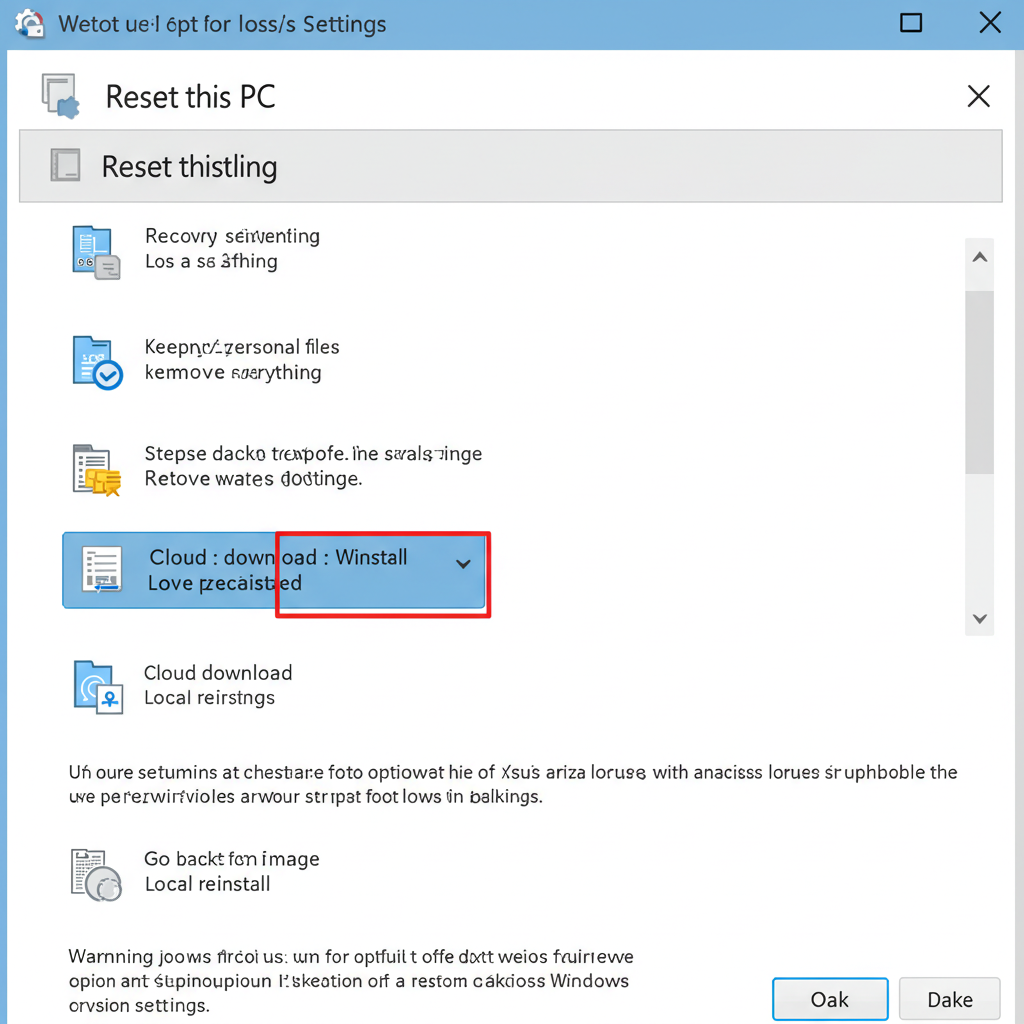
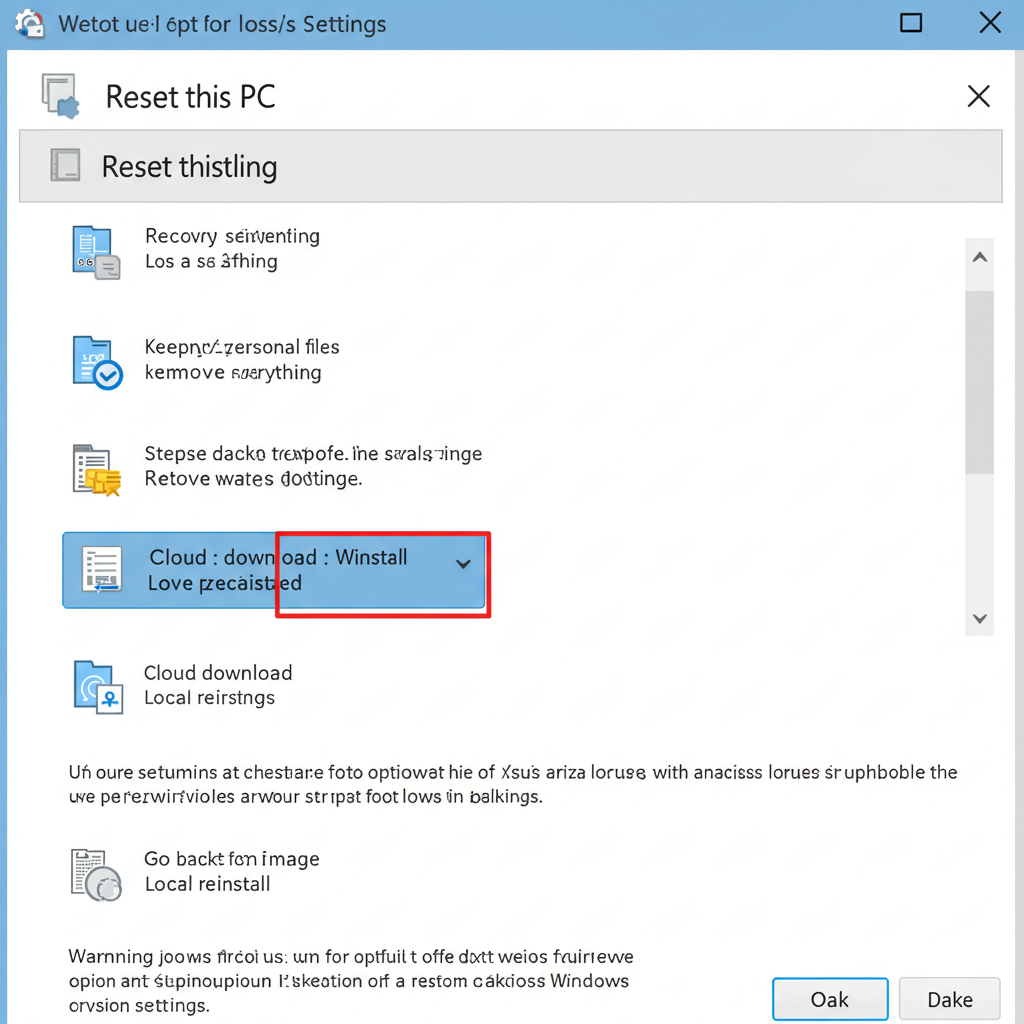
10. Reset Windows (Last Resort)
If none of the methods above work, you can reset Windows. This will reinstall the operating system but allow you to keep your files.
Steps to Reset Windows:
-
Open Settings > System > Recovery.
-
Under Reset this PC, click Reset PC.
-
Choose Keep my files and follow the prompts.
Conclusion
The Windows Driver Foundation service is essential, but when it starts hogging CPU resources, it’s usually a sign of outdated drivers or system conflicts. The steps above—from updating drivers to performing a clean boot—are effective ways to bring your CPU usage back to normal.
If none of these solutions work, you may be dealing with a deeper hardware-level issue, in which case contacting your PC manufacturer or a professional technician is the next best step.