



Ways to Resolve Screen Resolution Issues in Windows 10
Screen resolution issues in Windows 10 can be frustrating, leading to blurry text, stretched images, or black bars on the screen. If your display settings are incorrect, or if Windows 10 is not detecting the correct resolution, there are several ways to troubleshoot and fix the problem.
1. CHECK DISPLAY SETTINGS
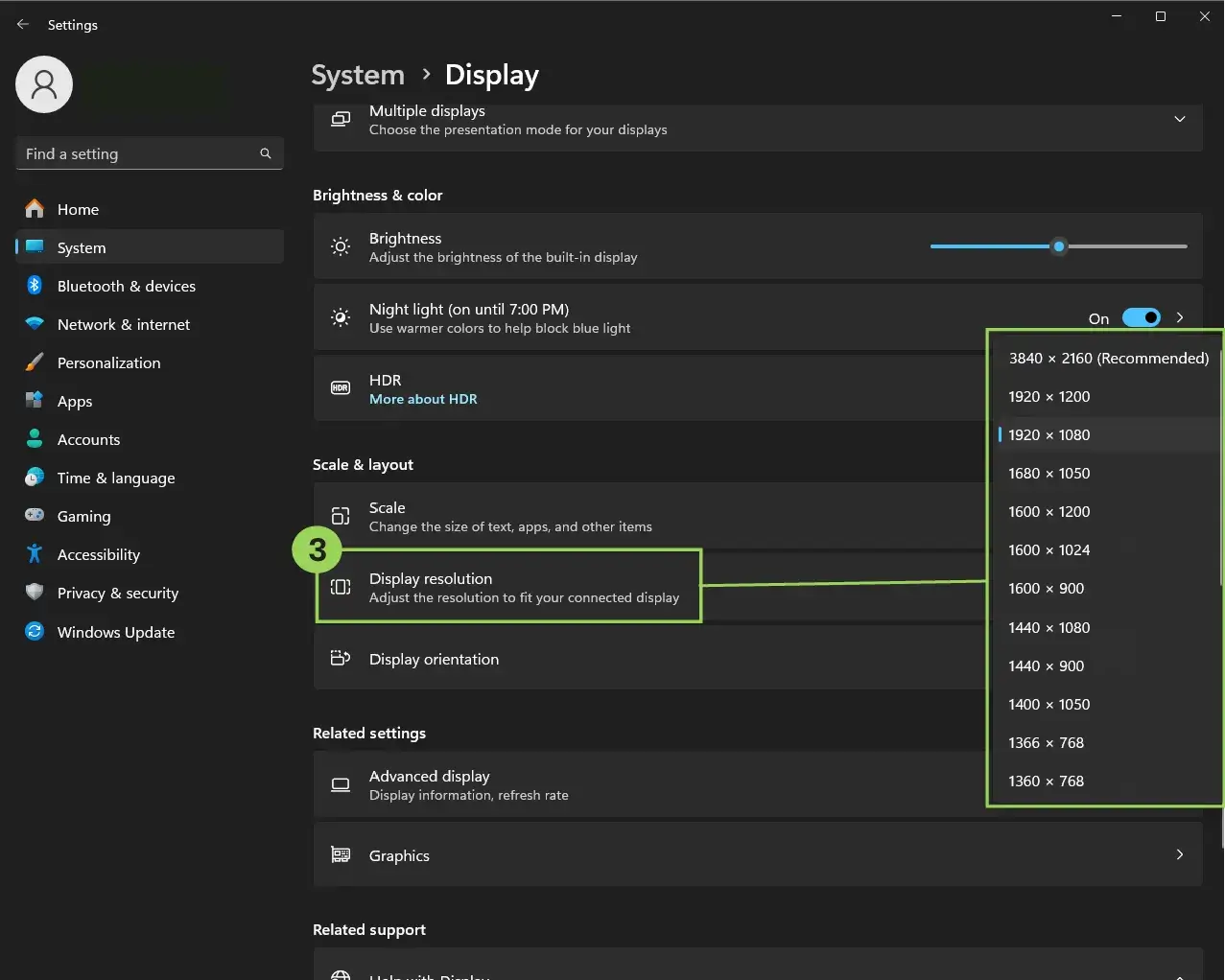
The first step is to ensure that Windows 10 is set to the correct resolution.
- Right-click on the desktop and select Display settings.
- Scroll down to the Display resolution section.
- Click the dropdown menu and select the Recommended resolution.
- Click Apply and confirm the change.
If the resolution options are limited, continue with the next steps.
2. UPDATE GRAPHICS DRIVERS
Outdated or corrupted graphics drivers can cause resolution problems. Updating them can resolve the issue.
- Press Win + X and select Device Manager.
- Expand Display adapters.
- Right-click your graphics driver and select Update driver.
- Choose Search automatically for drivers.
- If an update is available, install it and restart your computer.
If the issue persists, try manually downloading the latest driver from your GPU manufacturer’s website (Intel, AMD, or NVIDIA).

3. ROLL BACK GRAPHICS DRIVER
If the resolution problem started after a driver update, rolling back to a previous version might fix it.
- Open Device Manager and expand Display adapters.
- Right-click your graphics driver and select Properties.
- Go to the Driver tab and click Roll Back Driver (if available).
- Restart your computer and check if the resolution is fixed.

4. REINSTALL GRAPHICS DRIVER
If updating or rolling back the driver doesn’t work, reinstalling it may help.
- Open Device Manager and expand Display adapters.
- Right-click your graphics driver and select Uninstall device.
- Check Delete the driver software for this device and click Uninstall.
- Restart your computer, and Windows will automatically reinstall the driver.
5. CHANGE SCALING SETTINGS
Incorrect scaling settings can cause resolution problems, especially on high-DPI displays.
- Go to Settings > System > Display.
- Under Scale and layout, set 100% (Recommended).
- If text or apps look blurry, click Advanced scaling settings and toggle Let Windows try to fix apps so they’re not blurry.

6. CHECK MULTIPLE DISPLAY SETTINGS
If you’re using multiple monitors, incorrect settings might be affecting the resolution.
- Go to Settings > System > Display.
- Scroll down to the Multiple displays section.
- Select Extend these displays or Duplicate these displays based on your setup.
- Ensure each monitor is set to its native resolution.

7. ENABLE GPU SCALING (FOR AMD/NVIDIA USERS)
If your resolution is incorrect, enabling GPU scaling can fix display issues.
For NVIDIA:
- Right-click the desktop and open NVIDIA Control Panel.
- Navigate to Display > Adjust desktop size and position.
- Under Scaling, select Aspect ratio and enable GPU scaling.
- Apply the settings and restart your PC.
For AMD:
- Open AMD Radeon Settings.
- Go to Display and enable GPU Scaling.
- Set Scaling Mode to Preserve aspect ratio.
- Restart your PC and check if the issue is resolved.
8. RUN WINDOWS TROUBLESHOOTER
Windows has a built-in troubleshooter that can detect and fix display issues.
- Go to Settings > Update & Security > Troubleshoot.
- Click Additional troubleshooters.
- Select Display and run the troubleshooter.
- Follow the prompts to fix any detected issues.

9. CHECK MONITOR CONNECTIONS AND SETTINGS
A loose or faulty cable can cause resolution issues.
- Ensure your HDMI, DisplayPort, or VGA cable is securely connected.
- Try a different cable or port to rule out hardware issues.
- If using a TV as a monitor, check the TV’s aspect ratio settings (set to Just Scan or 1:1 Pixel Mapping).
10. RESET WINDOWS DISPLAY SETTINGS
If nothing works, resetting display settings to default may fix the problem.
- Open Command Prompt as Administrator.
- Type the following command and press Enter:
displaySwitch /reset - Restart your computer and check if the resolution is restored.
FINAL THOUGHTS
Screen resolution problems in Windows 10 can often be fixed by adjusting display settings, updating drivers, or troubleshooting hardware issues. If the issue persists after trying these steps, consider contacting technical support or checking for hardware failures. Let us know which solution worked for you!