


Guide to Switching the Widgets Language on Windows 11
Windows 11 introduces Widgets as a convenient way to stay updated with news, weather, traffic, sports, and other personalized information. Widgets appear from the taskbar and provide quick access to content tailored to your interests. However, many users notice that the Widgets panel sometimes displays content in the wrong language, especially after changing system settings, region preferences, or signing in with a Microsoft account from another country.
This guide explains how to change the Windows 11 Widgets language, why the language may not match your system settings, and how to fix common issues step by step.
How Windows 11 Widgets Determine Language
Before changing the Widgets language, it is important to understand how Windows 11 decides which language to display.
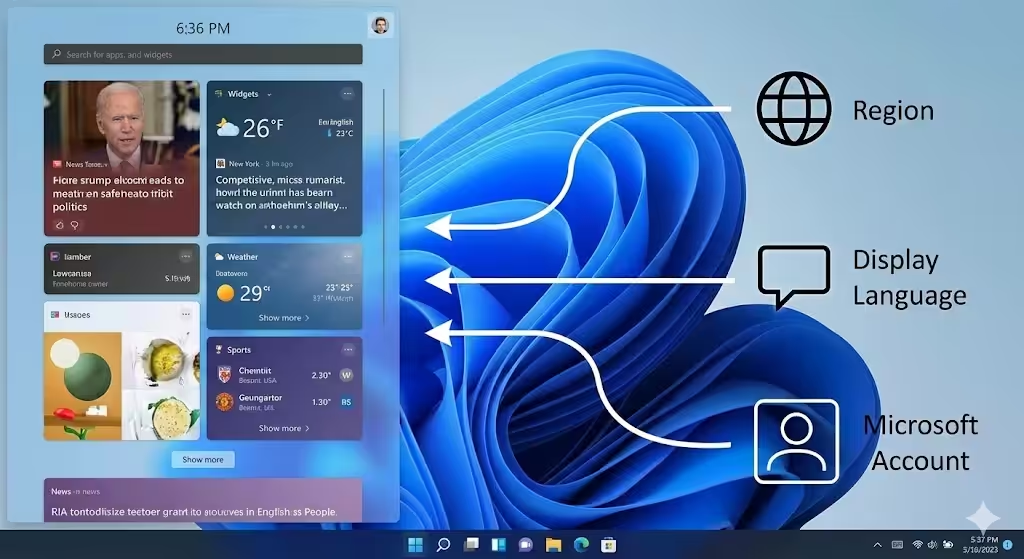
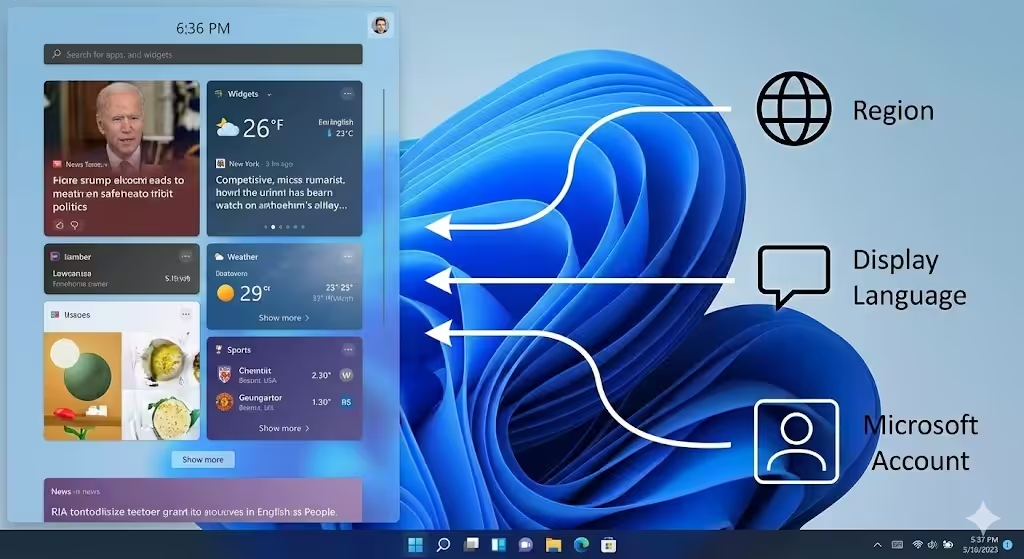
Windows 11 Widgets rely on several factors:
-
Windows display language
-
Region and country settings
-
Microsoft account language preferences
-
Content and location services
If any of these settings are misaligned, Widgets may show news and text in an unexpected language.
Check Your Windows Display Language
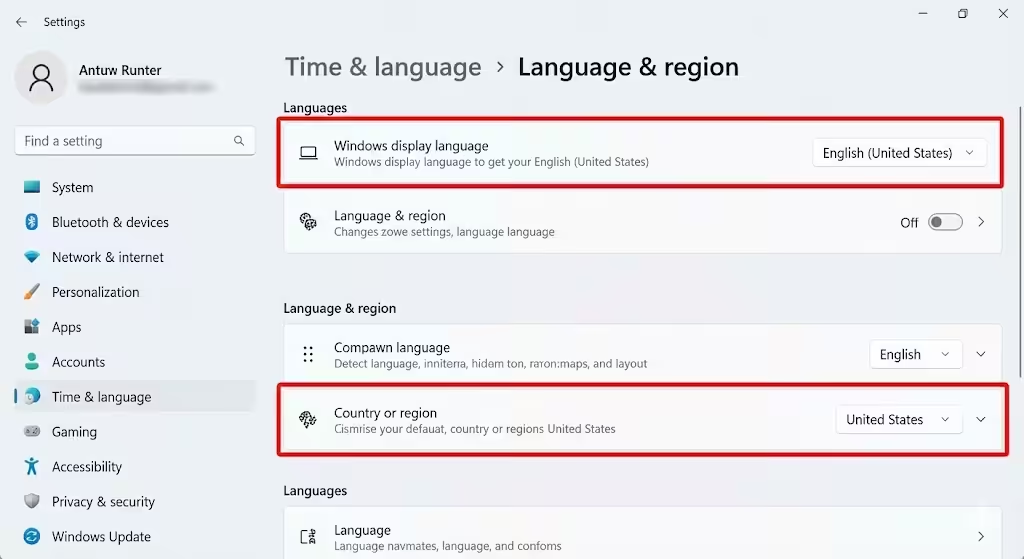
The display language is the primary setting Windows uses for system text and Widgets.
How to Check Display Language
-
Open Settings
-
Go to Time & language
-
Select Language & region
-
Check the Windows display language
If the desired language is not selected, change it and restart your computer.
Why This Step Matters
Widgets usually follow the Windows display language. If this setting is incorrect, Widgets may not update properly.
Change the Region and Country Settings
Region settings directly affect news sources and content language.
Steps to Change Region
-
Open Settings
-
Go to Time & language
-
Click Language & region
-
Under Country or region, select your preferred country
Restart Windows after making changes.
How Region Affects Widgets
Even if the display language is correct, an incorrect region may cause Widgets to show foreign-language news or local content from another country.
Adjust the Language Preferences for Content
Windows allows multiple language preferences for apps and content.
How to Modify Language Preferences
-
Open Settings
-
Go to Time & language
-
Select Language & region
-
Under Preferred languages, reorder or remove languages
Make sure your primary language is at the top.
Why This Is Important
Widgets may pull content from secondary languages if they are prioritized incorrectly.
Check Microsoft Account Language Settings
Windows 11 Widgets are connected to your Microsoft account.
Why Microsoft Account Settings Matter
If your Microsoft account language differs from your Windows language, Widgets may follow the account preference instead.
What to Look For
-
Account region
-
Language preferences
-
Location settings
Aligning your account settings with your system language helps ensure consistency.
Change Widgets Language Using Location Settings
Location services influence Widget content.
How to Enable Location Services
-
Open Settings
-
Go to Privacy & security
-
Select Location
-
Turn on Location services
Why Location Matters
Widgets use location data to determine local news, weather, and language relevance.
Update Windows 11 to the Latest Version
Outdated Windows builds can cause Widgets to ignore language changes.
How Updates Help
-
Fix known Widget bugs
-
Improve language synchronization
-
Enhance content delivery
Install all available updates and restart your system.
Restart Windows Widgets Process
Sometimes Widgets do not refresh after language changes.
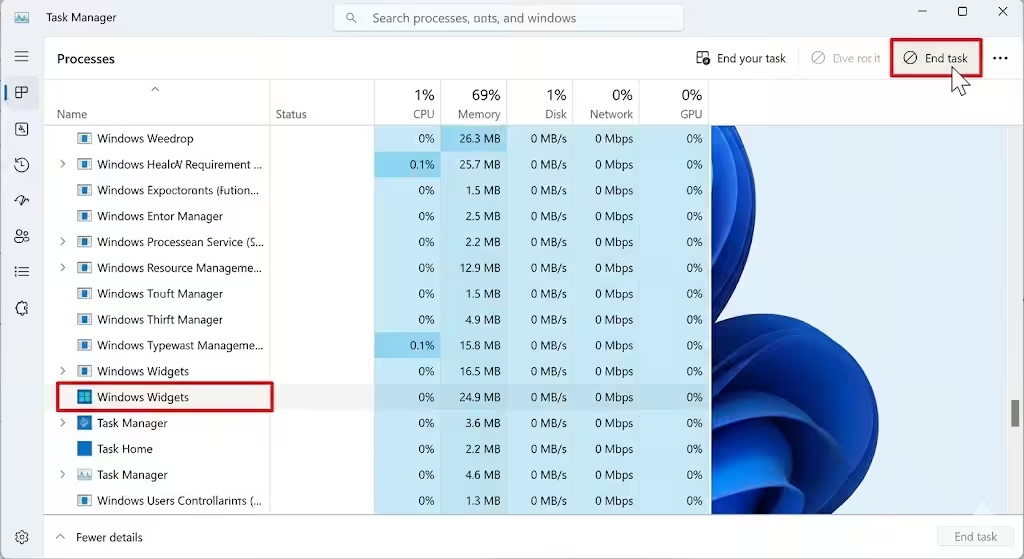
How to Restart Widgets
-
Open Task Manager
-
Find Windows Widgets
-
End the task
-
Open Widgets again from the taskbar
This forces Widgets to reload using the updated language settings.
Clear Widgets Cache
Corrupted cache files can cause language mismatches.
Why Clearing Cache Helps
-
Removes outdated content
-
Forces Widgets to fetch new language data
-
Fixes display issues
Clearing cache helps Widgets reflect current preferences.
Sign Out and Sign Back Into Windows
Signing out refreshes account-based settings.
When to Use This Method
-
Widgets language does not change
-
Microsoft account sync issues
-
Persistent display problems
Sign out, restart your PC, and sign back in.
Reinstall Windows Web Experience Pack
Widgets rely on the Windows Web Experience Pack.
Why This Component Matters
This package controls Widgets behavior, layout, and content language.
Reinstalling it can fix stubborn language issues.
Common Reasons Widgets Language Won’t Change
Some common causes include:
-
Multiple languages installed
-
Incorrect region settings
-
Microsoft account mismatch
-
Cached content
-
Incomplete Windows updates
Identifying the cause helps apply the right fix.
Tips to Keep Widgets Language Consistent
To prevent future issues:
-
Keep only necessary languages installed
-
Use a single region setting
-
Keep Windows updated
-
Avoid frequent region switching
Consistency ensures Widgets display the correct language.
Frequently Asked Questions
Why Are Widgets in a Different Language Than Windows
This usually happens due to region or account settings.
Do Widgets Support Multiple Languages
Widgets support multiple languages but use one primary language at a time.
Can I Set Widgets to a Different Language Than Windows
Currently, Widgets follow system and account settings, not a separate option.
Conclusion
Changing the Windows 11 Widgets language requires more than just adjusting the display language. Widgets rely on a combination of system language, region, Microsoft account preferences, and location services. When these settings are aligned, Widgets update automatically and display content in the correct language.