



Ways to Delete Multiple Hyperlinks in Excel in One Go
Hyperlinks in Excel are useful for navigating to websites, files, email addresses, or other worksheets. However, there are many situations where hyperlinks become unnecessary or even disruptive. For example, when cleaning imported data, preparing reports for printing, or sharing spreadsheets with others, you may want to remove multiple or all hyperlinks at once while keeping the original text intact.
Manually removing hyperlinks one by one can be time-consuming, especially in large worksheets. Fortunately, Excel provides several efficient methods to remove all hyperlinks quickly and safely. This guide explains multiple ways to remove hyperlinks from Excel worksheets at a time, ranging from simple built-in options to advanced techniques.
Why You May Want to Remove Hyperlinks in Excel
Hyperlinks can cause several issues in everyday Excel usage.
Common reasons to remove hyperlinks include:
-
Preventing accidental clicks that open browsers or files
-
Cleaning copied data from websites or emails
-
Preparing worksheets for printing
-
Converting linked text into plain text
-
Reducing visual clutter in reports
Removing hyperlinks does not delete the displayed text unless you explicitly choose to do so.

Understanding How Excel Handles Hyperlinks
Before removing hyperlinks, it helps to understand how Excel stores them.
-
A hyperlink is attached to a cell, not the text itself
-
Removing a hyperlink usually leaves the text unchanged
-
Excel treats hyperlinks as objects, which allows bulk removal
Knowing this makes it easier to choose the right method.
Method 1: Remove All Hyperlinks Using the Right-Click Menu
This is the simplest and fastest method for most users.
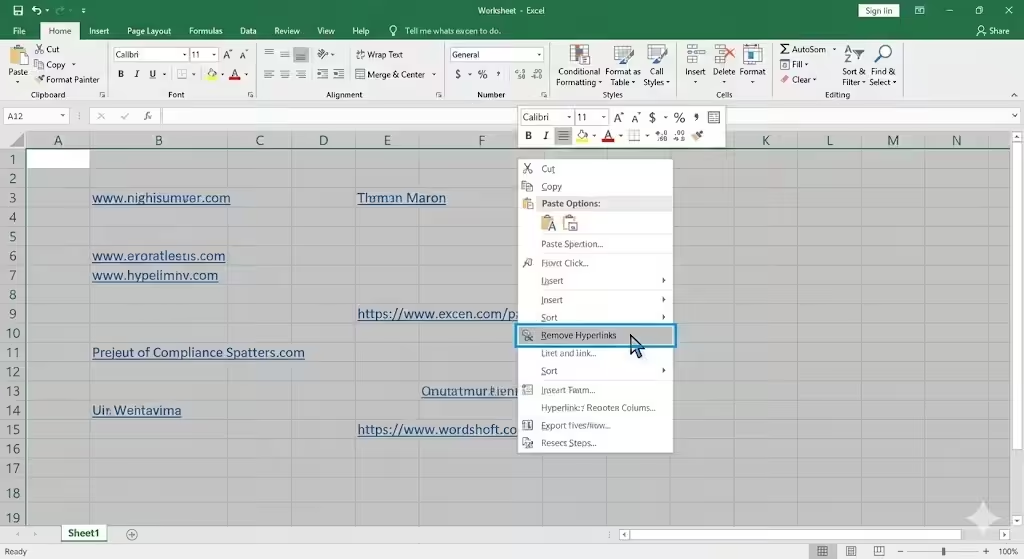
Steps to Remove All Hyperlinks at Once
-
Select the entire worksheet by clicking the triangle at the top-left corner
-
Right-click anywhere in the selected area
-
Click Remove Hyperlinks
All hyperlinks in the worksheet will be removed instantly.
Why This Method Works Well
-
No formulas or tools required
-
Preserves cell text
-
Works on entire worksheets or selected ranges
This method is ideal for quick cleanup tasks.
Method 2: Use Excel’s Clear Hyperlinks Option
Excel includes a built-in command specifically designed to remove hyperlinks.
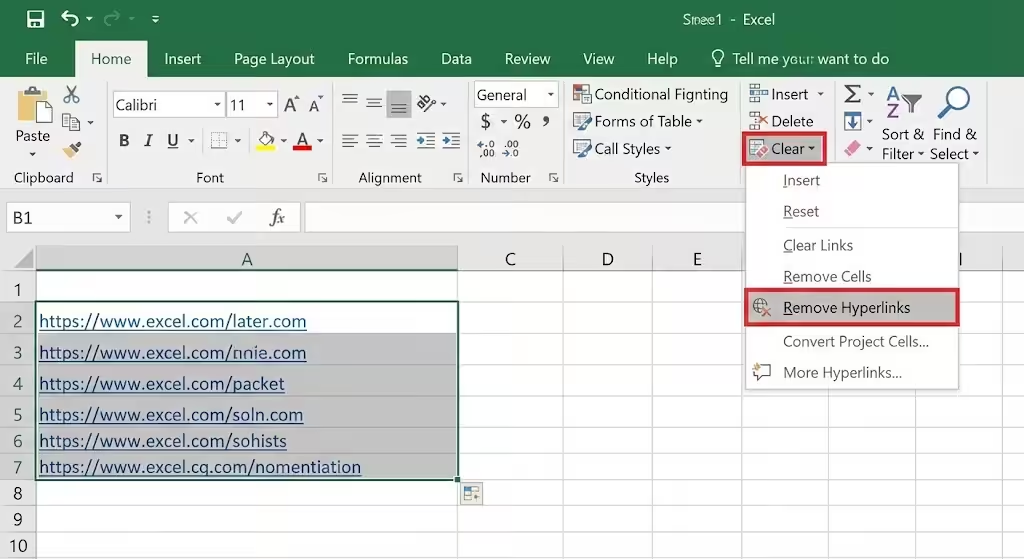
How to Use Clear Hyperlinks
-
Select the cells containing hyperlinks
-
Go to the Home tab
-
Click Clear
-
Choose Remove Hyperlinks
Advantages of This Method
-
Allows selective hyperlink removal
-
Safe for mixed data ranges
-
Easy to access from the ribbon
This is useful when you only want to remove hyperlinks from specific columns or rows.
Method 3: Use Keyboard Shortcuts to Remove Hyperlinks
Keyboard shortcuts offer a faster workflow for experienced users.
Steps Using Keyboard Commands
-
Select the cells with hyperlinks
-
Press Ctrl + Shift + F9
This converts formulas and hyperlinks into plain values.
Important Note
This method:
-
Removes hyperlinks
-
Converts formulas into static values
Use it carefully if your worksheet contains formulas you want to keep.
Method 4: Remove Hyperlinks Using Find and Replace
Find and Replace can help identify hyperlink-like text.
When This Method Is Useful
-
When hyperlinks are mixed with formatted text
-
When links are embedded in large datasets
-
When you want controlled removal
Limitations
This method does not always remove actual hyperlink objects, but it can help clean URL text in certain cases.
Method 5: Remove All Hyperlinks Using Paste Special
Paste Special allows you to strip formatting and links.
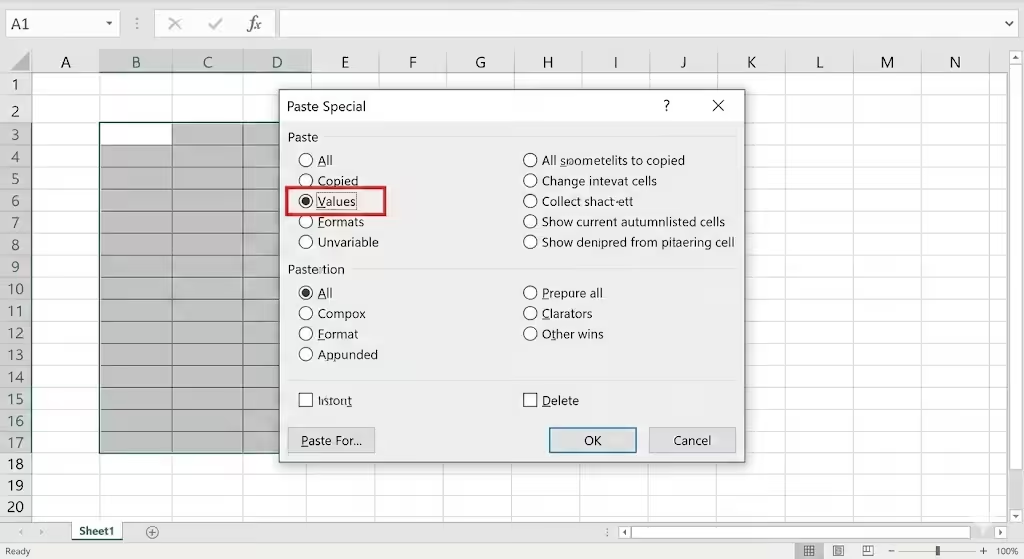
Steps to Use Paste Special
-
Select the cells with hyperlinks
-
Copy them
-
Right-click and choose Paste Special
-
Select Values
This pastes only the displayed text, removing hyperlinks and formulas.
Why Paste Special Is Useful
-
Removes links and formulas
-
Keeps visible data intact
-
Useful for final reports
This is a common method when preparing data for sharing.
Method 6: Remove Hyperlinks Using VBA (Advanced Users)
For large workbooks or repetitive tasks, VBA offers automation.
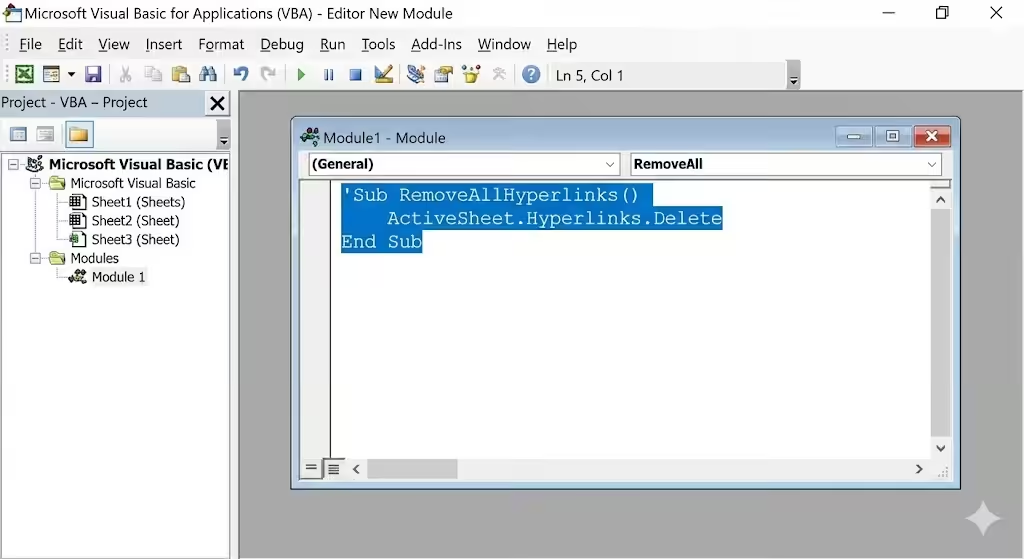
Why Use VBA
-
Removes hyperlinks from entire workbook
-
Saves time for recurring tasks
-
Works across multiple sheets
What VBA Does
A simple VBA macro can loop through all worksheets and remove hyperlinks instantly.
When to Choose VBA
-
Large workbooks with many sheets
-
Frequent hyperlink cleanup tasks
-
Advanced Excel usage
Always save your file before running macros.
Method 7: Remove Hyperlinks from Imported Data
Data imported from websites often contains hidden hyperlinks.
Best Practices
-
Use Paste Special as Values after import
-
Check for auto-generated hyperlinks
-
Clean data before analysis
This prevents issues later in your workflow.
Method 8: Disable Automatic Hyperlink Creation
Excel automatically converts URLs into hyperlinks.
Why Disable This Feature
-
Prevents new hyperlinks from appearing
-
Keeps data clean
-
Reduces repetitive cleanup
Disabling automatic hyperlink creation is useful for users who frequently work with raw URLs.
Common Mistakes to Avoid
Avoid these common errors:
-
Deleting cell contents instead of removing hyperlinks
-
Using Ctrl + Shift + F9 on formula-heavy worksheets unintentionally
-
Forgetting to back up important files
-
Running VBA without saving first
Taking a moment to check your data prevents data loss.
How to Check If All Hyperlinks Are Removed
After removal:
-
Hover over cells to see if links appear
-
Right-click cells to confirm no “Open Hyperlink” option
-
Click cells to ensure nothing opens
If no action occurs, the hyperlinks are gone.
When Hyperlinks Cannot Be Removed Easily
In rare cases:
-
Links may be embedded in shapes or images
-
Cells may be protected
-
Workbooks may be shared or restricted
In these cases, review worksheet protection settings.
Best Practices for Managing Hyperlinks in Excel
To keep worksheets clean:
-
Remove hyperlinks before finalizing reports
-
Use clear formatting for linked text
-
Disable auto-hyperlink creation if not needed
-
Clean imported data immediately
Good habits reduce cleanup time later.
Frequently Asked Questions
Does Removing Hyperlinks Delete the Text
No. The text remains unless you choose to delete it.
Can I Remove Hyperlinks from the Entire Workbook
Yes. VBA is the most efficient method for this.
Is There a Way to Undo Hyperlink Removal
Yes, immediately after removal using Ctrl + Z.
Conclusion
Removing multiple or all hyperlinks from Excel worksheets at once is a common task that can significantly improve readability, usability, and data cleanliness. Whether you prefer using the right-click menu, ribbon tools, keyboard shortcuts, Paste Special, or VBA, Excel provides flexible solutions for users of all skill levels.