


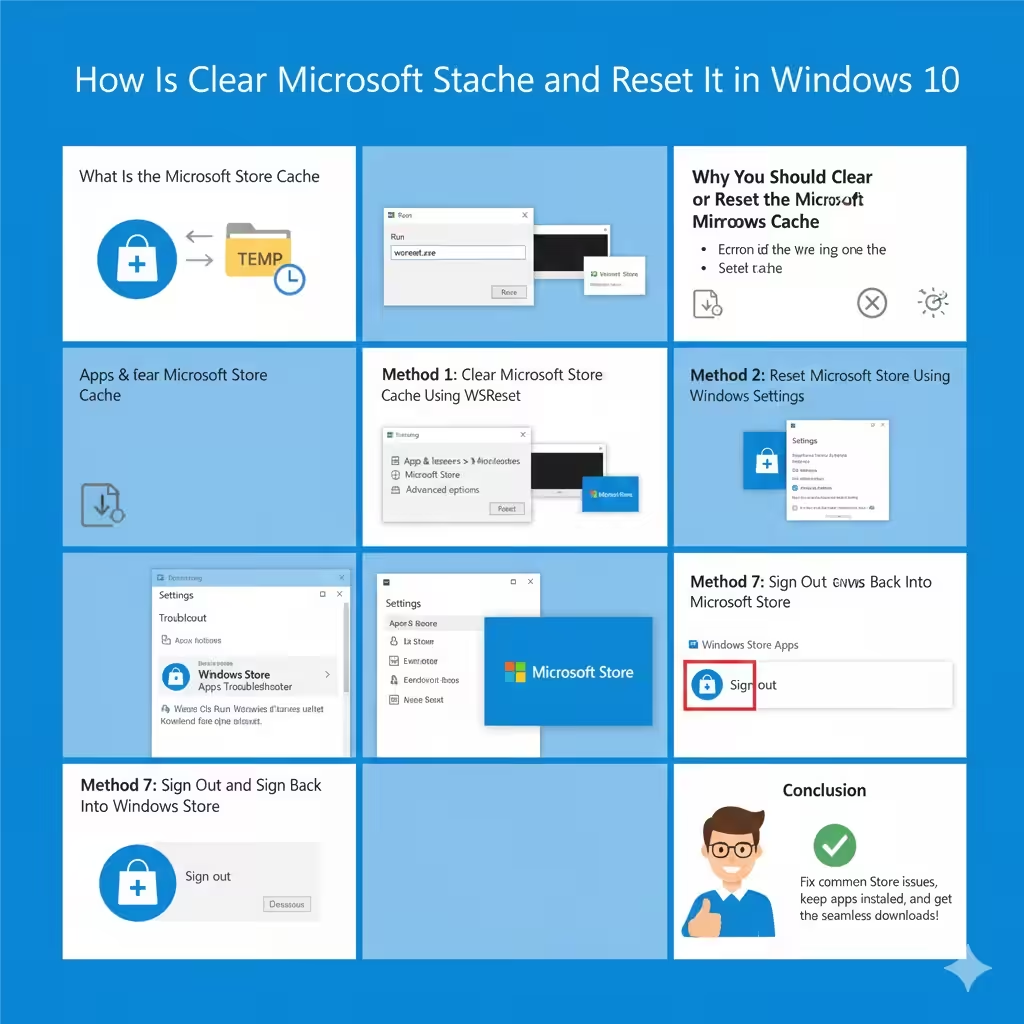
How to Clear Microsoft Store Cache and Reset It in Windows 10
The Microsoft Store in Windows 10 allows users to download apps, games, and updates safely from Microsoft’s official platform. However, like any app that relies on cached data, the Microsoft Store can sometimes develop issues. You may notice apps failing to download, updates getting stuck, error messages appearing, or the Store opening but not loading content properly.
In many cases, these problems are caused by a corrupted or overloaded Microsoft Store cache. Clearing and resetting the cache is a safe and effective way to fix these issues without deleting your installed apps. This guide explains how to clear and reset the Microsoft Store cache in Windows 10, step by step.
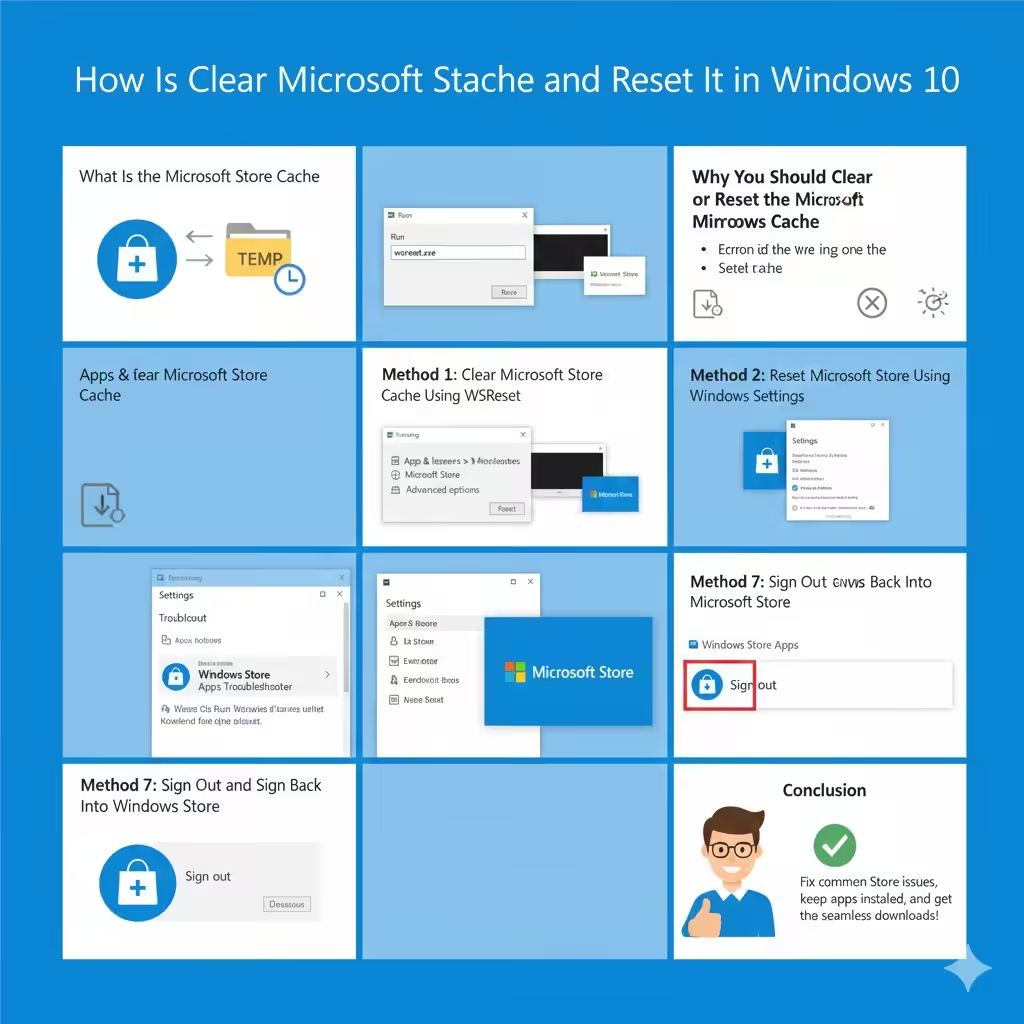
What Is the Microsoft Store Cache
The Microsoft Store cache stores temporary files that help the Store load faster and remember certain settings. This includes:
-
App download data
-
Temporary installation files
-
Store preferences
-
Session information
While caching improves performance, corrupted cache files can cause unexpected behavior.
Why You Should Clear or Reset the Microsoft Store Cache
Resetting the cache can fix many common Store-related issues.
Typical problems solved by clearing the cache include:
-
Apps stuck on “Downloading” or “Pending”
-
Microsoft Store not opening
-
Error codes during app installation
-
Store pages not loading
-
Updates failing repeatedly
Clearing the cache does not remove your Microsoft account or installed apps.
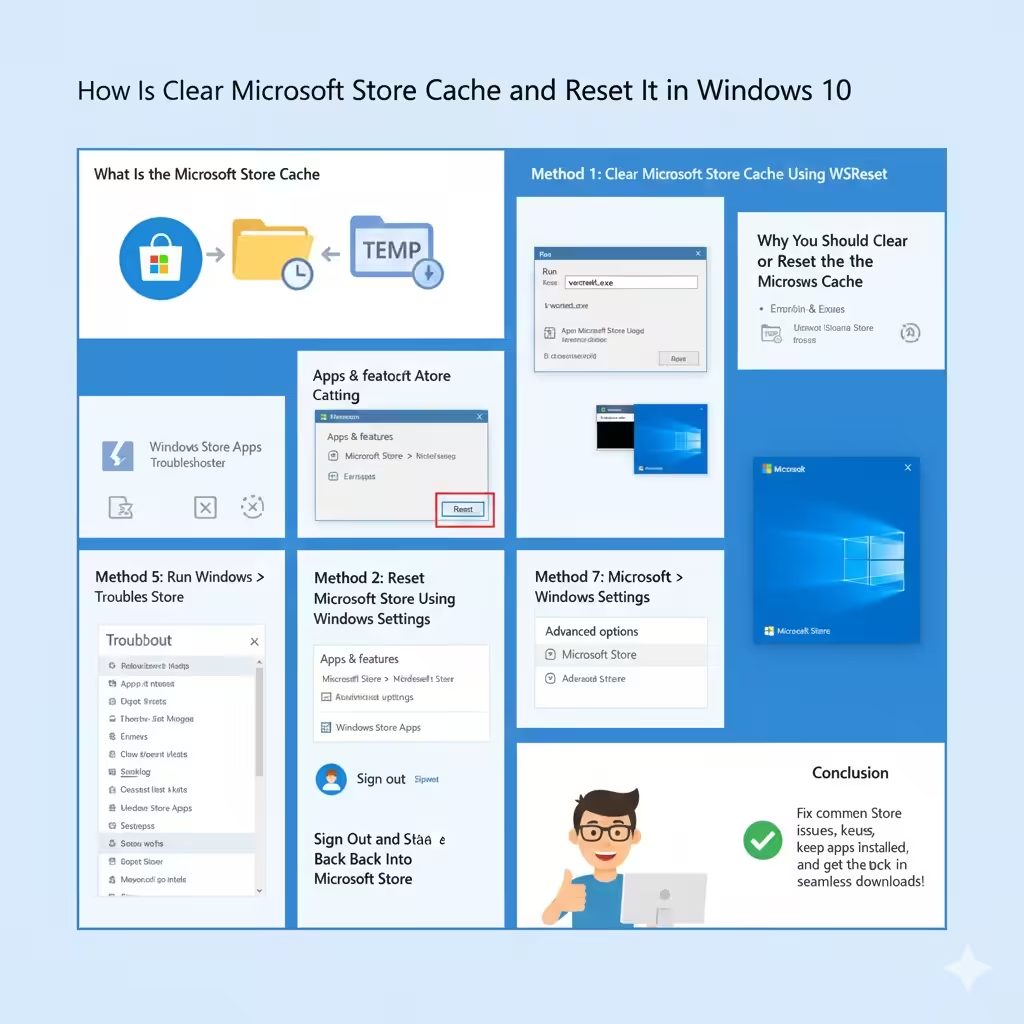
Difference Between Clearing and Resetting the Cache
Although often used interchangeably, clearing and resetting are slightly different.
-
Clearing the cache removes temporary files
-
Resetting the Store restores it to its default state
Both methods are safe, but resetting is more thorough.
Method 1: Clear Microsoft Store Cache Using WSReset
WSReset is the simplest and most commonly used tool.
What Is WSReset
WSReset is a built-in Windows utility designed specifically to clear the Microsoft Store cache.
Steps to Use WSReset
-
Press Windows + R
-
Type
wsreset.exe -
Press Enter
A blank Command Prompt window will appear for a few seconds. When it closes, the Microsoft Store will open automatically.
What This Method Does
-
Clears cached Store data
-
Does not delete apps or settings
-
Fixes many common Store issues
This method is safe and recommended for most users.
Method 2: Reset Microsoft Store Using Windows Settings
If clearing the cache does not work, resetting the Store is the next step.
Steps to Reset Microsoft Store
-
Open Settings
-
Go to Apps
-
Click Apps & features
-
Find Microsoft Store
-
Click Advanced options
-
Select Reset
Confirm the reset when prompted.
What Happens After Resetting
-
Cache and app data are cleared
-
Microsoft Store settings return to default
-
Installed apps remain intact
You may need to sign in again after resetting.
Method 3: Clear Microsoft Store Cache Manually
Advanced users can manually remove cache files.
Where Microsoft Store Cache Is Stored
The cache is stored in a hidden system folder associated with your user account.
Why Manual Clearing Can Help
-
Removes stubborn corrupted files
-
Useful when WSReset fails
-
Allows deeper cleanup
Important Warning
Do not delete system folders unless you know what you are doing. Manual methods should be used carefully.
Method 4: Re-wp-signup.php Microsoft Store
Sometimes the Store app itself is not wp-signup.phped correctly.
When to Re-wp-signup.php
-
Store does not open at all
-
Reset and WSReset fail
-
App behaves unpredictably
What Re-wp-signup.phping Does
Re-wp-signup.phping restores the Store app’s configuration and permissions.
This method is effective for deeper issues related to app registration.
Method 5: Run Windows Store Apps Troubleshooter
Windows 10 includes a built-in troubleshooter for Store apps.
Steps to Run the Troubleshooter
-
Open Settings
-
Go to Update & Security
-
Click Troubleshoot
-
Select Additional troubleshooters
-
Choose Windows Store Apps
-
Run the troubleshooter
Windows will detect and fix common problems automatically.
Method 6: Check Date, Time, and Region Settings
Incorrect system settings can prevent the Store from functioning properly.
Why This Matters
Microsoft Store relies on correct:
-
Date and time
-
Time zone
-
Region settings
Fixing these settings can resolve Store errors without resetting the cache.
Method 7: Sign Out and Sign Back Into Microsoft Store
Account-related issues can also cause Store problems.
How to Sign Out
-
Open Microsoft Store
-
Click your profile icon
-
Select Sign out
Restart your PC, open the Store again, and sign back in.
Method 8: Update Windows 10
Outdated Windows versions can cause compatibility problems.
Why Updates Help
-
Fix known Store bugs
-
Improve app compatibility
-
Update system components
Install all available updates and restart your system.
How to Check If the Cache Reset Worked
After clearing or resetting:
-
Open Microsoft Store
-
Try downloading an app
-
Check if error messages are gone
If the Store works normally, the cache reset was successful.
Common Mistakes to Avoid
Avoid these mistakes:
-
Deleting system folders randomly
-
Resetting Windows instead of the Store
-
Using third-party “Store fixer” tools
-
Ignoring Windows updates
Safe, built-in tools are always better.
When Clearing the Cache Is Not Enough
In rare cases, Store problems may be caused by:
-
Corrupted user profiles
-
System-wide Windows issues
-
Network or firewall restrictions
In these situations, additional troubleshooting may be required.
Preventing Microsoft Store Cache Issues
To minimize future problems:
-
Keep Windows updated
-
Avoid interrupting app downloads
-
Maintain stable internet connections
-
Restart your PC occasionally
Regular maintenance helps prevent cache corruption.
Frequently Asked Questions
Does Clearing the Cache Delete Apps
No. Installed apps remain untouched.
Will I Need to Sign In Again
Only if you reset the Store, not when using WSReset.
Is WSReset Safe
Yes. It is a Microsoft-provided tool.
Conclusion
Clearing and resetting the Microsoft Store cache in Windows 10 is a simple yet powerful solution to many common Store-related problems. Whether you use the built-in WSReset tool, reset the app through Settings, or run the Windows Store Apps troubleshooter, these methods can restore normal functionality without risking your data or installed apps.